One of the best programs to make outstanding videos is Windows Movie Maker. This Microsoft tool lets your creativity shine.
But now that Windows Movie Maker was officially discontinued on January 10, 2017, and is no longer available in newer Windows versions, we will cover the old method to improve your video quality in Windows Movie Maker, then introduce modern, supported alternatives to truly enhance your video quality.
Part 1. Can You Enhance Video in Windows Movie Maker and How
- This part is for those who already have Windows Movie Maker on their PC, and for archival reference. There's currently no official way to download and install Windows Movie Maker on newer versions of Windows. If your PC doesn't have it pre-installed, I suggest you turn straight to an alternative. Do not download from third-party sources – they're likely to contain malware.
Windows Movie Maker isn't smart enough to truly add pixels or reduce noise in the video. Though you can make videos look better by adjusting its export resolution, bitrate, and frame rate, the quality is still limited by the source video.
Step 1Open a video in Windows Movie Maker.
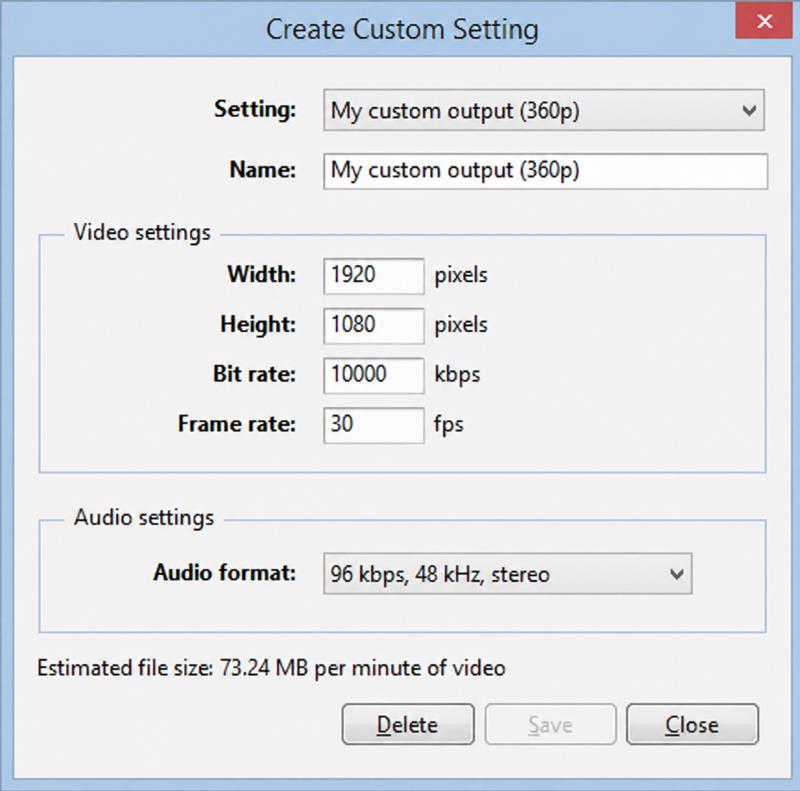
Step 2Go to File > Save Movie > Create Custom Setting.
Step 3Set the video to the following specs:
- Resolution: 1920 × 1080 (or 1280 × 720, depending on your needs)
- Bitrate: 8,000–12,000 kbps
- Frame rate: 30 fps (or 60 if your source supports it)
Step 4Select your new custom setting, choose a format (WMV or MP4 recommended). Then save the file.
Note: For playback quality, Windows Movie Maker has multiple settings. Once you export your movie file, hit the Show more options button below, click the Other Settings radio button and choose the required quality level. Select the High-quality video (NTSC) for high-quality videos, and then click Next to save your video with the changed quality settings. Please remember that the file size of these movies is frequently substantial.
Part 2. What Should Actual Video Enhancement Do
Increase resolution. For example, turning 720p to 1080p or 4K.
Reduce noise. Removes grain and blocks, making the video cleaner.
Color & white balance. Corrects color casts to make the video look more natural.
Stabilization. Reduces camera shake, so the video is smoother to watch.
Among them, Windows Movie Maker can only increase the output resolution, which is still heavily limited by the original video. To improve a video's quality for real, you'll need more powerful video editors.
Part 3. Best Alternatives to Truly Improve Video Quality
AVAide Video Converter (The Easiest Way)
AVAide Video Converter is the most outstanding movie maker alternative for Windows Movie Maker if you want a lot easier ways to improve video quality. Consider that it may even lessen the shakes uncontrollably in your movies while adjusting their brightness till you get your desired result. You will never be afraid of AVAide Video Converter since it will transform your unattractive films into the most appealing video content that you will ever publish.
Furthermore, the power of this great program could be felt not only on Windows computers but also on Mac. Without further ado, let's get into the next sections and know-how for improving video quality using the greatest software.
- It has a plethora of settings for improving the movie quality.
- It has a variety of themes, filters, and effects.
- The user can customize the watermark and subtitle.
- Post your videos on various social media networks in real-time.

 Secure Download
Step 1Go to the top movie creator's official website to download it for free. Otherwise, use one of the download links provided above.
Step 2To proceed, press the Toolbox tab, then choose the Video Enhancer to start enhancing your movie quality most effortlessly.

Step 3After you've clicked the Video Enhancer, the panel will show on your screen. Click the Plus button, and the file folder will show. Locate the file and click Open to upload it successfully.

Step 4To improve the video quality of your movie, you can select all the four options that offer, including Upscale Resolution, Optimize brightness and Contrast, Remove Video Noise, and Reduce Video Shaking. These options for improving your movie quality are beneficial and will surely enhance your video without quality loss. However, you can also adjust the Resolution by clicking it and choosing your preferred resolution.

Step 5Finally, you can save the final enhanced video by clicking the Enhance button, which will instantly export to the folder. But if you want to preview your work, click the OK button once the enhancement is done.
In addition to enhancing video quality, it can also make new movies with its excellent MV feature.

DaVinci Resolve (Advanced Manual Solution)
DaVinci Resolve is renowned for its professional features and cost-free availability. It doesn't enhance videos in mere clicks as AVAide Video Converter does, but you can improve your video by adjusting the settings manually.
Step 1Create a new project and import your video into the Media Pool.
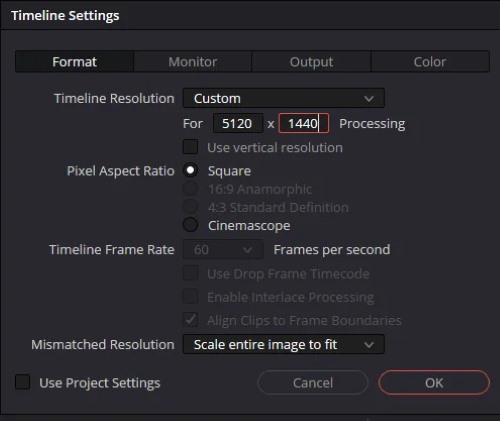
Step 2Go to File > Project Settings. Under Timeline Resolution, choose a higher resolution, like 1920 × 1080. Then click OK.
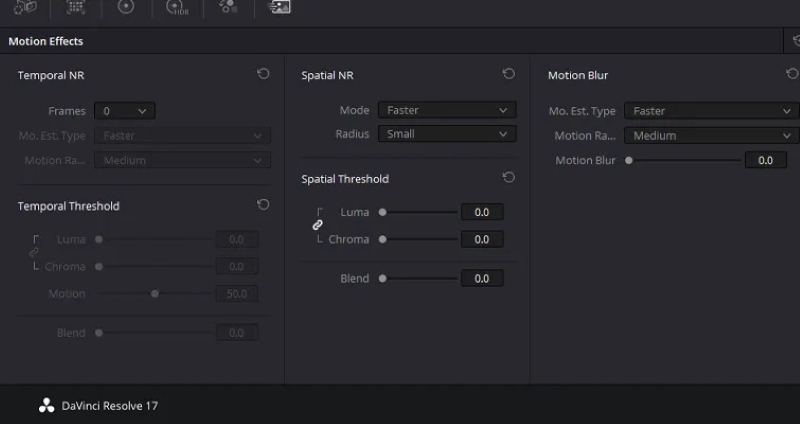
Step 3Drag the video from the Media Pool to the timeline. Switch to the Color page, select the clip, then go to Motion Effects to turn on Temporal Noise Reduction and Spatial Noise Reduction. Adjust the values according to the preview result.
Step 4Still on the Color page, go to Sharpen, and apply a mild sharpen amount. Look carefully at the result: too much sharpening can make the video look unnatural.
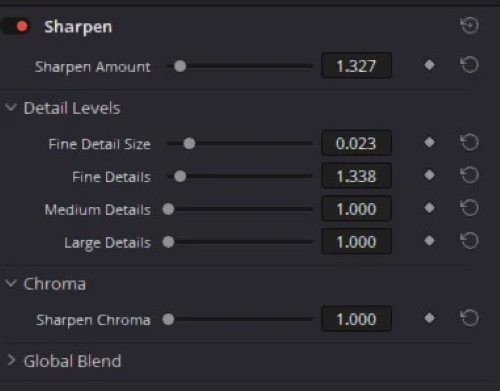
Step 5Go to the Deliver page, click Add to Render Queue, then Render All.
Topaz Video (AI Video Upscaling)
Unlike traditional video editors, AI upscalers can automatically improve resolutions and restore details even if the original video is awfully fuzzy. They are qualified for extreme missions such as recovering a 360p video. But the downside is they sometimes invent details, making the video look artificial.
Topaz is one of the best AI video upscalers. It produces the most natural result, like it knows what to enhance and where to stop. For one-click AI upscaling, nothing beats Topaz. But so is its price. It is great for those who regularly enhance video quality, but if you only need a one-time solution, it's not very cost-efficient.
Step 1Open Topaz Video. Drag and drop your video to import.
Step 2On the right-side Adjustment panel, find Enhancement and turn it on. Then set a target resolution for the output. Try not to enlarge it too much: an enlargement of about 1 – 2×is acceptable.
Step 3Under Video Type, choose the right type for your footage. Topaz offers different AI models depending on the video type.
- Progressive: best for modern smartphone recordings, YouTube videos, modern cameras
- Interlaced: best for classic video types like DVD recordings and VHS.
Step 4Choose an AI model. Proteus is good for most scenarios.
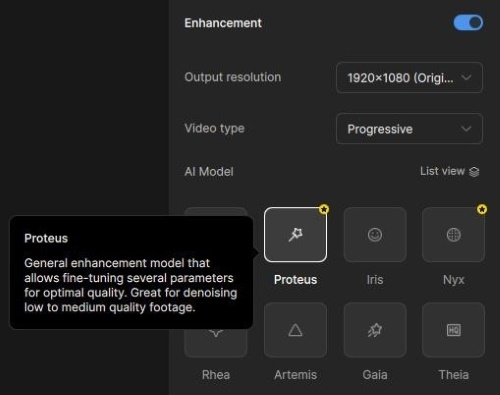
Step 5Move the playhead to a representative section and click Render Preview.
Step 6When you're sure it's good, open Codec Settings, select a format and bitrate, then click Export.
Quick Comparison of the 3 Video Enhancers
| Tool | Best For | Key Strength | Ease of Use | Free Version |
| AVAide Video Converter | Beginners and quick improvements | One-click automatic enhancement with simple workflow | ⭐⭐⭐⭐⭐ Easy | Yes |
| DaVinci Resolve | Advanced users and professionals | Abundant editing tools and manual adjustment | ⭐⭐ Requires learning | Yes |
| Topaz Video | Low-quality or old videos | Powerful AI upscaling and detail recovery | ⭐⭐⭐⭐ Easy | No |
Part 4. FAQs about Windows Movie Maker
Is there a new Microsoft default app taking WMM's place?
Yes, that is Clipchamp. It can make the video look better by adjusting brightness, saturation, etc, but it can't enhance video quality. If you want more advanced controls, AVAide Video Converter and DaVinci Resolve are better.
Is it possible that Windows Movie Maker degrades video quality?
WMM shows a low-quality thumbnail in the preview during editing. Still, when you save the video, the original quality will be preserved.
Can I get Windows Movie Maker for free?
It is free as an official built-in for Windows 10 and earlier. But now that it's discontinued, you just can't get it, for free or paid.
Can Windows Movie Maker handle 4K resolution?
Not really. Although you can import 4K video into Windows Movie Maker, the output is only Full HD, 1920 × 1080 WMV, or mp4 files.
To conclude, using Windows Movie Maker to increase video quality is simple but not really practical. We recommend that you choose the better alternative to Windows Movie Maker. We strongly propose AVAide Video Converter. We anticipate that you have already discovered the most incredible Windows Movie Maker alternative. Take advantage of this great software's superiority, particularly in creating stunning video content.
ABOUT THE AUTHOR

Your complete video toolbox that supports 350+ formats for conversion in lossless quality.
Video Enhancement
- Upscale 1080p to 4K
- Upscale 480p to 1080p
- Downscale 4K to 1080p/720p
- Downscale 1080p to 480p
- Upscale DVD to 1080p/720p
- Fix Bad Quality Video
- AI Video Upscale
- Enhance Video Quality
- Improve TikTok Video Quality
- Best Video Enhancer
- Video Enhancer App for iPhone & Android
- Best 4K Video Enhancer
- AI Upscale Video
- Clean up Video Quality
- Make Video Higher Quality
- Make a Video Brighter
- Best Blur Video App
- Fix Blurry Videos
- Improve Zoom Video Quality
- Improve GoPro Video Quality
- Improve Instagram Video Quality
- Improve Facebook Video Quality
- Improve Video Quality on Anroid & iPhone
- Improve Video Quality in Windows Movie Maker
- Improve Video Quality in Premiere
- Restore Old Video Quality
- Sharpen Video Quality
- Make Video More Clearer
- What is 8K Resolution
- 4K Resolution: Everything Your Need To Know [Explained]
- 2 Amazing Ways to Increase Video Resolution Losslessly
- Video Resolution Converter: Things to Ponder in Getting One
- The Outstanding 5K to 8K Converter You Shouldn’t Miss!
- Remove Background Noise From Video: With Three Efficient Ways
- How to Remove Grain from Video Using the 3 Remarkable Ways