Although MP4 is widely used on modern devices and software, it's not supported by some old video players, early-version editors, or classic DVD authoring tools. For a better compatibitly with legacy workflow, convert your MP4 to AVI with the 6 solutions in the article.
- MP4 vs AVI: Which One Do You Need
- Part 1: The Best Solution to Convert MP4 to AVI Format with High Quality
- Part 2: How to Convert MP4 to AVI using VLC Media Player
- Part 3. How to Convert MP4 to AVI using Command Lines on FFmpeg
- Part 4: 2 Free Online Tools to Convert MP4 to AVI Videos
- Part 5. Comparison of the 5 MP4-to-AVI Converters
- Part 6: FAQs of Converting MP4 to AVI Format
MP4 vs AVI: Which One Do You Need
Key Differences Between MP4 and AVI
Generally speaking, MP4 is modern, while AVI is legacy. Introduced in 1992, AVI was the top-tier choice at the time because its simplicity fit hardware well. MP4, on the other hand, is a newer and more complex container made for the Internet. It's highly compatible with most modern devices and streaming.
| Features | MP4 | AVI |
| Full Name | MPEG-4 Part 14 | Audio Video Interleave |
| Introduced | 2001 | 1992 |
| Common Codecs | H.264, H.265/HEVC, AV1, AAC | DivX, Xvid, DV, MJPEG, uncompressed video |
| File Size | Usually smaller | Usually larger |
| Subtitle Support | Yes | No |
How to Choose MP4 or AVI
MP4 is best for: most modern computers and smartphones, everyday streaming, sharing online
AVI is best for: old or specialized software that requires AVI, such as VirtualDub, Microsoft Video for Windows (VfW), DVD Flick, ImgBurn, MAGIX Music Maker, etc.
Part 1: The Best Solution to Convert MP4 to AVI Format with High Quality
AVAide MP4 Converter offers a one-stop solution for you to convert MP4 to AVI format. It can convert between video formats like MP4, AVI, WMV, VOB, MKV, and more without losing quality. Moreover, AVAide MP4 Converter goes beyond conversion: it is also a powerful video editor with a wide range of fantastic features, such as cropping, trimming, compressing, rotating, etc.The intuitive interface can also help you quickly convert MP4 videos to AVI format.
- Convert any videos to 300+ formats, including converting MP4 to AVI.
- Provide 1080p/2K/4K/5K/8K resolution to export AVI videos in high quality.
- Able to adjust the video codec, resolution, frame rate, etc.
- Cut, rotate, edit the videos, and add filters and effects to the videos.

 Secure Download
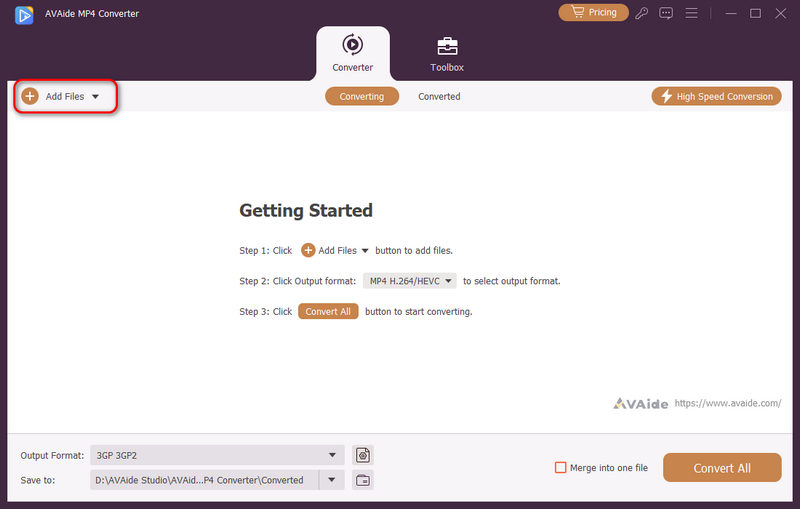
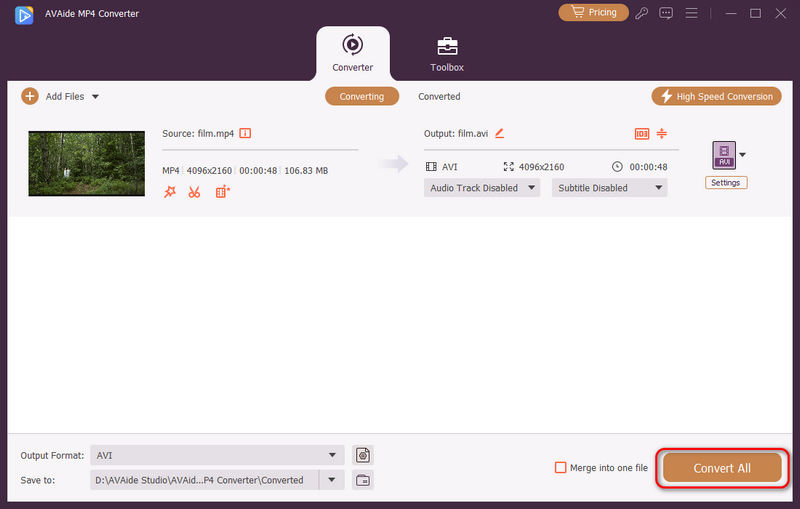
Step 1Free download AVAide MP4 Converter on Windows/Mac and launch it on your computer. Click the Add Files button to select the desired MP4 files to add. You can also drag and drop the MP4 files you want to convert to AVI format to the software.
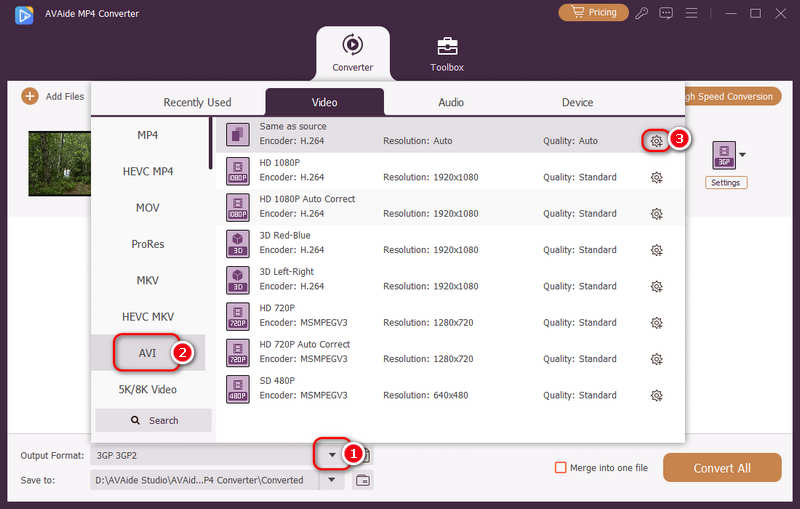
Step 2Click the Output Format dropdown button to choose an AVI format. For example, you can choose the Same as Source resolution to keep the original quality. If you want to set the parameters further, you can click the Custom Profile button and change the video codec and frame rate. After that, you can click the OK button to save the settings.
Step 3Then go back to the main interface and choose the desired storage path. At last, you can click the Convert All button to start converting MP4 videos to AVI files with no watermark.
Part 2: How to Convert MP4 to AVI using VLC Media Player
VLC is a free application that supports many input and output formats, and is available on all platforms: Windows, macOS, Linux, Android, and iOS. It's originally designed for video playback, but you can easily convert MP4 to AVI by changing the output container and codec.
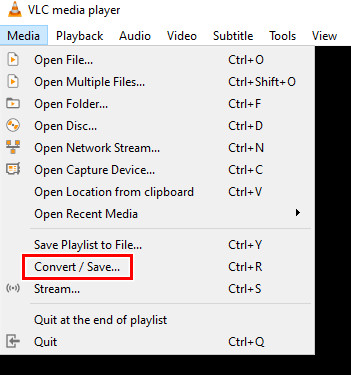
Step 1Open VLC. Click the Media button at the top-left corner, then select Convert/Save in the dropdown menu.
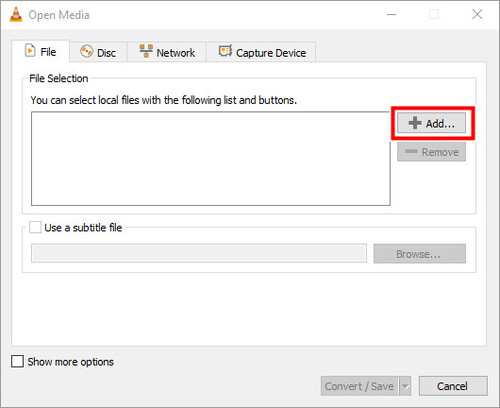
Step 2In the small window that appears, click Add to import an MP4 from your local folders.
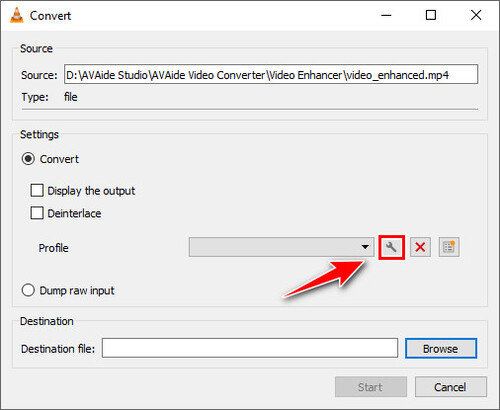
Step 3Next to the Profile box, click the wrench button to customize the output format.
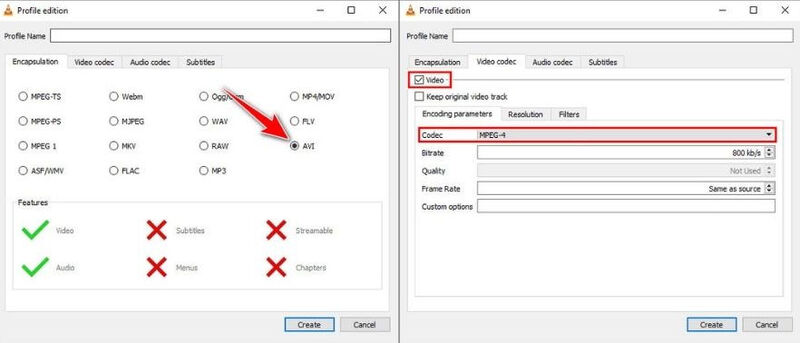
Step 4Select the AVI container in Encapsulation. Then switch to the Video Codec tab, tick on Video, and choose a codec. We recommend MPEG-4 or Xvid for the best compatibility.
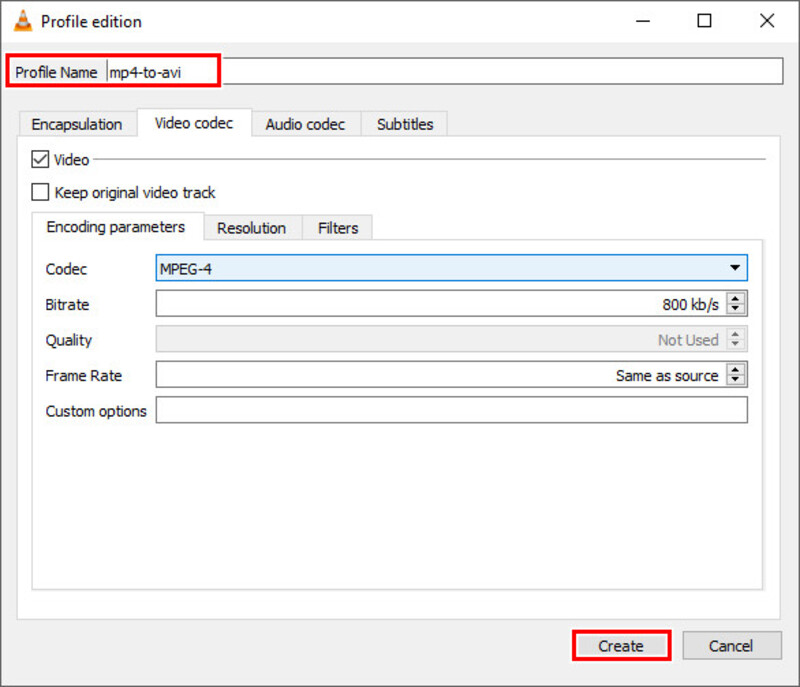
Step 5Enter a file name in the Profile Name box and click Create.
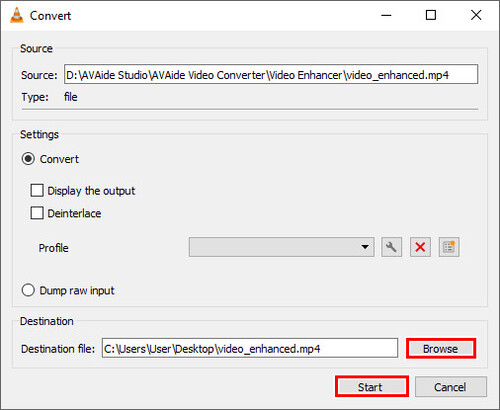
Step 6Click Browse to set a destination file. Then click Start.
Part 3. How to Convert MP4 to AVI using Command Lines on FFmpeg
FFmpeg is a professional tool that can do almost anything: convert, edit, upscale, etc. It is free and open source, but it works completely on command lines without a graphical UI, which might frustrate beginners. But don't worry, we will provide some basic commands for you to try out.
Step 1If you're on Windows, install FFmpeg from its official site. For Mac/Linux users, enter the following lines into Terminal to get FFmpeg:
- Mac: brew install ffmpeg
- Linux: sudo apt install ffmpeg
Step 2Put your MP4 in an easy-to-find folder. Then open Command Prompt on Windows, or Terminal on Mac/Linux, and navigate to that folder by typing the path and pressing Enter.
Step 3Paste the following command:
ffmpeg -i [original file name].mp4 -c:v libxvid -q:v 4 -c:a libmp3lame -q:a 4 [abc].avi
Replace [abc] with a new file name, then press Enter.
Part 4. 2 Free Online Tools to Convert MP4 to AVI Videos
If you don't want to download any software, you can also rely on online MP4 to AVI converters. Here are the best 2 converters to convert MP4 videos to AVI files online for free. Although they are all easy to use, you should note the limitation to the file size.
1. CloudConvert
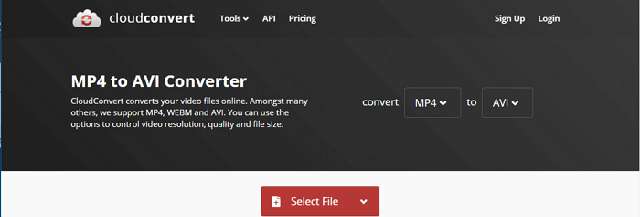
CloudConvert is one of the powerful MP4 to AVI converters online. It supports customizing the video codec, resolution, etc. But the free users are limited to convert 25 MP4 videos to AVI format per day.
Step 1Go to cloudconvert.com and click the Select Files button to add the desired MP4 files.
Step 2Open the Select Format dropdown, and choose AVI.
Step 3Click the Convert button to save the files.
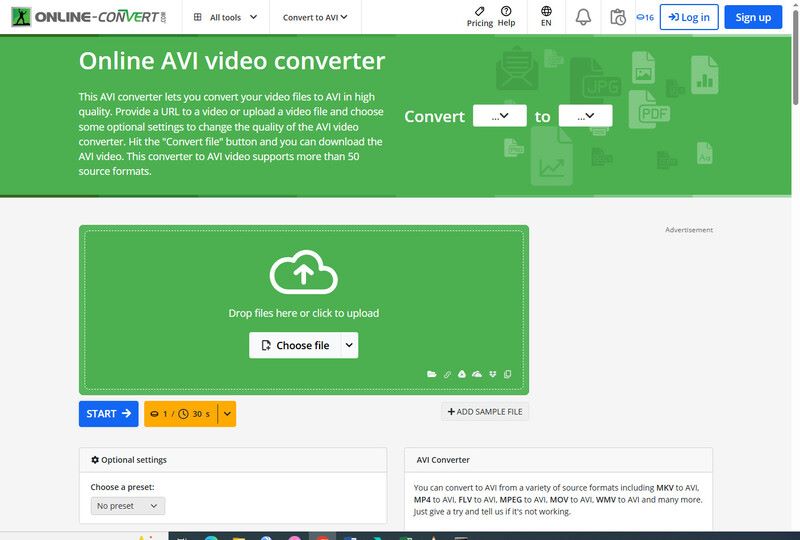
2. Online-Convert
Online-Convert is an easy-to-use free MP4 to AVI converter online. It supports importing video files through Dropbox, Google Drive, and even URL. But it will take you quite a long time.
Step 1Go to video.online-convert.com/convert-to-avi and click the Choose Files button to select the desired videos.
Step 2Then you can customize the video and audio settings according to your need.
Step 3Finally, click the Start Conversion button to convert MP4 to AVI.
Part 5. Comparison of the 5 MP4-to-AVI Converters
| Tool | Platform | Free | Ease of Use | Output Quality | Best For |
| AVAide MP4 Converter | Windows/Mac | Free trial | ⭐⭐⭐⭐⭐ 5/5 | ⭐⭐⭐⭐⭐ 5/5 | High-quality conversion & editing |
| VLC Media Player | Windows/Mac/Linux Android/iOS | Free | ⭐⭐⭐⭐ 4/5 | ⭐⭐⭐⭐ 4/5 | Free basic conversion on desktop |
| FFmpeg | Windows/Mac/Linux | Free | ⭐⭐ 2/5 | ⭐⭐⭐⭐⭐ 5/5 | Advanced users & precise control |
| CloudConvert | Online | Limited free use | ⭐⭐⭐⭐⭐ 5/5 | ⭐⭐⭐⭐ 4/5 | Quick online conversion |
| Online-Convert | Online | Limited free use | ⭐⭐⭐⭐⭐ 5/5 | ⭐⭐⭐⭐ 4/5 | Online conversion with customization |
Part 6: FAQs of Converting MP4 to AVI Format
How to convert large MP4 files to AVI videos online?
Most online MP4-to-AVI converters don't support large files, and even if they do, you might have to wait a lifetime just to upload, before the actual conversion even begins. For large files, we recommend desktop tools like VLC or AVAide MP4 Converter. Or if you would like to continue with online tools, try FreeConvert Pro, which accepts files up to 5 GB.
Can I use HandBrake to convert MP4 to AVI?
No, HandBrake officially dropped AVI support in 2008. It can still open AVI as a source input, but cannot create one.
Does converting MP4 to AVI lose quality?
Yes, a little. Most MP4s use modern codecs like H.264 or H.265. AVI can't handle these well on old hardware, so converters must re-encode to an older codec, which is inevitably lossy. But with high-quality output settings, the difference is usually mild.
This article has introduced 4 efficient ways to convert MP4 to AVI format, which can make you play movies on the TV. The professional method will provide you with a better viewing experience with high quality. You can also use online MP4 to AVI converters for easy conversion. AVAide MP4 Converter offers the best performance and fastest speed to convert MP4 videos to AVI format.
ABOUT THE AUTHOR

A multifunctional MP4 converter to convert any video format to MP4 with high output quality.
Convert to AVI
- Convert MKV to AVI
- Convert MP4 to AVI
- Convert WMV to AVI
- Convert WMV to AVI
- Convert DivX to AVI
- Convert FLV to AVI
- Convert MPEG to AVI
- Convert M4V to AVI
- Convert MTS to AVI
- Convert SWF to AVI
- Convert VOB to AVI
- Convert WebM to AVI
- Convert F4V to AVI
- Convert XviD to AVI
- Convert RMVB to AVI
- Convert 3GP to AVI
- Convert MXF to AVI
- Convert M2TS to AVI
- Convert AMV to AVI
- Convert TRP to AVI
- Convert OGV to AVI
- Convert DV to AVI
- Convert MPG to AVI
- Convert MTV to AVI