Action Screen Recorder by Mirillis is a Windows-based screen recording software designed mainly for gameplay capture and live streaming. It supports 4K recording, webcam overlay, hardware acceleration, and real-time broadcasting. But is it still worth using compared with newer screen recorders? This review covers its features, performance, pricing, limitations, and alternatives.
Part 1: Main Features of Action Screen Recorder
Mirillis Action! is a Windows-based screen recording and gameplay capture software mainly designed for gamers, content creators, and users who need high-performance desktop recording. Unlike basic screen recorders, Action! focuses on smooth gameplay capture with low CPU usage, real-time FPS display, hardware acceleration, and live streaming features.
Here are the key features that make Action! stand out.
1. High-Quality Gameplay Recording
The biggest feature of Action! is its gameplay recording capability. It can capture games and applications based on DirectX and OpenGL technologies while maintaining smooth performance. Users can record gameplay videos in high resolutions, including 4K, with support for popular video codecs such as H.264/AVC and H.265/HEVC.
For gamers who create YouTube videos, tutorials, or walkthroughs, Action Screen Recorder provides a practical way to capture gameplay footage without complicated configuration.
2. Low CPU Usage with Hardware Acceleration
One of the main reasons users choose Action Screen Recorder is its optimized recording performance. The software supports hardware-accelerated encoding technologies, including Intel Quick Sync Video, NVIDIA NVENC, and AMD APP, which can reduce the workload on the CPU during recording.
This makes Action Screen Recorder suitable for recording demanding games where maintaining stable frame rates is important.
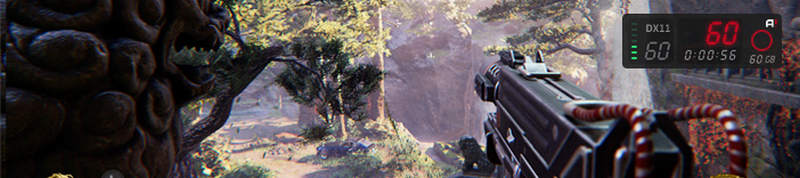
3. Real-Time HUD and FPS Display
Action! includes an in-game HUD overlay that displays useful information during recording, such as:
- Current FPS
- Average FPS
- Recording status
- Detected 3D engine information
This feature is especially useful for gamers who want to monitor performance of their computers.
4. Screen, Window, and Webcam Recording
Besides gameplay capture, Action! can record:
- Full desktop screen
- Selected screen regions
- Individual applications
- Webcam video
Users can also add webcam overlays and microphone commentary, making it suitable for tutorials, online courses, and gaming content creation.
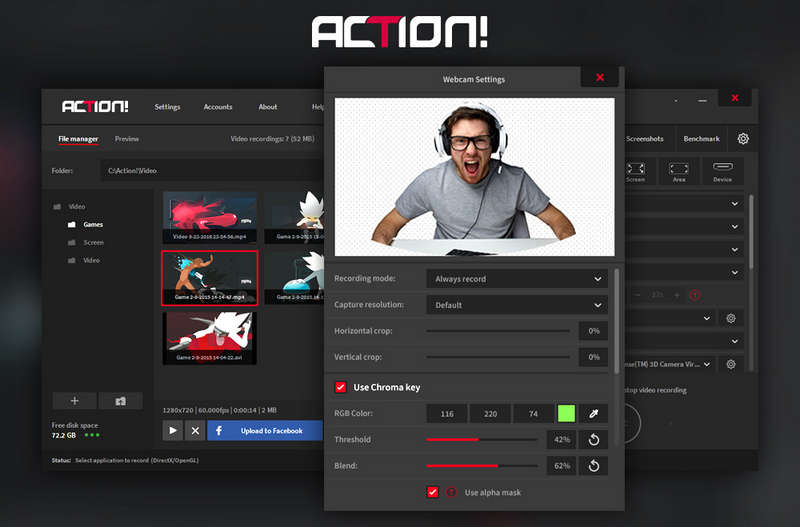
5. Live Streaming Support
Action! provides built-in live streaming capabilities, allowing users to broadcast gameplay and screen activities to popular platforms, including YouTube and Twitch. It supports real-time streaming with video and audio synchronization. This makes it a convenient option for users who want recording and streaming functions in one application.
How to Use the Mirillis Action Screen Recorder
If your device is operated by Windows 7,8,8.1,10 and Vista, you will likely succeed in obtaining this screen recorder. For this reason, you can rely on the guidelines below for you to follow in using it.
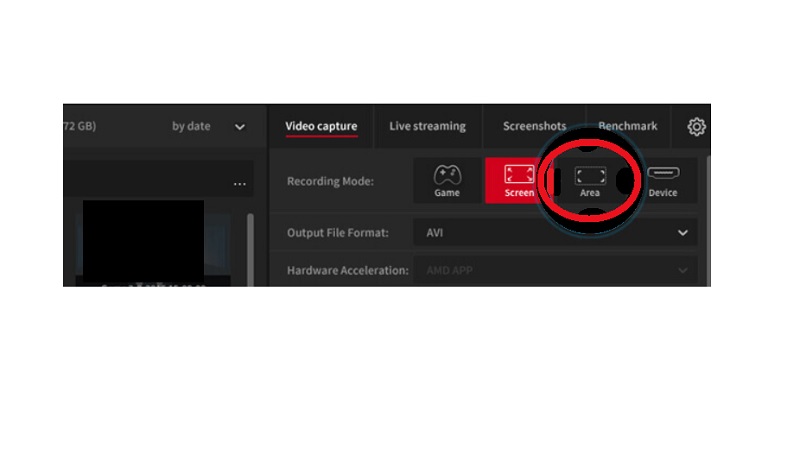
Step 1Customize the tool once you install it for you to improve its optimization. On its main interface, look for the Area mode, under the Video Capture option, for you to get the framerate display.
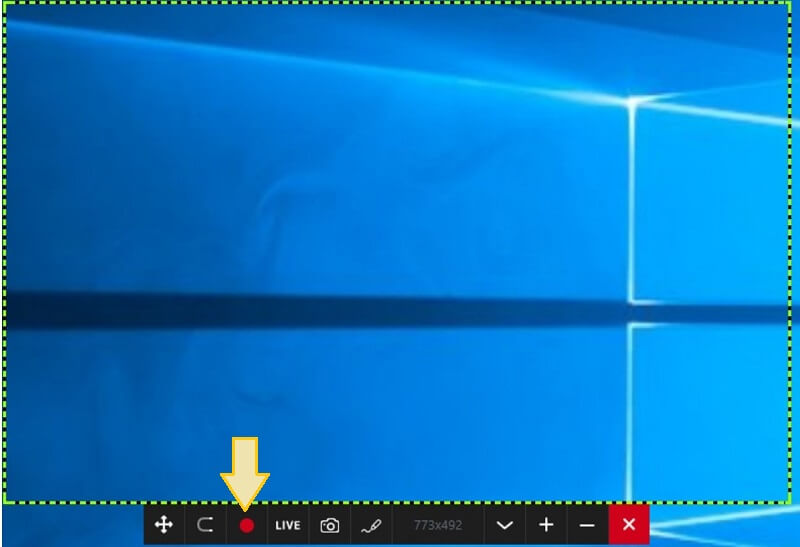
Step 2Once you get the framerate display, long-press the mouse to hold it. If you need to adjust the area, click the SHIFT + Arrows on the keyboard. Then, hit the red circle indicating the Record key to capture the screen using this action game recorder. You need to hit the same button to stop the recording.
Step 3After that, bring yourself to the interface again to check for the recorded video. Note that you can export the video to your favorite online video streaming site directly once you choose from the options in the interface.
Part 2: Detailed Review of Action Screen Recorder
Overall Review of Action Screen Recorder
Mirillis Action! is a powerful screen recorder mainly targeted at Windows gamers and content creators. Its biggest advantages are smooth gameplay recording, low system resource consumption, and easy-to-use controls. Compared with complicated broadcasting tools, Action! provides a simpler workflow for users who mainly need reliable screen capture.
However, Action! also has some limitations. It only supports Windows systems, lacks advanced video editing features, and requires a paid license after the trial period. Therefore, whether it is worth buying depends on your recording needs.
Action Screen Recorder Pros and Cons
- Pros
- It is optimized for game capture and supports DirectX/OpenGL recording with high-quality output.
- Hardware acceleration support helps maintain smoother recording performance, especially during gameplay.
- The interface is easier to configure compared with many professional streaming tools.
- Users can record high-resolution gameplay videos with advanced encoding options.
- It provides tools for gamers and creators who need facecam, microphone commentary, and live broadcasting.
- Cons
- Action Screen Recorder does not provide a native macOS version, which limits its availability for Mac users.
- The free trial is available, but continued usage requires purchasing a license.
- It focuses on recording rather than post-production editing.
- Compared with professional converters or editors, supported export formats are relatively limited.
Action Screen Recorder Troubleshooting
Although Action! is generally stable, some users may encounter recording problems. Here are common issues and possible solutions.
Issue 1. Action Screen Recorder Cannot Record Games
You can update GPU drivers, run Action! as administrator, or switch between Game/Application recording mode and Active Screen mode.
Issue 2. Recording Has Lag or Low FPS
You can enable GPU encoding, lower the recording resolution or frame rate.
Issue 3. No Audio in Recorded Videos
You should check the system audio settings and turn on the microphone permissions. Also, make sure the correct recording device is selected before starting capture.
Action Screen Recorder Pricing
The discounted price on its official website is $19.77 for lifetime.
Action Screen Recorder offers a free trial version that allows users to test the software before purchasing. After the trial period, users need to buy a license to continue using the full version.
Part 3: The Best Alternative to Action Screen Recorder
If you are looking for a flexible, still multifunctional tool, same with the previous screen recording, AVAide Screen Recorder is the one that will cover it. This rookie software remarkably provides powerful features and tools on Windows, Mac, and iPhone. In addition, this screen recorder can capture the game's action, detail, and highlights you want to capture in 1080p quality. Not to mention, its audio recorder allows you to change the sound source while recording.
Also, unlike the previous tool, AVAide Screen Recorder gives its best features even with its free trial version! With unlimited assistance in catching highlights, it's freely giving you the chance to shoot the screen showing the best event on your video. See? It has everything you need!
- Pros
- Straightforward interface.
- It allows webcam recording.
- It produces non-watermarked outputs.
- No Ads bugging.
- It requires low CPU usage.
- Cons
- Not totally free.
How to Use the AVAide Screen Recorder
- A multifunctional screen recorder at a low cost.
- The most flexible software that supports both Mac and Windows OS.
- It enables easy and quick frame rate adjustment.
- Multiple video formats are supported.

 Secure Download
Step 1Acquire the Software
Click the download button presented above to get this fantastic screen recorder quickly.
Step 2Choose a Recorder
Launch the software, and choose among the recorders you want to use. You may choose either the Video Recorder or the Game Recorder action to capture. On the other hand, you may explore the More icon to see the other recorders you can use.

Step 3Configure the Recording Display
Now, configure the framerate by toggling ON the display section and choosing whether the Full or Custom. Then, on your screen, feel free to adjust the panel accordingly.

Step 4Begin Recording
After adjusting, you may proceed to record. Click the REC button, and enjoy recording your screen. Hit the Stop red icon from the HUD bar display when you're done.

Step 5Export the Recording
Upon hitting the stop button, a new window will appear. You will get to trim the recording and take some screenshots by clicking the Camera icon. If you're good with the output, click the Export.

Part 4: FAQs of Action Screen Recorder
Can I record my games in Action Screen Recorder on Mac?
Unfortunately, you won't be able to use the Action recorder on your Mac. It is because this software doesn't have a Mac version yet. Therefore, if you don't have any medium to record your game besides Mac, use the AVAide Screen Recorder!
How much do I need to avail myself of the Game Recorder of Mirillis?
Even though the Mirillis game recorder offers a free trial, it will only last 30 days. Hence, if you decide to purchase, it offers $19.77 for a start.
Which is better? Action or AirShou Screen Recorder?
Both of them carry beautiful features and tools. However, technicality and efficiency-wise, the Action Recorder gets higher votes than AirShou Screen Recorder.
Now you have enough knowledge about the Mirillis Action Screen Recorder, and it's time for you to validate if it's worth installing or not. Indeed, it's great software to record your game, but unfortunately not that flexible enough to serve you. For that reason, we recommend you to use AVAide Screen Recorder and get the chance to have the most flexible and powerful recorder in history!
ABOUT THE AUTHOR

Capture screen activities with audio, online meetings, gameplay videos, music, webcam, etc.
Video & Audio Recorder Review
- AirShou Screen Recorder Review
- Best Open Source Screen Recorder
- Action Screen Recorder Review
- Best Free Screen Recorder
- Best Screen Recorder for Chrome
- Best GIF Recorder
- Best Webcam Recorder
- Best Screen Recorder for Windows
- Best Screen Recorders for Android
- Review of Chrome Audio Capture
- Best Audio Recording Software
- Best Voice Recorder for Android
- Top 8 Terrific Online Screen Recorders of the Year
- 7 Excellent Free Screen Recorders with No Watermark
- A List of 8 Astonishing Desktop Recorders of the Year
- 12 Hot Picks of Screen Recorders for Mac [Online & Offline]
- 8 Best Game Recorders to Utilize on Windows and Mac
- 10 Most Preeminent MP3 Recorders on Windows and Mac
- 5 Best Call Recording Apps for Android Worth Using
- 6 Best Voice Recorder Apps for iPhone & Android