


Whether you are a gamer looking to capture a high-score run, a professional creating a tutorial, or a student recording a remote lecture, knowing how to screen record on Windows is no longer a luxury, it's a necessity. Gone are the days when you needed expensive third-party software just to capture your desktop; Windows 10 and Windows 11 now come equipped with powerful, native recording features.
From the streamlined Xbox Game Bar to the updated Snipping Tool and even professional-grade options like OBS Studio, there are several ways to screen capture recording high-quality video and audio on your PC. In this guide, we'll walk you through the best methods to record your screen, adjust your audio settings, and save your clips in the right format for easy sharing.
Part 1: Built-in Ways to Screen Record on Windows
There are two default ways to screen record on Windows from Windows 7 to 11: Snipping Tool and Xbox Game Bar. Maybe you haven't noticed their existence, but right now, you can learn how to use them to start screen capture recording.
1. Snipping Tool
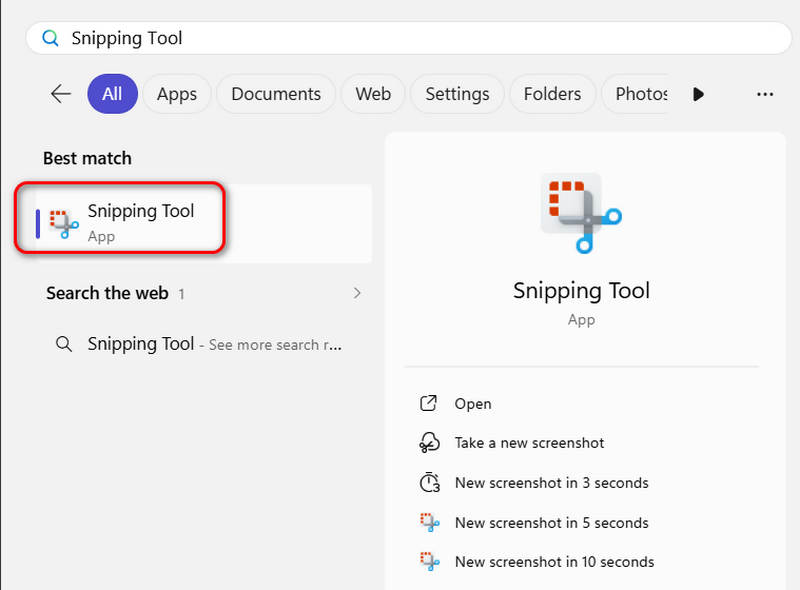
Step 1Open the Search box on the bottom left side of your desktop and search for Snipping Tool. Then, find and open this program.
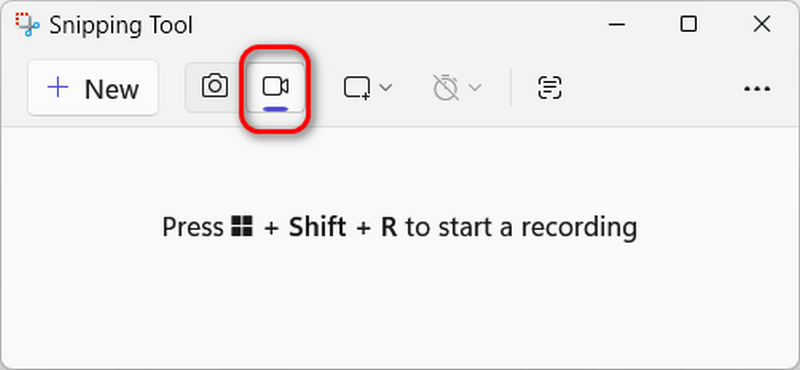
Step 2On the program interface, select the Record feature with a camera icon. Then, follow the on-screen prompt to press Windows + Shift + R. Then, you need to drag a portion on your screen and click the Start button to start screen recording on your Windows computer.
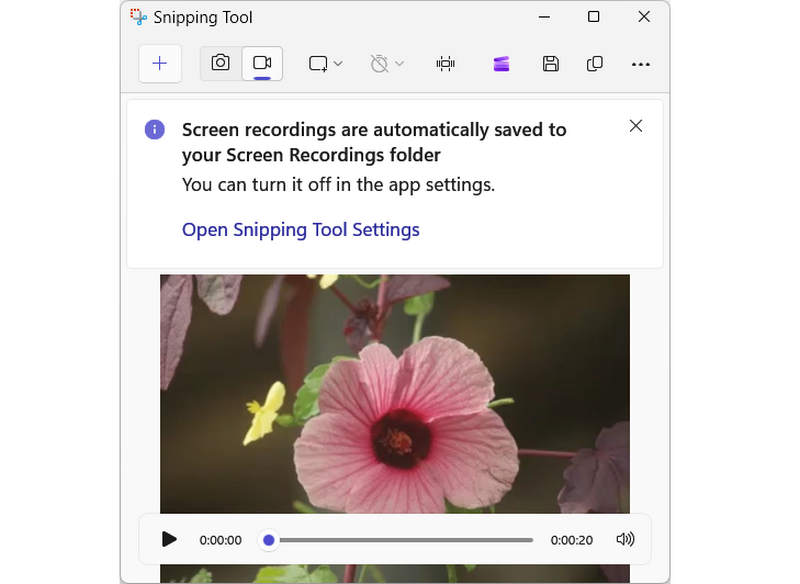
Step 3Your recording is automatically saved to the default Screen Recordings folder in Videos. You can also open Snipping Tool settings to change the location.
2. Xbox Game Bar
Xbox Game Bar is a powerful gaming overlay integrated directly into Windows 10 and 11, designed to let you access essential tools without interrupting your gameplay. By simply pressing Win + G, you can toggle various widgets to capture high-quality game clips, snap screenshots, and monitor system performance in real-time. But it is not a dedicated game recorder, you can also use Xbox Game Bar to record from screen on Windows. Whether you're coordinating with friends or managing your PC's resources, this built-in application ensures you never have to Alt-Tab away from the action. Check out the video below for a step-by-step walkthrough of its core recording features.
Step 1Open the Built-in Software
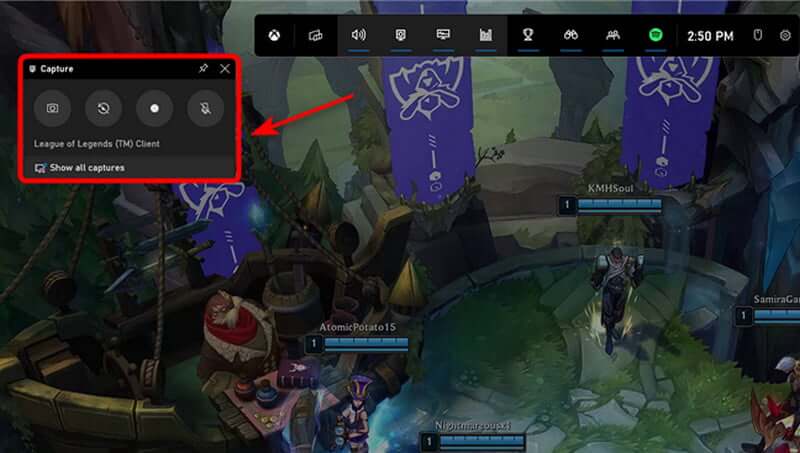
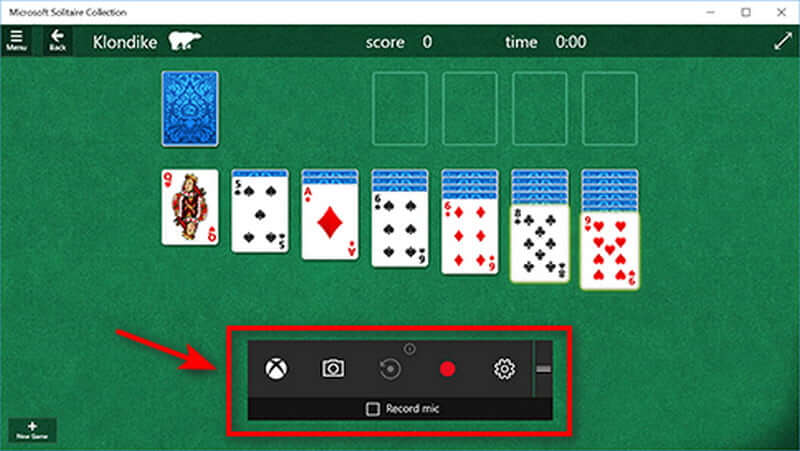
First and foremost, open the Xbox Game Bar and enable the capture widget. You can save all of your gameplay for posterity or save highlights, such as your most recent boss battles or Penta kills.
Step 2Start Recording
You can begin screen capture recording on Windows right away by selecting Record from now. If you want to take a screenshot, you can do so by clicking the camera icon and taking a picture of what's going on in the game.
Step 3Adjust the Sound Volume
Launching the tool displays all the audio channels that render sound on your Windows device. If you want to listen to music while playing games, you can adjust the volume of each audio track.
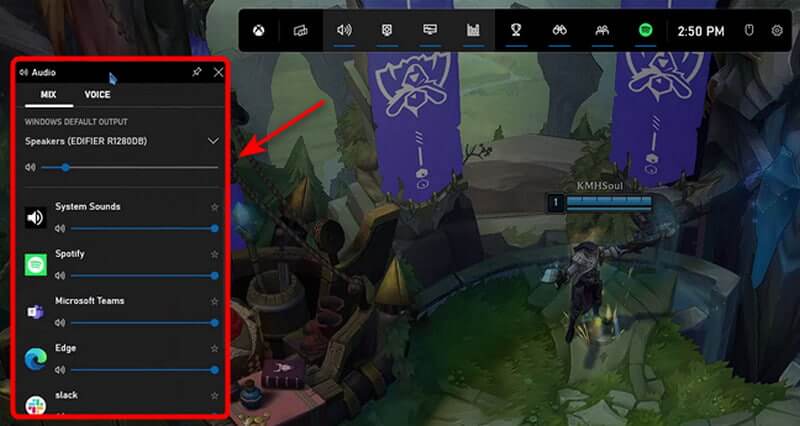
- You can also use the audio widget to adjust the volume of your microphone if you want to screen record with audio on Windows. In that case, this can be useful because you can control how loudly or silently your voice is captured.
Step 4Stop Recording
Press the Windows logo key + Alt + G or click the square icon to stop recording in full-screen PC games. Open the Xbox app by pressing the Xbox button and selecting Captures to edit a clip.
How to Edit Screen Recording from Game Bar on Windows
Most Windows users believe that installing a screen recording software on your computer or laptop is the only way to take a video screenshot, but this is not true. With the built-in Xbox Game Bar app, you can also begin editing your screen recordings. Furthermore, this tool is a component of the Xbox app, installed by default in Windows 10. It includes all of the functions required for quickly editing your screen recording.
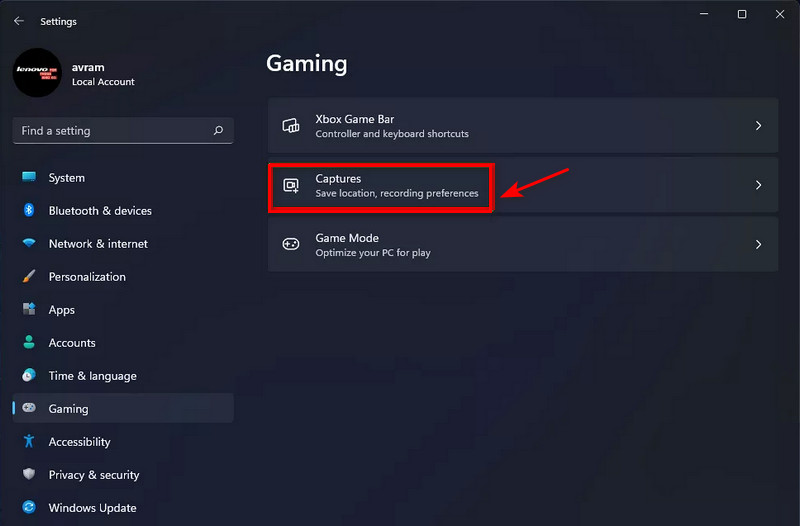
Step 1Navigate to Settings
Step 2Adjust Background Recording
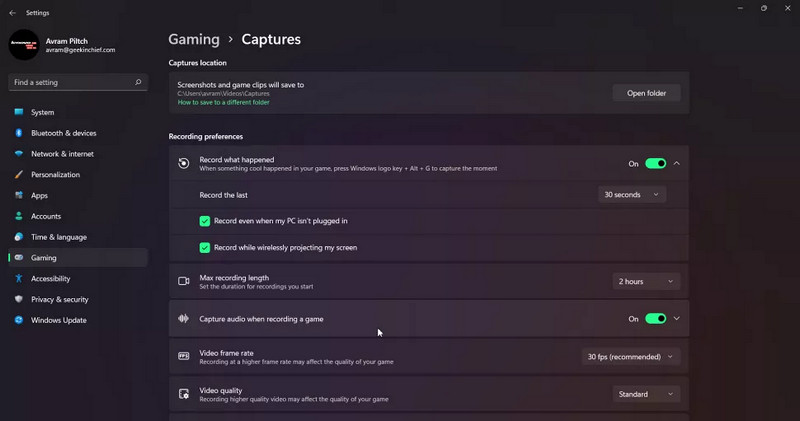
If the settings are changed, this creates a 30-second or longer buffer of automatically recorded content. So, if you're playing a game and just had an epic kill, you can use the game bar to save the last 30 seconds, even if you weren't actively screen recording it. Although the name of this setting differs between Windows 11 and 10, the functionality remains the same.
Step 3Capture Audio
By default, these only records sound from your microphone and the game, not from Windows or other apps. You can disable audio recording entirely, enable it to record system sounds, or adjust the balance.
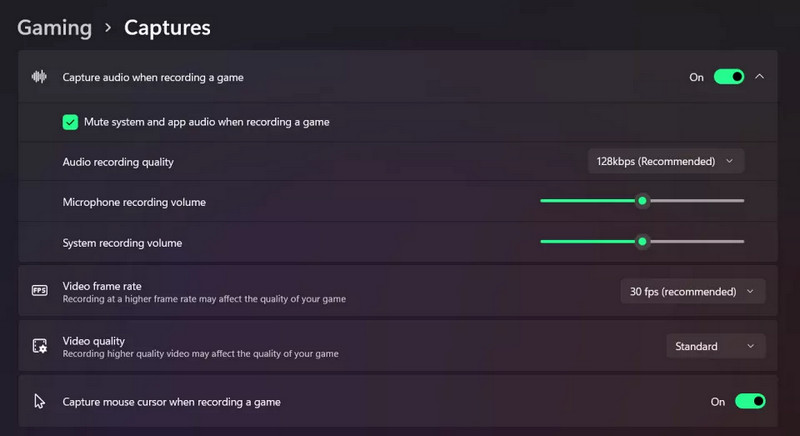
- You can modify the video frame rate: it defaults to 30 frames per second, but you can change it to 60 frames per second. Also, choose between standard and high video quality. Finally, we recommend leaving Capture the mouse cursor when recording a game enabled, especially if recording a non-game app.
Part 2: How to View Your Screen Recordings on Windows
Once you’ve finished recording your screen on Windows 10/11 with Snipping Tool or Game Bar, you'll likely want to edit, rename, or share the file. Depending on which tool you used, your video will be stored in one of the following directories.
1. Finding Snipping Tool Recordings
By default, Snipping Tool screen record in Windows goes to a specific folder within your user profile.
The Folder Path: C:\Users\[YourUsername]\Videos\Screen Recordings
How to get there quickly:
- 1.Open File Explorer (Windows + E).
- 2.Click on Videos in the left-hand sidebar.
- 3.Open the Screen Recordings folder.
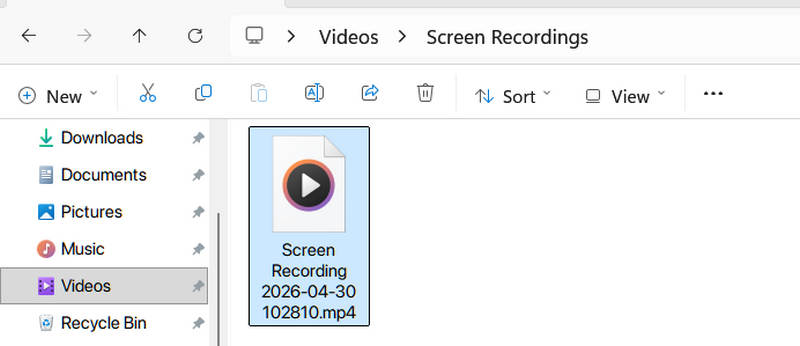
Pro Tip: If you just finished a screen recording on Windows, a notification usually pops up in the bottom-right corner. Clicking that notification will open the video preview, where you can click the More button and select Open folder.
2. Finding Xbox Game Bar Recordings (Captures)
The Xbox Game Bar saves its recordings to a Captures folder, which is also located inside your Videos library but in a separate subfolder.
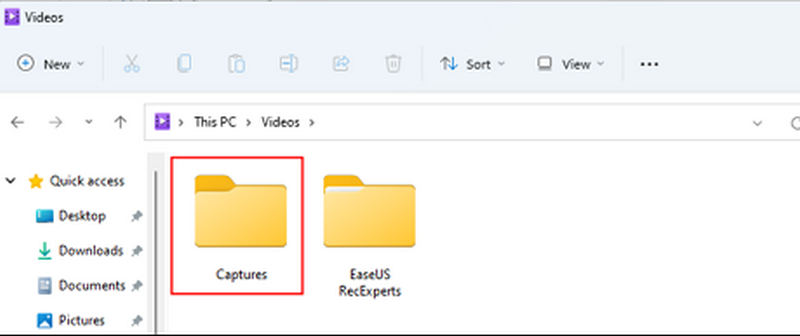
The Folder Path: C:\Users\[YourUsername]\Videos\Captures
How to get there via the interface:
- 1.Press Windows + G to open the Game Bar overlay.
- 2.Click on the Gallery widget (it looks like a small folder/picture icon).
- 3.In the Gallery window, click Open file location. This will instantly launch a File Explorer window at the exact path.
The Shortcut: You can also go to Settings > Gaming > Captures in the Windows main settings menu to see the exact path and even change where these files are saved in the future.
Part 3: Limitations of Default Windows Screen Recorders
While the built-in video recording tools make it incredibly convenient to screen record video on Windows without downloading extra software, they do come with specific constraints. Depending on your project's complexity, whether it’s a professional webinar or a high-end creative tutorial, you might encounter the following roadblocks:
1. Lack of Advanced Editing Suites: Both the Snipping Tool and Xbox Game Bar are designed for capture and go. They lack built-in timelines, multi-track audio editing, or the ability to add callouts (like arrows and text) after the recording is finished. If you need to polish your screen record video on Windows, you will likely need to import the raw file into a separate video editor.
2. Fixed Frame Rates and Bitrates: For power users and gamers, control over output quality is vital. The default Windows screen recorders often use variable frame rates (VFR), which can lead to audio-sync issues in professional editing software like Premiere Pro. Unlike dedicated screen recording tools, you have limited control over the exact bitrate or encoding presets used during the process.
3. Desktop and UI Restrictions:
- Xbox Game Bar: Primarily designed for games and individual apps. It often struggles to record the Windows desktop or File Explorer, sometimes cutting off the recording if you switch between different applications.
- Snipping Tool: While more flexible for desktop recording, it lacks features like Mouse Highlight or Click Effects, which are essential for recording instructional videos easy to follow.
4. Audio Input Constraints: While you can screen record on Windows with system sounds and your microphone, managing multiple audio sources (like a Discord call, a game, and a separate music track) is difficult. There is no native audio mixer within these tools to balance levels in real-time while you screen record video on Windows.
Part 4: Lightweight and Effective Way to Screen Record on Windows
AVAide Screen Recorder is one of the most highly recommended screen recording tools for Windows because of its advanced features such as customizing the recording area, capturing system audio and microphone, and even adjusting the output video format. It records screen activities, video calls, TV shows, or gameplay on multiple platforms with no quality loss and clear audio.
The screen recorder can also be controlled using hotkeys. It also records high-quality video, which is ideal for output. Video can be recorded by both the system card and external devices.
- Record the original Windows screen and upscale it to 4K if needed.
- Let you adjust the video and audio output settings, including codec (HEVC, AV1, H.264), bitrate, resolution, frame rate, and more.
- Support AI upscaling to increase and enhance the output recordings.
- Support long-duration recording without lag or stutter.
- Record screen, window, game, and portion with system audio, webcam overlay, and microphone seamlessly.
- Easily manage your recordings and share them on social media like YouTube and Instagram.

 Secure Download
Step 1Download the Recording Software
To begin, download and install the tool by clicking the download button above. The software installation will take a few minutes. Click the Video Recorder icon to start recording.

Step 2Adjust the Frame
Adjust the area you want to record around the window. Select Custom from the drop-down arrow on the first cropper and enter a recording location. Select Full Screen to capture the entire scene.

Step 3Add Audio and Sound Recording
You can record a video with audio using the system's built-in sound and microphone or an external microphone connected to it to record a desktop screen with voice narrations. Click the Microphone button to turn off voice narration while recording.

Step 4Start Recording
To start recording, press the REC button.

Step 5Stop and Export
After you've finished recording, press the Stop button to stop it, and then the Clip button to crop your recording clips before saving them. Then, to save your video, click the Export button.

Step 6View the Video Recording
After saving the recording, you can now view the video record on the recording history. They are arranged chronologically, beginning with the most recent recording and progressing to the oldest.

Par 5: FAQs of How to Screen Record on Windows
Is it possible to trace screenshots?
A website can tell if you take a screenshot or use the browser to do it. A website can also know if you take a screenshot by pressing the print screen button on your keyboard. However, if you use a program like the Snipping Tool, the website will not know you took a screenshot.
How long will the screen capture last?
You can screen Record indefinitely with the right screen recording software. You can continue to capture the action as long as it is visible on your screen. This does not always imply that you will be able to capture hours and hours of footage.
Why is Windows Alt+R not working?
The Windows + Alt + R shortcut may fail to work for several reasons, most commonly because the Xbox Game Bar is disabled in your system settings or the Record in the background feature is turned off. Additionally, this shortcut is specifically designed for recording applications and games; it will not function if your focus is on the Windows Desktop or File Explorer.
What effect does screen recording have?
Screen capture is proper when you need to show someone something that you see on your computer monitor. Sometimes, still-image screen capture is ideal, also known as a screenshot. On the other hand, a screencast may be a better option if your screen capture requires many explanations.
Ultimately, mastering how to screen record on Windows depends on your needs. Built-in tools like the Snipping Tool and Xbox Game Bar are perfect for quick, no-install captures and casual gameplay. However, they often lack the advanced editing, flexible formatting, and desktop-wide stability required for professional-grade projects.
For a more powerful solution, AVAide Screen Recorder is our top recommendation. It overcomes native limitations by offering smooth webcam overlay, real-time annotations, and high-frame-rate output without lagging your system. If you need a polished, "one-click" professional result for tutorials or presentations, AVAide is the superior choice for any screen record video on Windows.
ABOUT THE AUTHOR

Capture screen activities with audio, online meetings, gameplay videos, music, webcam, etc.
Record Screen & Video
- Screen Record on Mac
- Screen Record on Windows
- Screen Record on iPhone
- Record Audio on iPhone
- Record TV Shows without DVR
- Screen Record Snapchat on iPhone and Android
- Record a FaceTime Call
- How to Use the VLC to Record Screen
- Fix Amazon Error Code 1060
- Fix OBS Window Capture Black
- How to Make a PowerPoint Into a Video [Complete Tutorial]
- How to Make Tutorial Videos: Preparations and Guidelines
- How to Screen Record with Sound on iOS 15 and Later
- How to Screen Record on TikTok: Desktop and Mobile Solutions
- How to Screen Record on Samsung in 2 Proven Ways [Solved]
- How to Record Gameplay on PS4 without a Capture Card
- How to Record Gameplay on Xbox One [Full Tutorial]

