VLC media player is one of the most popular open-source media players in the world. It runs on all platforms and can play almost everything, including media files, discs, webcams, devices and streams. However, many users still ask the same question: Can VLC play Blu-ray discs? The short answer is yes - but with limitations. In this guide, we'll explain the limitations and show you how to play Blu-ray discs with VLC step by step.
- This method is intended for playing Blu-ray discs you legally own. Downloading AACS keys or bypassing disc protections may have legal implications depending on your country or region.
- Part 1. Can VLC Play Blu-ray Discs?
- Part 2. Steps on How to Use the VLC to Play Blu-ray (Windows)
- Part 3. Steps on How to Use the VLC to Play Blu-ray (Mac)
- Part 4. Troubleshooting: Fix VLC Blu-ray Playback Errors
- Part 5. A Much Easier Way to Play Blu-ray Movies Your Personal Computer
- Part 6. FAQs Regarding VLC and Blu-rays
Part 1. Can VLC Play Blu-ray Discs?
Yes, VLC supports Blu-ray playback, but it cannot play many commercial Blu-ray discs by default. Most Blu-ray movies are protected by encryption technologies such as Advanced Access Content System (AACS). Since VLC is an open-source project, it does not include built-in libraries to decrypt these protections.
To enable VLC Blu-ray playback, users usually need to download the AACS library and the keys database. Many newer Blu-ray discs use AACS 2.0 or higher, which older versions of VLC may not support. To ensure smooth playback, make sure you have the latest version installed.
Follow the comprehensive guide below, and you'll be able to play your Blu-ray discs successfully.
Part 2. Steps on How to Use the VLC to Play Blu-ray (Windows)
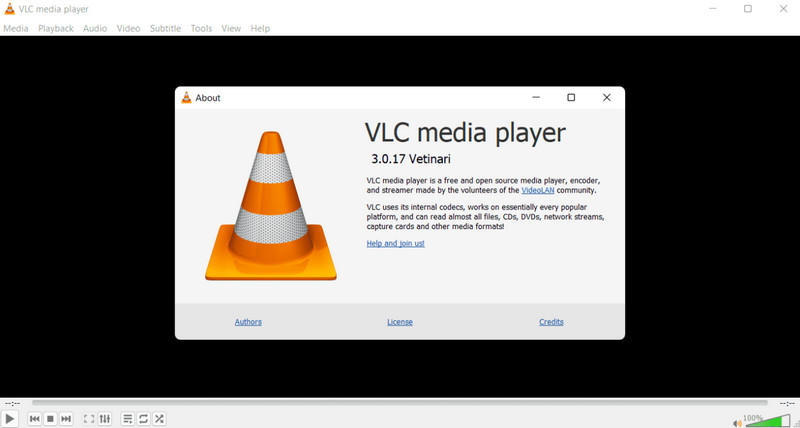
Step 1Make sure that you are using the required version of VLC. Otherwise, upgrade or install the VLC Windows 3.0 with 64bit for you to possibly play the Blu-ray on your Windows device.
Step 2Next, you need to download the AACS library and the keys database. This will avoid the issue of playing encrypted Blu-rays. Visit https://www.videolan.org/developers/libaacs.html or https://github.com/KnugiHK/libaacs-libbdplus-windows to acquire the said keys and library. Now, you should make sure that the database file, namely KEYDB.cfg, along with the dynamic library, namely libaacs.dll, after getting VLC to play Blu-ray should be on your Windows computer.
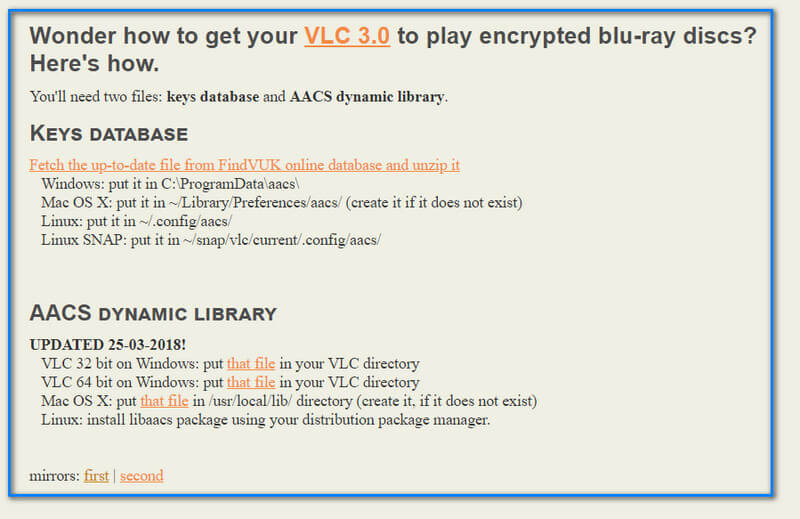
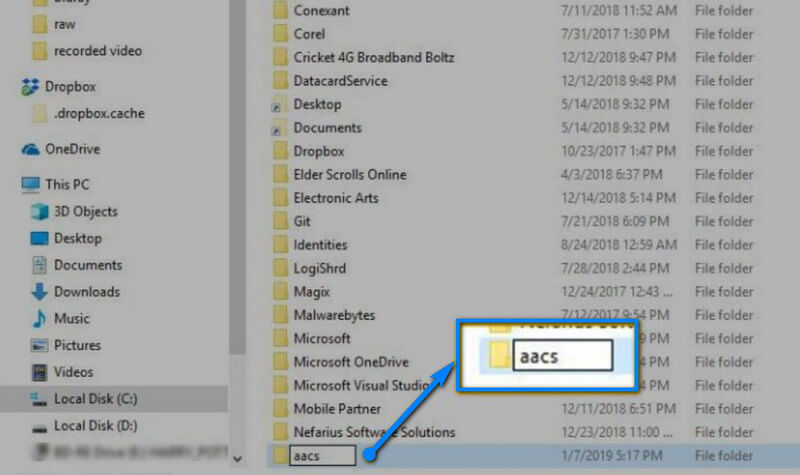
Step 3Rename the downloaded folder as AACS and transfer the KEYDB.cfg file there. After that, go to your local drive C:Program FileVideoLANVLC to drop the libaacs.dll file into.
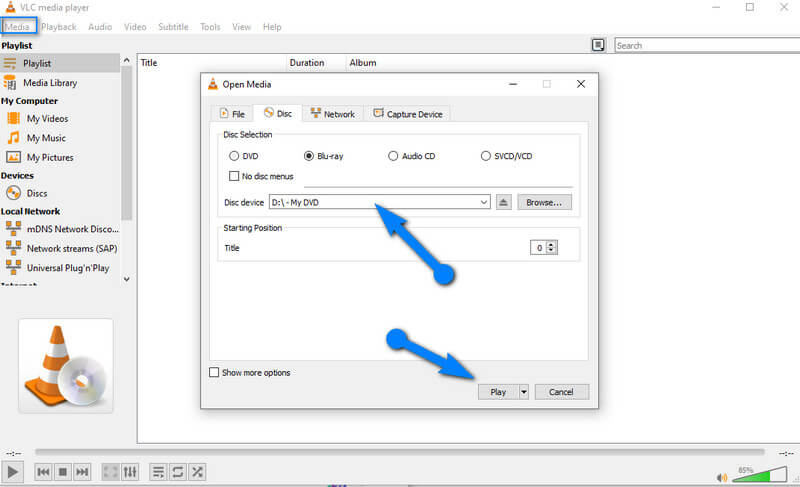
Step 4Finally, you can now open the VLC and insert your Blu-ray disc on your computer. Then, go to Media, and choose Open Disc. Toggle the Blu-ray, select your Blu-ray disc, then click Play on the popped-up window.
Part 3. Steps on How to Use the VLC to Play Blu-ray (Mac)
For Mac users, the exact requirement follows. This way, you can use the VLC player to play Blu-ray. You will notice that the steps below are quite the same as the previous steps for Windows computers.
Step 1Go to the Apple Store and get the latest version of the VLC for Mac.
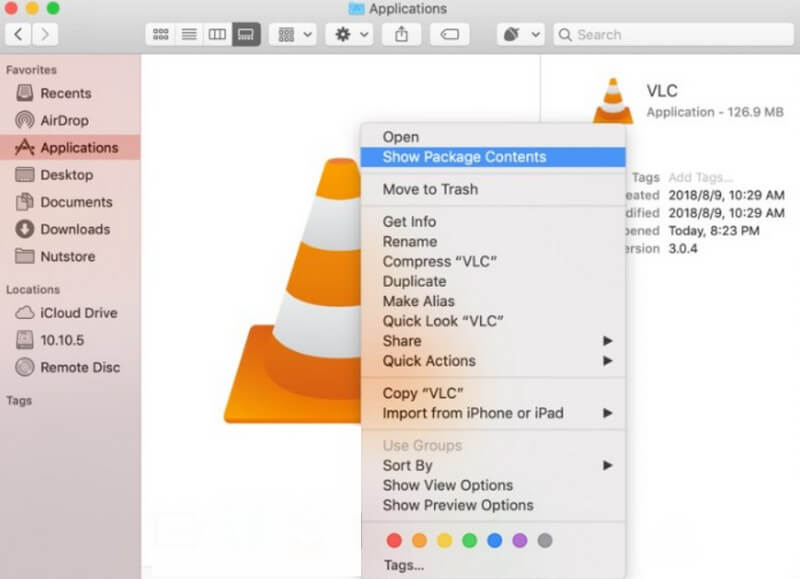
Step 2Now same for Windows; visit http://vlc-bluray.whoknowsmy.name/ and start getting the required files. Please note that for Mac OS, you should have the /Library/Preference/aacs/ file name where you put the KEYDB.cfg file. Then, for the AACS library, go to the VLC and right-click to select the Show Package Contents to look for the Contents/MacOS/lib/, and put the libaacs.dll file to it.
Step 3You can now play the Blu-ray on VLC by inserting the disc on your Mac, launching the media player, and proceeding to the playback procedure.
Part 4. Troubleshooting: Fix VLC Blu-ray Playback Errors
Sometimes VLC still fails to play Blu-ray discs. Here are some common problems and solutions.
| Error Message | Possible Cause | Solution |
| No valid Blu-ray drive found | Your computer does not have a Blu-ray drive | Use an external Blu-ray drive |
| Blu-ray disc is corrupted or region code mismatch | Region code restrictions | Ensure the disc region matches your drive |
| This Blu-ray disc needs a library for AACS decoding | Missing AACS library | Install libaacs and KEYDB.cfg correctly |
| VLC cannot open the MRL | Unsupported encryption or incorrect path | Update the keys database |
| Playback is lagging or no sound | Hardware acceleration or audio output issues | Enable hardware acceleration or check audio settings |
Part 5. A Much Easier Way to Play Blu-ray Movies Your Personal Computer
If the guidelines above proved to you the cumbersome procedure of VLC in playing Blu-rays, you should switch to a much easier and much more versatile master of Blu-rays and DVDs, which is the AVAide Blu-ray Player. This prominent software gives users the same level of quality on Mac and Windows OS devices. Furthermore, it comes with an interface that you can grasp and recognize quickly at first glance, for it has the most straightforward playback controls ever. If the VLC player can play Blu-ray with the help of the updated version and AACS libraries, this AVAide Blu-ray Player can play the Blu-ray without installing any other files. It means it works perfectly by itself.
- It lets you play DVD and Blu-ray discs, ISO files, and folders without a hassle.
- Enable users to customize the video’s brightness, hue, contrast, gamma, and saturation while playing.
- Come with a screenshot feature to capture incredible scenes from the video.
- With aspect ratio, chapter, and deinterlace selections.

 Secure Download
How to Play Blu-rays Effortlessly
Step 1Get this powerful Blu-ray player to your personal computer. Grab it by clicking the download buttons presented.
Step 2Unlike how the VLC does to play Blu-ray, you can already do the task immediately after installation. So, insert your Blu-ray disc now, then launch the software and click the Open Disc option.

Step 3After that, choose your disc on the popped-up window, and click the OK button. Subsequently, the tool will bring you to the next window for the playback.

Step 4You can check and use the playback controls, and the presets presented on the interface this time. This way, you will be able to recognize all of the beautiful features this tool offers.

Part 6. FAQs Regarding VLC and Blu-rays
What is the Blu-ray codec for the VLC media player?
VLC supports various codecs. However, the primary codec that a blu-ray has fully supported by VLC is the H.264, also known as the MPEG-4.
How will I play different codecs on VLC?
If you want to play different codecs on VLC, go to its Tools and click Preferences. Then, click on the Input/Codec and start applying the other codecs you want on the setting window.
Why do I see errors saying it can't open my input in VLC?
This error usually occurs because VLC might not support the commercial disc you are using.
Now that you know how to play Blu-ray on VLC and the prerequisite it requires, you must be thinking if it's still practical to use, right? Indeed, it takes time and effort to fulfill this simple task using VLC. This is why we gave you a better, simpler, and quicker way to do so. It's up to you now which of them you will use. But if you are after the quality aside from the procedure, we assure you that the AVAide Blu-ray Player is more competent today.
Full-featured multimedia player to play Blu-rays, DVDs, 4K UHDs, and other video/audio files.
Play Blu-ray & DVD
- Does Xbox One, Xbox 360 and Series XPlay Blu-ray
- Can PS4 Play 4K Blu-ray
- Does PS4 Play Blu-ray
- Does PS5 Play 4K Blu-ray
- Does PS3 Play Blu-ray
- Can VLC Play Blu-ray
- Can a DVD Player Play Blu-ray
- Best 4K Blu-ray Player
- Best Blu-ray Players for Windows 10/11 and Mac OS
- Best Free Blu-ray Player Software
- Best Blu-ray Authoring Software
- Best Region-Free Blu-ray Player
- How to Play Blu-ray Movies on Windows 10/11 and Mac
- How to Play 4K Blu-ray Movies on PC: Solved in Two Ways