Looking for the best video trimmer can make editing faster and easier, whether you are creating social media content, work, highlights, or personal projects. The right tool should offer precise cutting, support various formats, and maintain video quality. In this post, we will offer various video trimmers you can use, along with their features, best for, limitations, and other details. Thus, read this review and learn more about the best video trimmers.
Part 1. Various Trimming Scenarios
Choosing the right clip trimmer depends on what you are trimming. How big the file is and what you need afterward. Proceed to this section to learn more about scenarios in which you can trim your videos effectively.
- Precise Hard Cuts - This removes the clip at an exact frame, such as the moment a speaker finishes a word or lands on a beat. This needs frame-by-frame stepping and re-encoding, which suits tutorials, interviews, and gameplay highlights.
- Fast Rough Cuts on Huge Files - Fast rough cuts large or long recordings, like lectures, streams, or 4K clips using Stream Copy. This process completes in seconds without any loss of quality.
- Browser-Based, No Install - Trim videos without installing anything. This process is ideal for users who want to deal with their videos instantly and directly in their browsers.
- Automatic Clip Finding - This uses an AI-powered tool to cut videos. This is also ideal for dealing with short clips, often adding captions and vertical framing.
- Trim + Convert + Compress in One Pass - This scenario produces a share-ready file, such as a clip within an email size limit or in a specific output format like GIF or MP4. It saves time and avoids repeated re-encoding. But take note that compression always trades some quality for smaller file size.
Part 2. Best Video Trimmers for Precise Hard Cuts
1. LosslessCut
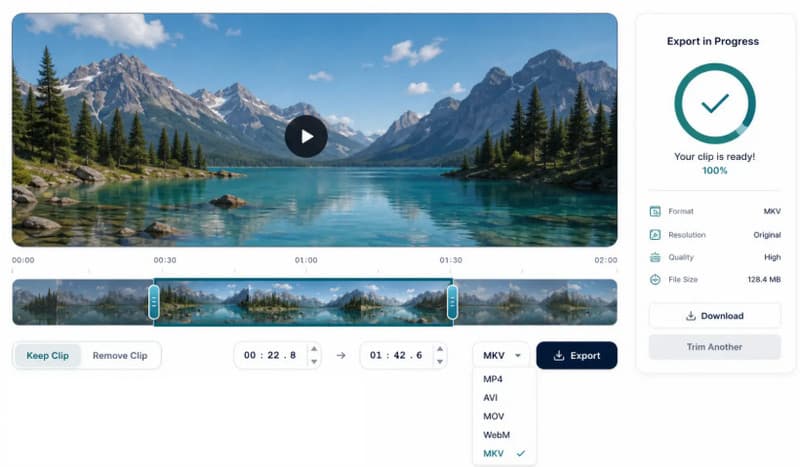
Best for: Instant, lossless trimming of MP4, MOV, MKV, and other general formats.
Starting Price: Free
Rating: 4.3 / 5
LosslessCut is among the free and open-source tools that are capable of trimming video and audio without re-encoding. So, you can still enjoy the original quality after removing unnecessary parts from the video. The good thing about this trimmer is that it trims videos quickly, saving you time. Thus, for an effective trimming process, consider using this video chopper.
More Features:
- The trimmer can merge, cut, and split footage without re-encoding.
- It can extract audio, subtitles, and other streams.
- It supports various platforms, like Windows, macOS, and Linux.
Limitations:
- The trimmer's user interface has a steep learning curve, which is not ideal for beginners.
- It cuts snaps to key frames, making them off by a second or two.
2. Avidemux
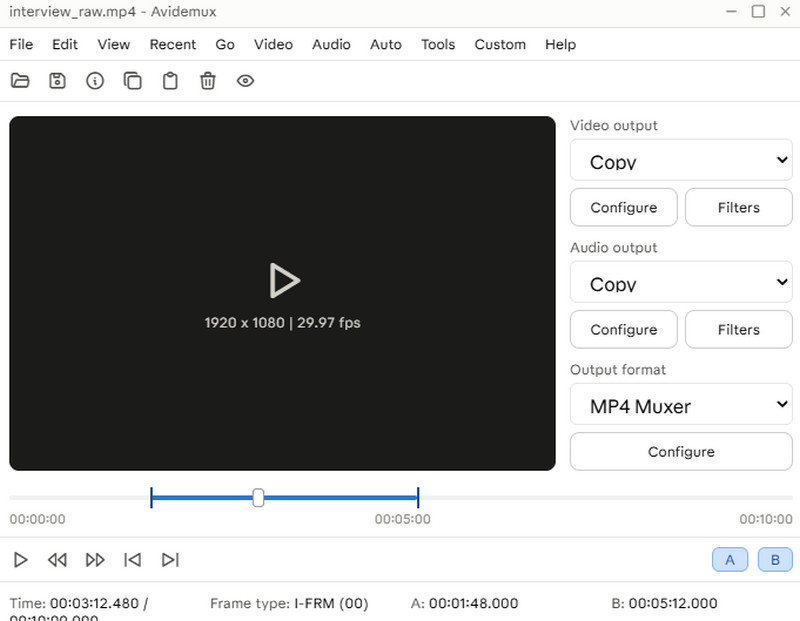
Best for: Users/editors who want both lossless copy mode and frame-accurate re-encoded cuts in one free tool.
Starting Price: Free
Rating: 4 / 5
For precise hard cuts, you can also rely on Avidemux. It is a free video trimmer that focuses on simple cutting, filtering, and encoding. Plus, it can copy streams for instant cuts or re-encode when you need frame accuracy. This trimmer is ideal for all users thanks to its neat, simple interface. It also offers various built-in filters, allowing you to crop MP4 videos and other formats, deinterlace, and resize.
More Features:
- It can offer a copy mode feature for instant cuts.
- This can offer a range of editing features to enhance video.
Limitations:
- Even though the UI is simple to navigate, it still looks outdated and unappealing.
- It doesn't support modern multi-track editing.
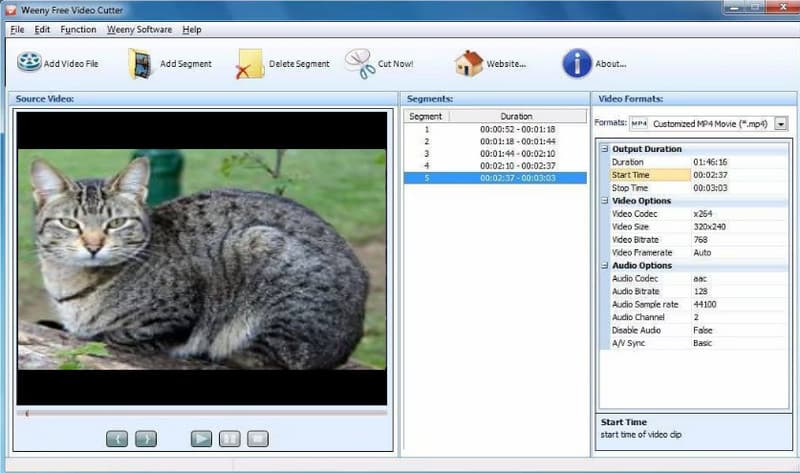
3. Weeny Free Video Cutter
Best for: Non-professionals who need a no-frills way to split and trim videos on Windows.
Starting Price: Free
Rating: 4.2 / 5
If you are a Windows user, you can use Weeny Free Video Cutter for trimming videos. It is a free and small Windows utility for splitting footage or cutting out sections. In addition, it can convert output to formats such as MPG, AVI, MP4, and WMV. It also has a neat user interface for a smoother, easier video trimming process.
More Features:
- This MP4 trimmer can cut or split videos into parts.
- The tool can convert video to various formats for better compatibility.
- The option to disable audio and shut down the PC is available.
Limitations:
- It is only available on Windows operating systems.
- There is no advanced preview, and splitting options are limited.
- Updates are inconsistent.
Part 3. Best Video Trimmers for Large Files
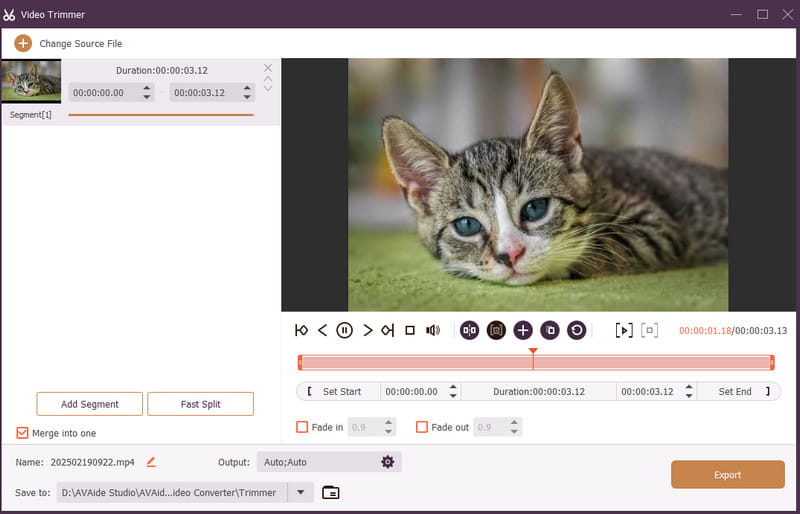
1. AVAide Video Converter
Best for: Beginners and skilled users who need to trim and edit videos to improve the viewing experience.
Starting Price: Free
Rating: 4.5 / 5
Do you want a powerful MP4 cutter? In that case, you can rely on AVAide Video Converter. This program offers a Video Trimmer feature that lets you trim and remove unnecessary parts from your footage. What we like about this program is its engaging user interface, fast trimming, and ability to save videos at the highest quality. It can also merge videos, crop, add effects, and more. If you want to work with large video files, look no further than AVAide Video Converter.

FREE DOWNLOAD For Windows 7 or later
 Secure Download

FREE DOWNLOAD For Mac OS X 10.13 or later
Secure DownloadMore Features:
- It can offer a fast, smooth video-trimming process.
- The video editor supports 4K resolution for better export.
- It can convert video to hundreds of output formats, including MP4, AVI, MKV, FLV, MOV, VOB, and more.
- The program can offer various templates for better video editing and enhancement.
Limitations:
- Trimming is the program's secondary feature.
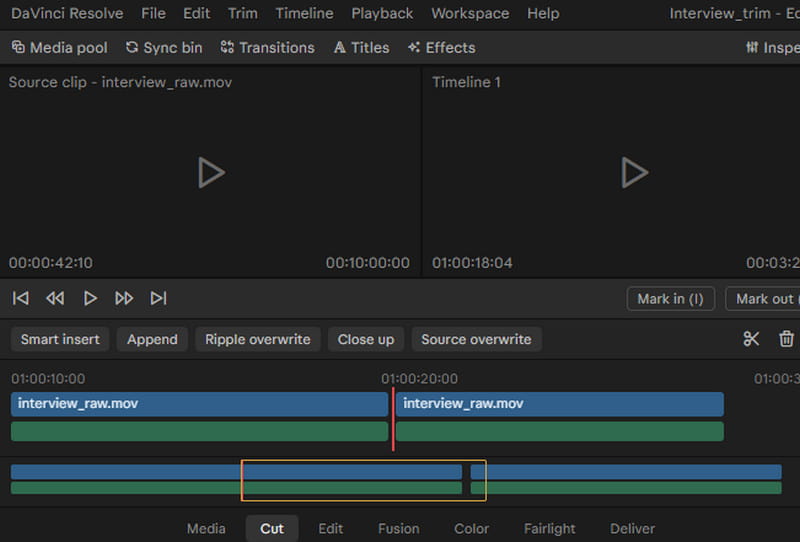
2. DaVinci Resolve
Best for: Skilled users who prefer trimming large video files more effectively.
Starting Price: Free, and the Studio version costs $295.00
Rating: 4 / 5
DaVinci Resolve is professional-grade media editing software that offers video trimming. This is perfect if you want to trim large video files with high-quality resolution. With this editor, you can remove unwanted parts from the video or split the footage into multiple files. It also offers more features than you imagined. You can crop video in DaVinci, add effects, tweak audio settings, and more, making it the best video editor for professionals.
More Features:
- It supports hardware acceleration for smoother video editing.
- The program can produce natural color and good quality, resulting in an exceptional output.
- It is accessible on Windows, Mac, and Linux.
Limitations:
- The user interface might be overwhelming to non-professional users.
- For higher-quality output, it is recommended to use the Studio version.
- The video clipper is resource-intensive.
Part 4. Best Browser-Based Online Cutters
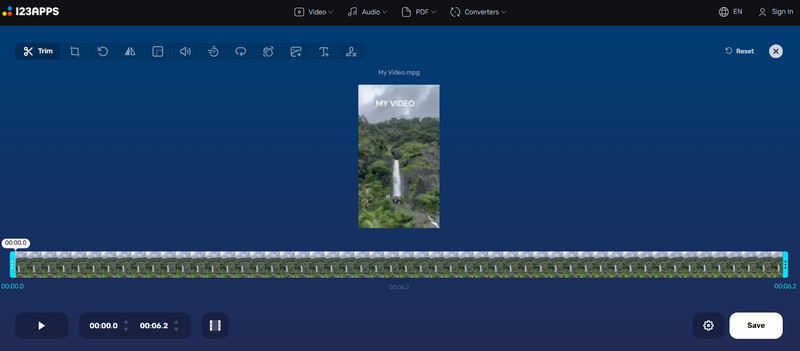
1. Online Video Cutter
Best for: Users who need to trim videos without annoying ads.
Starting Price: $6.00
Rating: 4.3 / 5
Online Video Cutter is perfect for trimming videos in your browser. With this tool, you don't need to install any software. This lets you manually trim and remove any parts from the video. It also has a simple layout and a smooth trimming process, making it an ideal tool for all users. Moreover, it can offer additional features to improve videos. You can flip videos, crop, add text, rotate, change playback speed, and more. It is also accessible across all web platforms, so you can trim videos in any browser.
More Features:
- The tool can save videos without any watermark.
- It can change the video resolution for a better viewing experience.
- It doesn't require registration.
Limitations:
- The free version has various restrictions.
- It requires a fast/stable internet connection for a smooth video-trimming process.
2. Adobe Express
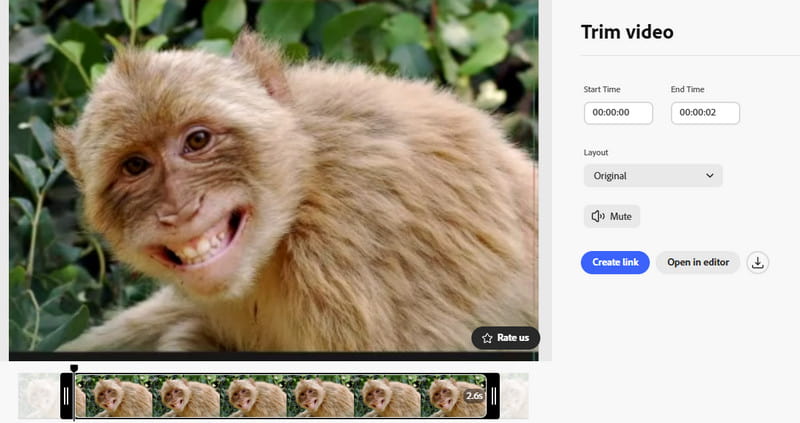
Best for: Cutting and trimming social-ready footage and adding captions or branding in the browser.
Starting Price: $12.99
Rating: 4.2 / 5
Another online video editor and cutter you can access is Adobe Express. This browser-based tool is helpful because it offers all the necessary features to achieve the desired result. It lets users manually trim videos and save them at the best quality. Plus, it's not only good for trimming videos. It can also mute the video, change the layout, attach various elements, and more.
More Features:
- The tool can offer various templates, captions, and stock media.
- It supports desktop and mobile versions.
- The tool can be integrated with multiple Adobe software.
Limitations:
- Some features are available in the paid version.
- It needs an Adobe account to edit videos.
Part 5. Best AI Video Cutter
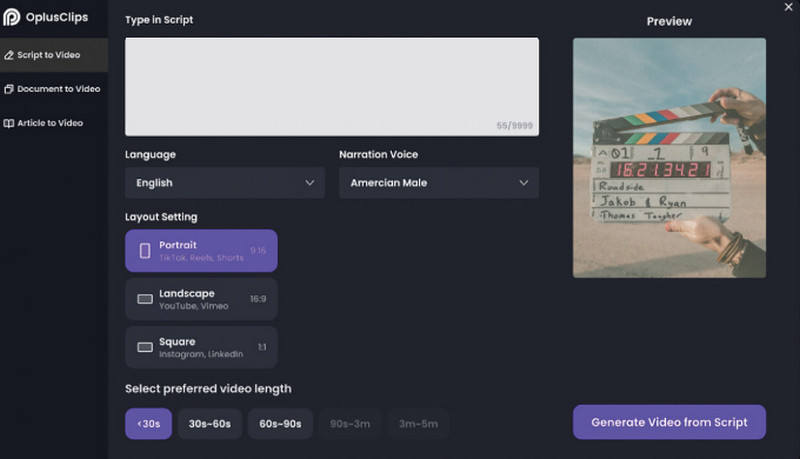
Best for: Creators and marketers turning long-form footage into a steady stream of short clips with minimal editing.
Starting Price: $15.00
Rating: 4.4 / 5
Looking for an AI video cutter? Then you can use OpusClip. This tool can scan long videos, such as webinars, podcasts, or streams, and turn them into short clips. The tool cuts them, adds captions, and reframes them for vertical platforms such as Reels, Shorts, and TikTok. With this tool, there is no need for manual trimming. The tool will provide its suggested trimmed video that you can instantly save.
More Features:
- It can generate video smoothly and accurately.
- It supports multiple languages to improve results and understanding.
- The tool lets users choose the desired video length.
Limitations:
- Some features are available on the paid plan.
- It doesn't support manual trimming.
Part 6. Comparison of the Best Video Trimmers
To learn more about the best video cutters, see the comparison table in this section.
| Video Trimmers | Cut Precision | Speed on large Files | Ease of Use | Quality Preservation |
| LosslessCut | Medium (keyframe-based) | Excellent | Medium | Excellent (lossless) |
| Avidemux | High (with re-encode) | Good (copy mode), slower when encoding | Low to medium | Excellent in copy mode |
| Weeny Free Video Cutter | Medium | Medium | High | Fair (re-encodes) |
| AVAide Video Converter | Excellent (frame-accurate) | Excellent | High | Excellent |
| DaVinci Resolve | Excellent (frame-accurate) | Good, but heavy and slow to export | Low (steep learning curve) | Excellent |
| Online Video Cutter | Medium | Low (upload and file size limits) | Excellent | Good |
| Adobe Express | Medium | Low to medium (upload, length limits) | High | Good |
| OpusClip | Low for manual cuts, word-level via transcript | Medium (cloud processing time) | High | Good (re-encoded with captions) |
These video cutters are perfect for trimming and cutting your videos to achieve your desired result. So, if you want to trim videos effectively, it's best to try these tools and see which trimmer is perfect for you. Also, if you want a powerful video trimmer with additional features, we suggest using AVAide Video Converter. This program can trim, edit, convert, and save videos at the best quality, making it the most remarkable trimmer and editor for all users.
ABOUT THE AUTHOR

Your complete video toolbox that supports 350+ formats for conversion in lossless quality.