Have you ever encountered browsing on YouTube, TikTok, Facebook, and other social media platforms and noticed some parts of the clips you are watching are pixelated? Well, the main reason is pixelating video is to protect privacy, conceal sensitive information, or comply with legal and ethical guidelines. For example, faces of other people not intended to be included in the video, the car's plate number, and other confidential information. In addition, pixelating a video can also be used to blur out explicit content or scenes that are inappropriate for certain audiences. If you are an aspiring content creator or video editor enthusiast, you definitely need to know this simple editing process. This article provided the best solutions you can find online.
Part 1. Pixelate a Video on a Computer [Versatile]
If you are looking for a versatile app to pixelate video that can do it all within one app, the AVAide Video Converter is the solution you need to acquire. With its plethora of editing functions and settings, you can never be wrong in using this app. The interface is intuitively perfect for beginners as well as for professional video editors who modify videos for social media platforms. In addition, the application provides you with a quick and straightforward way to pixelate a video. It already has a pre-installed filter to apply to video, which can pixelate certain parts of your clip. Learn more below on how to pixelate a video.
Step 1Acquire AVAide Video Converter
Look for the download buttons provided below this step. Click the download button that is compatible with your current device. This software can be installed on Mac and Windows devices. Once installed, access the main interface of the app.

FREE DOWNLOAD For Windows 7 or later
 Secure Download
FREE DOWNLOAD For Mac OS X 10.13 or later
Secure Download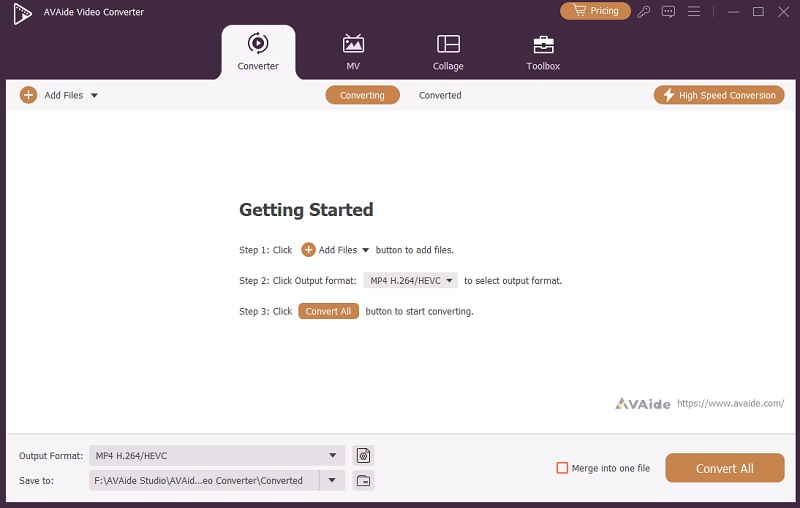
Step 2Add Your Project Video
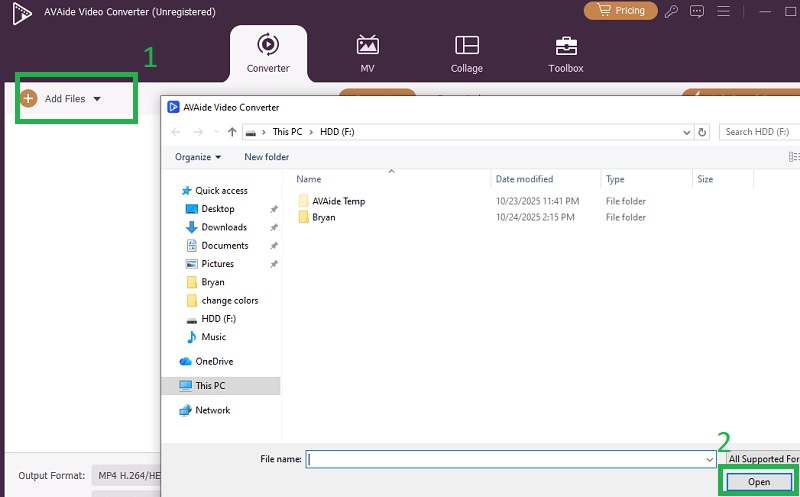
Afterward, add your video within the app. Click on the Add Files button to access your device's folder. Select the Open button to add the video you want to edit and pixelate successfully. You can add multiple video clips at once if you need to work with multiple clips.
Step 3Pixelate Video Successfully
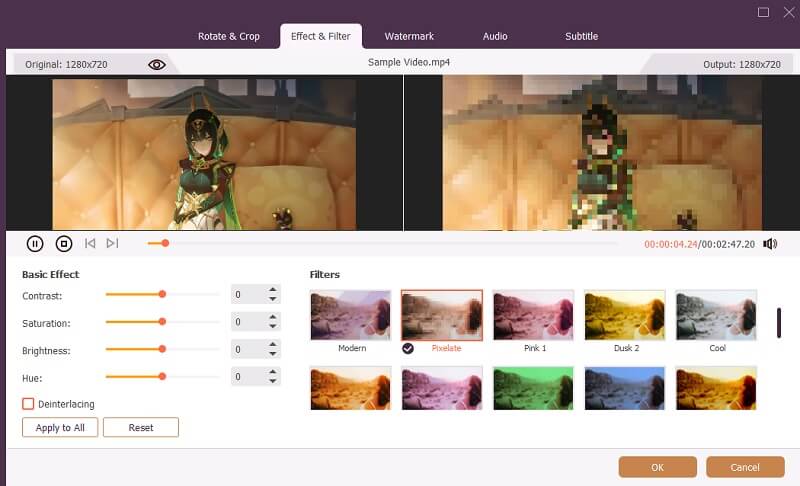
For the final step, click on the Edit button, which helps you access the tab where you can insert filters and effects into your project video. Ensure that you are accessing the Effect & Filter tab. Browse the list of effects and select Pixelate to apply the filter. Hit the Ok button and select Convert All to finish the editing process.
Part 2. Pixelate a Video Online [Easy]
1. YouTube
Did you know that YouTube contains simple video editing tools for your uploaded videos? Yes, it comes with handy editing functions that let you tweak your clip, suitable for post-production for those uploaded, private, and unlisted videos you have on your account. As we mentioned, the editing is too basic; it only comes with trim and cut functions, blur option, adding an end screen, and others. What is more, the editing feature of YouTube contains a timeline panel perfect for beginners to edit their videos. You can utilize the panel to select certain areas or parts of your clip that you want to blur or pixelate. The steps listed below are comprehensive ways to learn how you can utilize and access this miniature video editor on YouTube.
Step 1You need first to upload the video that you want to edit. To upload a video, click the Create button on your YouTube account and select Upload Video.
Step 2Once uploaded, you will be routed to the list of uploaded videos within your account. Regardless of whether your video is private, public, or unlisted, you can still use the YouTube video editor.
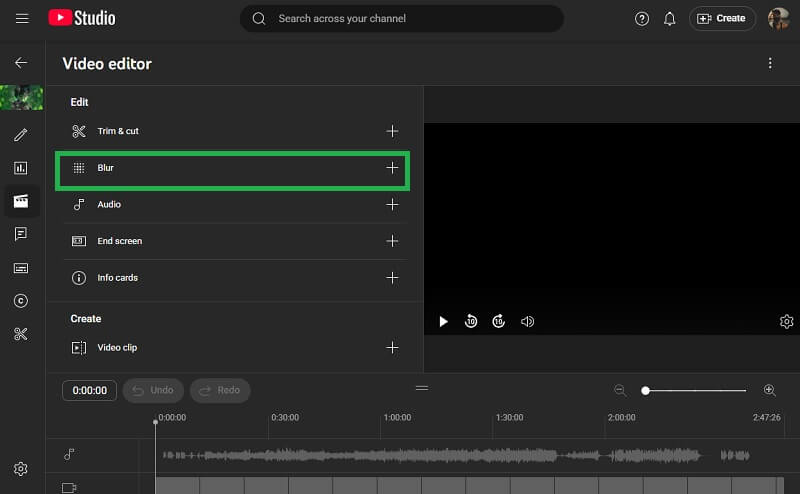
Step 3Select the video you want to edit from the list. Click the Pencil button or button, and you will be routed to the details of your upload video. On the left side, there is a list of features. Select the Editor button. Afterward, select the Blur option and click Save to complete the process.
- Since this video editing functionality does not support extensive editing functions. You can try to use other best YouTube movie makers or editors to enhance your YouTube videos.
2. Blur.me
One of the straightforward and lightweight video editors, Blur.me, is a one-stop shop for video editors who need simple editing functions. From its name itself, Blur.me provides the option to blur and hide certain parts of your video. It has two functions when it comes to hiding certain areas on your clip. These features are the Blur and Pixelate options. What is more, the online tool provides you with options to adjust the intensity and size of the pixelated area on your clip. To know more about how you can utilize this tool to blur your video, follow the steps below.
Step 1On your web browser, search for the main website of Blur.me. Once you have entered its main interface, you will find a button to import or add your video clip.
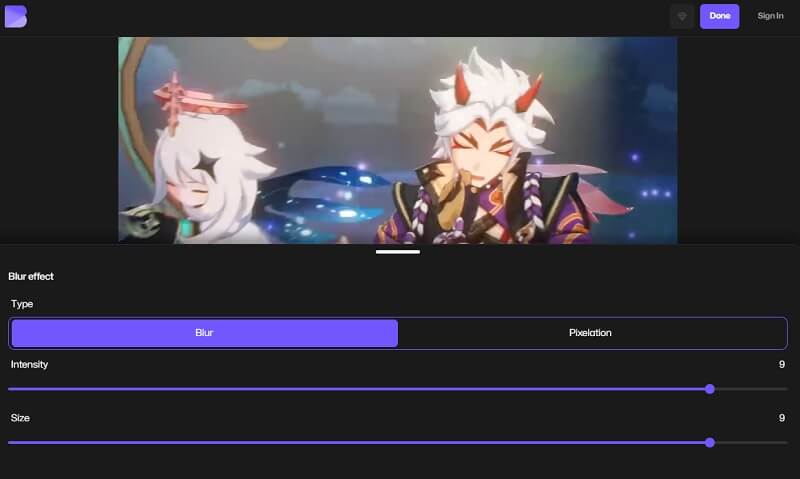
Step 2Once you have already added the clip you need to pixelate, you will gain control of the options where you can blur the video. Glide the slider provided to change the intensity and size of the blur you want to add.
Step 3Click Done to complete the changes and export the project video.
Part 3. Pixelate a Video on iPhone/Android [Convenient]
1. CapCut
When it comes to editing videos for mobile devices, one of the most well-known software is CapCut. With the rise of TikTok, a mobile social media platform, CapCut has risen to fame as well. Due to its intuitive set of functions, many users are actually utilizing this app for simple editing tasks. Blurring or pixelating a video is not unusual for this app to process. It comes with a timeline panel as well, where you can directly edit the video or clip. You can utilize its overlay function to add blur and pixel effect. Moreover, you can use this app as a video enhancer app for iPhone and Android.
Step 1First, install CapCut on your mobile device to gain access to the tool. Make sure that you have allowed the permissions needed for the app to function.
Step 2Next, go to the Edit section of the app, select the New Project button to upload videos you need to blur.
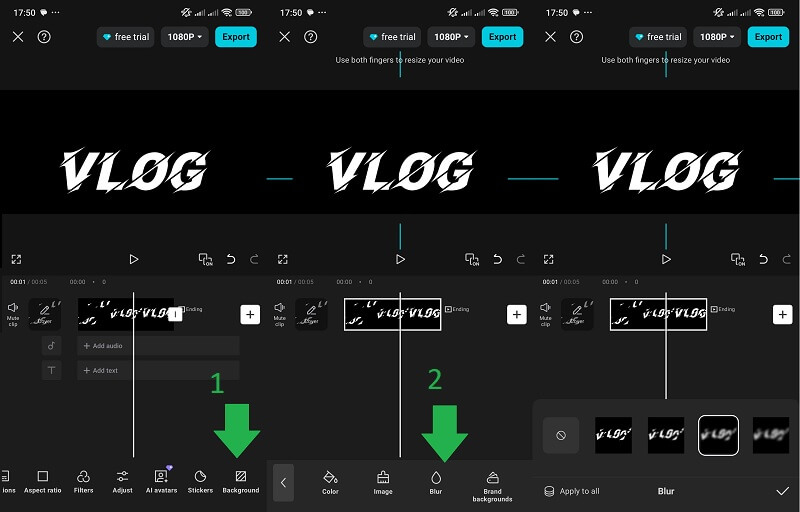
Step 3Lastly, you will be directed to the timeline editing panel, where you can edit your video. Click on the Background section, then choose Blur. Pick from the list of Blur effects pre-installed on the app. Hit the Check button and select Export to save the edited video.
2. Kinemaster
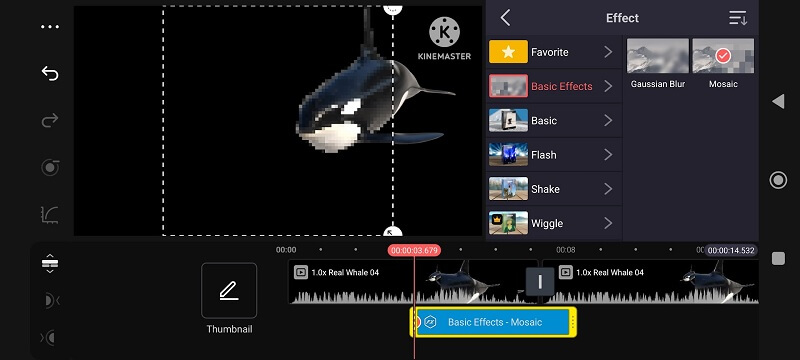
Another popular mobile video editing app known for its user-friendly and robust set of features, Kinemaster is a truly must-have tool for your mobile devices. It is ideal for both beginners and professionals due to its easy to learn functionalities. The app key features include multi-layer video editing, real-time video and audio recording, precise frame-by-frame trimming, a vast library of transitions, effects, and royalty-free assets, and more. One standout functionality is its blurring capabilities, which allow users to easily obscure or hide sensitive information or unwanted objects in their videos. The blurring tool supports adjustable blur strength and positioning, enabling users to apply blur effects to specific areas or across the entire frame. You can check the guide below on how you can utilize Kinemaster to blur your mobile videos.
Step 1Get the Kinemaster app on your mobile device by installing it on your device's app store.
Step 2Open the app to access its interface and click on the Create New button. Select the Aspect Ratio for your video to access your mobile device's folder.
Step 3After your video is uploaded, you will be redirected to the video editing panel of the app. On its editing features, select the Layer, then choose Effect. Afterward, select the Basic Effect and tap on the Mosaic to add a pixelated effect to your project video. Click the Export button to complete and save the video.
In summary, having an app to pixelate video is essential for today's content creators and video editors. Whether you are looking to protect privacy, comply with platform guidelines, or simply enhance the professionalism of your videos, mastering this technique is a must. As discussed, there are a variety of tools available for every device, desktop, online, and mobile, that make the process accessible for beginners and experienced editors alike. From versatile applications like AVAide Video Converter to convenient mobile solutions such as CapCut and Kinemaster, you have the flexibility to pixelate video wherever and whenever you need.
Your complete video toolbox that supports 350+ formats for conversion in lossless quality.