Black and white filter, a video effect that emphasizes classical elegance and emotional depth. It provides a monochrome hue to your video clips, which induces nostalgia that most of us relate to. But why does this filter give us the sense of nostalgia and remind us of our younger days? The reason is that our mind is being tricked that when a video contains only white and black colors, the clip was produced decades ago. Nowadays, this filter is being used in photography, weddings, and even special events that want to induce a nostalgic tone. If you are a video enthusiast and aspiring editor, this effect can help you a lot in providing depth, emotion, and settings on your project videos. In this article, we have collected the most possible solutions on how you can achieve that.
Part 1. Why Add Black and White Filter to Video
Adding a black and white camera filter to a video can dramatically transform its visual impact and storytelling. By removing other hues, the focus shifts to composition, lighting, contrast, and emotion of your project video, allowing audiences and viewers to pay closer attention to the subject. This can make scenes feel more timeless, classic, or artistic. This effect also helps unify footage by minimizing distractions caused by clashing or overly bright colors, creating a more cohesive look throughout the video. Filmmakers often use black and white to convey themes such as simplicity, seriousness, or moral ambiguity. From a technical standpoint of post-production or video editors, black and white can help mask inconsistencies in color grading or lighting. In addition, most video editors who create films or short stories use this to distinguish flashbacks, dreams, and other alternate realities, which makes the scene more distinct and creative.
Part 2. How to Add a Black and White Filter to Videos for Free
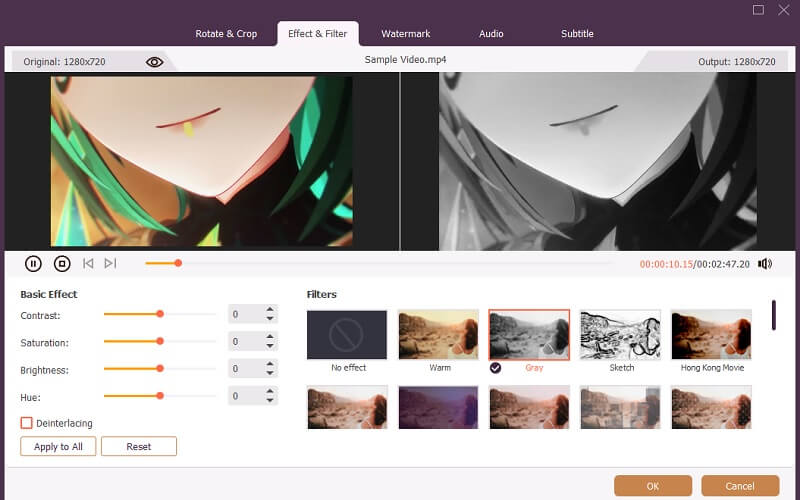
Black and white filters are a common effect; most of the video editors you can find contain this effect, but AVAide Video Converter provides more than applying the effect. With its intuitive and friendly user interface, professionals and new video editors can explore its functionalities without having an issue. It comes with a set of filters that is pre-installed within the app. One of its filters is the Gray filter, which provides a black and white effect, removing other colors within the video clip. Its Sketch effect also provides a black and white effect while providing a hand-drawn effect for your project video. What makes this tool prevalent compared to other entry-level video editors is its ability to allow users to personalize the effect applied to their videos. It comes with a slider to adjust different parameters such as contrast, brightness, hue, and saturation. Read through the steps provided below on how you can use AVAide Video Converter to add a black and white filter to a video.

FREE DOWNLOAD For Windows 7 or later
 Secure Download
FREE DOWNLOAD For Mac OS X 10.13 or later
Secure DownloadStep 1Get AVAide Video Converter
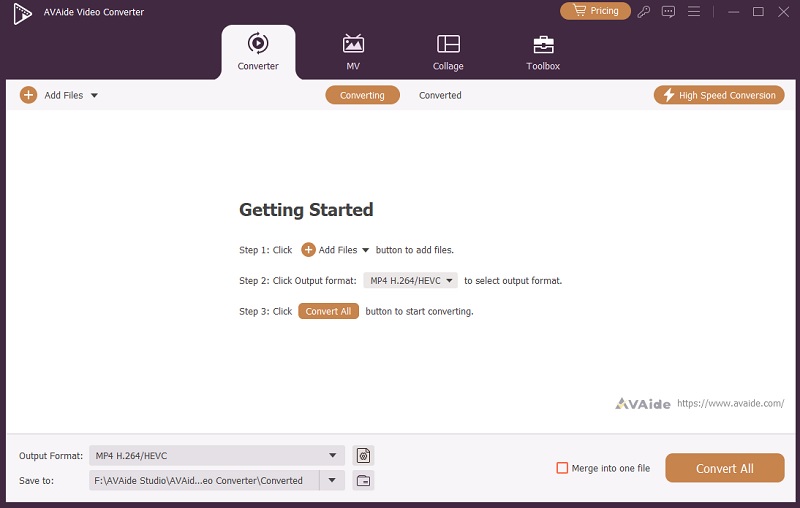
The first step to edit your video and add a black and white filter to the video is to get AVAide Video Converter installed on your device. This computer software is compatible with Mac and Windows operating systems. You can select or click the Free Download button provided below to get the file installer. Once completed, finish the prompts and access the tool's main interface.
Step 2Prepare and Add Your Video
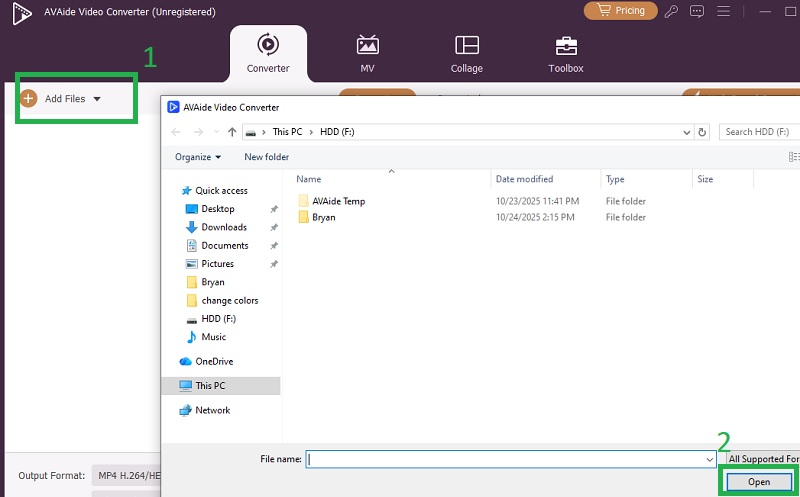
The next step is to access the interface of AVAide Video Converter and click on the Add Files. This button will give you access to your device's folder and let you browse the project video you are working on. After you confirm the video, click on the Open button to add it directly within the app.
Step 3Apply Black and White Effect
Afterward, click on the Edit button to proceed to the next window. This new window will provide you with different editing settings and tabs. Click on the Effect and Filter to locate the set of pre-installed effects on the app. Browse and select the Gray or Sketch effect to apply to your project video. Click the OK button located at the lower part of the window to export the file.
- If the effect for you is too dark and is quite unable to see the subject of your project video, you must brighten the video to adjust its visuals.
Part 3. How to Apply a Black and White Effect on a Camera
Converting your video with AVAide Video Converter is a clever trick to use. But if you wanted to directly create monochromatic videos within your device, it is also possible. Your phone holds a plethora of tools, which include its built-in camera. In our digital age, most of us no longer use portable cameras as our mobile phones hold one. Even if your phone is Android or iOS-powered, a camera is always included in its specs. In this section, we will teach you how you tweak some camera settings on your mobile devices to make black and white effects on your videos or photos.
1. Android
Step 1Open your device and access the home page, where all of your apps are located. Select the Camera button to access your mobile phone's camera.
Step 2Access the Filter button. Since different brands manufacture Android devices, the camera settings are different in each model.
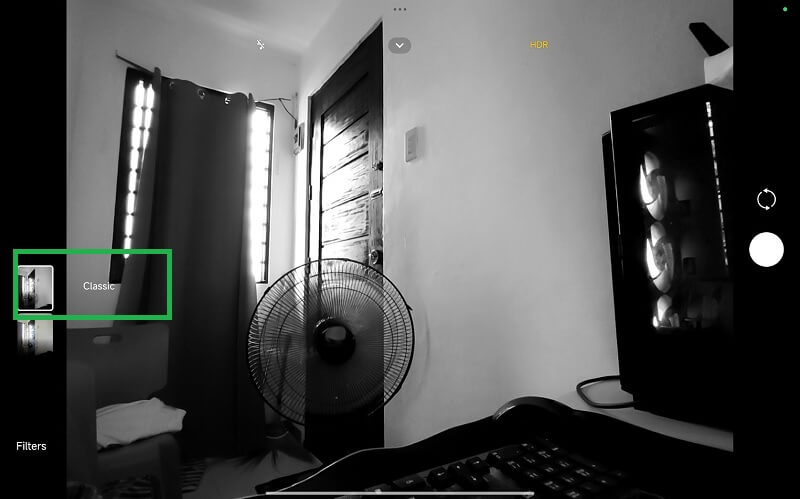
Step 3Browse the set of filters, and search for B&W, Classic, H-400, or other filters that provide black and white filters. Click on the Capture button to save black and white images or videos.
2. iPhone or iPad devices
Step 1Access the home setup of your Apple device to access the Camera app.
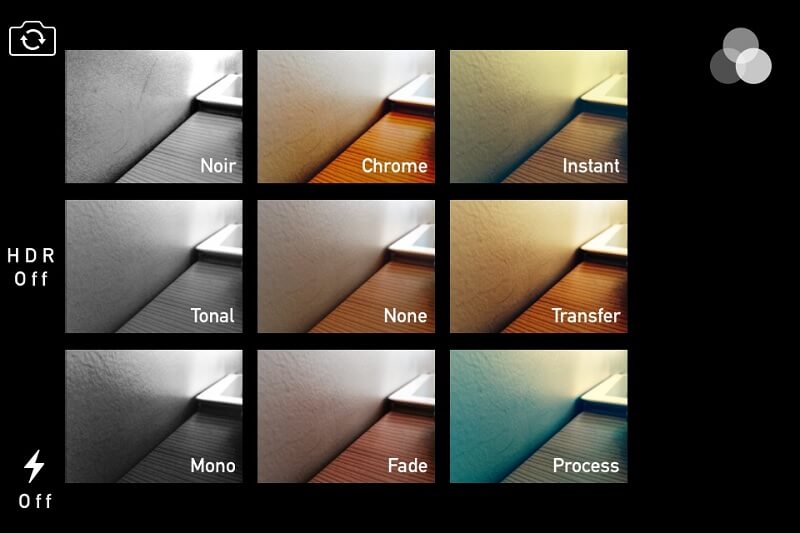
Step 2Click on the Filter icon. Since the iPhone has different models and versions, the location of the filter icons is different as well. For iPhone X and earlier, the button appears at the top of the screen. In iPhone XS, XR, and later versions, you must click or expand the Camera controls first and select the filter icon.
Step 3Browse the list of effects, black and white, tap the capture button to record or take a selfie in black and white effect.
- If the video on your mobile device is low quality, better to use a video enhancer for iPhone or Android to adjust the quality of the output file.
Part 4. Other Solutions to Apply a Black and White Effect
1. CapCut
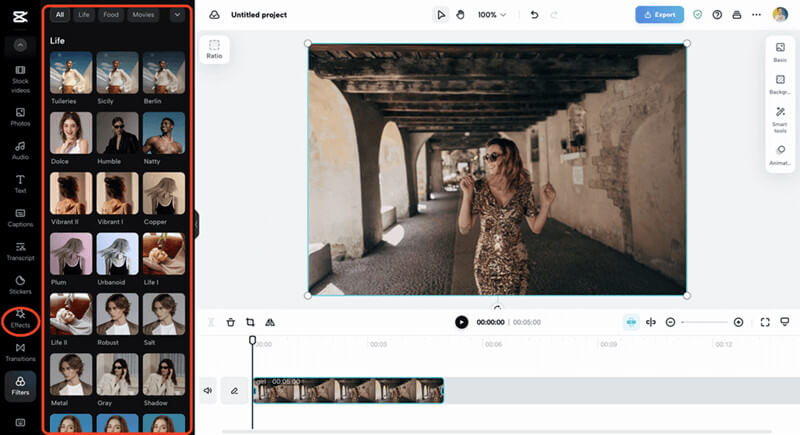
One of the best video editing tools in the digital age is CapCut. This software provides a plethora of basic editing features, which include applying black and white filters. The black and white effect of CapCut can be easily achieved. The option you should consider is the Overlay feature. This function lets you blend Black and White clips with colored ones for striking contrasts or highlight specific moments. Additionally, you can fine-tune brightness, contrast, and exposure to enhance shadows and highlights. What is more, the app provides built-in effect features such as Mono effect, Classic, or B&W.
2. Adobe Premiere Pro
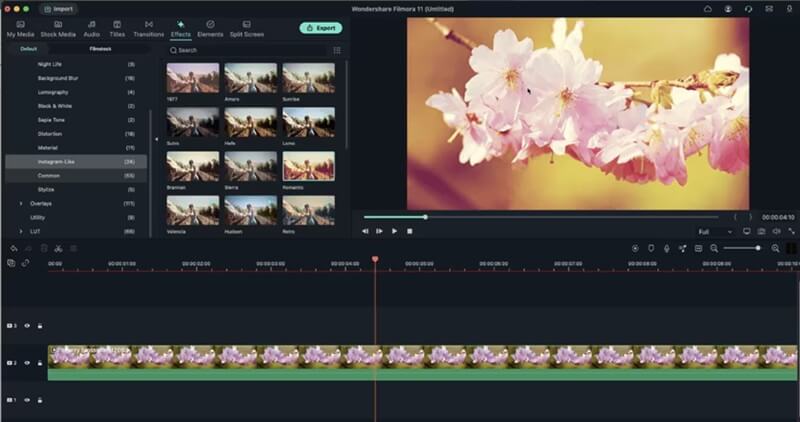
Another video editing with a comprehensive set of features is Adobe Premiere Pro. Adobe Premiere's black and white effect can be achieved by using the Black and White effect on which can be found in the effects panel. The timeline panel can be used as well to drag and drop the video you want to apply effects to. Premiere will instantly remove all color, presenting your footage in grayscale. For advanced editing, the Lumetri Color option is the best way you achieve the old effect footage. The Lumetri Color panel also allows you to fine-tune the contrast of your video. Alternatively, set the saturation slider to zero for a pure monochrome effect.
The black and white effect remains a timeless tool in video production, offering creators a powerful way to evoke emotion, highlight elements, and create a nostalgic or classic ambiance. Whether you are using professional editing software like AVAide Video Converter or simply exploring the built-in camera features on your smartphone, the ability to change ordinary footage into a monochromatic masterpiece is more accessible than ever. By understanding both the artistic impact and the technical walkthroughs involved, you can use this filter to elevate your storytelling and make your clips stand out. Embrace the creative possibilities of black and white filters; sometimes, removing color is the best way to add deeper emotion and meaning to your visual clips and stories.
Your complete video toolbox that supports 350+ formats for conversion in lossless quality.