Do you have a Blu-ray video that you want to play on your Windows and Mac computers? Well, we all know that playing Blu-rays is not an easy task. There are also some factors you must take into account for an effective Blu-ray playback. With that, if you are looking for an excellent way to effectively play Blu-ray on your desktop, it would be best to read this tutorial. We are here to give you all the best methods you can use to play your favorite Blu-ray content using various Blu-ray player software. Without anything else, read here and learn the best way to play Blu-ray on Windows and Mac.
Part 1. Best Blu-ray Player to Play Blu-ray on Windows and Mac
Want to play Blu-ray discs on Windows 10, 11, and Mac? Then, we recommend using AVAide Blu-ray Player. With this Blu-ray player, there is no doubt that you can achieve the result you need. It is because you can access all the necessary features you need. You can add the Blu-ray and play it smoothly. The best part about this program is that it is free to use. You can even attach Blu-rays with the best quality for up to 4K, resulting in a satisfying viewing experience. It can even handle Blu-ray folders and ISO, making it more reliable and remarkable. What's more, this software can offer various flexible playback controls, such as forward, backward, play, pause, and more. You can even access its Snapshot feature for taking a screenshot while watching.
If you want to play Blu-ray on Windows 10, 11, and Mac, start checking and using the instructions we have provided below.
Step 1Download and install AVAide Blu-ray Player on Mac and Windows. You can use the Free Download buttons below for easier access.

FREE DOWNLOAD For Windows 7 or later
 Secure Download
FREE DOWNLOAD For Mac OS X 10.13 or later
Secure DownloadEnsure that your Blu-ray is already on your computer.
Step 2For the next process, tap the Load Disc option. When the file folder shows up on your screen, browse the Blu-ray you want to play.
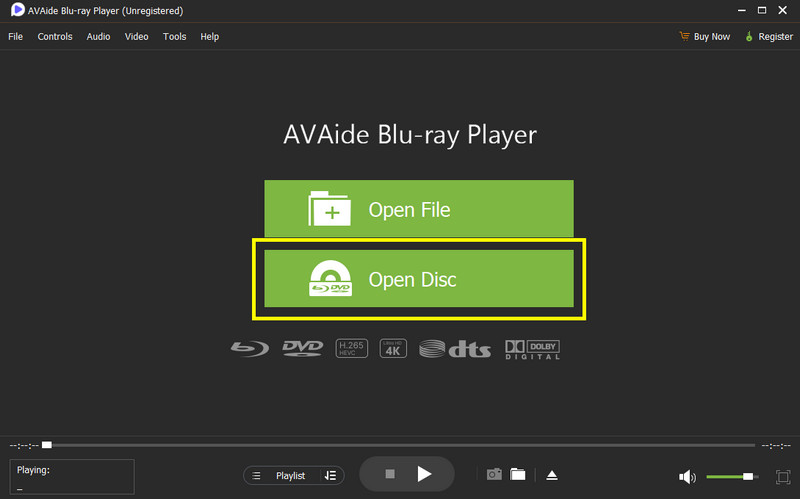
Step 3After that, you can start playing and watching the video on your Windows or Mac. You can also use all the playback controls for an engaging experience.
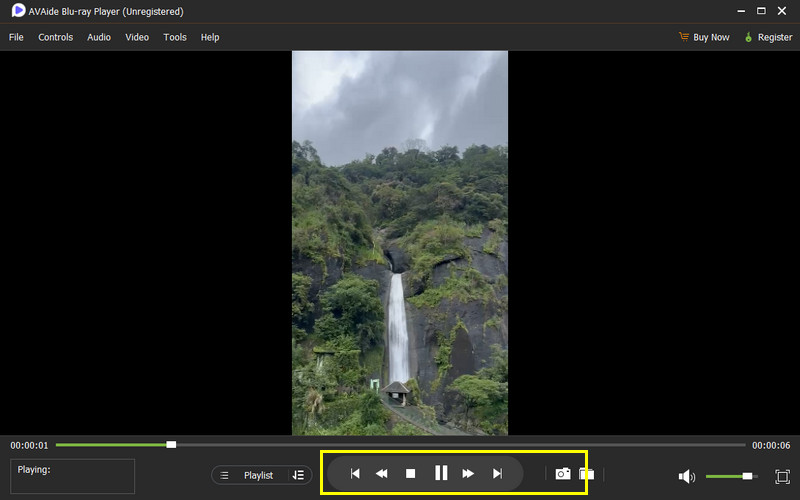
To capture your favorite scene, you can click the Snapshot feature from the bottom interface.
Part 2. How to Play Blu-ray on Windows
See this section and learn how to play Blu-ray on your Windows.
Method 1. Play Blu-ray on Leawo Blu-ray Player
Looking for the best software to play Blu-ray on Windows 10 and other versions? In that case, we would like to introduce the Leawo Blu-ray Player. When it comes to playing high-quality Blu-rays, we can tell that this program is the best choice since it can give you a satisfying viewing experience. This Blu-ray player can offer a simple-to-navigate user interface and a smooth playing process. There are also various playback controls you can access, such as play, stop, pause, next, and backward. You can also adjust the video volume based on your preferences. The good thing about this software is that you can create a playlist for organizing your videos.
To play Blu-ray on Windows, you can check the detailed steps below.
Step 1The first thing to do is to download the Leawo Blu-ray Player on your Windows computer. After that, install and run it to start the process. Ensure that your Blu-ray is already on your computer.
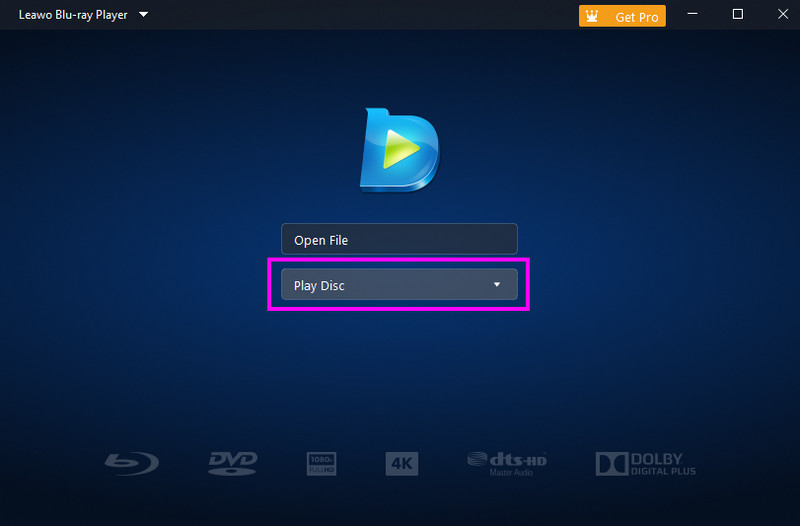
Step 2Then, once the main interface shows up, hit the Play Disc option. From the computer folder, browse and open the Blu-ray you want to watch.
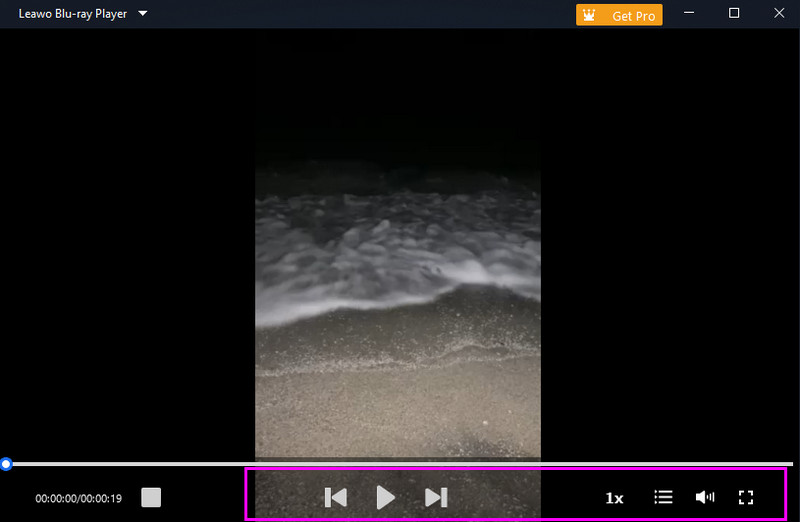
Step 3After adding the Blu-ray, you can now start watching it on your Windows computer. You can also use the playback controls, like play, stop, next, and previous, if you want to.
Method 2. Play Blu-ray on VLC Media Player
VLC Media Player is not just an ideal video and audio player for users. This software is also capable of playing your Blu-rays smoothly and easily. What makes it more reliable is that you can use various playback controls, allowing you to enjoy your viewing experience. In addition, you can even enhance your videos by cropping, choosing your preferred aspect ratio, adding filters, adjusting volume, and more. Lastly, you can operate this program for free, making it accessible to all users. Thus, if you prefer a simple Blu-ray player, consider using VLC. You can use the steps elbow and learn how to play your Blu-ray using the program.
Step 1Download and run the VLC Media Player on your Windows. Once done, you can proceed to the next step.
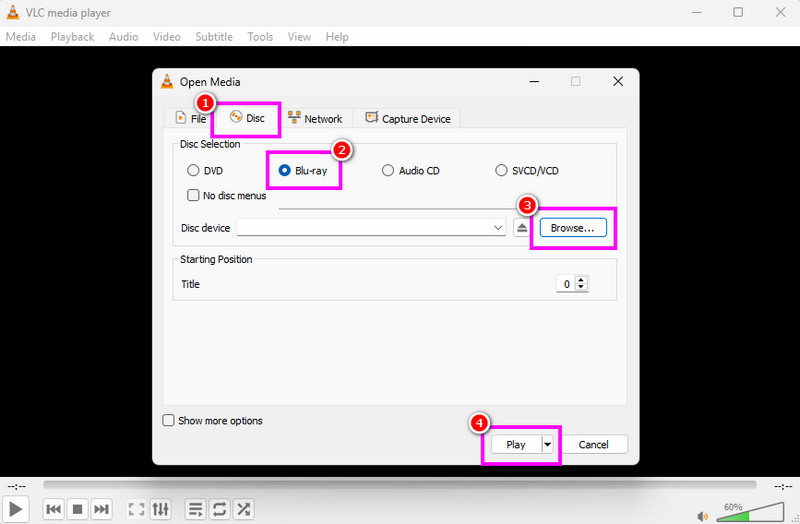
Step 2Tap the Media section and hit the Open Disc option. Then, another mini interface will pop up on your screen.
Step 3Go to the Disc section and click the Blu-ray option. After that, hit Browse to start adding the Blu-ray you want to play.
Step 4Click the Play option below to start watching your Blu-ray.
Part 3. How to Play Blu-ray on Mac
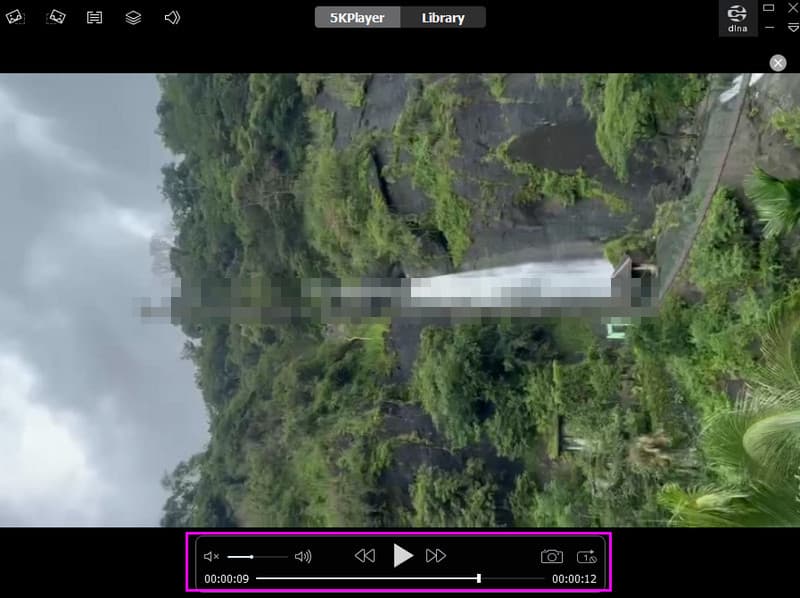
Want to play Blu-ray on Mac? Well, there are various Blu-ray players you can access on Mac, making it challenging for some to choose what is best. If that is the case, we recommend using 5K Player. It is a professional-grade media player that is capable of dealing with your Blu-rays. What we like about this program is that it can ensure that you can play your Blu-ray with the best quality. You can even access various features that can give another impact to your viewing experience. It allows you to insert a subtitle track, change the language, access various playback controls, and more. The best part here is that you can use this program completely free, making it among the best Blu-ray player software for Mac.
Step 1Download and run the 5K Player software on your Mac. After that, ensure that your Blu-ray is already inserted into your Mac using a drive.
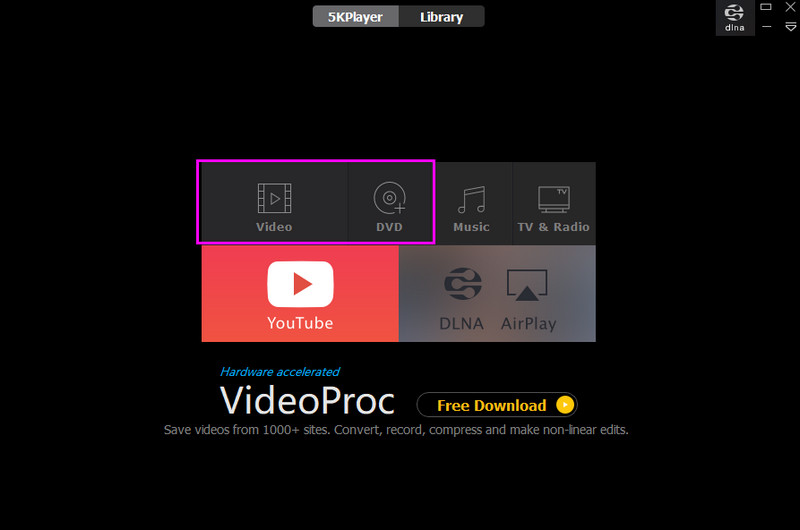
Step 2After that, launch the program on your Mac. Then, click the Video or DVD button to start adding the Blu-ray to the platform.
Step 3Once done, you can now enjoy watching Blu-ray on your Mac. You can also access all the controls for controlling your content. You can take a screenshot, add a subtitle, adjust the volume, and more.
If you want to learn how to play Blu-ray on Mac and Windows computers, then you must read everything in this tutorial since it has all the information you need. Thanks to this article, you have explored all the best and feasible methods you can use for an effective Blu-ray playback. In addition, if you need an excellent Blu-ray player that is available on both Mac and Windows, it would be perfect to access AVAide Blu-ray Player. With this tool, you can play your Blu-ray smoothly, effectively, and with the best quality, making it the most powerful Blu-ray player.
Full-featured multimedia player to play Blu-rays, DVDs, 4K UHDs, and other video/audio files.