H.265 is known as High-Efficiency Video Coding or HEVC. It is one of the most popular modern video codecs that offers better compression while keeping excellent video quality. With that, it can handle up to 8K HD videos. However, not all computers or phones can directly open videos (like MP4, MKV, MOV) with this codec, perhaps because they are quite legacy or have dropped support for HEVC. In that case, your fastest solution is to have an all-in-one HEVC player. Such a player can easily open all types of videos with the HEVC codec without worrying about copyright.
This post collects 5 reliable HEVC video players that are available on Windows, Mac, Linux, Android, and iOS. You can choose your desired one and start enjoying your videos or movies.
Part 1. Introduce HEVC Codec
HEVC has a higher compression rate than H.264 and MPEG-4 while still maintaining higher visual quality. It is widely used for modern high-quality videos, such as 1080p/4K 60 FPS MP4/MOV on iPhone, streaming videos, and game recordings.
Today, it is not common if a computer or mobile phone to natively play videos in this codec. But don't worry; your first aid is to have a video player that can support HEVC. Therefore, you can check the H.265/HEVC video players that we will introduce as follows.
Part 2. Top 5 HEVC Video Players in 2026
Let's have a quick verdict of the 5 best HEVC video players first:
| Player | Supported OS | Supported Format | Any Type of Ad | Subtitle Management | Playback Error |
| AVAide Blu-ray Player | Windows and macOS | MP4, MOV, M4V, MKV, WebM, TS, AVI, ASF, etc. | No | Change subtitle tracks and add new ones | No error |
| VLC Media Player | Windows, macOS, Linux, Android, iOS | MP4, MOV, M4V, MKV, TS | No | Change and add subtitle files | Cannot open high-bit videos |
| DivX Player | Windows and macOS | MP4, MKV, MOV, AVI | Fixed ads on the idle screen | Change subtitles in video; cannot add external subtitle files | Cannot play 4K and high-bit HEVC videos in the free version |
| KMPlayer | Windows, macOS, Android, iOS | MP4, MOV, MKV | Ads for different OS versions | Search for subtitles online | It may lag or crash when playing large 4K HEVC videos |
| PotPlayer | Windows Only | MP4, MKV, WebM, AVI | No ad | Very rich subtitle features | It may lag when playing large videos |
1. AVAide Blu-ray Player
Best for: Play all video formats with HEVC, H.264, AV1, and other modern codecs.
Rating: 5/5
Videos have different formats, such as MP4, MKV, and MOV. If you want an all-in-one video player that can directly open HEVC/H.265 codec in all the supported formats, AVAide Blu-ray Player is your best choice. This H.265 player can seamlessly and quickly open any video, due to its level-3 hardware acceleration for decoding. It can help you enjoy your high-quality 4K UHD playlist without any effort! Although this free HEVC player doesn't have a stylish interface, it just does what a player should do: providing the highest quality and most smooth playback.

- Pros
- Easily open large videos, including 8K resolution.
- It supports the HEVC codec in all our tested video formats.
- You can use the playlist feature to create your own high-quality video playlist.
- You can adjust the video brightness, saturation, contrast, and hue.
- Cons
- It cannot download subtitles from the internet.
2. VLC Media Player
Best for: Users who need an average all-in-one media player
Rating: 4/5
If you want a reliable and free HEVC player that won't let you face any compatibility issues, then we recommend VLC Media Player. With the help of this open-source multimedia player, you can ensure smooth playback when dealing with H.265 content. This video player offers common and user-friendly key controls so that you can fast-forward, rewind, stop, and resume with your common habits.

From our tests, VLC Media Player has simple HEVC support for decoding and hardware acceleration, but it also offers many interesting playback effects, including video rotation, 3D effects, and color grading. If you want to try some new viewing experiences, VLC player is your choice. But you can also just use it as a simple HEVC player.
- Pros
- It is an open-source and free HEVC player.
- It provides many free, beautiful video effects.
- It is lightweight and has average decoding abilities.
- You can use it as an all-in-one player for physical, digital, and URL videos.
- Cons
- VLC doesn't have a playlist feature.
- he timeline bar is too small to control with your mouse.
3. DivX Player
Best for: Users who want to create a media playlist.
Rating: 5/5
DivX Player was one of the earliest mainstream media players to introduce official, dedicated support for High Efficiency Video Coding (HEVC/H.265). It is designed to deliver high-quality playback of ultra-high-definition content while maintaining system efficiency.
DivX Player utilizes GPU-accelerated decoding (supporting Intel Quick Sync, NVIDIA NVENC, and AMD technologies). This offloads the heavy computational burden of HEVC decoding from the CPU. Therefore, when you use DivX to play large HEVC videos, you can find the playback is still very smooth, and you can do other tasks without encountering system lags.
DivX Player has a very versatile playlist feature to let you manage local videos and downloaded videos. You can manually add your desired videos from different folders on your hard drive. It is a very stylish and powerful HEVC player for Windows and macOS users.

- Pros
- It has strong GPU decoding abilities.
- DivX Player has a stylish interface and modern customization options.
- It can analyze and let you select different chapters of a video.
- Cons
- It is complex to directly add a video to play.
- You can see many ads on the interface.
4. KMPlayer
Best for: Opening URL videos and automatically finding online subtitles.
Rating: 4/5
KMPlayer is widely recognized for its all-in-one architecture. It comes packed with internal decoders that allow it to play high-bitrate, ultra-high-definition HEVC files immediately out of the box without requiring the installation of external codec packs.
From our tests, we find that KMPlayer can quickly open a 4K UHD 60 FPS video in HEVC codec. It can deal with large, high-quality media files due to its strong decoding abilities. What impresses me is that it can search for subtitles online. You can directly choose a subtitle file from the subtitle lists.

- Pros
- It has a subtitle searching feature.
- The video loading speed is very fast.
- You can check the ultimate visual quality.
- Cons
- It is very difficult to find where to open a video directly on the interface.
- The buttons and menu bar are difficult to see.
5. PotPlayer
Best for: Managing local videos and adjusting subtitles.
Rating: 4/5
PotPlayer is a very powerful and versatile H.265 video player. It can play HEVC codec in all types of video formats, like MP4 and MKV. It also supports many other video codecs. What makes this HEVC codec player awesome is that it can download more codecs when it cannot natively open a video file.
Moreover, PotPlayer combines the lightweight, ultra-fast startup of classic minimalist players with a dizzying level of back-end configuration. This free H.265 player for Windows 11/10 is built to achieve the absolute lowest possible system overhead while delivering zero-loss, frame-perfect reproduction of high-bitrate H.265 streams.

- Pros
- PotPlayer has very powerful and versatile subtitle management features.
- It can quickly open all types of HEVC videos.
- It can directly browse your hard drive to let you choose a video to play.
- Cons
- The operations and control logic are against standard users' habits.
- It usually lags even when you are not playing videos.
Part 3. How We Tested the HEVC Video Players
Our review of the HEVC players is completely independent and unsponsored. We have no financial ties or partnerships with any software developers mentioned. All tests were conducted impartially under identical conditions, and our conclusions are based on performance and real-world user experience.
- The Test Environment: Windows 11 with NVIDIA GeForce RTX 3060; MacBook with Apple M4; iPhone 16 Pro, Samsung Galaxy S23.
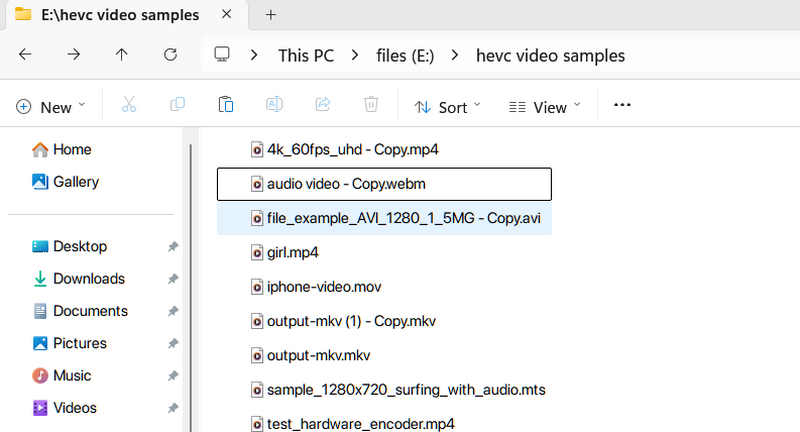
- The Tested Files: We prepare 14 HEVC video files for playback. They range from 1080p 25 FPS videos to 4K 120 FPS.
- Our Evaluation Criteria: We need to ensure that an HEVC player should use low CPU usage - below 10% on 4K files; no color loss, the playback is almost seamless and smooth.
Part 4. AQs of HEVC Player
What is the best H.265 media player?
The best H.265 codec player is AVAide Blu-ray Player. It can open almost all video formats that use HEVC/H.265 codec. It's strong hardware decoding abilities can easily play large 4K and even 8K videos.
Why does my HEVC video look washed out?
This happens because the video is encoded in HDR (High Dynamic Range), but either your monitor is standard SDR, or your player doesn't support HDR-to-SDR Tone Mapping. To fix this, use an advanced player like PotPlayer or AVAide Blu-ray Player, which automatically maps HDR metadata correctly onto SDR displays to preserve rich colors.
Why is my CPU usage at 100% when watching 4K HEVC?
Your player is likely using Software Decoding (forcing your CPU to do all the heavy math) instead of Hardware Acceleration. Ensure your player has GPU decoding enabled (DXVA, D3D11, or Intel/NVIDIA/AMD hardware acceleration) to offload the processing to your graphics card, which drops CPU usage instantly.
Indeed, HEVC codec video players play a crucial role in playing H.265 files successfully. We suggest using all ten programs this article introduces for smooth and perfect video playback. Additionally, if you want the best and most powerful multimedia player to give you high-end video quality, we recommend using AVAide Blu-ray Player. It can even offer all the needed features, leading to a great viewing experience.
ABOUT THE AUTHOR

Full-featured multimedia player to play Blu-rays, DVDs, 4K UHDs, and other video/audio files.

 Secure Download