Working with long videos often presents a frustrating dilemma: how do you maintain pristine video quality without eating up all your storage space? This is where video compression standards come in. If you want to balance video size, quality, and device compatibility, you’ll inevitably face the choice between H.264 (AVC) and H.265 (HEVC).
In this comprehensive guide, we’ll break down the core differences between H.264 and HEVC, help you decide which one fits your workflow, and show you how to convert between them seamlessly without losing quality.
Part 1. HEVC vs H264: What Are They?
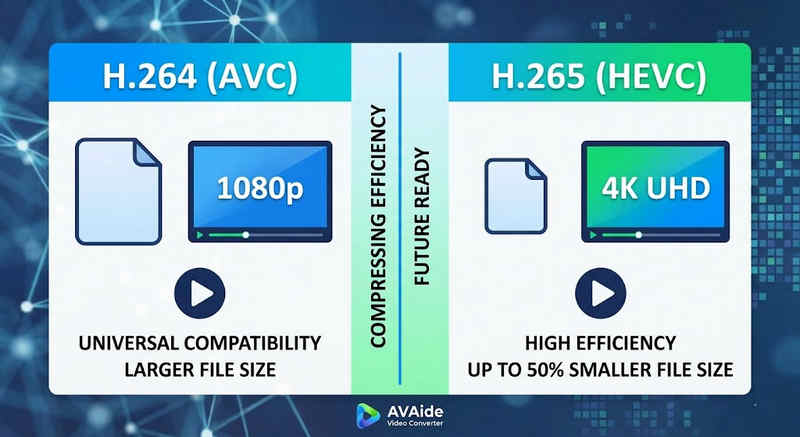
The Short Answer: H.264 (AVC) offers universal compatibility and works on almost any device, but creates larger files. H.265 (HEVC) provides superior compression, cutting file sizes by up to 50% with identical visual quality, but requires higher processing power and has limited support on older hardware.
1. What is the H.264 Codec (AVC)?
Introduced as Advanced Video Coding (AVC), H.264 is the reigning king of video compatibility. It is the industry standard for online streaming, mobile recording, and daily video playback. Because it requires very little processing power to decode, H.264 videos play smoothly on almost any digital device imaginable, from old smartphones to modern smart TVs.
2. What is the H.265 Codec (HEVC)?
High Efficiency Video Coding (HEVC), or H.265, is the direct successor to H.264. It was specifically engineered to handle the massive data demands of 4K, 8K, and VR content. HEVC uses more advanced algorithms to compress video data far more efficiently than its predecessor, delivering crisp, high-resolution visuals at up to 50% smaller file sizes. However, this efficiency comes at a cost: it requires modern hardware to process without lagging.
H.265 vs. H.264: Quick Comparison Table
| Features | H.264 (AVC) | H.265 (HEVC) |
| Supported Formats | m2ts, evo, 3gp, f4v, mkv, mp4, qtff, asf, avi, mxf, ps, ts | mxf, ps, ts, 3gp, mkv, mp4, qtff, asf, avi |
| Compression Efficiency | Moderate (Larger file sizes) | Superior (25-50% smaller files) |
| Video Quality | Excellent for 1080p | Optimized for 4K, 8K, and HDR |
| Device Compatibility | Universal (99% of devices) | Limited (Legacy PCs may not support) |
| Processing Power | Low (Fast rendering/playback) | High (Requires newer CPUs/GPUs) |
| Ideal Use Cases | Web streaming, social media, legacy devices | 4K drone footage, iPhone cinematic video, space-saving archiving |
Part 2. When to Choose HEVC vs. H.264
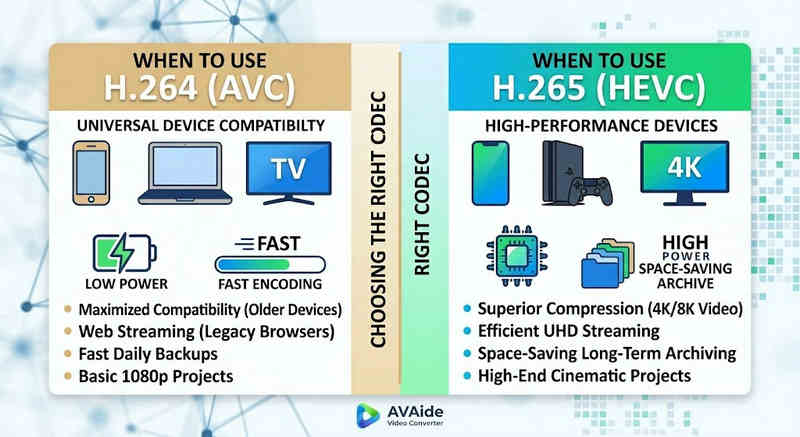
Choosing the right codec depends entirely on your specific goals. Here is why you might need one over the other:
Why You Need HEVC (H.265):
- Maximized Storage Savings: If you back up long-form videos or massive 4K libraries, HEVC acts as a natural video size reducer, freeing up half your hard drive space.
- Bandwidth Optimization: HEVC requires much less bandwidth to stream, making it ideal for smooth 4K playback even on slower internet connections without buffering.
- Future-Proofing: As the industry transitions toward ultra-high-definition (UHD) and VR content, HEVC ensures your videos remain high-quality and compatible with next-generation platforms.
Why You Need H.264 (AVC):
- Flawless Playback & Editing: If your video editing software lags or your media player throws a Codec Not Supported
- Compatibility and Worry-Free Sharing: H.264 is the most widely compatible video codec. Whether you want to share your videos to your friends, NAS, media servers like Plex or Kodi, H.264 can ensure seamless sharing and playback.
Part 3. How to Convert Easily Between HEVC and H.264
In the case of transferring videos from and to HEVC(H.265) and H.264 formats, AVAide Video Converter does it better than the rest. It gives an efficient and easy-to-use interface that does not compromise the quality of the conversion and supports various formats. Whichever the reason, it could be for the greater efficiency of HEVC or the wider adoption of H264, AVAide allows you to switch back and forth between the two without a hassle.
Detailed Procedure:
Step 1Get AVAide Video Converter
Download, install, and launch AVAide Video Converter on your windows or Mac computer.

FREE DOWNLOAD For Windows 7 or later
 Secure Download
FREE DOWNLOAD For Mac OS X 10.13 or later
Secure DownloadStep 2Add Your Videos to AVAide Video Converter
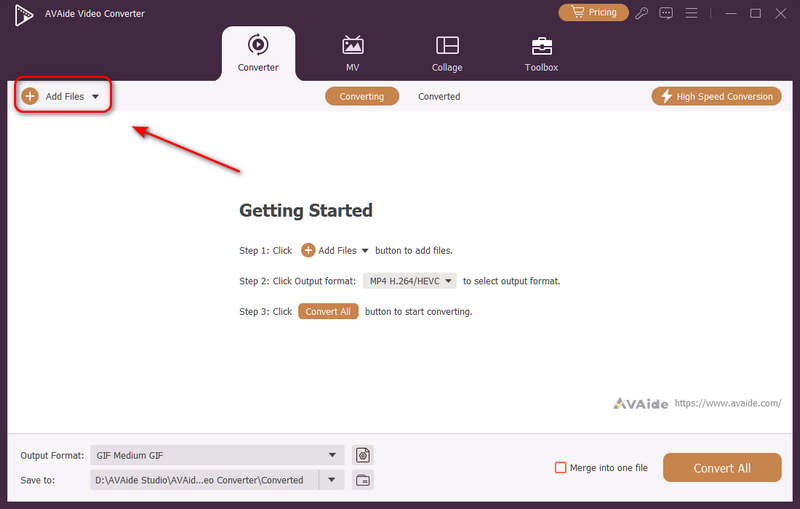
You can add multiple video files and do a batch conversion. Click the Add Files button on the top left to import your video files.
Step 3Choose H.264 or H.265 Codec
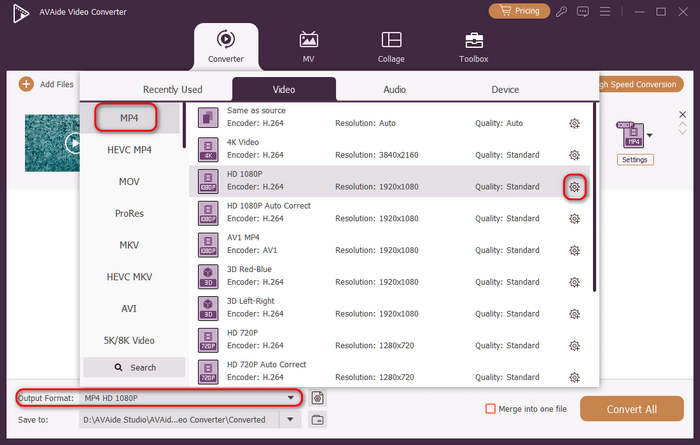
Click the Output Format dropdown menu button on the bottom left side. Then, you can select a desired video format first. Then, click the Custom Profile button (with a Gear icon) in the video preset bar.
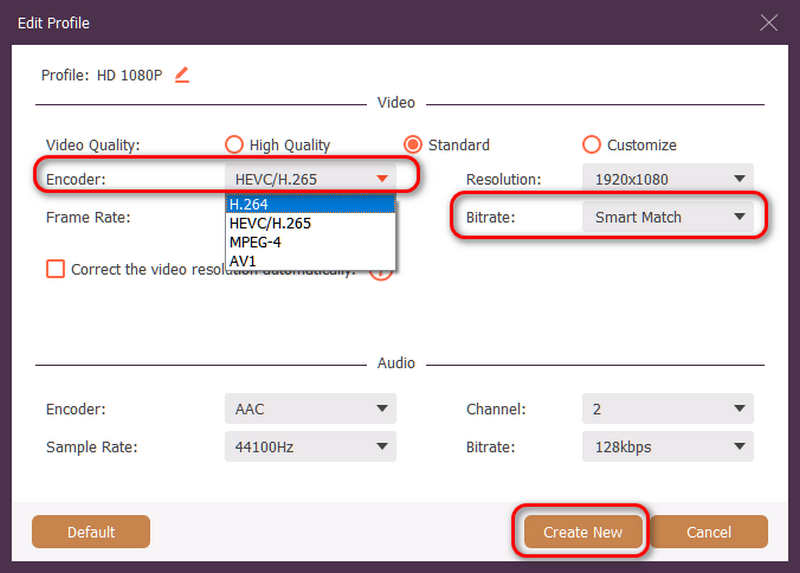
Then, in this panel, you can click the Encoder dropdown button to select H.264 or HEVC/H.265 codec. If you want to change the video quality, you can adjust the Bitrate. But we recommend Smart Match to ensure compatibility. Click the Create New button to save your configuration.
Step 4Start Video Re-encoding
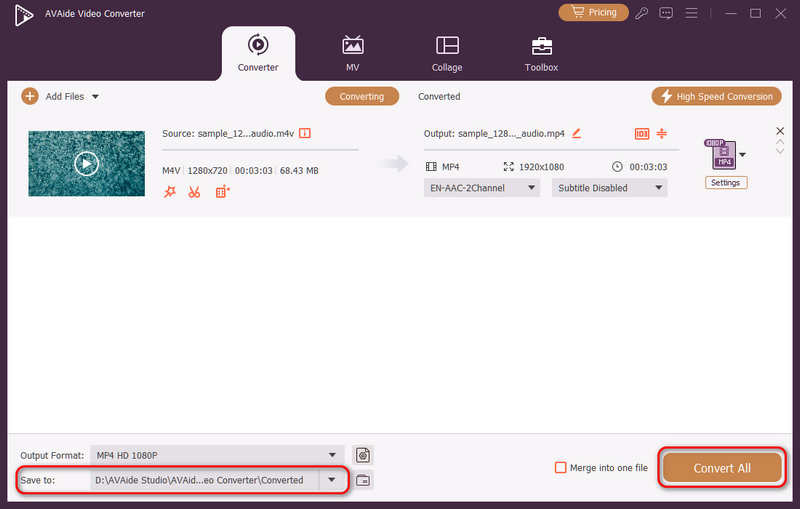
Finally, you can click the Save to dropdown button to select a desired output folder and click the Convert All button to change your video codec to H.264 or H.265.
Part 4. FAQs of H.265 and H.264
What is the main difference between NVENC H.264 and NVENC HEVC?
The primary difference lies in compression efficiency and hardware generation optimization. NVENC HEVC (H.265) delivers up to 50% better compression than NVENC H.264 (AVC). This means it can produce the exact same visual quality at half the bitrate (and half the file size), making it the superior choice for archiving 4K videos or streaming over limited bandwidth.
What is a modular multi-channel HEVC/H.264 encoder?
A modular multi-channel HEVC/H.264 encoder is an enterprise-grade hardware device designed to compress and stream multiple video feeds simultaneously. Unlike consumer software encoders, it features a modular (blade-style) design, allowing users to hot-swap or upgrade hardware encoding cards based on their project scales. It supports both H.264 and HEVC/H.265.
What is H.265+?
H.265+ (also known as Smart H.265+) is an advanced, proprietary video compression technology developed by Hikvision, specifically optimized for security and surveillance monitoring.
One can now use this comprehensive analysis of HEVC and H.264 to determine which codec best fits your video requirements. Whether you want H.264 and focus on compatibility or desire HEVC and aim at better compression, both codecs have advantages. AVAide Video Converter gives an elegant and efficient solution for dealing with that problem, providing excellent quality output while being fast. AVAide makes the task of video compression and its conversion easy with its simple interfaces and advanced functions.
ABOUT THE AUTHOR

Your complete video toolbox that supports 350+ formats for conversion in lossless quality.