AVI videos are widely used in sharing high-quality footage, and it may be tiresome to post them in a social media or messaging service. GIF will fix this issue by providing light, looping animation with no loss in visual clarity. The knowledge of how to convert AVI to GIF effectively would keep your material accessible, entertaining and shareable. The guide discusses both real-life and online techniques, including common problems and how to solve them, as well as other reliable methods for more.
Part 1: Why Convert AVI to GIF
AVI videos are flexible in common usage as the content captures high-quality footage, and the challenge would be to share high-quality footage and utilize them across the platform. The conversion of AVI files to GIFs has provided convenient solutions, which have saved time, storage area, and frustration. And the following are the most important reasons why it is important to convert the files of your AVI:
1. Easier Sharing Across Platforms
Large AVI files can be cumbersome to send via email, messaging apps, or social media. Converting an AVI to an animated GIF reduces file size without altering the core action. It is easy to exchange significant clips without worrying about compatibility or lengthy upload times.
2. Enhanced Compatibility
Not all devices and platforms support AVI playback. By converting your AVI into GIF, your content becomes universally viewable on computers, phones, and web browsers. This guarantees that your animation will be viewed by anyone, no matter what device or software they use.
3. Looping for Attention
GIFs loop automatically, allowing important scenes or messages to repeat continuously. Using an AVI to GIF converter lets you highlight key moments in the animation, without manually replaying it or using other video-editing tools.
4. Faster Loading Times
Webpages and presentations benefit from smaller, lightweight animations. Converting AVI to GIF will significantly reduce file size while preserving clarity, allowing your content to load more quickly and ensuring the audience stays entertained without waiting for buffers to finish.
5. Creative Flexibility
GIFs facilitate captions, basic editing, and even overlays, sometimes without requiring sophisticated video software. Being able to convert AVI files into GIFs means you can create content that's visually appealing and shareable, and explore the possibilities of narrative in short, looping animations.
6. Preserve Key Moments Efficiently
Sometimes, only a short clip of a video is worth sharing. Tools that convert AVI to GIF will allow you to extract highlights and loop them to emphasize them, saving space and making it easier to share likeable or educational moments without uploading a full-length video.
Part 2: Fast Ways to Convert AVI to GIF on Desktop
When you need to convert AVI to animated GIFs, AVAide Video Converter provides a reliable, efficient desktop solution. It has a one-click loop mode, frame rate, and resolution controls that let you precisely control the appearance of your GIFs. The built-in file compressor helps reduce GIF sizes and preserve transparency, making them ideal for sharing online or adding to presentations.
With hardware acceleration, even large AVI files convert quickly and smoothly, saving time without compromising quality. Its intuitive interface and versatile features make AVAide Video Converter a strong choice for anyone looking to create GIFs from AVI videos.
Step 1You can now click the download button below to get the latest version of this converter to convert your AVI to a GIF. Follow the installation and setup promptly, then launch the app afterwards.

FREE DOWNLOAD For Windows 7 or later
 Secure Download
FREE DOWNLOAD For Mac OS X 10.13 or later
Secure DownloadStep 2On the main interface, click the + button in the upper-left corner. Here, you can upload multiple AVI files and convert them simultaneously into GIFs.
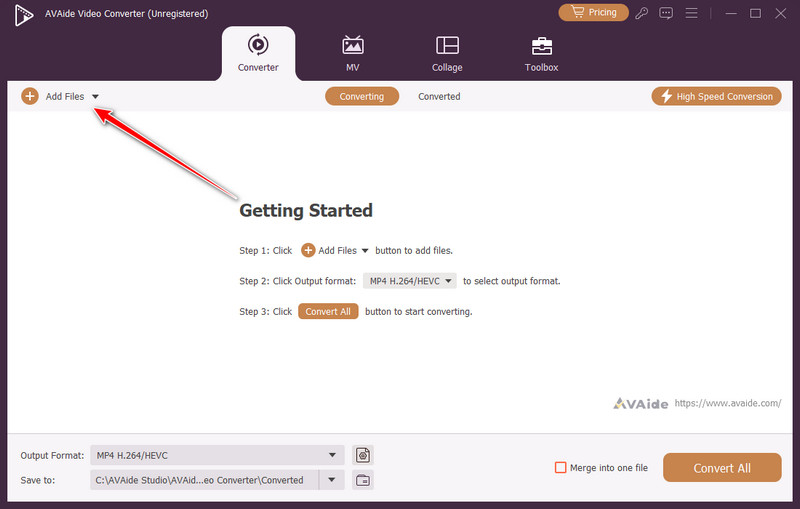
Step 3Next, click the dropdown button, select the GIF, and then select the settings for the GIF you want to use before converting it.
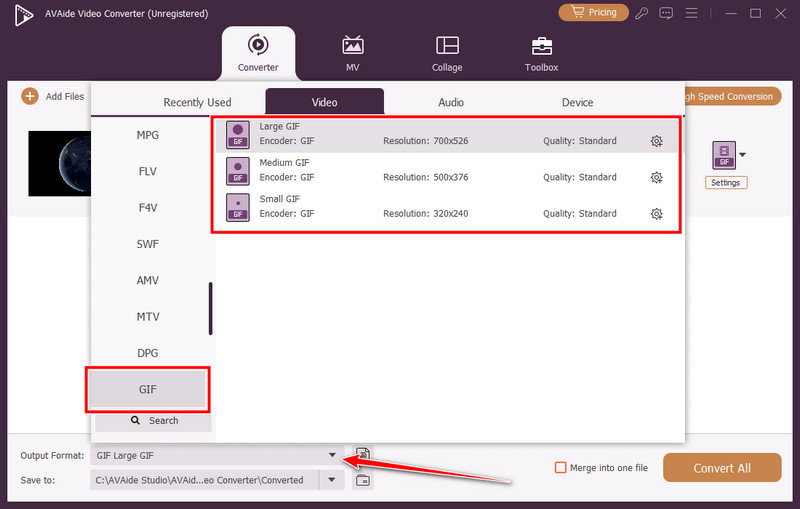
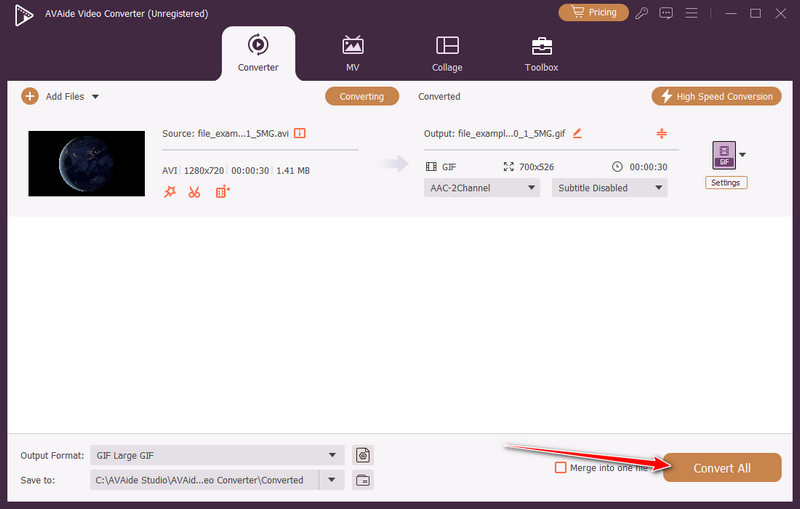
Step 4Now that you have uploaded and set the format, click the Convert All button to start the conversion process.
Part 3: Easy Ways to Convert AVI to GIF Online
Online converters are also fast and convenient to use when a user does not want to install software to create GIFs. Two of the most significant alternatives will be EZGIF and Convertio, both browser-based and capable of processing AVI files effectively.
1. EZGIF
EZGIF is a simple, reliable tool for creating GIFs quickly. It allows you to turn AVI into GIF with precise control over start and end time, frame rate, and output size. The straightforward interface makes it easy to preview your GIF and adjust settings, even without technical experience. You can also use EZGIF to resize videos, making them fit for social media easily.
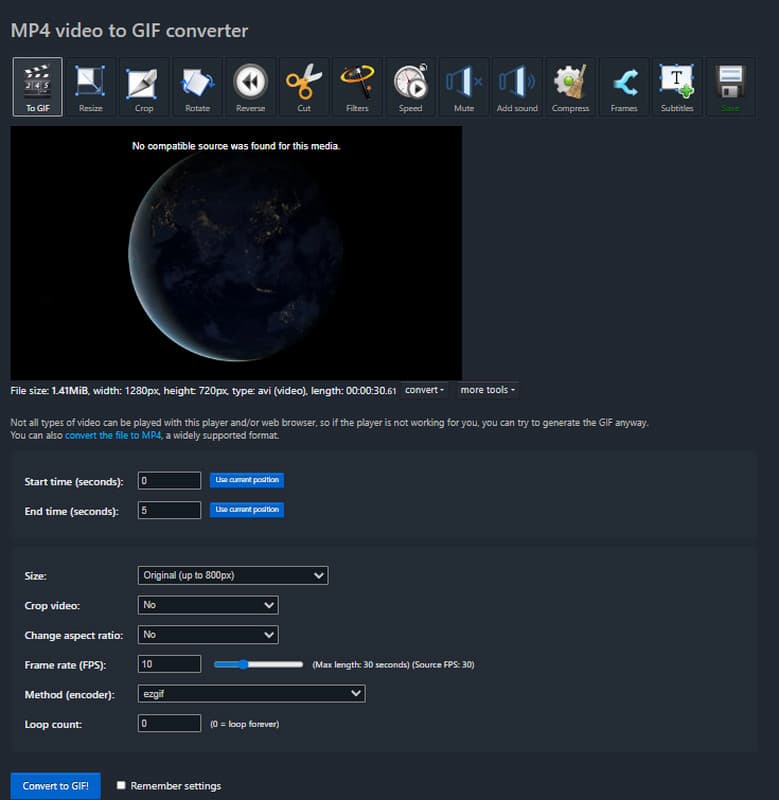
Step 1Open the EZGIF website and select the Video to GIF tool.
Step 2Upload your AVI file. Set the start and end time, choose frame rate, and adjust the size if needed.
Step 3Click Convert to GIF, preview your GIF, and download it to your device.
2. Convertio
Convertio is a versatile online converter that supports multiple formats and cloud storage options. It allows you to convert AVI to GIF without much hassle with the possibility of adjusting the resolution and quality of the output. Convertio can be used on the desktop and on the go, and it is the best tool when creating GIFs.
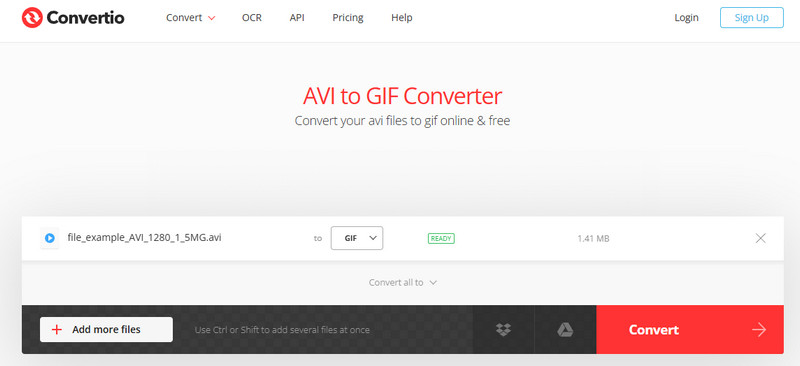
Step 1Go to the Convertio AVI to GIF converter and upload your AVI file.
Step 2Choose GIF as the output format from the dropdown. Start conversion and wait for the process to finish.
Step 3Click Convert, then download the converted GIF when it is ready.
Both EZGIF and Convertio offer fast, convenient solutions for creating GIFs without software, allowing users to control size, frame rate, and duration for smooth, shareable output.
Part 4: Troubleshooting of AVI to GIF Bad Result
AVI to GIF conversion may also cause problems with large file size, sluggish playback, or long playback. This knowledge of the reasons helps you to resolve these issues effectively.
1. GIF Size Is Too Large
When you have a GIF that is bigger than it needs to be, the original AVI can be high-resolution or long. To make it smaller, cut the video to include only the necessary clip. It is also possible to reduce file size without sacrificing clarity using an AVI to GIF tool that allows adjustment of frame rate and resolution.
2. Laggy or Choppy Playback
Lag is the failure to display all the frames per second in a GIF, or the use of too high a resolution. A frame rate-controlled AVI to GIF converter lets you reduce the frame rate while still enjoying smooth animation, ideal for use on web pages or in messaging platforms.
3. Poor Image Quality
Sometimes, GIFs appear blurry after conversion. To maintain visual fidelity, adjust the resolution and compression settings. Tools that convert AVI to GIF usually have presets tuned to deliver the best balance between GIF quality and file size, so you maintain sharpness.
4. Conversion Process Fails or Freezes
AVI files are long or complex, which may cause software or online converters to stall. A desktop program that converts AVI to GIF using hardware acceleration reduces processing time and screen interruptions. The decision to chop large files into smaller parts can be helpful, too.
5. GIF Does Not Loop or Play Correctly
Some GIFs do not loop properly on specific platforms. Using a tool that converts AVI to animated GIF, with a tool that properly loops the animation, is also required to maintain the correct looping settings used in the conversion and prevent playback discontinuity.
By addressing these common issues, you can create GIFs that are optimized for size, quality, and performance, whether for social media, websites, or presentations.
Using the right tools, creating GIFs from AVI files is quick and easy. A good AVI to GIF converter helps you create smooth, high-quality animations that are small in size and easy to share. With the tips and tools in this guide, turning your AVI videos into GIFs is simple for anyone.
ABOUT THE AUTHOR

Your complete video toolbox that supports 350+ formats for conversion in lossless quality.