There are even M4V videos protected in such a way that preventing the copying or editing of the file is impossible unless in an approved application. This is always a scramble for the users who just want to handle their own files. Changing M4V to MOV can help avoid restrictions when the file itself allows conversion. The understanding of the protection functions avoids unnecessary efforts and misunderstandings.
Part 1: What Is M4V and Why Do You Need to Convert M4V to MOV
What Is M4V?
M4V is a video file format developed for media distributed through Apple services. It is similar to MP4 but may include protection or playback limits tied to certain apps or devices. Because of these limits, users often need to convert M4V to MOV to make videos easier to edit, share, or play across different platforms and software.
Why Do You Need to Convert It?
Users convert files mainly to avoid compatibility and workflow issues that arise when M4V files leave Apple environments. Switching formats improves editing, sharing, and device support, especially when using tools like M4V to MOV QuickTime conversion on macOS.
- M4V files cannot be read and processed by some editing programs. This usually causes errors in imports or the failure of exportation in video production.
- Some of the devices, like smart TVs or older mobile devices, might not play M4V. The users can notice videos that cannot open or play with audio or video missing.
- M4V files contain protection that limits copying or editing outside approved apps. This prevents users from managing or modifying their own media files.
- Online platforms sometimes reject or slowly process M4V uploads. This can delay sharing when sending videos to clients or uploading to cloud storage.
- Teams working across different operating systems may face file import conflicts. These issues interrupt collaboration and slow down editing workflows.
- Older archived M4V files may become harder to open as software changes. This creates problems when users need to reuse or restore stored media in the future.
Part 2: How to Convert M4V to MOV on Windows/Mac
When a pile of videos refuses to cooperate, having a dependable converter feels like a real time saver, and AVAide Video Converter fits naturally into that role. Available as an M4V to MOV converter free download for Windows and Mac, it handles conversion quickly while keeping the process refreshingly simple, even for first-time users. Instead of wrestling with complex settings, you can focus on getting your videos ready, making it an easy choice when you need to change m4v to mov without slowing down your workflow.
Step 1Download the latest version of the AVAide Video Converter for free, then follow the installation instructions and launch it to start using it.

FREE DOWNLOAD For Windows 7 or later
 Secure Download
FREE DOWNLOAD For Mac OS X 10.13 or later
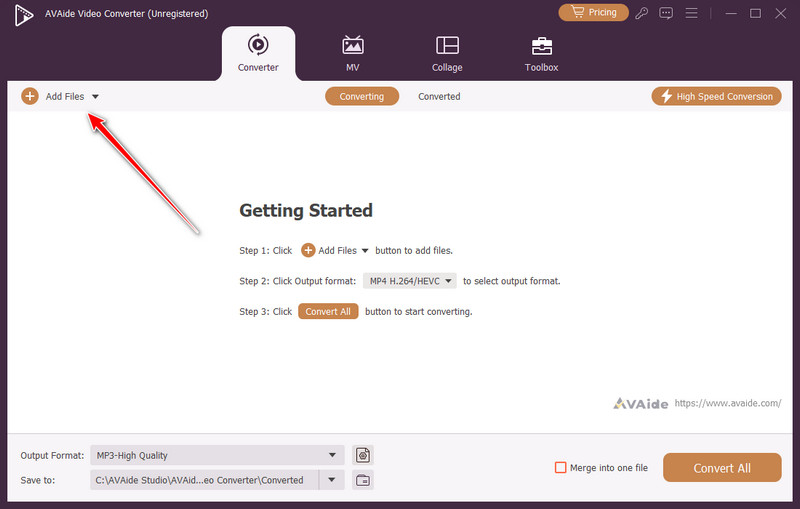
Secure DownloadStep 2On the main interface, upload the M4V file that you want to convert. Since the app supports batch conversion, if you have multiple M4V files you want to convert, you can upload them all here and convert them simultaneously.
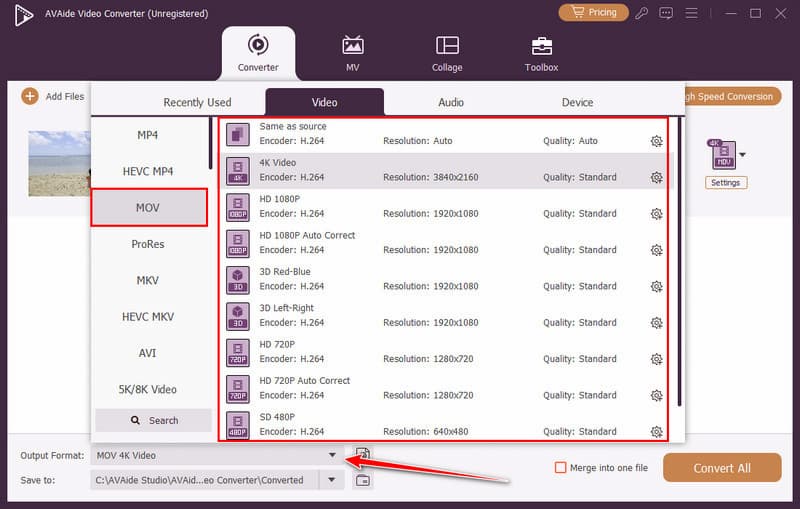
Step 3After that, select the MOV output you want to have by clicking the dropdown button here.
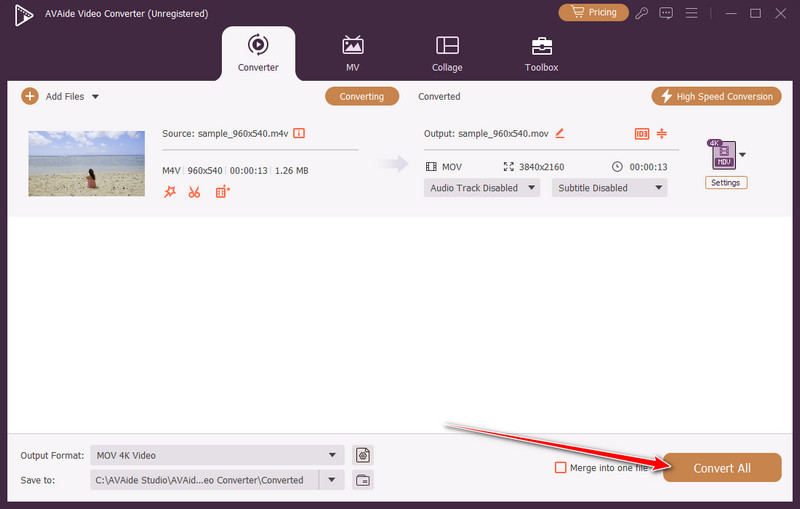
Step 4Lastly, tick the Convert All button to commence the converting process.
Part 3: How to Change M4V to MOV Using Quicktime Player
QuickTime Player is the hidden hero on every Mac for handling tricky video formats. If you ever wondered how to convert M4V to MOV Mac without wrestling with extra software, QuickTime quietly makes it painless. It keeps your video quality intact and turns those stubborn M4V files into MOVs that play or edit anywhere. To anyone seeking to convert files quickly, reliably and without all the stress associated with conversions, QuickTime does not feel like software; it almost feels like an intelligent helper that simply functions.
Step 1Open QuickTime Player on your Mac, and if it is not installed, download it from its official website and follow the installation instructions.
Step 2Tick File in the menu bar and select Open File to load the M4V video you want to convert.
Step 3Once the video opens, go back to File, choose Export, and pick the resolution. MOV will be the default format.
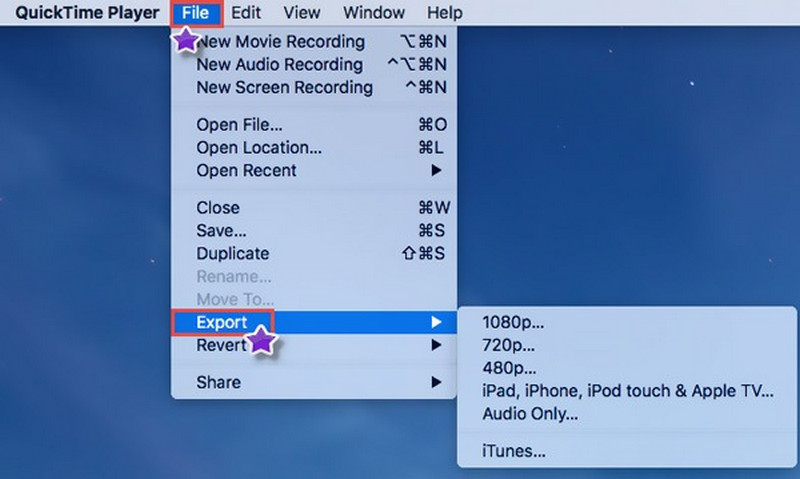
Step 4Select a destination folder, rename the file if needed, and click Save to start converting your M4V to MOV. After the export finishes, locate your new MOV file and enjoy hassle-free playback, editing, or sharing.
Paty 4: How to Convert M4V to MOV Free via VLC Media Player
If this file is not compatible with QuickTime, then use this tool to solve the problem. VLC Media Player is not limited to being a video player, as it is a surprisingly powerful tool for converting files without spending a cent. If you need to convert M4V to MOV for free, VLC has you covered on both Windows and Mac. Its interface is simple once you get the hang of it, and it handles most M4V files smoothly while keeping your video quality intact. This makes VLC a dependable, no-cost solution for anyone looking to make their videos more versatile and compatible across devices.
Step 1Click Media in the top menu, then select Convert/Save. In the window that appears, click Add to import the M4V file you want to convert.
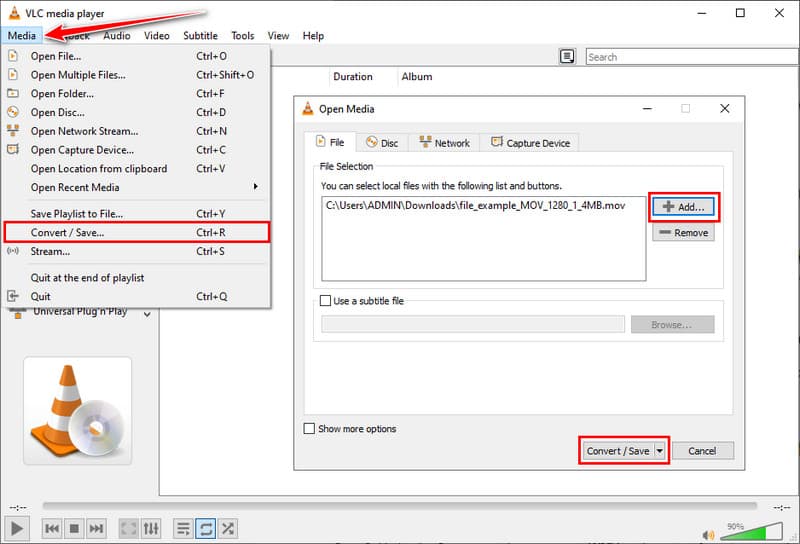
Step 2After adding your file, click Convert/Save at the bottom of the window to open the conversion options. In the Profile section, choose MOV as the output format. For most users, the default codec settings work perfectly.
Step 3Select a destination folder for your new file, rename it if needed, and click Start to begin converting your M4V to MOV.
Step 4Once VLC completes the process, go to your chosen folder to find your MOV file ready for playback, editing, or sharing.
Part 5: How to Convert M4V File to MOV Online
If installing software feels like overkill, online converters like Zamzar make it effortless to handle video files. Learning how to change M4V to MOV is as simple as uploading your file, selecting MOV as the output, and downloading the converted video. For quick, occasional conversions, Zamzar is a reliable, no-fuss solution that gets your M4A to MP4 and other video formats ready for playback, editing, or sharing in minutes.
Step 1Click Choose Files to upload the M4V video you want to convert, or drag it directly into the upload area.
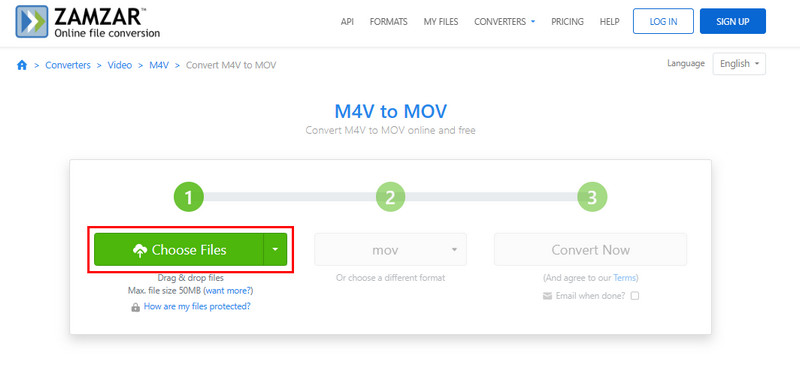
Step 2Choose MOV as the output format from the dropdown menu. Click Convert Now to start the process. Wait a few moments while Zamzar processes your file.
Step 3Once the conversion is complete, download your MOV file to your computer. Your video is now ready for playback, editing, or sharing.
Dealing with M4V files can be frustrating, but once you know how to change M4V to MOV on Mac, those roadblocks disappear. Videos that would not play or edit properly become fully accessible, giving you the freedom to use them exactly how you want. Conversion is no longer a chore; it is a quick step that makes your media work for you.
ABOUT THE AUTHOR

Convert M4V to MOV and 300+ other formats quickly in high quality on Windows and Mac.