"Is it possible to turn an audio file into a video file?"
Yes, and it comes with extra perks, just like when you convert M4A to MP4. In this post, you will learn why converting audio to video matters and the easiest ways to make it happen. Keep reading to see how simple it can be!
Part 1: M4A vs. MP4: Why Convert Audio to Video
Audio files like M4A are great for music, but they have limits. It is why understanding M4A vs. MP4 matters. They cannot include images, subtitles, or visual effects. MP4, on the other hand, is a video format that can store both sound and visuals.
Converting M4A to MP4 lets you combine music with pictures or videos, share it on more platforms, and make it playable on devices that may not support audio-only formats. It makes your content more flexible, engaging, and easy to use everywhere.
Part 2: 5 Smart Ways to Convert M4A to MP4
In the steps below, you will see five easy tools that can help you turn audio into video smoothly. Each method works in its own way, so you can choose what works for you.
1. AVAide Video Converter
Smart ways to convert M4A to MP4 often begin with using one tool that can handle speed, quality, and extra features in one place. AVAide Video Converter fits that role well because it supports hardware acceleration, which helps finish conversion faster and keeps the process smooth.
It also supports bulk conversion so that you can handle many M4A files at once. Its MV feature lets you create MP4 videos by adding audio and images together, which is useful when you want more than a simple format change. It also supports many codecs and formats for both input and output, which gives you more file options.
- Up to 120× faster conversion speed.
- Keeps excellent output clarity after conversion.
- Lets you fine-tune output settings like resolution, encoder, and bitrate.
- Includes basic editing tools such as trim, merge, crop, rotate, and filter.

 Secure Download
Here is how to convert M4A to MP4 fast and simple using AVAide Video Converter:
Step 1Download & Install the Converter
Download and install AVAide Video Converter on your computer. After the setup is done, open the program so you can start right away.
Step 2Add Your M4A Files
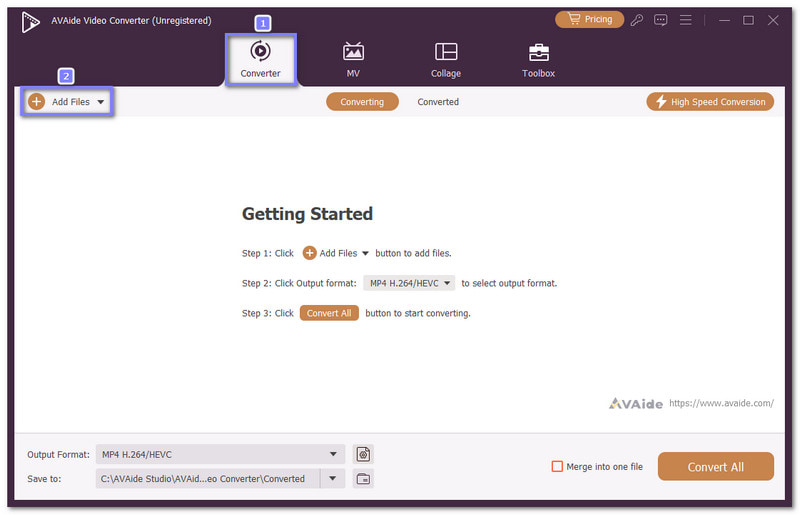
In the Converter tab, click the Add Files button to upload your M4A files. You can also drag and drop them into the main display. If you have many files, you can add them together because batch conversion is supported.
Step 3Pick MP4 as the Output File Format
Hit the Format drop-down menu to open the output formats. From the Video section, choose MP4 as your target format so the AVAide Video Converter prepares the right output.
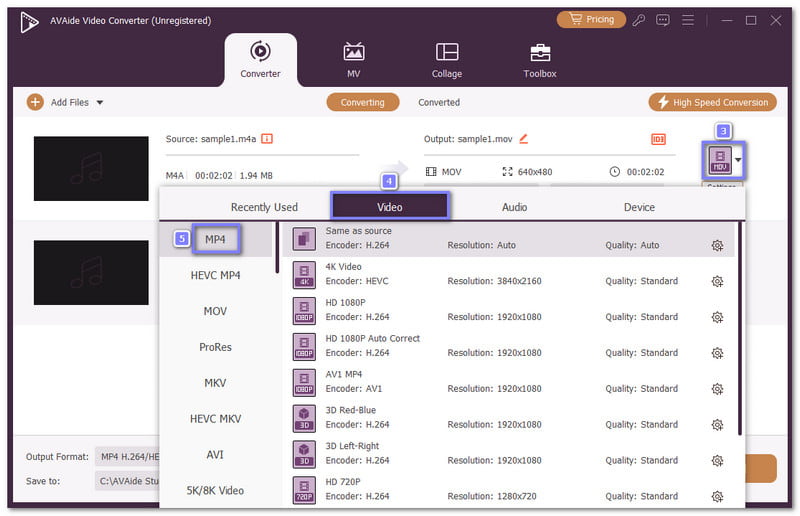
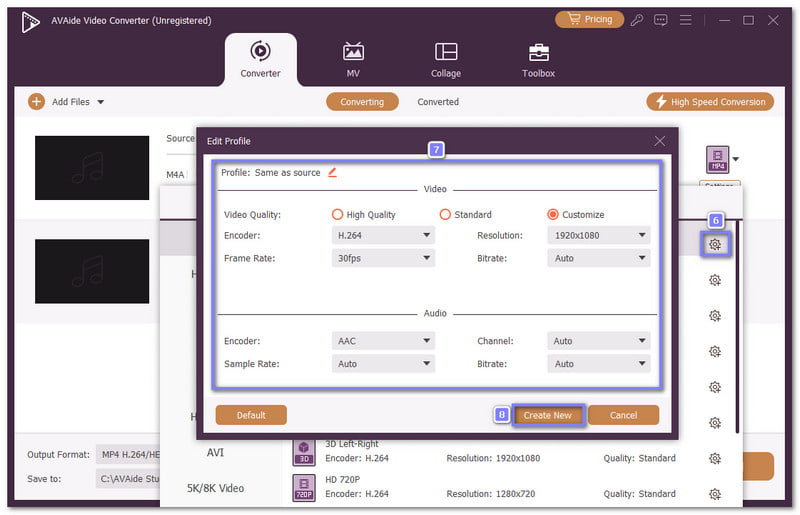
Step 4Adjust the Output Settings
If you want better control, click the Custom Profile option. It allows you to configure the encoder, sample rate, bitrate, and channel settings, then save the changes you made for the output you prefer.
Step 5Start the M4A to MP4 Conversion
Choose your output folder and rename the file if needed. Plus, AVAide is not only a converter but also one of the best M4A editors. You can click the wand button to edit the file before export. Once everything looks ready, click the Convert All button and let the AVAide Video Converter finish the work. After that, open the folder you selected and enjoy your new MP4 file with the settings you chose.
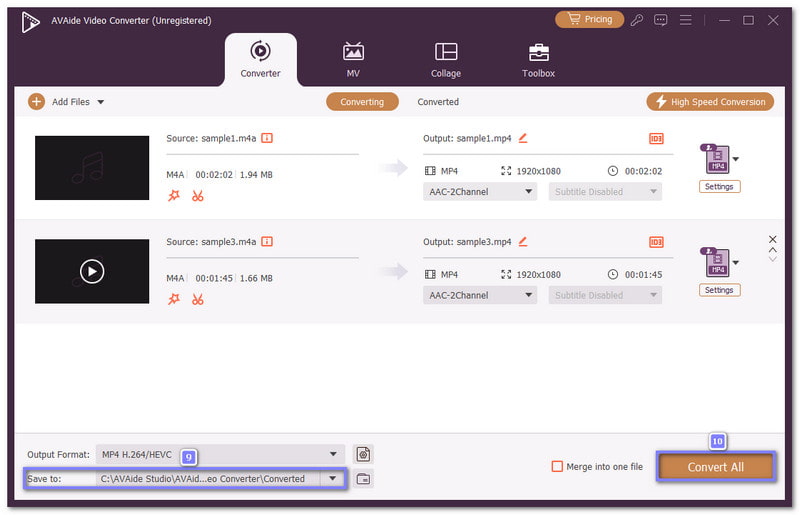
Why we selected it: AVAide Video Converter makes converting M4A to MP4 fast and hassle-free. It provides MP4 in different resolutions like 720p, 1080p, and 4K. You can also customize output settings and use preset devices for convenience. Plus, you can use it to convert MP4 to M4A if you want to extract audio from a video file. Besides that, it has editing features to trim, merge, or crop your file before converting.
2. Zamzar
Need a M4A to MP4 converter that works fast without installing anything? Zamzar is a smart online choice. It supports more than 1,200 file types, so it does more than simple audio conversion. The page is clean and easy to use. Free users can upload files up to 50 megabytes and run several conversions at one time, which helps when you have more files to finish.
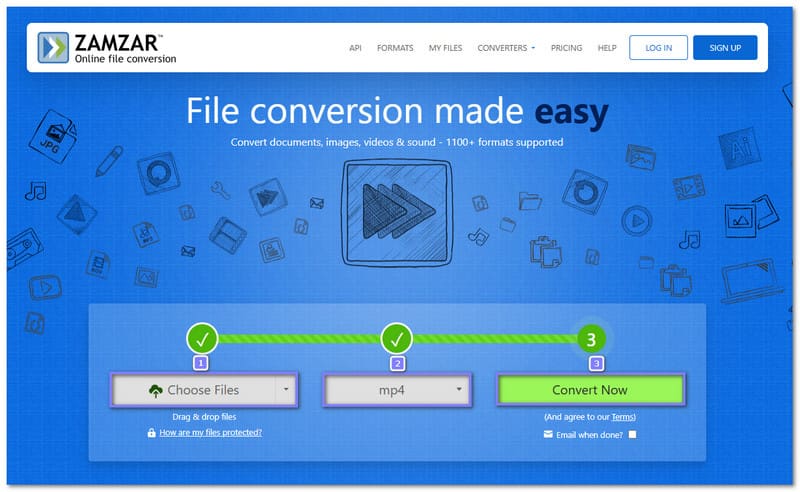
Step 1Open Zamzar and click the Choose Files button to upload your M4A file.
Step 2After the file appears, open the Convert To menu and choose MP4 as the output format.
Step 3Press Convert Now to begin the conversion. It will process your file in a few moments. Once the conversion ends, click Download to save the MP4 file to your device. Then, please check the saved file and play it to confirm that the format changed correctly.
3. VLC
Some users already have a converter on their computer and do not notice it. VLC is known for playing videos, but it also changes file formats with no extra cost. It works on different systems and handles basic conversion well. It makes it useful when you want to change M4A to MP4. You can also convert M4A to WMA while keeping everything inside one trusted desktop program.
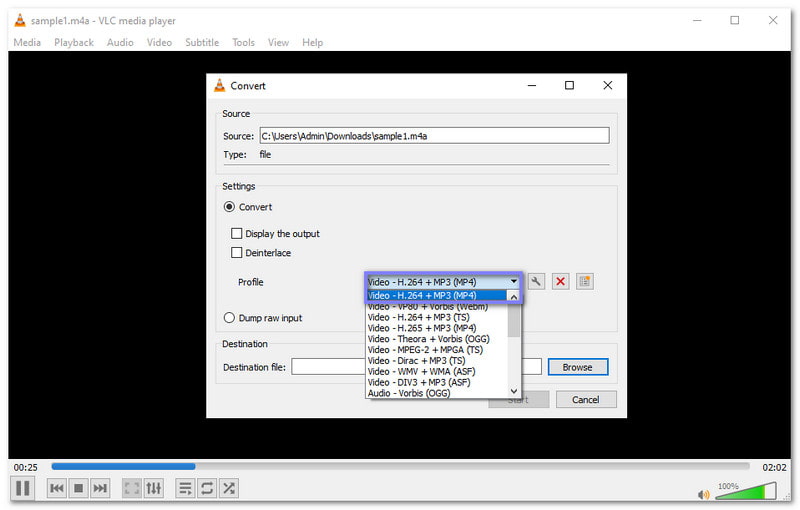
Step 1Run VLC on your computer and click Media at the top menu.
Step 2Select the Convert/Save button and import your M4A file into the display that opens.
Step 3Click the Convert/Save button again, then choose MP4 under the Profile section.
Step 4Pick where you want to save the new file and rename it if needed. Finally, click the Start button, and please wait until it finishes creating the MP4 file.
4. Restream
If you want the quickest browser method, Restream works as an online M4A to MP4 converter and keeps the process simple. You upload the file, let the site prepare the format, and wait for the download. No program is needed, and no payment is required. Its clean layout helps first-time users because the main tools are easy to find, and the conversion starts with only a few clicks.
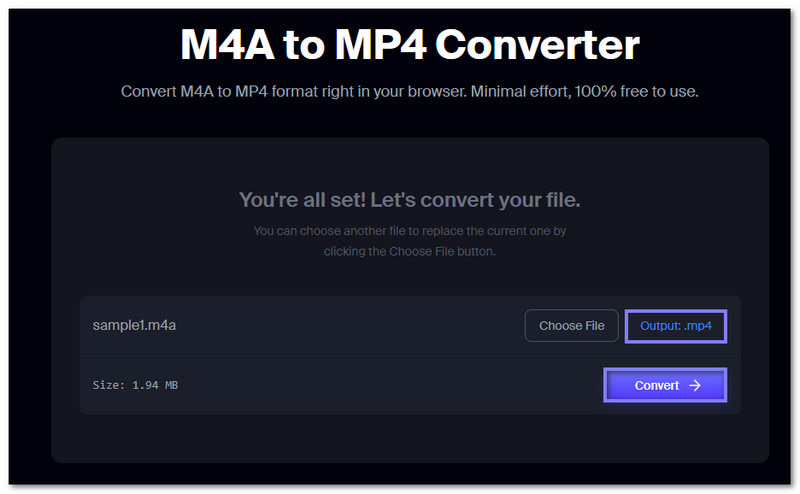
Step 1Open the Restream - M4A to MP4 Converter page in your browser.
Step 2Click Choose File or drag your M4A file into the upload box.
Step 3Check if MP4 is selected as the output format. It is often chosen by default.
Step 4If it is already set, click the Convert button to start changing the file format. After the process ends, click the Download button to save the MP4 file.
5. iTunes
iTunes takes a different path because it works inside your music library first. Instead of direct conversion, it creates a new AAC version that you can later save as an M4A to MP4 video. This method feels more familiar to Apple users. It also helps keep strong audio quality, which is useful when you want the new file to work well on Apple devices.
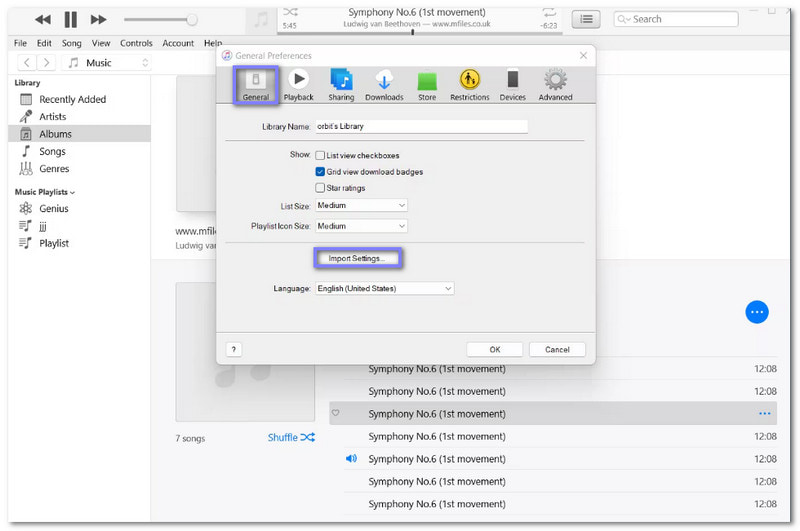
Step 1Run iTunes and click Edit, then choose Preferences.
Step 2Go to General and open Import Settings.
Step 3Select the encoding option you want, then click the OK button to save it.
Step 4Return to your library and choose the M4A file you want to convert.
Step 5Click File, choose Convert, then select Create MP4 Version. The new file will appear beside the original one.
Part 3: Comparison of the 5 M4A to MP4 Converters
Below is a comparison of the five M4A to MP4 converters. It is made in terms of platform, ease of use, speed, etc. So, please take a look.
- Factor
- Platform
- Ease of Use
- Speed
- Bulk Conversion
- Output Control
- Best Use
| AVAide Video Converter | Zamzar | VLC | Restream | iTunes |
| Windows & Mac | Browser | Windows, Mac & Linux. | Browser | Windows & Mac |
| ★★★★★ | ★★★★★ | ★★★★ | ★★★★★ | ★★★ |
| Fast | Medium | Slow | Medium | Slow |
| ✓ | ✓ | ✓ | ✗ | ✗ |
| Yes, adjust settings. | No deep settings. | Basic profile options. | No advanced settings. | Only basic output. |
| Fast & full control. | Good for Apple users. | Convert if VLC is installed. | Instant browser convert. | Apple ecosystem users. |
Part 4: FAQs of M4A to MP4
Are M4A and MP4 the same?
No. M4A is an audio-only format used for music and sound files. MP4 is a video format that can include video, audio, and subtitles.
How to open M4A files?
You can open M4A files with media players like iTunes, VLC, Windows Media Player, or QuickTime. Most smartphones and tablets can also play M4A natively.
What are the disadvantages of M4A?
M4A files are not widely supported on all devices. They cannot store video or subtitles. Some older players may not recognize them, which can limit playback options.
The abovementioned tools make it possible for everyone to change M4A to MP4. One of the best is AVAide Video Converter. It offers super-fast conversion and is easy to use, perfect for any skill level. It turns audio into video smoothly and keeps the quality high!
ABOUT THE AUTHOR

Your complete video toolbox that supports 350+ formats for conversion in lossless quality.