M2TS is a high-definition video container format based on the MPEG-2 transport stream. Compared with common formats like MP4 and MKV, it emphasizes high bitrates and near-lossless audio-visual quality, which leads to limited native support in many media players. As a result, additional codecs or format conversion are often required. This article highlights five top M2TS players for desktop and mobile devices and outlines basic playback steps to help you choose the right option.
Part 1. What to Look For in an M2TS Format Player
- Advanced Audio-Passthrough: M2TS files often pack massive, theater-grade audio tracks. Your player must support Audio Passthrough for Dolby Atmos, DTS:X, and DTS-HD.
- Rich Codec Support: Although M2TS files mainly have the MPEG-2 codec, it also supports other codecs, including HEVC and H.264.
- Native PGS Subtitle Rendering: M2TS uses PGS (Presentation Graphic Stream) subtitles, which are image-based (bitmap) rather than text-based (like SRT).
Part 2. M2TS File Player for Windows and Mac
AVAide Blu-Ray Player
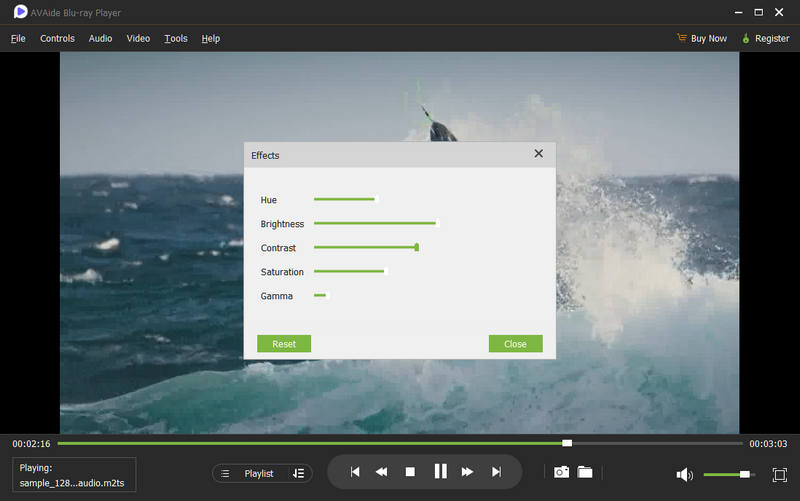
To help you play files smoothly on your device, we recommend the best M2TS player for you. As a fully featured and powerful tool, AVAide Blu-ray Player supports DVDs and all media formats, including M2TS, MP4, VOB, WMV, MP3, etc. And you can apply it for playing Blu-ray discs and ISO files with menus and original resolution. In addition to playing videos, this tool also ensures you perform advanced operations on your video, like personalizing playlists and video effects. With this software's help, you can enjoy smooth playback of your M2TS files.

FREE DOWNLOAD For Windows 7 or later
 Secure Download
FREE DOWNLOAD For Mac OS X 10.13 or later
Secure DownloadStep 1Download and install AVAide Blu-ray Player on your computer.
Step 2Then choose Open File to play your M2TS files.

Now your videos can be played back fluently. You can click Controls, Audio, Video, and Tools to adjust the playback speed, frame size, audio track, etc., and brighten your videos.
Windows Media Player
As the video player that comes with Windows, Windows Media Player not only supports playing videos in many formats but can also be used to edit and convert video formats. You can use this tool as an M2TS player for Windows 10 or other Windows systems to open your files without downloading additional plug-ins.
- Pros
- Built-in player with a low learning curve.
- Minimal CPU and memory usage during playback.
- Stable compatibility with Windows systems.
- Cons
- Requires additional installation of an M2TS decoder.
- Playback of high-bitrate videos may experience stuttering or frame drops.
- Lacks advanced controls such as precise timeline jumping.
Here are the detailed step-by-step instructions.
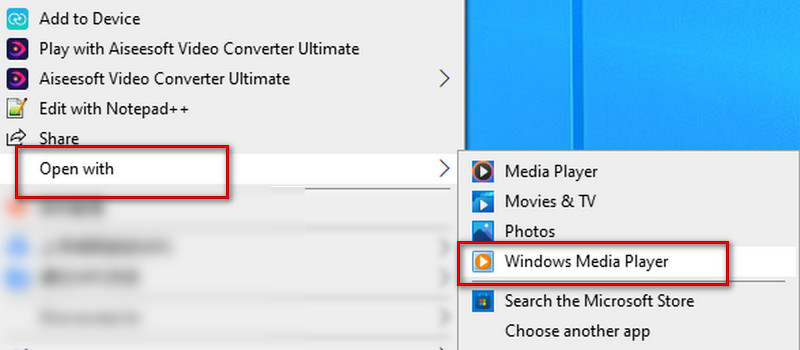
Step 1Right-click on your file on your computer's desktop, and choose Open with the menu.
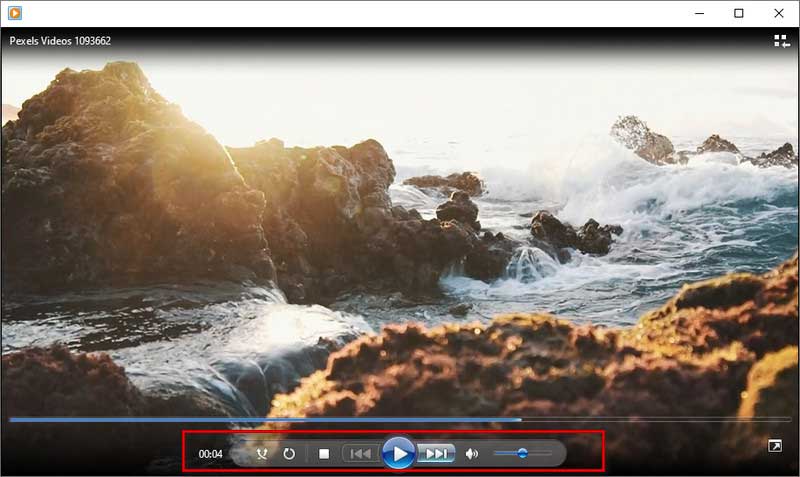
You can set start or stop playback in the menu below the playback screen, fast-forward, or previous. And the volume level can be adjusted as you need.
VLC Player
VLC Player is also a very useful tool for video playback. You can see it in a lot of content related to video playback and editing. This M2TS player can be used on both Windows and Mac. Likewise, it can play videos in almost all popular formats and perform some video conversions.
- Pros
- Built-in full decoder for direct playback of M2TS files.
- Compatible with multiple encodings and containers.
- Support manual switching of embedded audio tracks and subtitles.
- Cons
- Unable to fully parse the interactive menus of commercial Blu-ray discs.
- Playing DRM-protected M2TS files typically requires additional library configuration.
Here are the detailed steps to use it to play M2TS videos.
Step 1Download and install VLC Player on your computer.
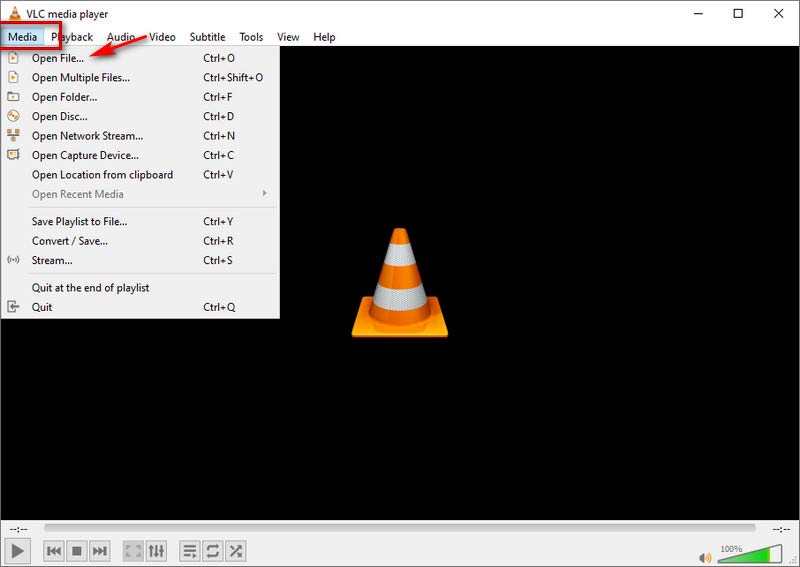
Step 2Click Media on the top left corner, then choose Open File to find your target video.
Then your video will start playing automatically.
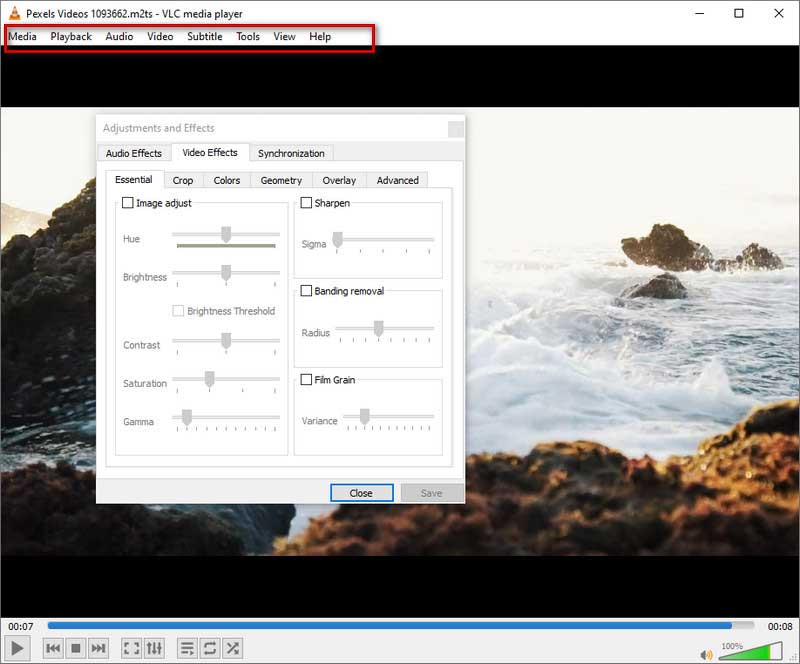
If you want to do some simple playback settings, please click the button in the menu above. You can use Playback for setting the playback speed, Audio for the audio track, Video for screen size, Subtitle for subtitles, Tools for contrast and brightness, etc.
Part 3. M2TS File Player for Android and iPhone
VLC Player
In addition to the desktop version, you can also use VLC Player as a free M2TS player on Android devices or iPhones. It's extremely easy to operate and supports playback of videos up to 4K resolution. Furthermore, it offers numerous advanced settings to customize MTS or M2TS playback, such as jumping to specific timestamps, selecting audio devices, adding subtitle files, and more.
- Pros
- Built-in full decoder for direct playback of M2TS files.
- Compatible with multiple encodings and containers.
- Support manual switching of embedded audio tracks and subtitles.
- Cons
- Unable to fully parse the interactive menus of commercial Blu-ray discs.
- Playing DRM-protected M2TS files typically requires additional library configuration.
Step 1Download and install VLC Player App on your phone.
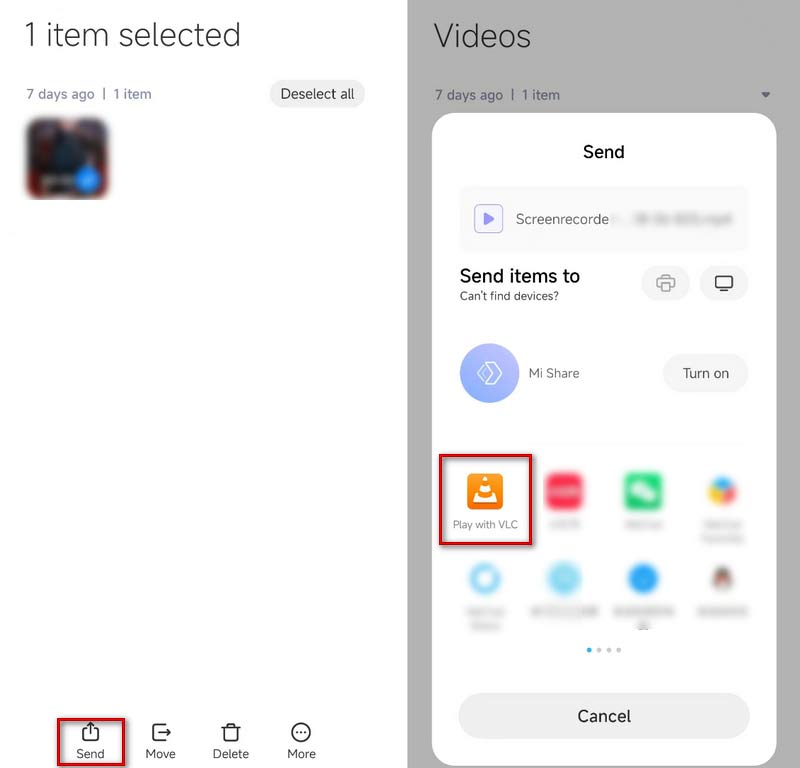
Step 2Select the video you want to play in the Files Manager and choose Send or Share, depending on your device type.
Step 3Choose Play with VLC, and your videos will be played automatically.
KMPlayer
KMPlayer is another free M2TS player that works on Android and iPhone phones. It has a user-friendly interface without any advertisements to bother you. It supports the playback of almost all formats of files. Also, KMPlayer offers various features, including a bookmark, cloud function, speed control, quick button, mirror mode, audio equalizer, rewards, etc.
- Pros
- Highly adaptable to high-bitrate videos.
- Flexible control over audio tracks and subtitles.
- Offer extensive picture, audio, and synchronization settings.
- Cons
- Some files may experience audio-visual desynchronization.
- The free version contains advertisements.
- The interface and menu structure are relatively complex.
Here are the steps to play the video.
Step 1Download and install KMPlayer on your phone, and open it.
Step 2Your phone videos will be shown directly in the Recently Added Videos menu. Tap the one you want to play. Or you can find your videos in the Internal list.
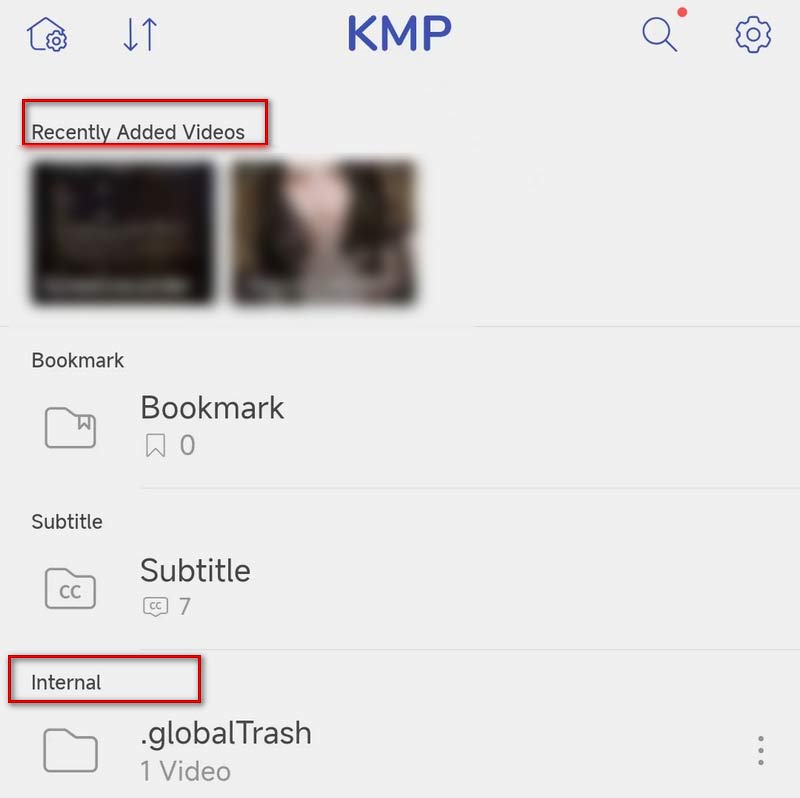
Then your video will be played automatically.
Playit-All in One Video Player
Playit is a versatile video player for Android phones and iPhones. It will automatically identify your local videos so you can use them to play M2TS videos. Besides playing videos, it can also be used as an M2TS to MP3 converter to extract audios from videos. To make it easier to use, you can set some shortcut gestures.
- Pros
- Runs stably on Android devices.
- Automatically scans local video files.
- Cons
- Limited support for recognizing and switching between multiple audio tracks, embedded subtitles, or Blu-ray subtitles.
- Cannot parse BDMV directories or Blu-ray menus.
Step 1Download and install Playit on your phone.
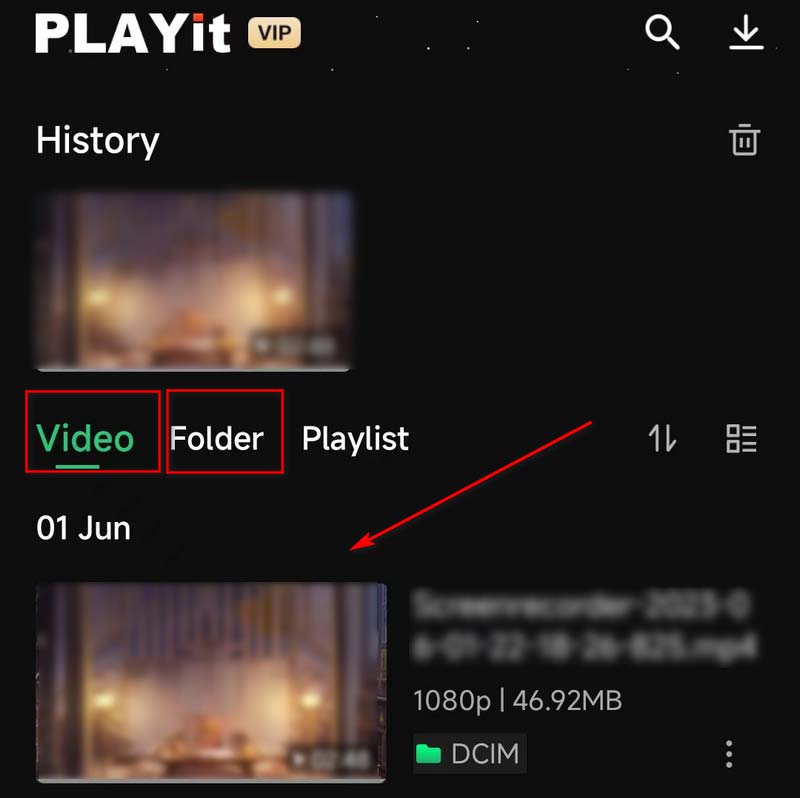
Step 2Open it, and your videos will be shown under the Video mode, or you can find your files through the Folder mode.
Step 3Tap your target video, and your video will begin to play.
Part 4. Make M2TS More Compatible - Convert M2TS to MP4 or MOV
If none of these methods solves your problem, or if you want to play M2TS files on devices that do not support the M2TS format, then we recommend that you use the best media conversion tool, AVAide Video Converter, to help you convert the video to a more popular video format for easier playback. AVAide Video Converter is the most comprehensive video converter that supports 300+ file formats. With a simple and elegant user interface, you can convert between different formats efficiently without losing quality.
FREE DOWNLOAD For Windows 7 or later
Secure DownloadFREE DOWNLOAD For Mac OS X 10.13 or later
Secure DownloadHere are the steps you can follow with.
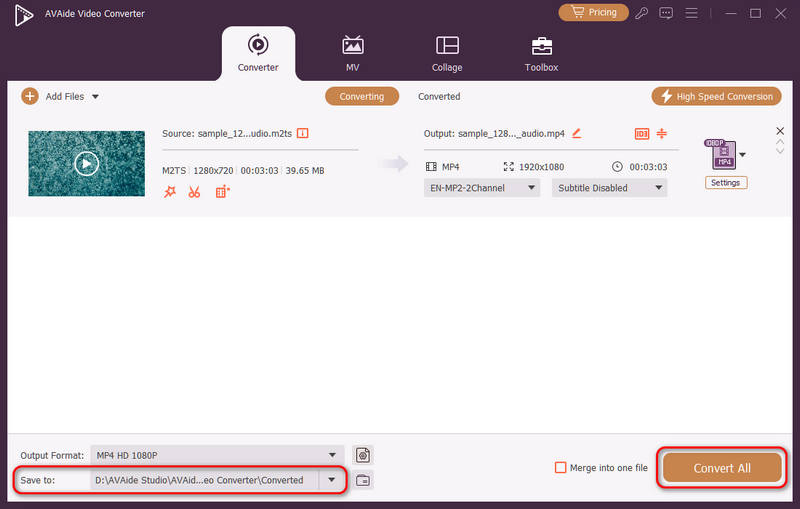
Step 1Download and install AVAide Video Converter on your computer. Choose Converter on the interface.
Step 2Choose Add Files to upload your video, or drag and drop your file directly.

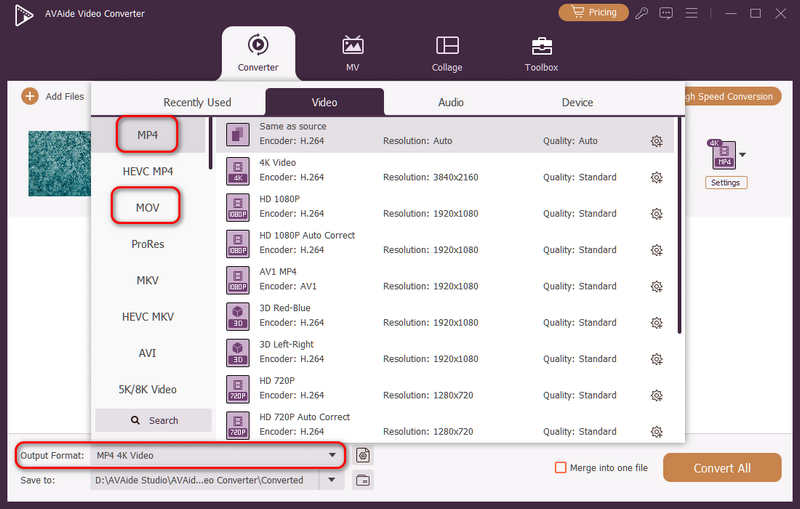
Step 3Click the Output Format dropdown butt in the bottom left side. Then, you can select a desired target format, like MP4 or MOV. Double-click to choose your desired format in a specific preset, like HD 1080P.
Step 4Click the Save to button in the bottom left side to choose a folder to save your converted files. Then click the Convert All button to start the conversion.
Part 5. FAQs of M2TS Player
What is the resolution of M2TS?
Generally speaking, the M2TS format supports a definition range of 720p to 1080i. This format is based on MPEG-2 and mainly contains high-definition videos on Blu-ray discs and AVCHD, Hard-drives, and other devices.
Is M2TS better quality than MP4?
M2TS is based on MPEG-2, while MP4 applies the standard of MPEG-4. The file size of the M2TS format is quite large because it stores more memory and higher-quality video. So compared to MP4, M2TS has higher video quality but also takes up more storage space.
What is the difference between m2t and M2TS?
There is no functional difference between MTS and M2TS, and M2TS can be seen as a variant derived from MTS. MTS and M2TS files are high-definition files associated with the AVCHD video format. When you record a video, your file will be saved in the MTS format. But if you move your file to a computer or a CD, it will change its format to M2TS.
How do I play M2TS files on my TV?
If you want to play M2TS video on your TV, you can copy it to a USB drive and then insert the USB drive into the port on the TV side. You can find your files in the USB drive folder when you turn on the TV. Or you can convert the file format to DVD or other popular formats and play it on your TV.
Can I Upload MTS/M2TS files to YouTube?
YouTube does not support M2TS and MTS formats. So you can only upload M2TS videos to YouTube indirectly. You can use AVAide Video Converter to convert your files to other YouTube-supported video formats and then upload them. YouTube now supports formats like MOV, MPEG-1, MPEG-2, MPEG-4, MP4, MPG, AVI, WMV, MPEG-PS, FLV, 3GPP, WebM, DNxHR, ProRes, CineForm, and HEVC (h265).
This article details five top best M2TS players, each accompanied by step-by-step guides and pros and cons to help you resolve M2TS playback issues. Whether you're using a computer or mobile device, you'll find a solution that suits your needs. Additionally, if you wish to convert M2TS files to more compatible formats, we recommend an excellent converter. It ensures high-quality conversion while effortlessly transforming M2TS files into formats that play seamlessly.
ABOUT THE AUTHOR

Full-featured multimedia player to play Blu-rays, DVDs, 4K UHDs, and other video/audio files.