It can be hard to choose a simple tool for quick video edits. Many people test Google Photos movie maker to see if it can cut clips fast and keep the workflow light. I have tried it in real use, and its strong points and weak points are easy to spot. This review will help you see what it can do, where it may slow you down, and when another option may serve you better. Up next, we will check how it works on Android, iPhone, and PC, then look at the best tools you can use as alternatives.
Part 1: How to Make a Google Photos Movie on Android
Creating a video on your phone is simple with the Movie Maker for Google Photos. The app lets you combine photos and clips into a cohesive, shareable video without needing any extra tools. It works well on most Android devices that support Google services, making it a convenient option for quick video projects or memories you want to share immediately.
Step 1Download and open the Google Photos app, then sign in with your Google account. If you already have the app, just log in.
Step 2Tap Library, then Utilities, and scroll to the Create New section. Select a Movie to start a new project.
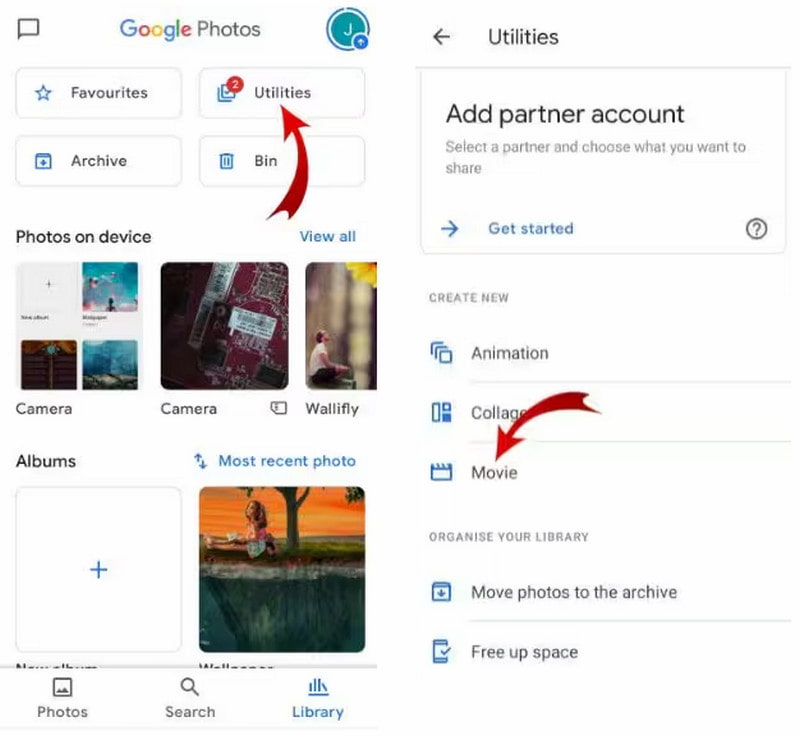
Step 3Choose a movie theme or start with a blank layout, then select up to 50 photos and videos from your device.
Step 4Tap Create. Google Photos will automatically arrange your clips and give you a draft preview. Use the film strip button to reorder images and the slider to adjust how long each appears.
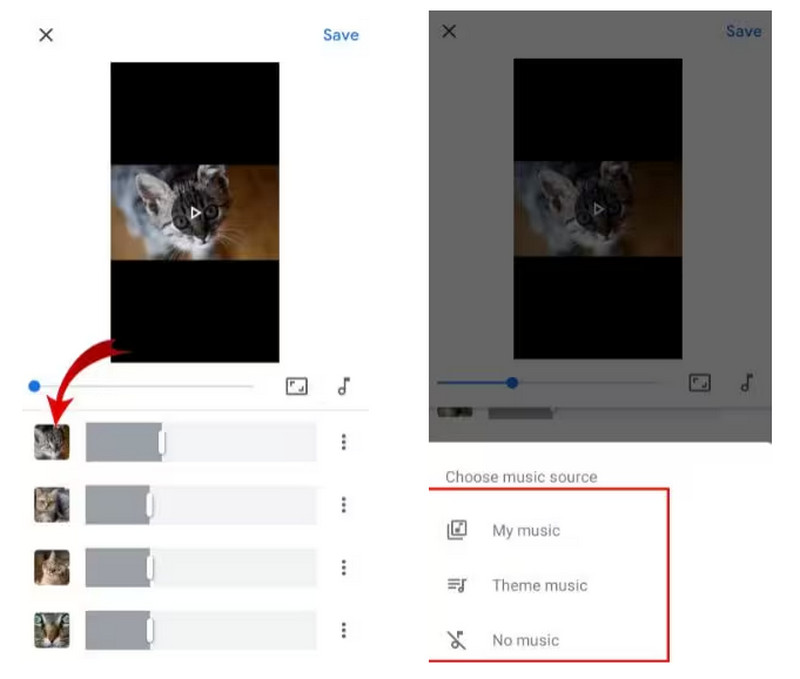
Step 5Add music by tapping the music button, apply effects or styles, preview your movie, give it a title, and tap Save. Your movie will appear in your Google Photos album, and you can download it to your device if needed.
Using this technique, you can quickly learn how to make a movie with Google Photos on your Android device, turning your memories into polished videos in just minutes.
Part 2: How to Make a Google Photos Movie on iPhone
iPhone users can also create videos quickly with Google Photos. The Google Photos make movie feature lets you combine multiple clips and images in seconds. This tool is perfect for capturing celebrations, trips, or any everyday moments you want to turn into polished stories.
Step 1Install the app from the App Store and log in with your Google account.
Step 2Tap Library, then Utilities, and scroll to the Create New section. Select a Movie to start a new project.
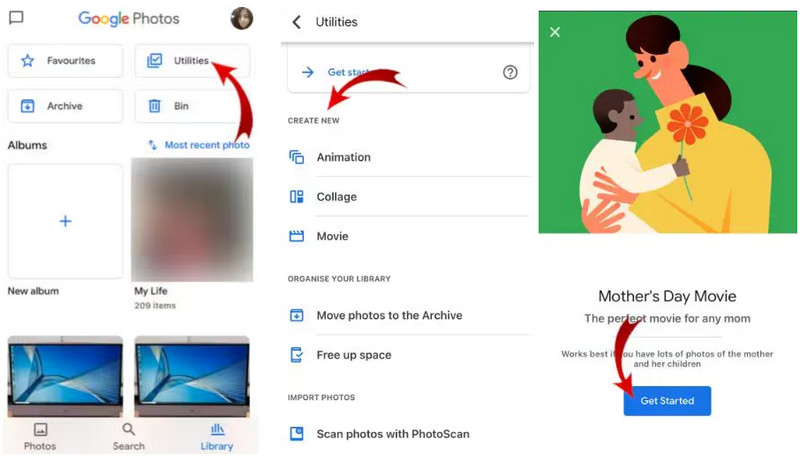
Step 3Pick a movie theme or start a blank video, then tap Get Started. Select the photos and videos you want to include.
Step 4Google Photos will open the Movie Editor. Rearrange clips using the film strip button, set durations with the slider, and add music from the app or your device.
Step 5Preview your video, apply effects or styles, name it, and tap Save. Your movie will appear in Google Photos, and you can download it to your iPhone if needed.
With these steps, you can quickly make a movie from Google Photos on your iPhone, producing videos that are ready to transfer to friends or post online.
Part 3: How to Make a Google Photos Movie on PC
Making a movie on your PC with Google Photos gives you more control over your project. Using the how to make a movie in Google Photos, you can drag and drop photos and clips, arrange them in the perfect sequence, and apply effects or music to bring your story to life. The web platform is straightforward and does not require extra software, making it ideal for longer projects or for editing on a bigger screen.
Step 1Go to photos.google.com and sign in with your Google account.
Step 2Click Utilities, then select Create New, and choose Movie to start a project.
Step 3Pick a movie theme or start blank, then tap Get Started and select the photos and videos to include.
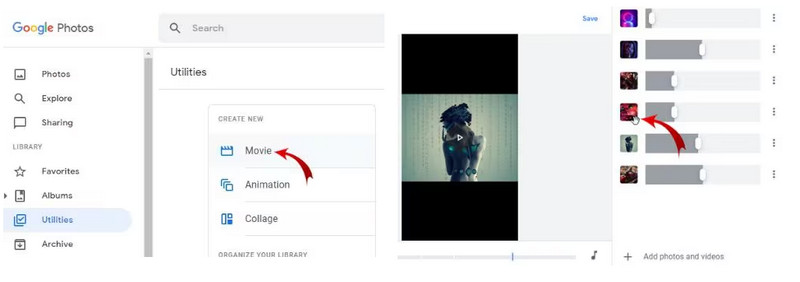
Step 4Google Photos will open the Movie Editor. Rearrange clips with the film strip button, set durations, and add music from the selector.
Step 5Apply styles or effects, preview the movie, give it a title, and click Save. Your finished video will appear in Google Photos and can be downloaded to your PC.
By following these steps, you can easily make a movie in Google Photos on your PC, crafting polished, shareable videos without extra tools.
Part 4: The Best Alternative to Google Photos to Make a Movie
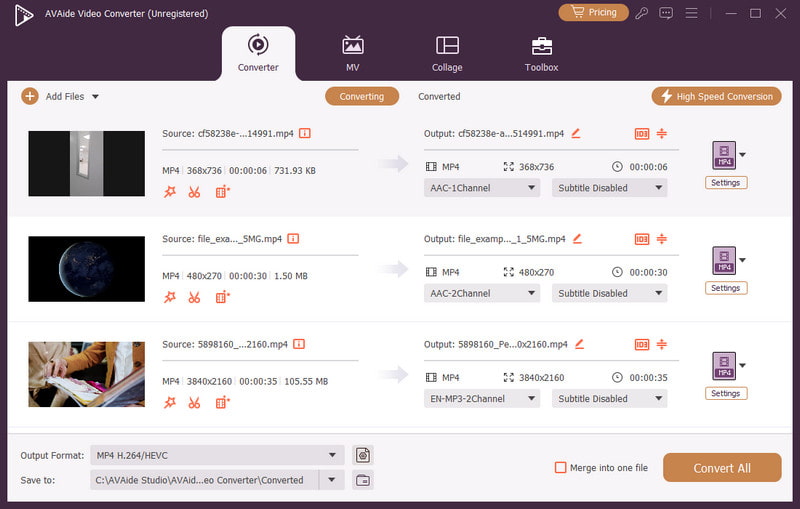
If you want more creative freedom than Google Photos offers, AVAide Video Converter is a strong alternative. In addition to the simple editing, it also offers useful features such as trimming, merging, adding subtitles and computer-generated enhancements to help enhance the quality of videos automatically. Working with videos is not a problem, regardless of their length, format, or codecs. This ensures its suitability for anyone who wants to make a video simply, and those who want to produce a highly professional video in a short time.

FREE DOWNLOAD For Windows 7 or later
 Secure Download
FREE DOWNLOAD For Mac OS X 10.13 or later
Secure DownloadWith AVAide Video Converter, you can unlock advanced tools and flexible options, giving you a better way to make movies from your photos. It also makes it easy to learn how to make a lyric video, combining text, music, and visuals in a professional-looking project.
Part 5: What are the Best Features of Google Photos
Google Photos is not a simple storage application. Its film editing and movie-making software render it an effective solution to the creation and management of videos. The following are the most outstanding features:
1. Movie Maker
Enables you to make movies out of your photos and videos in an elegant movie with very little effort. You are allowed to choose themes, add music and change the order of clips and achieve a professional look.
2. Automatic Organization
Google Photos also automatically sorts your media by date, location, or type of content. This enables one to locate photos and videos with ease when making movies.
3. Editing Tools
Provides easy editing features such as video trimming, brightness adjustment, filters and rotation of images. It works wonderfully in making a hasty adjustment and posting.
4. Themes and Templates
The themes and templates built in can assist you in making a sleek movie within a short period of time and not having to design it by yourself. You are allowed to choose masturbatory moods such as birthdays, trips or celebrations.
5. Music Integration
Allows adding background music to your videos, either in the Google library or on your own device, to improve the storytelling experience.
6. Cross-Platform Access
Among others, it works with Android, iPhone, and PC to ensure you can create, edit and view your videos wherever you go.
7. Smart Suggestions
Google Photos recommends collages, animations, and movies, as well as it will create videos with the least effort in the shortest time possible, based on your recent uploads.
Google Photos Movie Maker makes it easy to turn photos and clips into quick, polished videos on Android, iPhone, or PC. For more creative options and advanced editing, AVAide Video Converter is a solid alternative. Overall, this movie maker for Google Photos is a simple, reliable way to create and share memorable videos in minutes.
Your complete video toolbox that supports 350+ formats for conversion in lossless quality.