Accidentally recorded a video sideways on your iPhone? You can rotate it directly in the Photos app without installing any extra apps. This guide will show you how to rotate a video on iPhone using built-in tools, iMovie, and professional desktop software.
Part 1. How to Rotate a Video on iPhone with the Photos App
iPhones have a built-in Photos app that is also workable for simple video editing and rotation. This app is very useful to users, as it is the most accessible one for them. Moreover, this specific app has editing features such as preset filters, rotation, crop, and adjusting features that will help users to modify their video instantly without downloading a third-party application. On the other hand, below are the simple steps on how to rotate a video on iPhone using Photos.
Step 1Launch the Photos app, and click on the specific video that you want to rotate. Tap Edit at the upper right.
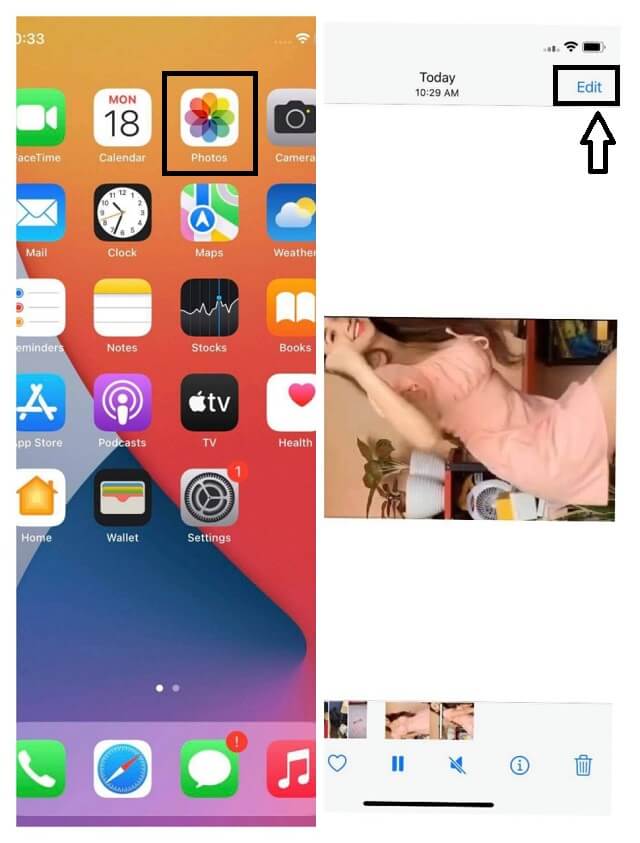
Step 2Tap on the Rotation button at the bottom part of the screen, then rotate the video by adjusting the square indicating the rotation on the left uppermost part of the screen.
Step 3Finally, tap the Done button to easily rotate your video on iPhone. Check your photo library again for the rotated video.
Part 2. How to Rotate a Video on iPhone with iMovie
iMovie is another convenient way to rotate a video on iPhone while making additional edits. Compared with the built-in Photos app, iMovie provides more editing options, allowing you to trim clips, add transitions, apply filters, and enhance your videos after rotation. It is especially useful when you want to adjust the orientation of a video and continue editing it in the same project.
Step 1Download and launch the software. Start working on the video file by tapping the Plus sign on the screen.
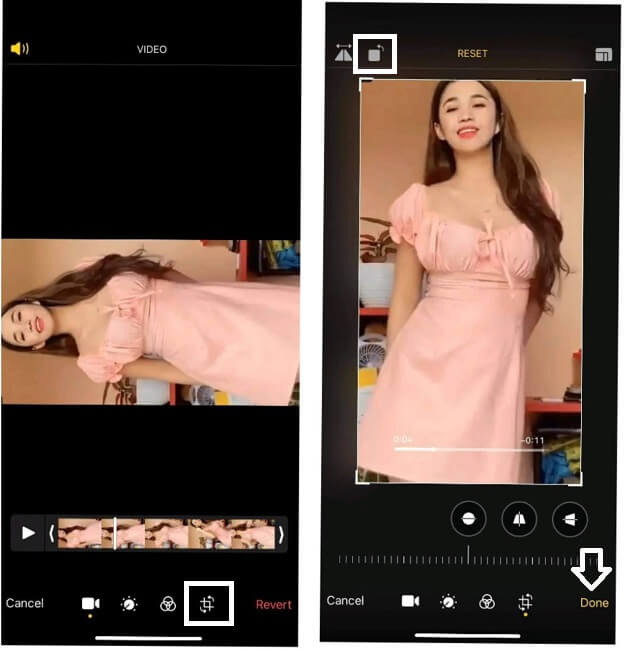
Step 2Click on the Movie to make a new project. Choose a video file from your gallery that you want to rotate, then hit Create Movie. Then, tap the Crop button on the toolbar.
Step 3Hold on to the file, then rotate it manually on the screen with your finger. Finally, tap the Done button on the upper-left part of the screen to save the rotated video on your iPhone Photos.
Part 3. Professional Way to Rotate an iPhone Video on Windows and Mac
The Photos app and iMovie are convenient options for rotating videos directly on an iPhone. However, they may not be enough when you need to process multiple videos, edit large 4K recordings, or keep more control over the output settings. In these situations, using a professional desktop video rotator like AVAide Video Converter can be a more flexible solution.
AVAide Video Converter allows you to rotate iPhone videos on both Windows and Mac computers with just a few clicks. Whether your video was recorded vertically, horizontally, or accidentally captured upside down, you can rotate it 90 degrees, 180 degrees, or 270 degrees while previewing the changes before exporting.
- Handle different types of iPhone videos, including MP4, MOV, and HEVC/H.265 videos.
- Allow you to customize output settings such as resolution, frame rate, encoder, and format.
- Rotate videos 90°, 180°, or 270° with real-time preview.

 Secure Download
Step 1Install the Program on the PC
Download and install the tool on your desktop. Simply visit the AVAide Video Converter website and click the download button applicable on your device. Afterward, launch it.
Step 2Upload the Video File
Go to the Toolbox, then hit the Video Rotator feature. Click the Plus sign on the main interface, then upload the video file you would like to modify.

Step 3Start Processing the Rotation
Start working on the rotation procedure by clicking the Rotation options. You may continually tap it until you get your desired angle while comparing the output from the original file.

Note: You have the option to still edit your video file into your preferred quality, resolution, format, framerate, encoder, and zoom mode, by hitting the Setting icon.
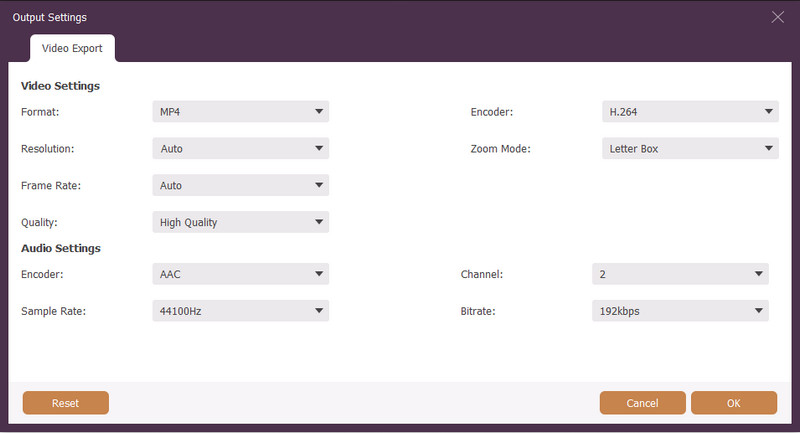
Step 4Export to Rotate
Hit the Export button located at the right bottom-most of the interface, to save the rotated file. Wait for the exportation to finish, then check on the folder where your file is automatically saved. Otherwise, you may rely on this pattern to see the saved file, Local Disc > AVAide Video Converter > Video Rotator.
Part 4. Why Is My iPhone Video Sideways?
If your iPhone video appears sideways or upside down, it usually happens because of the phone's orientation detection or the way you held your device while recording. Although iPhones can automatically recognize whether you are recording in portrait or landscape mode, the orientation information may sometimes be incorrect or not properly recognized.
Here are some common reasons why your iPhone video is sideways:
- The iPhone orientation sensor did not detect the position correctly. When you quickly turn your phone while recording, the camera may not have enough time to adjust the video orientation.
- You started recording before rotating your iPhone. The camera may save the original orientation at the beginning of the recording.
- The video player or social media platform ignores orientation metadata. Some apps may not correctly read the rotation information stored in the video file, causing the video to appear sideways.
- The video was transferred between different devices. Some computers, editing apps, or online platforms may handle iPhone video orientation differently.
Fortunately, you can easily fix a sideways iPhone video by rotating it in the Photos app, iMovie, or a desktop video editor. For simple adjustments, the built-in iPhone tools are usually enough. However, if you need to rotate multiple videos, process 4K/HEVC footage, or export videos in different formats, a professional video rotator, like AVAide Video Converter, can provide more control.
Part 5. FAQs On How to Rotate a Video on iPhone
How to rotate a video of the iPhone with the AVAide Video Converter?
Rotate your videos from your iPhone by simply transferring them first to your Mac or Windows desktop. After doing that, you may directly follow the steps given in this article. Although in this post we used a Windows-based desktop, the steps are considerably similar for the Mac device.
How to rotate a video on iPhone 8 plus online?
If you opt to rotate your videos online using your iPhone 8 plus, better try the Ezgif. This online tool can be used with phones and desktops. However, please take note that it can only allow a limited file size when uploading a video file.
Are the featured tools applicable on how to rotate a video on iPhone SE?
Yes. The featured apps for iPhone in this article are applicable on iPhone SE.
Rotating a video on an iPhone is easier than ever with built-in tools like the Photos app and iMovie. These methods are great for quickly fixing the orientation of a single video. However, if you need to rotate multiple iPhone videos, edit 4K/HEVC footage, or maintain more control over output settings, a professional video editor like AVAide Video Converter can be a more powerful alternative. With its versatile video editing and conversion features, you can easily rotate, enhance, and optimize your videos for sharing or playback on different devices.
ABOUT THE AUTHOR

Your complete video toolbox that supports 350+ formats for conversion in lossless quality.
Rotate & Flip Video
- Reverse a Video on Windows, Mac, Online, and on Mobile
- Rotate a Video Online
- Rotate a Video in Premiere Pro
- Rotate a Video Clip in iMovie
- Rotate a Video on iPhone
- Rotate a Video on Android
- Best Apps to Rotate Video for Android & iOS
- Flip Video Using Desktop, Online, iPhone, and Android Apps
- Flip a Video Online
- Rotate an MP4 Video
- How VLC Rotate Video
- Flip Video in Final Cut Pro
- Flip a Video on Android
- Rotate a Video for Instagram
- Rotate Video 180 Degrees
- How HandBrake Flip Videos
- Flip Videos in Windows Media Player