Did you know that you can create an eye-catching video by adding a reverse effect to it? Yes, putting your video in reverse can captivate viewers on your social media, whether it's a pure meme, crafty performance, or just for visual effects. And the best part of this wonderful idea is that you don't need high-end software to put videos in reverse. Instead, you can try the 5 ways to reverse video online recommended in this article.
Part 1. Top 5 Online Tools to Reverse Video
1. CapCut
Starting strong, CapCut is a well-known tool for video making. Although it is more popular as an app, this video editor is also available as a free online reverse video with the best set of functions for creating your videos. If there is a downside, it is requiring users to create an account to use the online tool for free, and the possibility of a watermark after exporting. With that said, you can start using CapCut with these steps:
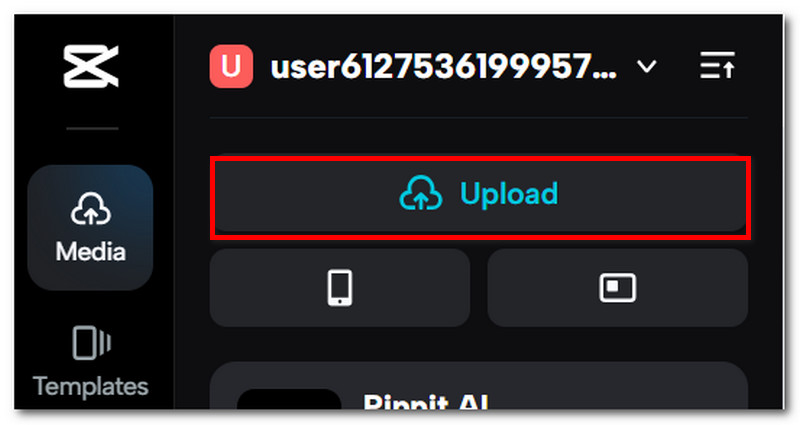
Step 1From your browser, visit the online CapCut tool. Upload the video you want to reverse.
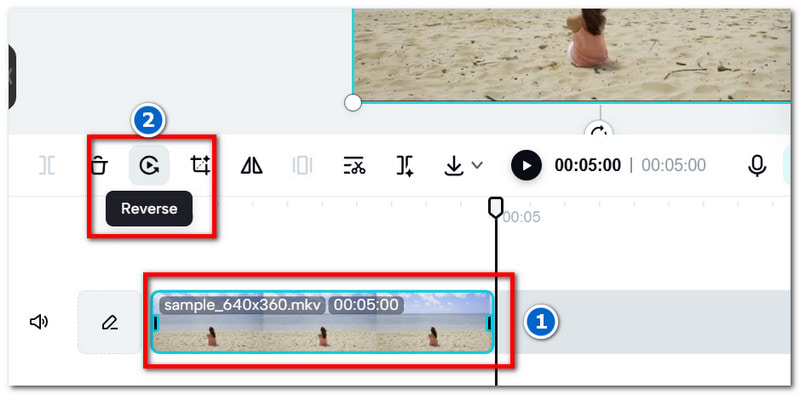
Step 2Once successfully uploaded, click the video from the timeline, then click the Reverse button. Please be reminded that upon reversing the video, it will also reverse the audio. Click the Export button once done.
2. Clideo
If you are looking for a more straightforward way to reverse video online, Clideo should be on your list. Clideo is popular as a product providing essential tools online, individually for reversing, compressing, and adding elements. It is unique from others, as its reversing tool allows you to choose the desired reverse speed. While it is completely free without applying its watermark to your video, Clideo is limited to short clips, meant for reversing videos with a 100MB size.
Step 1Search for Clideo Reverse Video online and upload your video. Wait until the upload is completed.
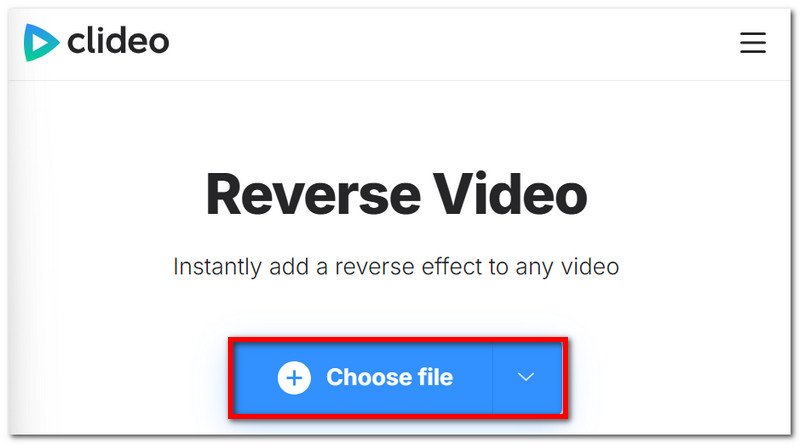
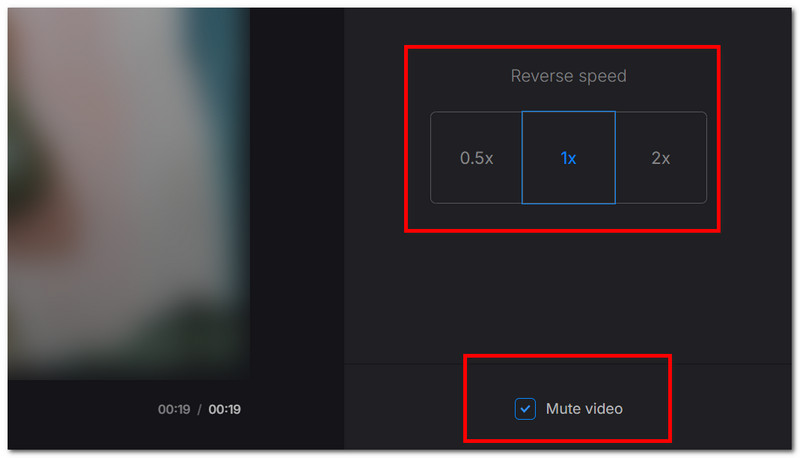
Step 2Choose the reverse speed from the right side. Optionally, you can change the output format or mute the video so the sound will not be distorted.
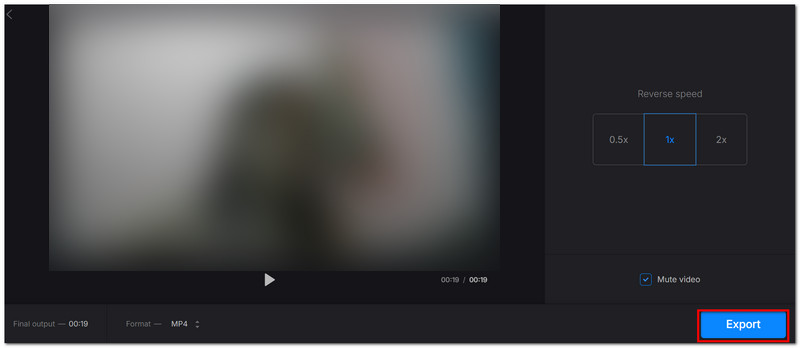
Step 3Preview the video. Then, click the Export button to save the reversed video.
3. Ezgif
Ezgif takes a slot for a more diverse way to reverse video online, as well as editing. The online tool allows you to reverse video with a maximum of 200MB file size, and it supports various formats, including AVI, MP4, WebM, and more. What's more, Ezgif resizes video, allowing you to change the resolution at will. It is effective for a short edit, but you might need to spend some time getting familiar with its cluttered interface.
Step 1Visit Ezgif online. Click the Reverse button from the top menu. Then, upload the video you want to reverse.

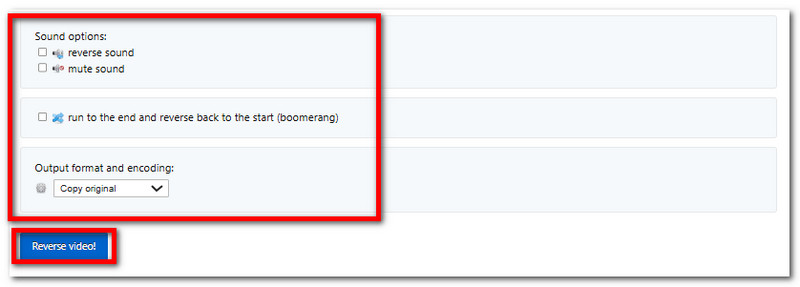
Step 2There are options to edit the video, such as reversing or muting the sound, and even encoding the output format. Click Reverse video to apply and save to your computer.
4. Kapwing
Kapwing supports creating eye-catching videos online, so it offers reverse video for free online. It has more of a full interface, equipped with the best templates, effects, and elements to add to your videos. Unfortunately, Kapwing is also known as a very limited tool, requiring users to upgrade to the pro version to unlock its full features.
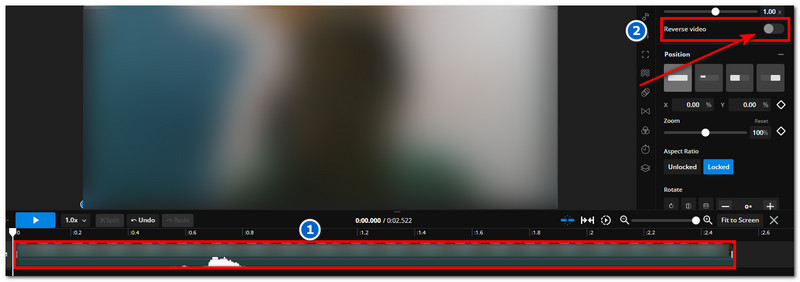
Step 1Upload a video in Kapwing, then drag and drop it to the timeline.
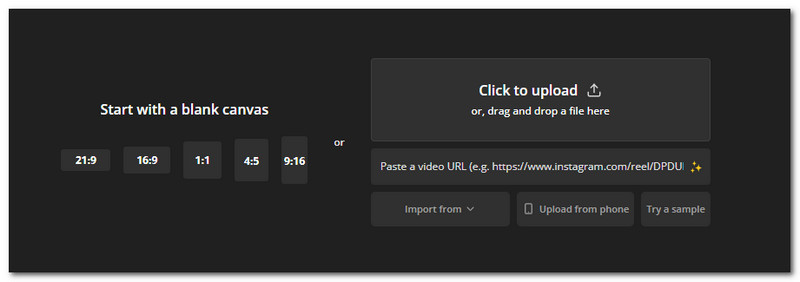
Step 2Click the video from the timeline. A new menu from the right side will appear. Toggle on the Reverse Video button. Use the other features for editing or click Export to save the reversed video on your device.
5. Video Candy
Another multipurpose video reverse online tool for you to try is Video Candy. Equipped with various editing options, Video Candy is a great alternative to apply a rewind effect to your video clip, whether it is MP4, MOV, or WMV. The best part is that this tool does not apply a watermark to edited videos, and the quality is good for social media posting. But unlike Kapwing, Video Candy can only offer individual tools for editing, so it is too much work to just apply the reverse effect, trim, and even add subtitles.
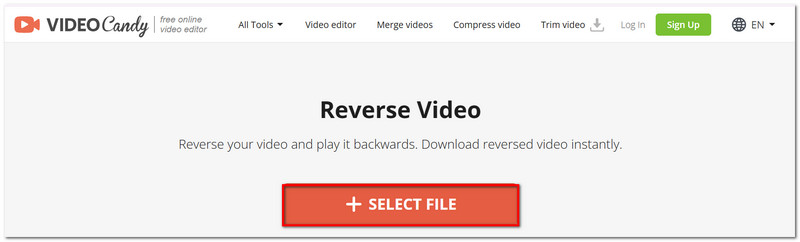
Step 1Click the Select File button to upload the video from your folder. Wait until successfully uploaded.
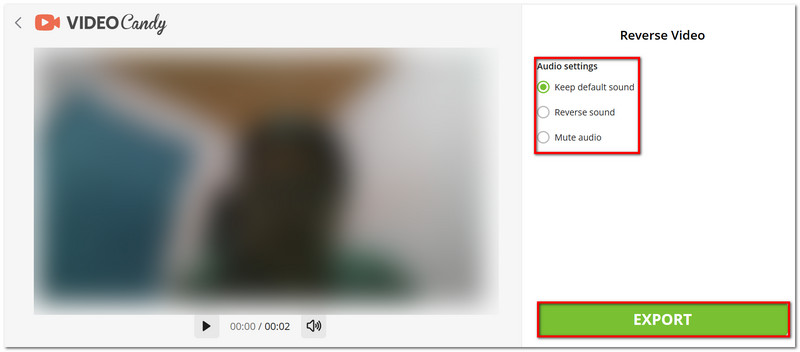
Step 2Choose if you would like the audio to be reversed or muted. Then, click the Export button to save the reversed video.
Part 2. Comparison of the 5 Online Video Reversers
With five ways to reverse a video clip online, it can be tough to choose which one to use for your videos. In this case, you can weigh your choices using the table to compare the features of the five online tools and see which is the most suitable for your needs.
| Tools | Free | Ease of Navigation | Contain Ads | Watermark | Editing Features |
| CapCut | Yes | Yes | No | Yes | Yes |
| Clideo | Yes | Yes | No | No | No |
| Ezgif | Yes | No | Yes | No | Yes |
| Kapwing | Yes | Yes | No | Yes | Yes |
| Video Candy | Yes | Yes | No | No | No |
Part 3. Another Free Video Reverse Tool
While online tools provide you the advantage to review video for free online, the downside is the inconsistency of supported formats, maximum file size, and even a lack of basic functions that will only make you jump from one online tool to another. With that, you might need to try AVAide Video Converter on Windows or macOS. The multipurpose software offers a beginner-friendly way to reverse videos but guarantees professional-grade results. It is developed to support various video formats, allowing you to reverse MP4, MOV, MKV, AVI, WMV, and more. It is also trusted with regards the output settings, as it can manipulate the video codec, resolution, and bitrate. Furthermore, the Video Converter provides essential features for video editing, such as converting, metadata editing, enhancing, etc. AVAide Video Converter is the best alternative to reverse a video clip online, as it provides all you need for a video editor.
Step 1Download AVAide Video Converter on Windows or Mac. Carefully follow the instructions to install the software on your computer.

FREE DOWNLOAD For Windows 7 or later
 Secure Download
FREE DOWNLOAD For Mac OS X 10.13 or later
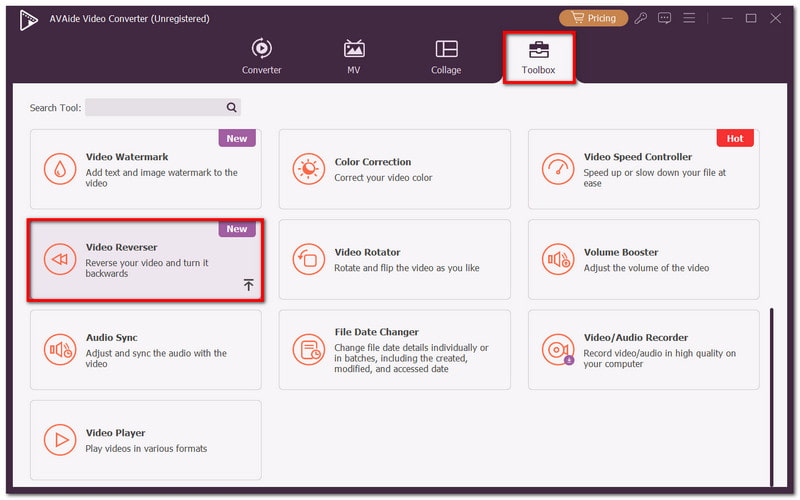
Secure DownloadStep 2Launch the software and go to the Toolbox. Click the Video Reverser button and add the video you want to reverse.
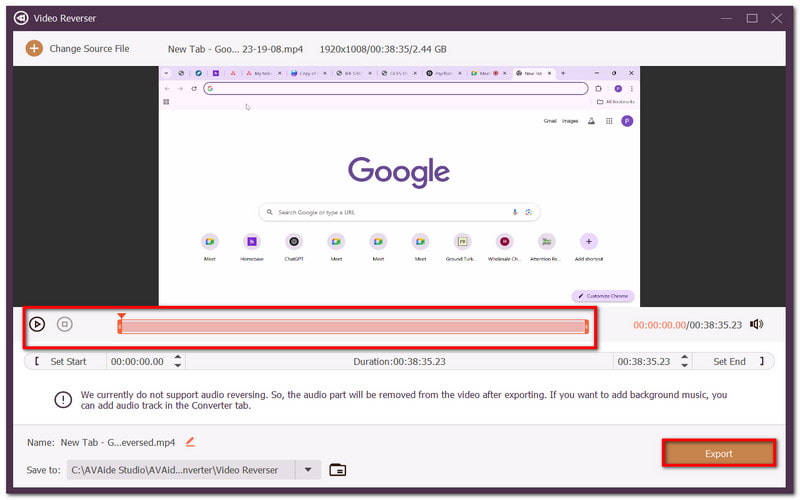
Step 3Optionally, you can trim the video, and then you can preview it by clicking the Play button. Click Export, and the video will be reversed and saved to your folder.
Now, it is not impossible to create the fun video you have in mind. With the five ways to reverse video online for free, you can reverse videos as many as you like. But if you don't want the hassle of unwanted watermarks applied to your video or limiting the video file size, then it is recommended to use AVAide Video Converter for all-in-one video editing. Not only is it effective to reverse MP4, but it is also reliable for conversion, noise cancellation, enhancement, and many more! Download the free version for Windows or macOS to get started today.
Your complete video toolbox that supports 350+ formats for conversion in lossless quality.