Creating videos is not linear, as you will need to be more creative to gain an audience. One imaginative possibility is to put videos in slo-mo, and the good thing is, it is not hard to achieve with many existing tools. But the question remains: How can you make a video slow motion on laptops or phones? Read through, and you will find out.
- Part 1. How to Make a Video Slow Motion on iPhone
- Part 2. How to Make a Video Slow Motion on Android
- Part 3. How to Make a Video Slow Motion Online (Free & Browser-Based)
- Part 4. How to Make a Video Slow Motion on Windows/Mac (Desktop Software)
- Part 5. How to Make a Video Slow Motion Using Popular Apps
- Part 6. How to Make a Video Slow Motion on YouTube
Part 1. How to Make a Video Slow Motion on iPhone
Just on your iPhone, you have many choices to get started in making a slo-mo video, and even without the help of a third-party app. This part shows you how to make a video slow motion on an iPhone using two methods.
1. Using the Built-in iPhone Photos App
The Photos app is the native application for storing captured photos and videos. It is also equipped with various editing options, including slow-motion effects that you can apply to already existing videos.
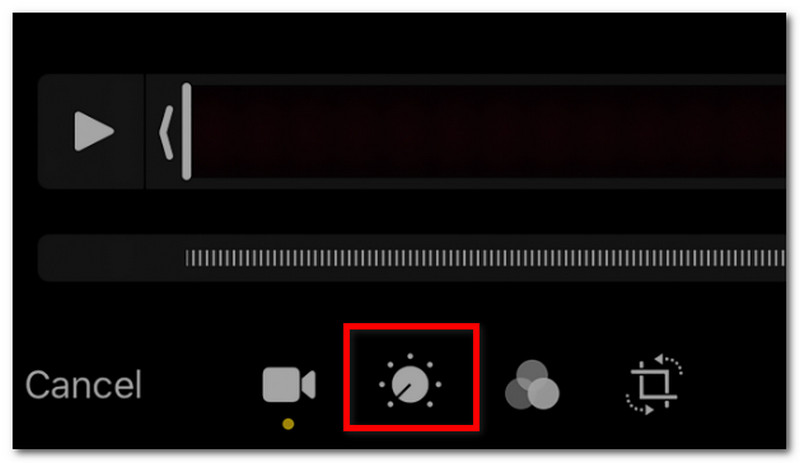
Step 1Go to the Photos app on your iPhone and select a video. Tap the Edit button with the triple lines icon, then tap Video.
Step 2Tap the Time button to edit the playback speed to your desire. Save the video after editing.
2. Recording Slow-Motion Video Directly on iPhone
How to slow down a video on an iPhone? Not only does the Photos app provide playback speed options, but the Camera app also has a slo-mo effect to apply to video shooting.
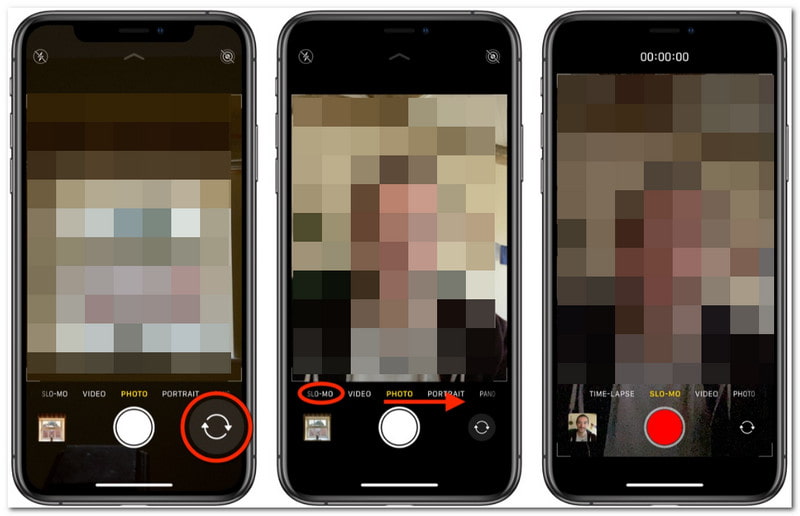
Step 1On your iPhone, open the Camera app. Find and choose the Slo-mo option.
Step 2Tap the Record button to take a slow-motion video. Depending on whether you have an iPhone 11 or later, you can also record in slo-mo using the front camera.
Part 2. How to Make a Video Slow Motion on Android
Android phones do not lack editing tools. In fact, just like the iPhone, you can start editing videos in slow motion via native phone applications. This part will provide 3 methods on how to make a video slow-mo on Android.
1. Using the Built-in Google Photos App
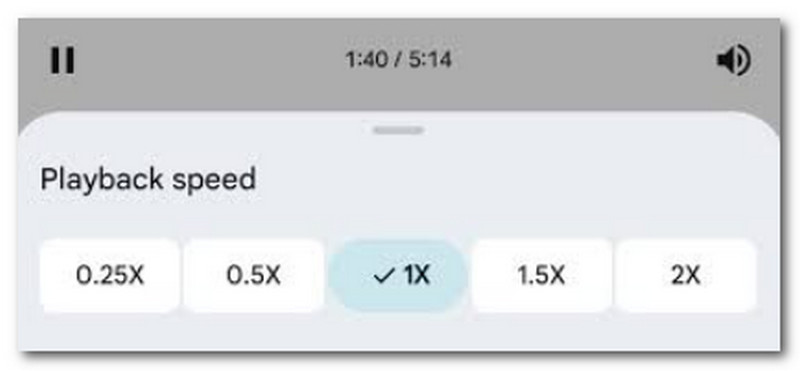
Most Android phones of any brand have Google Photos as either the primary or secondary storage for videos and photos. Among other features, you can use its playback speed by following these steps:
Step 1Open the Google Photos app and tap a video. Tap the Edit button at the bottom of your screen.
Step 2Find the Speed menu, then select the desired playback speed to apply. Preview and tap the Save button.
2. Using Samsung's Built-in Video Editor
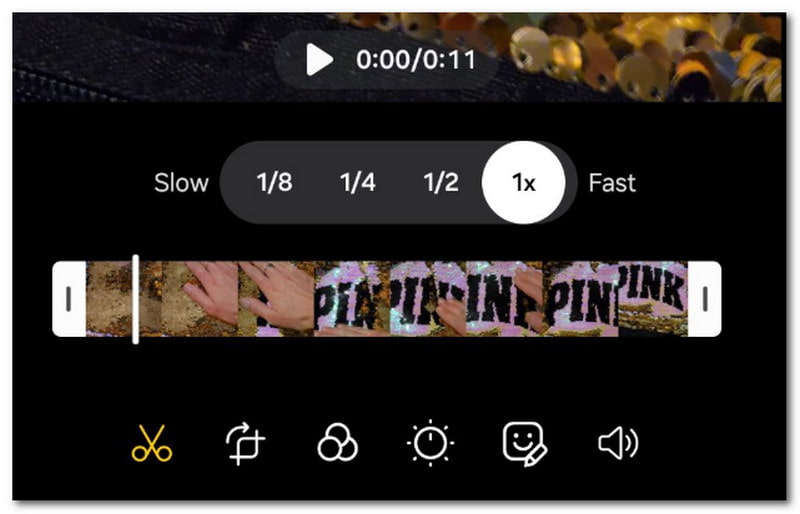
If you have a Samsung Android phone, then the Gallery app has options for playback speed. Check the steps on how to slow down a video:
Step 1Open the Gallery app on your Android phone. Open a video and tap Edit.
Step 2From the bottom part, tap the Speed button and adjust the speed to slow motion. After that, preview and save.
3. Using a Third-Party Android App
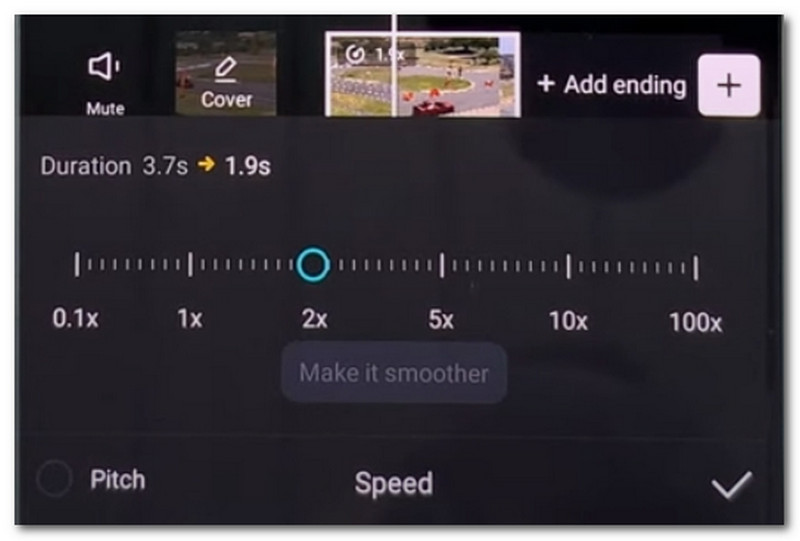
You can try CapCut as a third-party app to create slow-motion videos. However, note that it is free to use, but you have to get a monthly subscription to unlock most of its features.
Step 1Download and open CapCut on your phone. Upload a video to the timeline to start a new project.
Step 2By tapping the Speed button from the bottom menu, you can select a speed slower than normal. Continue editing with the app's other tools, then export to apply changes.
Part 3. How to Make a Video Slow Motion Online (Free & Browser-Based)
Getting a slow-motion video can be achieved not only by installing editing software, but also through online-based tools. The best part of this option is that you don't need to download an app, but can go straight to video editing. You can find here 2 of the most popular web-based solutions to create slow-motion videos.
1. Kapwing
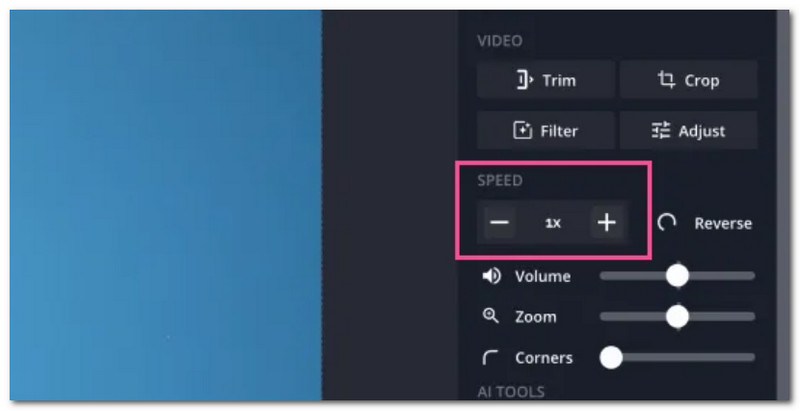
You can try Kapwing as your slow-motion video program online. It is free to put a slo-mo effect on videos, but it will require you to sign in.
Step 1From Kapwing, upload a video to get started. If you added multiple clips, click the video from the timeline to edit it separately.
Step 2Choose the desired slow motion speed from the Speed menu. Optionally, edit the video if needed. Export the video file.
2. Clideo
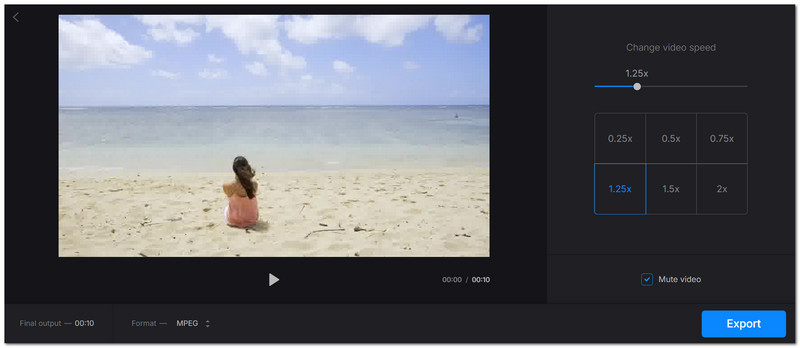
Clideo is another good alternative for quickly editing video speed. While it won't require you to create an account, you can only edit a short clip with a few playback speed options. If you're good with this, here are the steps:
Step 1Upload a video to Clideo online. Choose a good slo-mo speed from the right panel.
Step 2An option is included to let you change the output format. Once done, click the Export button to save the slo-mo video.
Part 4. How to Make a Video Slow Motion on Windows/Mac (Desktop Software)
Most laptops can only provide basic editing tools for videos, and unfortunately, speed adjustment is not always included. So, it is recommended to use professional tools, such as the following.
1. AVAide Video Converter
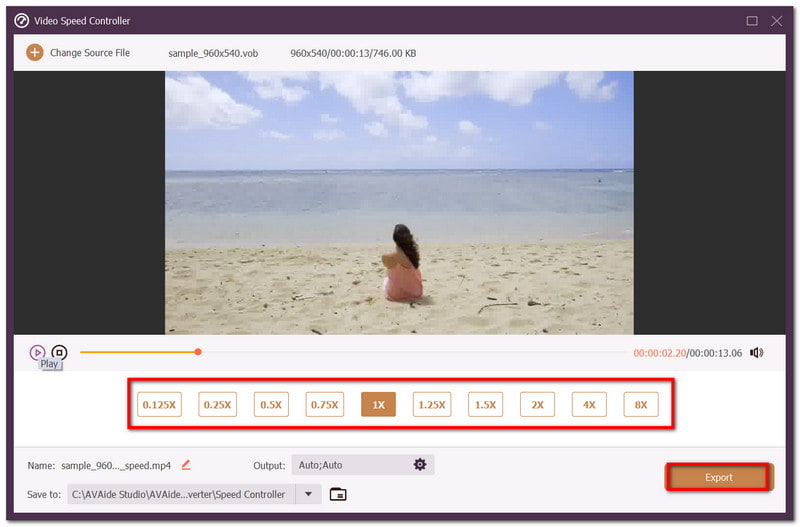
AVAide Video Converter is an all-in-one solution that offers a simple yet effective slo-mo tool. It can put slow motion and faster effects on any video type, such as MOV, MP4, VOB, etc. Without compromising the quality, it has the option of 0.125x for the slowest effect to 8x faster playback speed. Moreover, the video output can be edited by tweaking the resolution, bitrate, and others. AVAide will be the best software for all-around editing because it can also convert, compress, and enhance videos. To get started, follow the steps:
Step 1Download the software on your computer, and follow the instructions to completely install the slow-motion video maker.

FREE DOWNLOAD For Windows 7 or later
 Secure Download
FREE DOWNLOAD For Mac OS X 10.13 or later
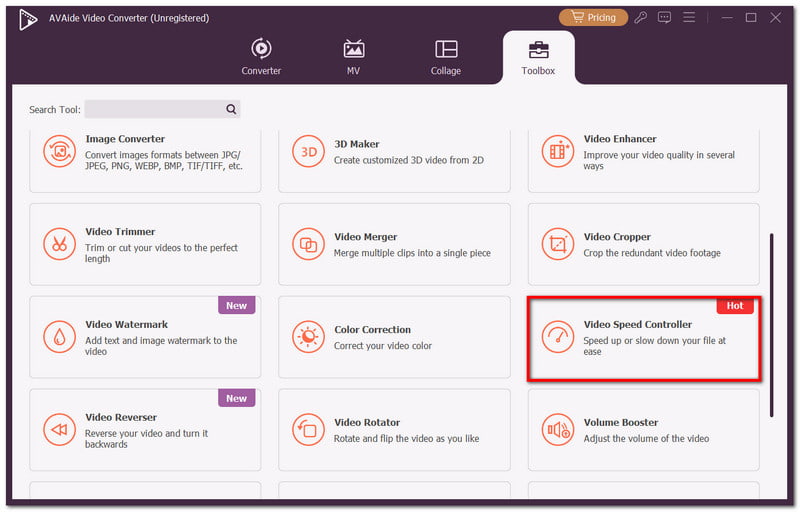
Secure DownloadStep 2From the main interface, go to Toolbox and click the Video Speed Controller option. Add the video you want to edit.
Step 3Choose the desired speed for your video. Click the Play button to preview the applied settings. Once done, click Export to save the video file.
2. Adobe Premiere Pro
Adobe is popular for its professional suite of tools. It can be complex with a challenging learning curve, but you can learn how to turn a video into slow motion easily with these steps:
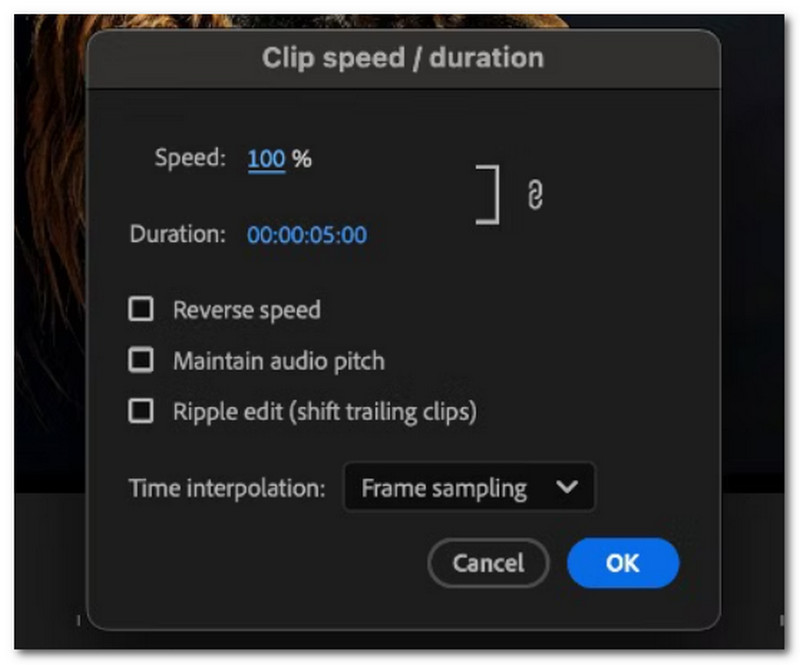
Step 1Open the slow-motion video software and import a video you want to edit. Select the video in the timeline panel, then right-click to choose the Speed/Duration option.
Step 2From the dialog box, enter the desired percentage of speed with the low value for a slower playback speed. Click OK to save the changes to the video.
Part 5. How to Make a Video Slow Motion Using Popular Apps
With the height of social media, apps like TikTok and Snapchat offer built-in editing options. Here, you can check how to put a video in slow motion using these choices.
1. How to Make a Video Slow Motion on TikTok
With TikTok, you can use it as a video recorder and use a slow-down effect. Check the steps below:
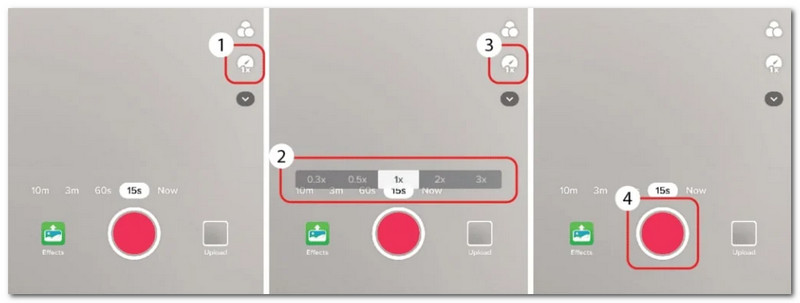
Step 1When you open the app, tap the Plus button at the bottom. Choose a video duration, then from the right panel, select Speed.
Step 2Pick the desired slo-mo effect, then hit Record. Edit the video and upload to gain viewers.
2. How to Make a Video Slow Motion on Snapchat
As Snapchat's main purpose is fast and visual communication, it offers the slo-mo effect you can use for taking videos.
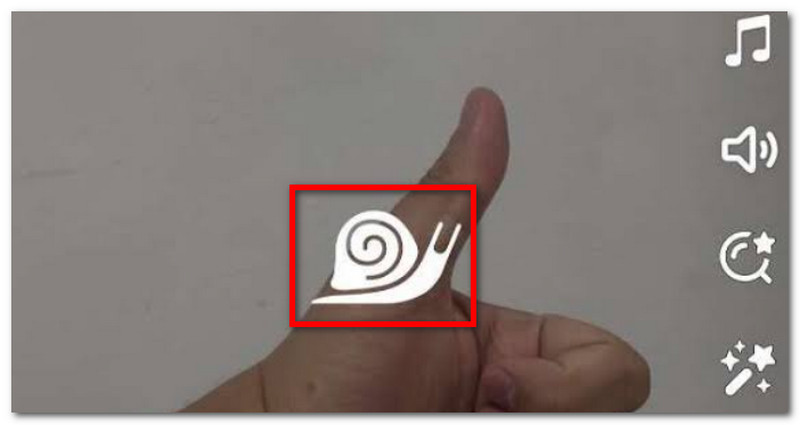
Step 1Launch Snapchat on your phone, press and hold the Capture button to start recording.
Step 2Once done, swipe to the left until you see the Snail image for the slow-motion effect. Tap on it to apply, then save and post the video.
Part 6. How to Make a Video Slow Motion on YouTube
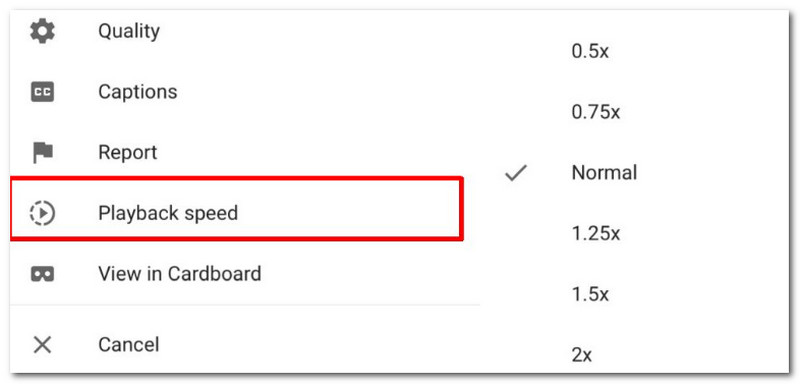
Keep in mind that while YouTube is a video platform, it does not offer any sort of video editing tools. Instead, it is recommended to use the best YouTube video maker to edit the video before uploading it to YouTube. In this way, you can choose the playback speed before gaining views. On the other hand, you can find a speed option to adjust the speed of any video on the platform. However, it is not for permanent editing, but only for playback. To use this feature, here are the steps to follow:
Step 1Go to YouTube and open a video you want to watch. Click the Settings button to show more playback options.
Step 2Open Playback speed, and choose to either slow down or speed up the video playback. Play the video to see the effect.
With this guide, you have discovered endless possibilities to create slow-motion videos on any device. Moreover, you have learned AVAide Video Converter as the most recommended tool for Windows and Mac. Not only is it effortless to edit video, but it also guarantees the highest output quality. Get it for free by clicking Download!
ABOUT THE AUTHOR

Your complete video toolbox that supports 350+ formats for conversion in lossless quality.