Cropping is a video editing technique that a video editor needs to master. It can help with removing parts of the video that are not supposed to appear. Moreover, it can be used to highlight a specific portion or subject of the video. In actual fact, this is a skill that you can acquire in a matter of minutes with the right tutorial. Therefore, this post will tell everything you need to know about cropping, why you need to crop MP4 videos, best practices, and tools to get this done. That being said, finish reading the entire post and obtain the necessary skillset.
Part 1: What is Cropping
In layman's terms, cropping refers to the process of cutting away unfavorable parts of a video or an image to focus on what's most important. You may also think of it as removing what you don't want and keeping what you need from the right, left, top, or bottom edges of the video. Cropping is a technique most multimedia editors apply to their files. This technique can be used in both photos and videos. Meanwhile, it is necessary to be informed that cropping does not equate to trimming. With cropping, you are getting the frame size or area right, while trimming cuts the duration or length. In other words, those two different video editing techniques with different outcomes.
Part 2: Why Need to Crop MP4 Videos
Learning how to crop an MP4 video file stems from several reasons. One of the main goals is to remove the unwanted parts from the edges of the video. That leads us to another reason, which is to improve focus on the main subject. Removing the unnecessary portions paves the way for the start of the show. In addition, you will be able to remove black sidebars to make it look professional. When you crop an MP4 video, you also want to adjust the content for different screen sizes or frames, like vertical, square, etc. Moreover, it is used to remove unwanted elements or distractions. Lastly, you can utilize the cropping technique to fit platform requirements on social media when it comes to frames or video screen sizes. Learning what and why of cropping is fundamental. Equally important, you need to learn how to crop an MP4 video for free and practically. In the next sections, various methods and tutorials will be provided for your perusal.
Part 3: Crop an MP4 Video Online
A web-based tool like Clideo can help you crop MP4 videos for free online. Users can edit videos without installing any program on their computer with this tool. Provided that your device is connected to the Internet and supports a web browser, you are good to go. This tool can work to crop MP4 videos on Mac and Windows. Uploading videos to this program gives you the freedom to load from local and cloud storage platforms. Whether your files are from Dropbox, Google Drive, or a computer drive, you can easily upload your MP4 files. With its aspect ratio options, it can work as an aspect ratio converter. In addition, you can customize the cropping size or dimension to precisely fit your needs. Crop MP4 videos on Windows 10 or macOS by following the steps below:
Step 1First, visit the official webpage of Clideo and search for its Video Cropper tool.
Step 2After that, click the Choose file button or hit the down-arrow button to upload from cloud platforms, like Dropbox and Google Drive. Load your MP4 file into the program.
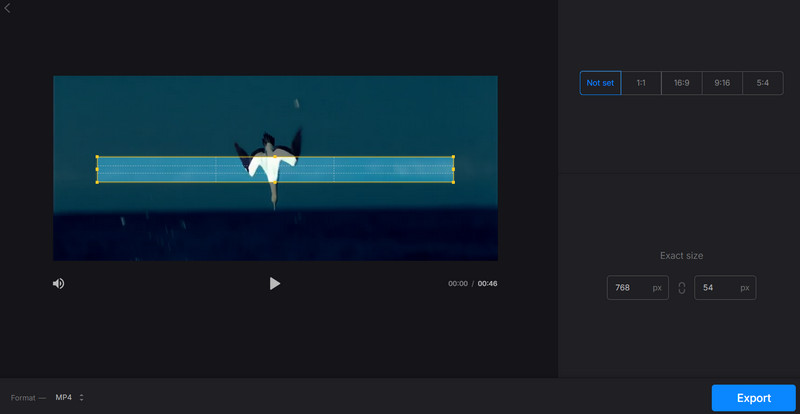
Step 3You should see the cropping frame in the video. This time, select the crop handles or points and drag to the edges that you want to keep from the video.
Step 4Alternatively, you may choose among the aspect ratios, including 1:1, 16:9, 9:16, and 5:4. Finally, click the Export button at the bottom of the page.
Part 4: Recommended Way to Crop MP4 on Windows/Mac
AVAide Video Converter is your one-stop multimedia converting and cropping program. It includes versatile tools for cropping, rotating, and trimming video. Getting rid of unwanted parts from the corners will be a simple thing to do with its intuitive interface. Even after processing a video file, you will notice that the original video quality stays the same. Additionally, you can enhance your MP4 files with video effects, allowing you to apply special filters to produce home movie or cinema-like quality videos. This tool lets you accomplish every video editing task without imprinting a watermark after exporting the final video. To guide you on how to crop an MP4 video on Mac or Windows without a watermark, follow the tutorial below:
Step 1You can instantly get this program by clicking the Free Download button below. The app is compatible regardless of whether you are using macOS or Windows. Now, install the app and follow the setup wizard for the proper installation. After installing the app, run the tool on your computer.

FREE DOWNLOAD For Windows 7 or later
 Secure Download
FREE DOWNLOAD For Mac OS X 10.13 or later
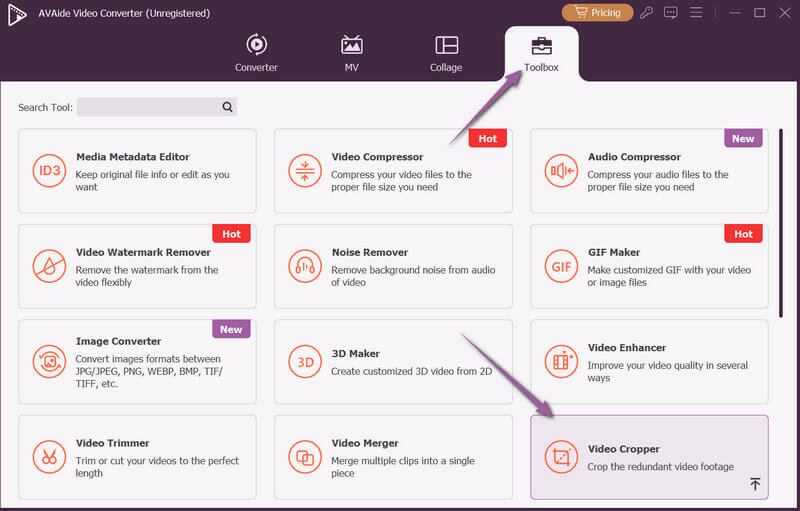
Secure DownloadStep 2Go to the Toolbox tab, and a set of tools for video and audio editing will welcome you. From here, search for the Video Cropper tool. Optionally, you can use the search bar and type in 'Video Cropper'. Select the tool and upload your MP4 video file.
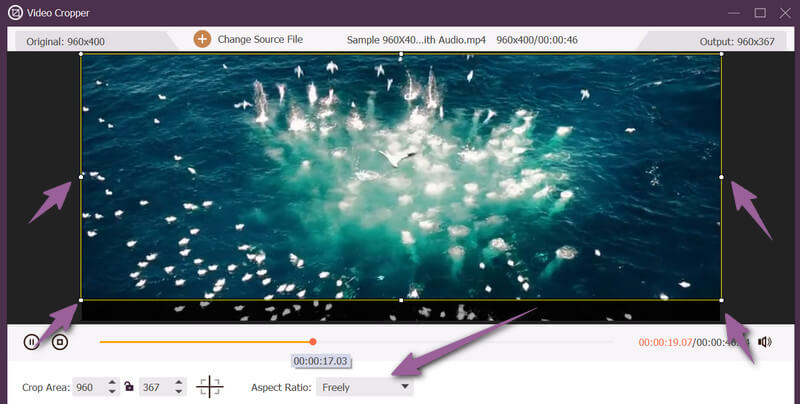
Step 3You can freely adjust the cropping frame to focus on a specific area in the video. Simply drag the crop handles to keep the areas you want. Also, you may choose from the available aspect ratios by clicking the dropdown arrow in the Aspect Ratio section.
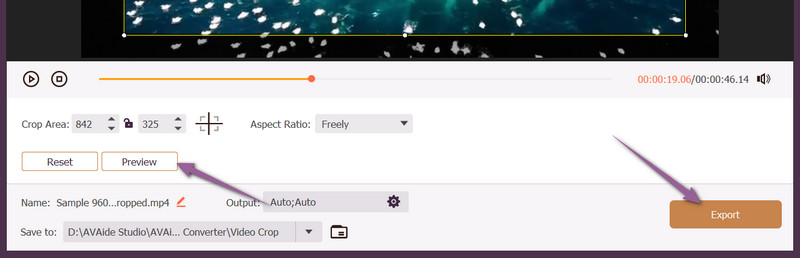
Step 4Now, click the Preview button to see the changes. Once satisfied, click the Export button at the bottom right-hand side of the interface. That is how to crop an MP4 video on Windows or Mac.
Part 5: Crop MP4 Video with VLC
If you have VLC installed on your computer, there is no need to bother downloading the previous tools mentioned. Likewise, this multimedia player can help you cut out portions of the video you don't want. It comes with fixed cropping values in pixels rather than a visual crop box. VLC relies on manual pixel values when cropping videos. On the other hand, it offers preset ratios, including 16:9, 4:3, and 1:1, which may fit your needs. That means it is possible to crop videos into a square with the tool's 1:1 option. All in all, VLC does not offer drag-and-drop cropping but relies more on manual pixel values. Here's a simple walkthrough to crop MP4 videos in VLC:
Step 1First, download VLC from its official page and install it on your PC. Install the app and launch it on your computer.
Step 2Import the MP4 video you wish to edit. Next, go to Tools > Effects and Filters > Video Effects > Crop.
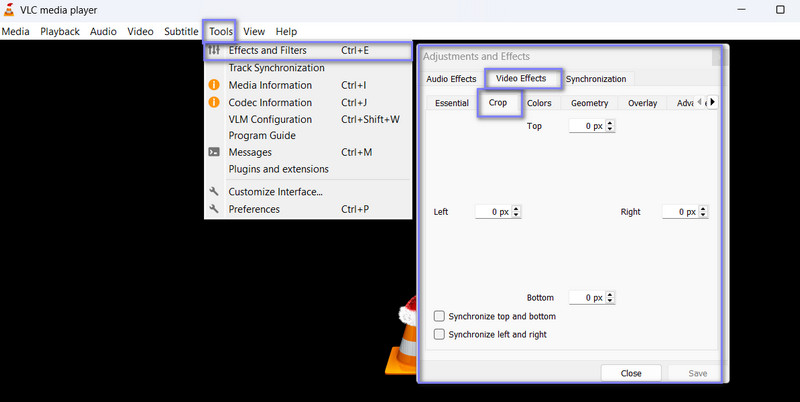
Step 3After that, decide which part of the video to keep from the top, bottom, left, and right areas. To do it, enter the values according to the provided areas and hit Close.
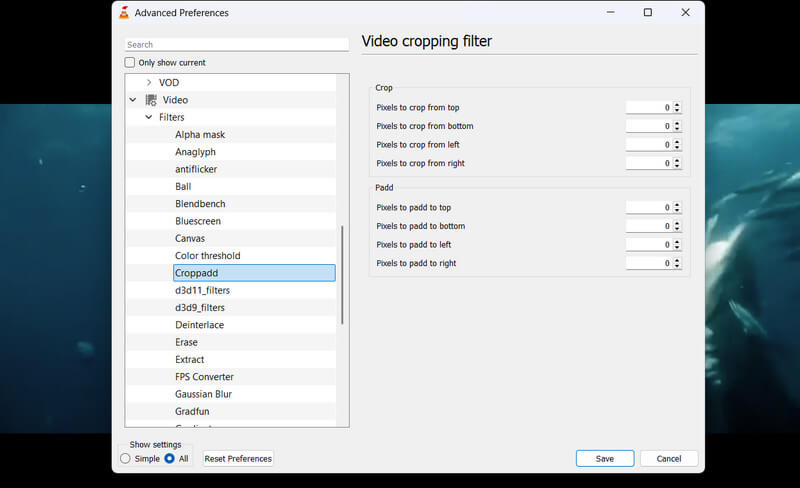
Step 4This time, go to Tools > Preferences. From the pop-up window, click the All radio button at the bottom of the window.
Step 5Then, go to Video > Filters > Croppadd. Under these settings, look into the Crop area option and enter the values you entered earlier.
Step 6Now go to the Filters submenu, and tick the Video scaling filter checkbox. After that, click Save to reflect the changes.
Without a doubt, you can learn how to crop MP4 videos in minutes with the right tools in hand. This post mentioned the feasible solutions for you to get this task done. It is up to you now which program best fits your preferences. But if you ask about our thoughts, a tool that offers simple, straightforward, and uncomplicated steps to crop stands out. It saves you time and effort.
ABOUT THE AUTHOR

Your complete video toolbox that supports 350+ formats for conversion in lossless quality.