Adding text to GIFs is a simple yet ideal method to create your visuals more appealing and engaging, whether you are making memes, adding context to a social media post, or highlighting key moments. By inserting or overlaying captions or text on your GIFs, you can transform an animated looping GIF into a storytelling tool that conveys humour, emotion, and information in a second. So, are you looking for the best ways to attach text to your GIF files effectively? Then you must read this post since we have the best tutorials you can follow. We are here to introduce various tools you can access on your device and browser for a feasible procedure of adding text to a GIF.
Part 1. Can I Add Text to GIF
Adding text to your GIF file is a possible task. All you need is an excellent tool that can help you deal with your GIF files. So, if you want to take a peek at the most reliable tools, you can check all the details below.
| Tools | Platform | User Interface | Extra Features | Best for |
| AVAide Video Converter | Windows and Mac | Simple | Video conversion, editing, GIF creation | Users who want an all-in-one video/GIF editor with offline access. |
| Giphy | Browser | Simple | Huge GIF library, meme creation, and sharing | Quick social media GIF edits and meme-making. |
| Canva | Browser | Little Complicated | Full design suite, templates, branding tools | Designers who want polished, branded GIFs with professional text styling. |
| Ezgif | Browser | Simple | GIF resizing, cropping, optimization, and effect | Fast edits without needing advanced design tools. |
| GIFGIFS | Browser | Simple | Lightweight GIF editor, quick export | Users who want a free, browser-based tool with practical editing options. |
Part 2. Best Tool to Add Text to an Animated GIF
Want to add text to an animated GIF smoothly? Then, we would like to recommend using AVAide Video Converter. What makes this program powerful is its capability to offer all the features you need to get your desired output. You can add text to your GIF file while attaching your preferred font color, design, position, and more. You can even add as many as you want. The best part here is that you can save your final GIF without encountering any watermark.
Furthermore, you can also use various features when dealing with other media files. You can crop video, attach filters to GIFs, insert a watermark, add background music, and more. You can also transcode your video and audio to various formats, such as MP4, MKV, AVI, FLV, WMV, MP3, AAC, AC3, WAV, M4A, and more. With that, if you need the best audio, video, and GIF editor, there is no doubt that AVAide Video Converter is the most remarkable program you can access.
To know how to add text to a GIF, you can check and follow the instructions below.
Step 1Download AVAide Video Converter on your computer. You can use the Free Download buttons below to access it on your Windows or Mac.

FREE DOWNLOAD For Windows 7 or later
 Secure Download
FREE DOWNLOAD For Mac OS X 10.13 or later
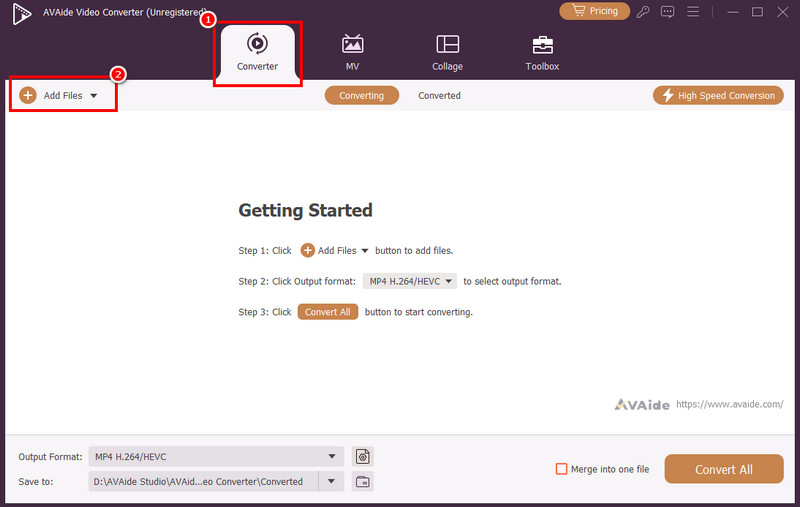
Secure DownloadStep 2From the main interface, proceed to the Converter section and tap the Add Files option to start adding your GIF file.
Step 3After you add the GIF, click the Edit function. Then, proceed to the Watermark section and click the Text option. You can now begin adding text to your GIF files.
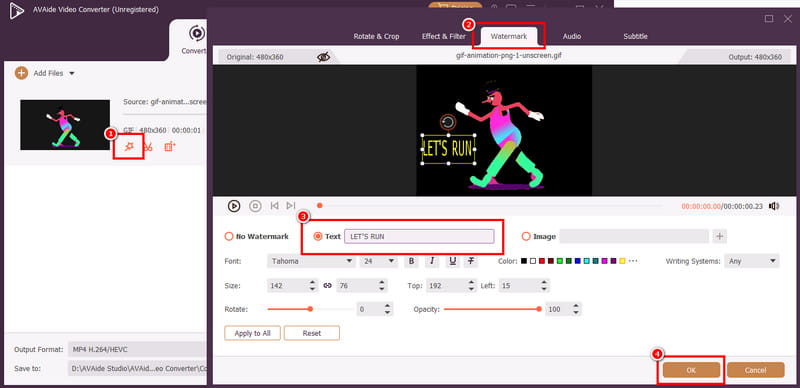
You can even choose your preferred font style, size, color, and more. Once done, tap OK.
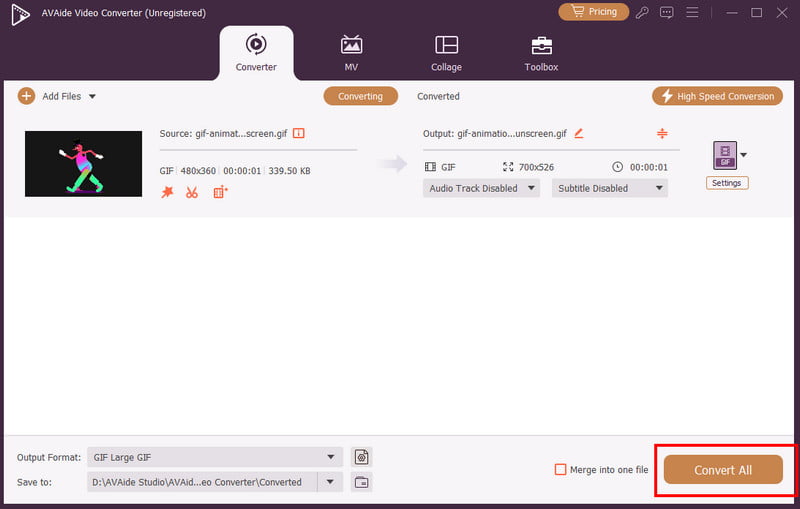
Step 4Finally, you can now tap the Convert All button below to start saving your GIF file on your computer.
Part 3. Add Text to GIF Using Giphy
Another tool that can help you add text to your GIF file is Giphy. This web-based tool is perfect if you want to deal with your GIF. It is because it has all the features you need to enhance your files. The good thing about this tool is that you can navigate everything smoothly, thanks to its simplicity. What we like here is that there are more font styles you can access, add filters, and more. The only problem here is that various annoying ads are appearing on your screen during the process. Plus, you just create your account first before proceeding to the main process, making it time-consuming. But still, if you need a tool that can help you attach text to your GIFs, consider using Giphy.
See the steps below to add text to a GIF instantly.
Step 1Go to your browser and access the main website of Giphy. After that, start creating your account.
Step 2When another web page shows up, click the Create button to start uploading the GIF file you want to edit.
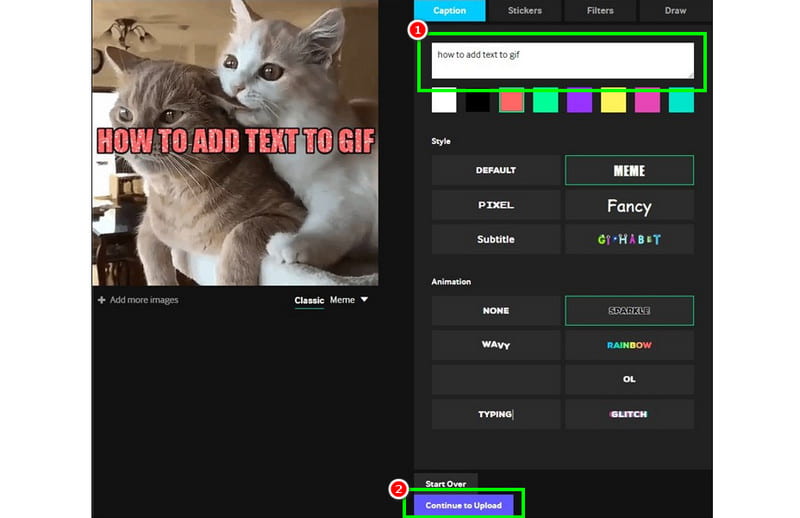
Step 3After the uploading process, go to the Caption section. Then, you can start typing the text you want to attach to your GIF. You can also select your preferred style and animation.
Step 4Go to the bottom interface and hit the Continue to Upload > Upload to Giphy button to save it on your account. Once done, you can now access your GIF with text on your account.
Part 4. Add Text to GIF on Canva
Are you looking for a professional-grade editor that can deal with your GIF? In that case, you can try using Canva. This tool is not just perfect for editing and creating various visual representations. It can also help you insert text on your GIF easily and smoothly. What makes the tool ideal is that it can offer almost all the necessary features to create a better version of your GIF. You can attach text with various font styles, sizes, and animations. You can also access more useful features, such as GIF resizer, cropper, filter, BG remover, and more. The best part here is that you can save your GIF with the best quality, leading to a better viewing experience. The only drawback here is that the tool requires an account to operate. You also need to get its paid version to access more features.
To learn how to add text on a GIF using Canva, follow the detailed instructions below.
Step 1Proceed to your browser and visit the main website of Canva. Then, you can start signing up to create your account.
Step 2After that, click the Upload button to begin adding the GIF file you want to deal with.
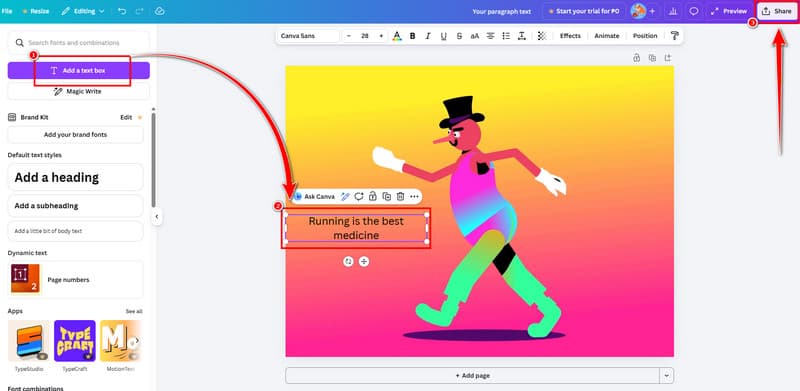
Step 3After uploading the file, click the Add text box function to start adding text to your GIF. You can add as much text as you want.
Step 4For the last process, go to the Share button and tap the Download option to start the saving process.
Part 5. Insert Text to GIF Using Ezgif
When it comes to dealing with GIFs, there is no doubt that Ezgif is among the tools that you can rely on. It is because the tool was designed to edit your GIFs. The good part about this tool is that it can help you add text from your GIF easily and instantly. The tool also lets you change the font style, color, and size. Plus, you can also use various features, such as cropper, splitter, resizer, optimizer, and more. You can even use this tool to convert MP4 to GIF, making the tool reliable. Thus, if you want to add text to your GIF instantly, see the steps below.
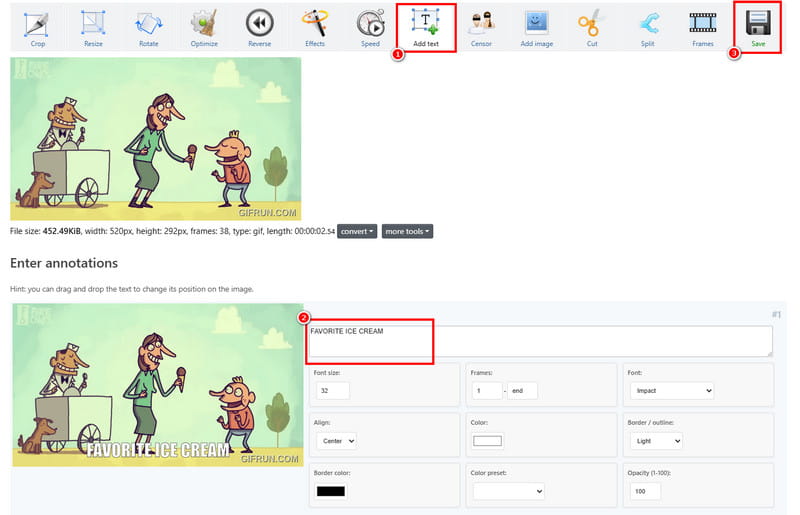
Step 1Proceed to the main website of Ezgif. Then, click the Add Text feature from the top web page.
Step 2After that, tick the Choose File option to insert the GIF you want to deal with. After that, click the Upload button below.
Step 3For the next process, you can proceed to the Text box section to start inserting the text for your GIF.
Step 4After that, you can now hit the Save button to download it on your computer.
Part 6. Add Text to GIF Using GIFGIFS
For our last tool, we suggest using GIFGIFS to insert text into your GIF. This tool is easy to use since its main interface is comprehensive. What we like about this tool is that you can deal with your GIFs without encountering any ads during the process. Plus, you can even choose your desired font style for a better outcome. You can use the provided method below to learn how to add text to a GIF.
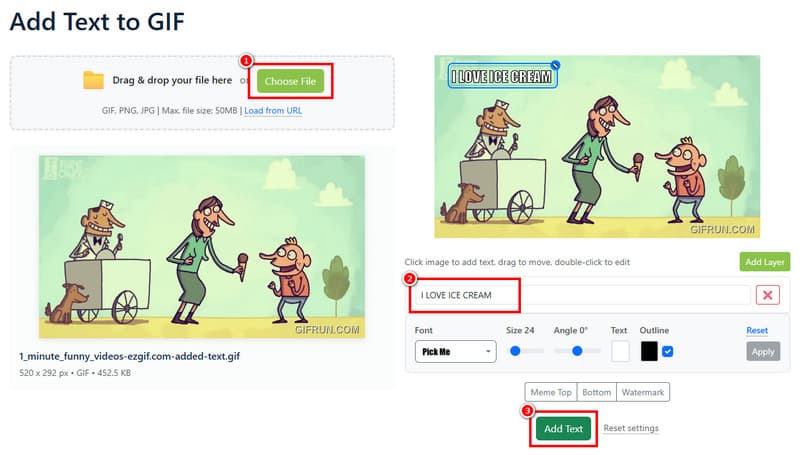
Step 1Go to your main browser and visit the website of GIFGIFS. Then, click the Add Text to GIF feature. Then, click the Choose File to upload the GIF.
Step 2After that, go to the Text box section and start inserting the text. You can also choose your preferred area where you want to add the text.
Step 3Once done, click the Add Text > Download button to start the saving process.
To learn how to attach text to a GIF, there is no doubt that all of the methods mentioned above are effective ones. Thus, use all the methods to achieve your preferred outcome. Also, if you prefer dealing with your GIFs on your computer, we suggest using AVAide Video Converter. This software ensures that you can add text and enhance your GIFs with the best editing tools, making it one of the most reliable GIF editors.
Your complete video toolbox that supports 350+ formats for conversion in lossless quality.