Xvid is an open-source MPEG-4 Part 2 video codec designed to reduce video file sizes while maintaining reasonable visual quality.
This article covers what the Xvid video codec is, its features, and compatibility. In Part 1, you can learn about its technical background. You will also find a side-by-side comparison with the commonly used H.264 codec. If you want to learn how to play Xvid videos on your device, start with Part 2 or 3.
Part 1. What Is Xvid Video Codec
History of Xvid
Xvid came out of the early open-source MPEG-4 scene, specifically the OpenDivX project. In 2001, when that project started heading toward a closed-source DivX release, a group of developers forked the code and created Xvid.
Unlike the proprietary DivX software, Xvid was released as free and open-source under the GPL. That meant anyone could look at the code, modify it, and share it freely.
It really took off in the early days of online video sharing, back when hard drive space and internet bandwidth were still pretty limited. Xvid was great for making highly compressed video files that were easy to store and share – this was before H.264 became mainstream.
You'll still run into Xvid files today, mostly in older video collections, but it's not really a common choice for new projects anymore.
Xvid Isn't a File Format
Xvid is a video codec, not a container format like MP4, AVI, or MKV. That is, there's no .xvid file extension. The Xvid codec is most commonly stored in .avi, and sometimes in .mp4, .mkv, and others. But those extensions can contain more codecs than Xvid alone, so you can't really tell whether a video is using Xvid from a single suffix.

"The Xvid codec compresses video files to make them smaller" Source: From xvid.com
Features and Functionalities
Xvid compresses video files without sacrificing much visual quality. It utilizes advanced algorithms to eliminate redundant information, resulting in smaller file sizes. This was particularly valuable for local storage and file sharing in the era when bandwidth and storage were limited.
The Xvid codec offers excellent video quality even at lower bitrates. It optimizes the visual representation by intelligently handling pixels, colors, and motion.
Although Xvid is not a modern video codec, it is highly compatible with various platforms, including Windows and Linux. Mac users usually rely on third-party ports or on players that decode Xvid natively. It offers cross-platform functionality, enabling users to encode and decode Xvid videos seamlessly across different devices.
How Xvid Compression Works
Xvid is based on MPEG-4 ASP and uses several techniques to throw away redundant information both inside frames and between them. The encoder looks at motion, decides how much detail is worth keeping, and spends bits where they'll do the most good.
Here are the main levers that affect quality and file size:
1. B-frames

B-frames (bidirectional frames) can look at both the previous and the next reference frames. Instead of storing a full picture, they mostly just describe the differences. This usually saves a good amount of data. The downside is that more B-frames make encoding slower and can add a bit of delay in some workflows.
2. GOP structure
GOP stands for Group of Pictures — basically the pattern of I-, P-, and B-frames.
- I-frames are self-contained (bigger).
- P-frames and B-frames lean on other frames (smaller).
A longer GOP means fewer big I-frames, so better compression. The trade-off is that seeking and editing get less convenient because the player often has to decode earlier frames first.
3. Quantizer
This is the main quality-vs-size trade-off. A lower quantizer keeps more detail, resulting in bigger file size. A higher one throws more information away – smaller file, but more artifacts. In practice, most people just think of it as "lower = better looking, higher = smaller file."
4. Adaptive Quantization
Adaptive quantization lets the encoder decide how much compression to apply to different parts of a frame. Areas where artifacts are less noticeable get fewer bits, while important or detailed areas get more. The result is better perceived quality without having to raise the overall bitrate as much.
5. Quarter-Pixel Motion Compensation
Xvid supports quarter-pixel motion compensation, which means it can track motion more precisely than just whole-pixel movement. More accurate motion estimation usually improves compression efficiency, though it does make encoding a bit more demanding.
6. Two-Pass Encoding

The Xvid video codec works especially well with two-pass encoding. In the first pass, the encoder analyzes the whole video and notes where scenes are complex. In the second pass, it uses that information to allocate bitrate more intelligently. This is handy when you need a specific file size or average bitrate instead of just encoding as fast as possible.
Download Xvid Video Codec
Always download Xvid from the official Xvid website: www.xvid.com/. Avoid downloading codecs from unknown third-party websites, as outdated or modified installers may introduce unnecessary software or security risks. Just click the Get the Xvid Codec button to go to the official download page.
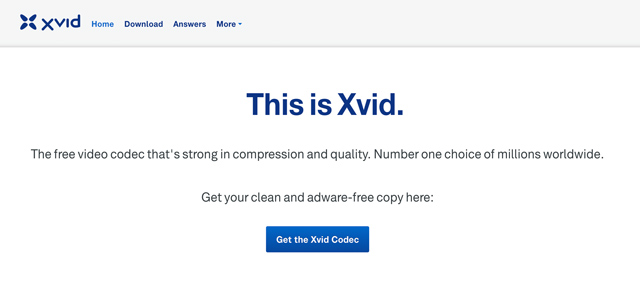
Of course, you can also go directly to the download: www.xvid.com/download/. Then, you can download the Windows version or Linux version of the Xvid video codec.

After downloading, you can install the Xvid codec on your PC. When you are in the Decoder Configuration interface, you will see three options: DIVX, 3IVX, and Other MPEG-4. It means the Xvid codec can also decode videos that use these three codecs.

Xvid vs. H.264 Codec
| Feature | Xvid | H.264/AVC |
| Standard | MPEG-4 Part 2 ASP | MPEG-4 Part 10 / AVC |
| Compression Efficiency | Regular | Higher |
| Typical File Size at Similar Quality | Larger | Smaller |
| B-Frames | Supported | Supported |
| Adaptive Quantization | Supported | Supported through encoder implementations |
| Motion Compensation | Advanced MPEG-4 ASP tools | More advanced motion prediction and coding tools |
| Encoding Complexity | Generally lower | Generally higher, depending on settings |
| Modern Compatibility | Limited compared with H.264 | Excellent |
| Streaming | Legacy use | Widely used |
| Best Use Today | Playing/converting older Xvid files | New video encoding and distribution |
H.264 is generally the better choice for modern video distribution because it provides better compression efficiency and broader hardware and device support. Xvid remains useful when you need compatibility with older Xvid-based video files or legacy devices.
Part 2. How to Open Xvid Videos on Windows and Mac
Method 1. Use the Installed Xvid Codec (for Windows)
You can follow the guide mentioned above to download and install the Xvid video codec on your Windows. After that, the built-in media players may decode and play Xvid videos. However, not every built-in Windows player or every Xvid file is guaranteed to work. Only the media players that support DirectShow/VfW and related decoding methods can successfully open a Xvid video. Therefore, if your computer still fails to play Xvid, follow the two methods below.
Method 2. AVAide Blu-ray Player (for Windows and Mac)
AVAide Blu-ray Player is available on Windows and Mac, natively having support for Xvid and DivX codecs. You can download and install this media player on your Windows or macOS computer. Then, you can directly open your Xvid video with it, without needing to download the Xvid codec from the official website.
Moreover, AVAide Blu-ray Player supports other mainstream video codecs, like MPEG-4, H.264, H.265/HEVC, AV1 and rare codecs like MJPEG, Sorenson, RealVideo, etc. You can also play Blu-rays and DVDs of any region smoothly.


 Best Xvid Video Player
Play Blu-ray and DVD discs and all media formats, including MP4, AVI, FLV, Xvid, VOB, WMV, MP3, FLAC, etc.
Step 1Install and open AVAide Blu-ray Player on your computer.
Step 2Click Open File on the main interface.

Step 3Select the Xvid video from your computer and click Open. The video will load and begin playing in the player.
Method 3. Play Xvid with VLC Media Player (Windows/Mac and Linux)
VLC Media Player is also a good choice to play Xvid codec video, as it has comprehensive codec and format support, including Xvid. This media player is also compatible with Windows, Mac, and Linux. You can directly open an Xvid video for watching without needing extra codec package.
Step 1Download and install VLC Media Player on your Windows PC or Mac.
Step 2Open VLC and click Media > Open File on Windows or use the corresponding file-opening option on Mac.

Step 3Select your Xvid video and click Open. VLC will decode and play the file automatically.
Part 3. How to Watch Xvid Videos on Android and iPhone
This part will guide you on how to watch Xvid videos on your phone using two media players, MX Player and VLC. These players offer smooth Xvid video playback and a user-friendly interface.
MX Player
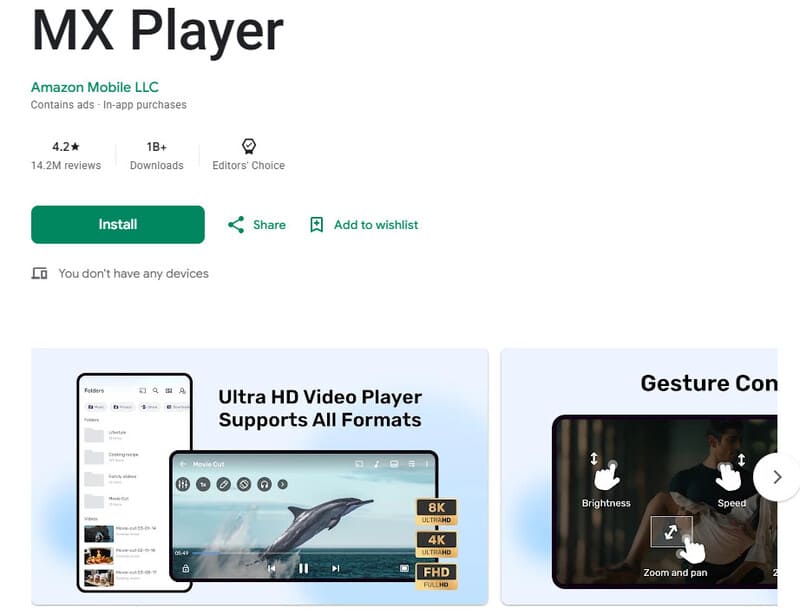
MX Player is a feature-rich media player that supports various video formats, including Xvid. You can find it in the Google Play Store and install it on your device.
Step 1Open the MX Player app on your Android phone.
Step 2Tap Add to import the Xvid video you like to watch.
Step 3Once the video is added, MX Player will automatically decode and play the Xvid video seamlessly.
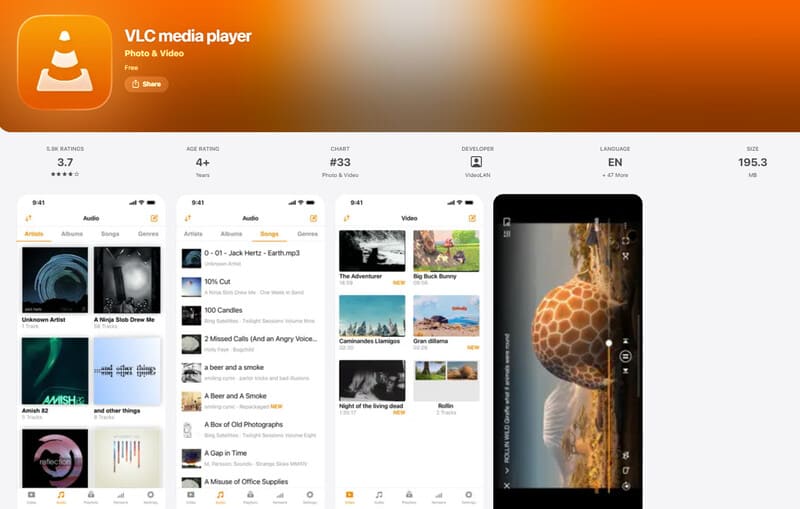
VLC for Android/iPhone
VLC has a mobile version that can play Xvid videos on Android or iPhone. You can get it on VideoLAN's official site or download it from Google Play/the App Store.
Step 1. After installation, open the Settings app > Apps and permit VLC to access your Photos and Videos.
Step 2. Run VLC and find an Xvid file in your local folders. Tap on it to start playing.
Part 4. If You Can't Play: Convert Xvid
If you can't play Xvid on your player, you still have a fallback. You can convert your file to modern formats for better compatibility, such as Xvid to MOV, AVI, or MP4. An MP4 container with the H.264 codec is the most recommended, because it is widely supported by almost any device or player today.
One of the best converters for Xvid to MP4 is AVAide Video Converter. It processes the videos lightning-fast with very little quality loss. If you want, you can even upscale the resolution to make it clearer than the original.

FREE DOWNLOAD For Windows 7 or later
 Secure Download
FREE DOWNLOAD For Mac OS X 10.13 or later
Secure DownloadStep 1Download and Install AVAide Video Converter.
Step 2Open the software, click Add Files at the top-left, and import your Xvid file.

Step 3Open the Output Format dropdown list and select MP4 with H.264.

Step 4Click the Convert All button at the bottom right.
FAQs of Xvid Video Codec
Is Xvid the same as MP4?
No. Xvid is a video codec, which controls how the video gets compressed and decoded. MP4 is a container format. It's basically a box that can hold video, audio, subtitles, and other data.
So an MP4 file might contain H.264 video, H.265, or several other codecs. The MP4 extension by itself doesn't tell you what's actually inside. Xvid video can also live in different containers. The AVI container was especially common for older Xvid files.
How Can I Check Whether a Video Uses Xvid?
The file extension alone won't tell you that. You need to look at the actual codec info inside the file.
On Windows or Mac, open the video in AVAide Video Converter, click the little "i" button beside the video file name, and check the Encoder. If it says Xvid, MPEG-4 Visual, or something related, it's using Xvid encoding. You can also grab a free metadata tool like MediaInfo to inspect your video file.
Is Xvid still usable in 2026?
Yes, it still works, especially in legacy collections and workflows. But H.264 is far more common these days because it compresses better and has broader support across phones, browsers, streaming platforms, and editing software.
So if you've already got an Xvid file, learning how to play or convert it is still useful. For anything new, though, use H.264 or another modern codec.
This article covers the basics of the and several simple ways to play Xvid videos on Windows, Mac, and mobile devices.
ABOUT THE AUTHOR

Full-featured multimedia player to play Blu-rays, DVDs, 4K UHDs, and other video/audio files.