Need just the soundtrack from a video? It's simple. You can extract audio from a video easily online, on Windows/Mac/Linux, on mobile devices, or with FFmpeg. We will explain each solution and show how to choose the right tool and output format for your needs.
- Part 1. Quick Decision: What's the Best Way to Get Audio from Video
- Part 2. How to Extract Audio from Video on Windows/Mac/Linux
- Part 3. How to Use Video Audio Extractors on iPhone and Android
- Part 4. How to Separate Audio from Video Online
- Part 5. Pro Tip: How to Choose the Best Export Audio Format
- Part 6. FAQs About Extracting Audio from Video
Part 1. Quick Decision: What's the Best Way to Get Audio from Video
| Method | Best for | Needs install? | Platform |
| Canva | Small to medium files, quick one-off tasks | No | Online |
| AVAide Video Converter | Windows/Mac, batch processing, format control | Yes | Windows, Mac |
| Mac Finder / QuickTime | Mac users who want native tools | No | Mac |
| Audacity | Extracting audio and editing it afterward | Yes | Windows, Mac, Linux |
| iPhone Shortcuts | Simple extraction on iPhone | No | iPhone |
| Vocal remover, music separator | Extracting vocal or instrumental tracks separately | Yes | iPhone, Android |
| Video to MP3 – Video to Audio | Extraction plus basic editing on iPhone/Android | Yes | iPhone, Android |
| FFmpeg | Power users, scripts, precise stream control | Yes | Windows, Mac, Linux |
Part 2. How to Extract Audio from Video on Windows/Mac/Linux
You may want to remove audio from your video for a specific purpose. But note that using the right tool will help you perform it without issues. Now, here are the two tried-and-tested tools you can utilize to do a video audio extract.
Method 1. AVAide Video Converter
AVAide Video Converter is a desktop video and audio converter for Windows and Mac. It supports 1000+ formats, including many audio outputs, like MP3, M4A, WAV, FLAC, AAC, AIFF, ALAC, and more. It can extract from multiple files in bulk and uses GPU acceleration to process at 120× the speed of regular tools.
- Extract audio even from DVD movies and save it into your desired audio formats.
- Supports batch conversion. Extract or convert your files simultaneously to save time.
- Convert videos or audio to 300+ formats and preset device profiles.
- The conversion process is 30× faster compared to other software.
- Various editing functions for both audio and videos, such as cut, merge, trim, etc.
- Create 3D movies, make GIFs, and more.
Supported Formats:
◆ Input Video Formats - MP4, MOV, MKV, AVI, MPEG, WMV, and more.
◆ Output Audio Formats - MP3, AAC, WMA, WAV, FLAC, M4R, AIFF, etc.
◆ Device Presets - Apple, Android, Samsung, LG, Xiaomi, etc.
Steps on How to Turn Video to Audio with AVAide Video Converter:
Step 1Download AVAide Video Converter on your Windows/Mac PC. Install and launch it afterward.

FREE DOWNLOAD For Windows 7 or later
 Secure Download
FREE DOWNLOAD For Mac OS X 10.13 or later
Secure DownloadStep 2Select the Converter option from the upper menu on the tool's main interface. Next, click the Add Files or Plus button to add the video file from which you want to extract the audio.

Step 3Now, click the Convert All to button. Then, from the drop-down menu, select the Audio option. And choose your desired audio format for your video.

Step 4At last, select where you want to save the converted file and hit the Convert All button.

Method 2. Audacity
Audacity extracts audio from video as well. It is a popular and open-source audio editing tool. It offers extensive features for recording computer music and editing audio. While primarily an audio editor, Audacity can also be utilized to extract audio from video files. It is also available on your Mac or Windows PC. The only downside of this tool is you cannot open a video file without an FFmpeg library.
Features of Audacity:
◆ Supports multiple audio formats.
◆ Several editing tools include duplicate, cut, trim, copy, etc.
◆ Unlimited undo commands.
◆ Record sound from the microphone and play it on the computer.
Supported Formats: MP3, WAV, AIFF, & WMA.
Note: Most video files’ audio content can be imported if the optional FFmpeg library is available.
Extract Audio from Video with Audacity:
Step 1First, download and install Audacity on your computer. Then, launch the tool.
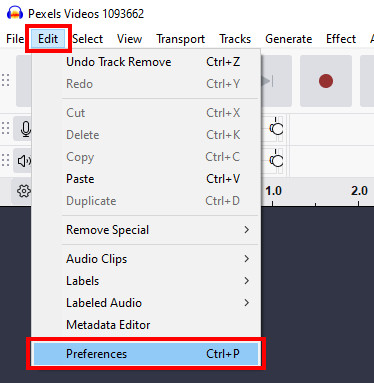
Step 2In the top menu, click Edit > Preferences.
Step 3In the left part of the Preferences window, select Libraries. Then click the Download button for the FFmpeg Library option. A guide page of Audacity will open in your browser, showing you how to install FFmpeg for Audacity.
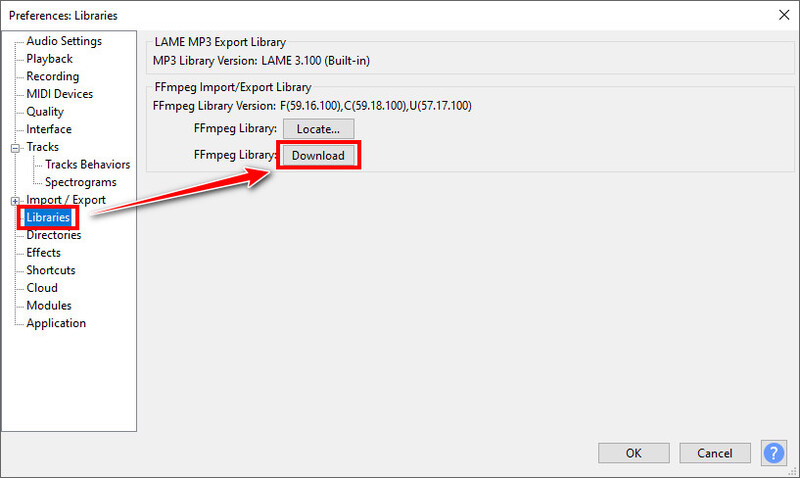
Step 4When you have FFmpeg installed, Audacity usually automatically detects it. If Audacity fails to detect it, click the Locate button to retry.
Step 5Now you can open video files in Audacity. In the top menu, go to File > Open and select the video you want to extract audio from.
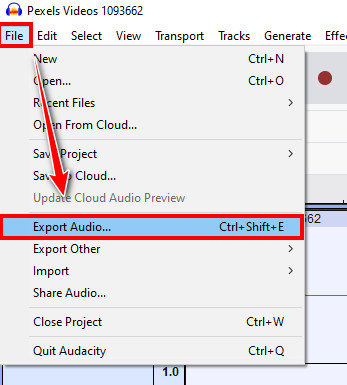
Step 6Go to the File menu again and select Export Audio. Choose to share it to audio.com or save it on your computer.
Method 3. Mac QuickTime
If you're working on a Mac, you can get audio from a video with native tools, no extra installation. QuickTime can help you with it.
Key Features:
◆ Remove the video track or export the movie as Audio Only
◆ Quick screen recording
◆ Record video with a camera
◆ Basic video trimming and editing
Step 1Open your video in QuickTime.
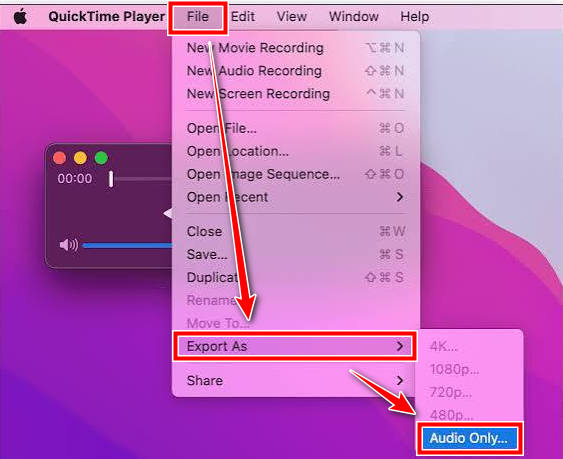
Step 2Go to File > Export As, then choose Audio Only. This will export an Apple MPEG 4 (.m4a) audio file with an AAC audio track.
Step 3Enter a file name and choose a saving location. Then click Save.
Method 4. FFmpeg
FFmpeg is a command-line solution for all types of media processing, including audio extraction. No need to fret over its technical-looking interface. You only need to enter the ready-made command we provide for you.
Key Features:
◆ Extract an audio stream from a video.
◆ Select a particular audio track when a video contains multiple tracks.
◆ Copy audio without re-encoding when the output container supports it.
◆ Convert extracted audio into another codec or format.
◆ Change audio parameters such as codecs, sample formats, and channel layouts.
◆ Edit music and vocals. Apply audio filters during conversion.
Step 1Install FFmpeg on your computer.
- Windows: Download from ffmpeg.org
- Mac: Run "brew install ffmpeg" in Terminal
- Linux: Run "sudo apt install ffmpeg" in Terminal
Step 2To extract audio as a high-quality MP3 file, enter this command at the prompt or terminal:
ffmpeg -i "(input file name).mp4" -vn -c:a libmp3lame -q:a 2 "(output file name).mp3"
And of course, you can export it in other formats. For instance:
- WAV: ffmpeg -i "(input file name)" -vn -acodec pcm_s16le -ar 44100 -ac 2 "(output file name).wav"
- AAC: ffmpeg -i "(input file name)" -vn -c:a aac -b:a 192k "(output file name).m4a"
Step 3Enter a file name and choose a saving location. Then click Save.
Part 3. How to Use Video Audio Extractors on iPhone and Android
If you want to extract audio from video on an iPhone or Android device, check out the applications below.
Option 1. Vocal remover, music separator
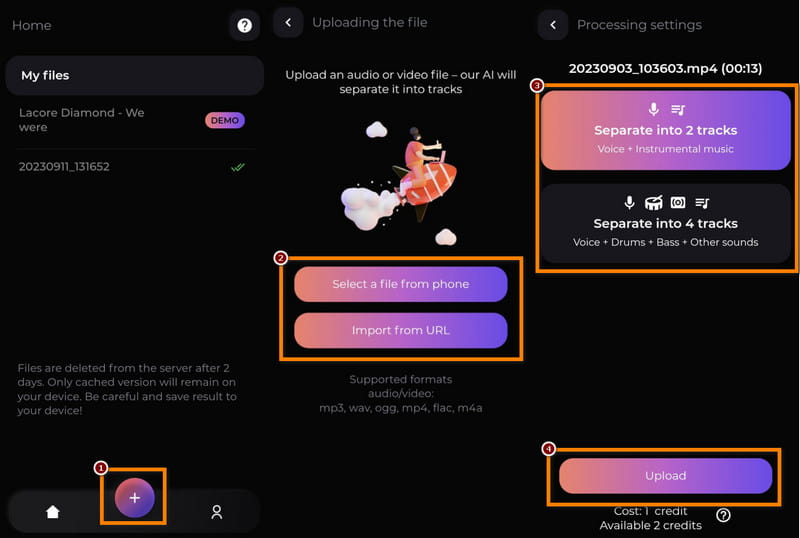
Vocal remover, music separator is a mobile application app that lets you separate any song into isolated tracks. You can also use it to separate audio from a video file. Moreover, you have two options before proceeding to the extraction process. The first one is to separate into two tracks ( Voice+Instrumental music). The other one separates the file into four tracks (Voice+Drums+Bass+Other sounds). This AI tool will split it up into your chosen tracks.
More Features of Vocal remover, music separator:
◆ Remove vocals and separate songs.
◆ Supports MP3, WAV, OGG, MP4, FLAC, and M4A.
◆ Separated songs are saved in an MP3 format.
◆ Share extracted files with friends and others.
How to Extract Audio from Video with Vocal remover, music separator:
Step 1Download the Vocal remover, music separator on your Android/iOS device. Afterward, open the application.
Step 2At the bottom middle part of your screen, click the Plus button. On the following screen, choose one option to import the video file from which you wish to extract audio.
Step 3Then, select how you want to separate the file on the Processing settings screen. Next, click the Upload button at the bottom. The extraction process will start immediately.
Step 4Once the extraction procedure is complete, you can save tracks on your mobile device. And that’s it!
Option 2. Video to MP3 - Video to Audio
Video to MP3 - Video to Audio is a video converter and trimmer mobile app by InShot. Users can extract high-quality music or audio from a video using its Fast video feature. You can also extract the audio portion from a video and save it as an MP3 or other audio format. Not only that, you can also create or use the extracted file as your ringtone with it. Read more of its features and how to use it as we guide you below.
More Features of Video to MP3 - Video to Audio:
◆ Converts 15 media files at the same time.
◆ Offers editing features such as cut, trim, volume adjustment, and more.
◆ Support MP4, FLV, MKV, AVI, WMV etc., for videos.
◆ Support MP3, OGG M4A, OCC AAC, GLAC, and more for audio.
◆ Set as ringtone, alarm, and notification.
Steps to Extract Audio from Video with Video to MP3 - Video to Audio:
Step 1Firstly, download Video to MP3 - Video to Audio on your Android device. Launch the app afterward.
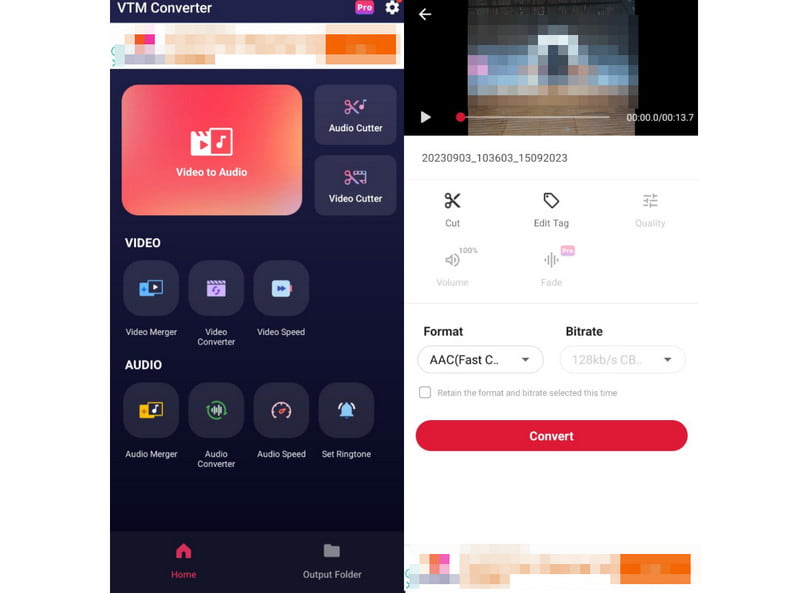
Step 2On the app’s main interface, choose the Video to Audio option from the list of functions. Next, select the video you wish to extract the audio. Then, choose your desired output format.
Step 3After that, you can Cut, Edit Tag, adjust the Quality, Volume and Fade the output audio format. Also, you can customize the Bitrate of it.
Step 4Once you are satisfied already, tap the Convert button at the bottom part of your screen. Wait until the conversion process, and your file will be saved immediately.
Option 3. Use Shortcuts on iPhone
Shortcuts is a default automation app available on iOS devices. It lets you create custom workflows or shortcuts to perform various tasks on your device. By simply asking Siri or with just a tap, you can get things done in a quick way. Using it, you can also create a shortcut to extract audio from video files on your iPhone. Actually, it is the simplest way to separate audio from video on your iOS device. Before learning how to do it, discover more of its offered features. You can also use it for more purposes in the future.
Features of Shortcuts App on iPhone:
◆ Integrates with various tasks and actions on iPhone devices.
◆ Create, edit, and personalize shortcuts to suit specific needs.
◆ Shareable custom automation solutions.
Extract Audio from Video with Shortcuts App:
Step 1To begin with, open the Shortcuts application on your iPhone device. If you uninstalled it, you can download it from the App Store anytime.
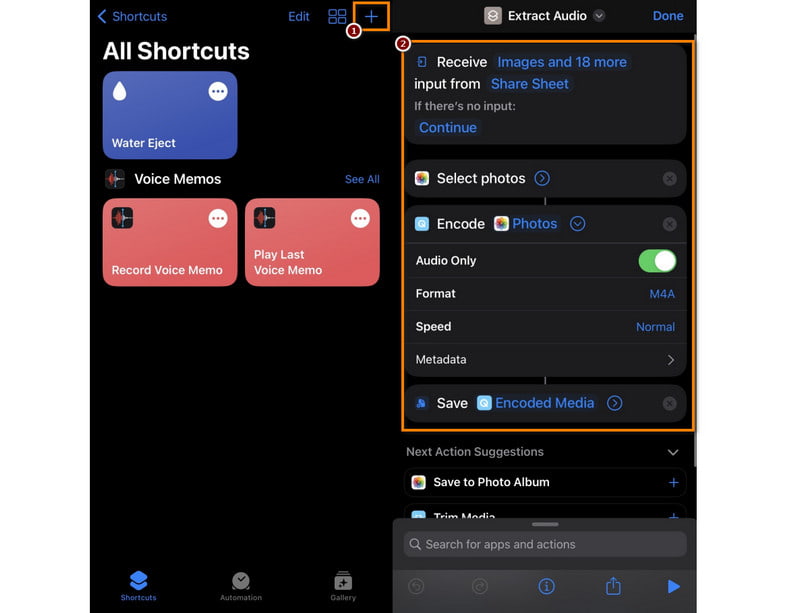
Step 2After which, tap the Plus button at the top-right-hand corner of the app’s screen. Then, click the Add Action to start personalizing a new shortcut. Type Select Photos on the search bar and drag it into the shortcut.
Step 3Next, tap on the Select Photos action and include Videos only. Now, search for Encode Media, tap on the action, and toggle on Audio Only. You can see the default format is M4A, but you can change it to AIFF if you want.
Step 4Subsequently, add a Save File action to save the extracted audio from a video. Then, you can type the Play button at the bottom-left corner of your screen. Choose a video from the Photos app to create an audio-only version.
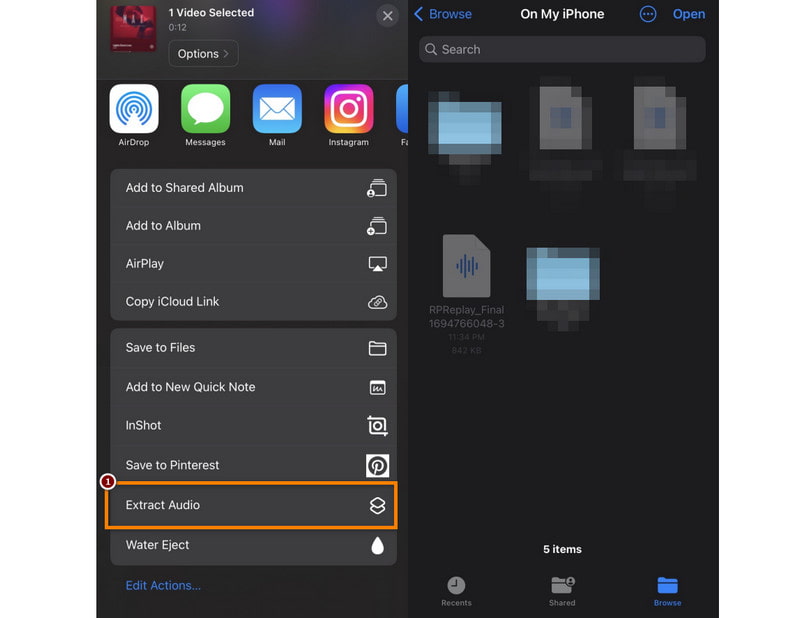
Step 5Optionally, you can also enable this shortcut within the Share Sheet. It will allow you to extract audio from videos in a different app instead of just within Photos.
Part 4. How to Separate Audio from Video Online
Canva is an all-in-one video and audio editor online. It is a quick free solution to isolate audio from a video. No installation is needed. All you need to do is upload your video to the website and click the extract button. The interface is modern-looking and easy to understand, and the process is fast with a stable Wi-Fi.
Key Features:
◆ Trim the audio, split the audio into sections, and delete unwanted sections
◆ Adjust volume
◆ Add fade-in and fade-out effects
◆ Combine the extracted audio with new videos or visuals
◆ Add background music or sound effects
Step 1Open canva.com/features/extract-audio/ in your browser and upload your video.
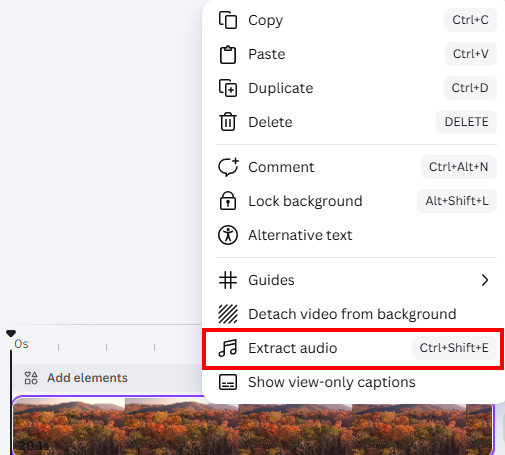
Step 2Right-click the clip on the bottom timeline. In the pop-up menu, select Extract Audio.
Step 3You can trim, adjust, or enhance your audio track if needed. When you're satisfied with the result, click the Share button in the top-right corner and select Download.
Part 5. Pro Tip: How to Choose the Best Export Audio Format
How Audio Extraction Works
A video file is a container that holds separate streams: one for video frames and one for audio. When you extract the audio, you pull out that audio stream and write it into a new file. It copies the raw audio data into a different container.
How does this affect the format you choose? Extraction can either copy the original audio or re-encode it before putting it into a new container, so your choice of output format matters a lot.
If you simply copy to stream, you keep whatever codec was already inside the video. The quality stays the same, and the process is pretty much instant. The downside is that the resulting file might only work well in certain players or containers if the format is not widely accepted.
Or, you can choose to re-encode, forcing the audio into whatever format you want. This helps with compatibility, but might throw away some quality if you pick a lossy format.
Tip: Audio quality isn't decided by the file format alone. Codec, bitrate, sample rate, bit depth, channel layout, and whatever the original recording actually contained all play a role.
Compare MP3, AAC, WAV, FLAC, and AIFF
| Format | Compression | Best for | Key Advantages |
| MP3 | Lossy | Music, podcasts, broad compatibility | Small files and very wide playback support |
| AAC (M4A) | Usually lossy | Phones, Apple ecosystem, general listening | The container; AAC is a common codec inside |
| WAV | Usually uncompressed PCM | Editing, mastering, further processing | Large files, but preserves uncompressed Pulse Code Modulation (PCM) samples |
| FLAC | Lossless | Archiving and high-fidelity storage | Smaller than WAV without lossy compression |
| AIFF | Usually uncompressed PCM | Apple-oriented editing workflows | Similar role to WAV with a different container convention |
The Right Format Depends on Your Needs
- Need the absolute highest quality for editing or archiving? Extract to WAV or FLAC.
- Want something small and widely playable? Re-encode to a high-bitrate MP3 or AAC.
- Just want the original sound with zero quality loss and maximum speed? Use stream copy and keep the original codec.
Part 6. FAQs About Extracting Audio from Video
Does extracting the audio reduce the quality?
Not if you copy the stream. If so, the audio remains exactly as it was in the source video. Quality only changes if you re-encode it into a different format, especially into a lossy one like MP3.
Can I extract just a section of the audio?
Yes, by cutting a section out of the track before or after the extraction. You can do this with any tool mentioned before.
Is the extracted audio in stereo or mono?
It's in whatever the original video had. Most modern videos are stereo, so the extracted file will be too unless you specifically convert it.
Can I extract audio from a YouTube or streaming video?
Not directly. You need to download the video first.
Can I convert video to MP3 with VLC?
Of course, yes! You can convert a video to MP3 using VLC Media Player. VLC provides the functionality to convert the audio track of a video file to the MP3 format.
Can Windows Media Player extract audio from video?
Unfortunately, no. Windows Media Player does not have a built-in feature to extract audio from video. It primarily functions as a media player and does not offer video-to-audio extraction capabilities.
How can I extract audio from my video on iMovie?
To extract audio from a video on iMovie, launch the app first. Next, import your media file. Afterward, click the Share (Export) button and choose File from the option. Finally, change the Format to Audio Only and the File Format to your desired audio format. That’s it.
To conclude, we’ve navigated the process of removing audio from videos on mobile and desktop using a comprehensive. Whether you want an on-hand or computer method, you have the tools now to efficiently save audio from video. Among the highlighted tools in this guide, we highly recommend AVAide Video Converter for you to separate audio from video. It simplifies the procedures and ensures high-quality results. More importantly, it is a perfect tool to enhance your creative multimedia skills. Give it a try and experience the excellence and convenience it brings.
ABOUT THE AUTHOR

Your complete video toolbox that supports 350+ formats for conversion in lossless quality.