Video playback frequently breaks whenever the format does not match between devices and editors. MP4 to MPEG conversion assists in making sure that there is a wider compatibility, reduced file sizes, and constant streaming of archives and broadcasts. This guide relies on the real-world media workflow to describe the reason why conversion is important and how quality is lost due to improper settings. You will get to know the format basics, trusted conversion tools and safe online strategies to ensure that you can select the appropriate strategy. Next, we will pass on to the basics of MPEG, the best tools and the basic online conversion process.
Part 1: What Is MPEG
MPEG is an abbreviation of the name Moving Picture Experts Group, which developed the standards of video and audio compression and storage. The format decreases the file size but maintains good picture and sound quality, enabling videos to be viewed on most devices and platforms. When users require wider compatibility of DVDs, broadcasts or older media systems, many of them convert MP4 to MPEG. Knowing about MPEG will guide you in selecting the appropriate format prior to initiating any form of conversion.
Key Characteristics of MPEG as a Format:
- Compresses files heavily to make them smaller, but still has fairly decent video and audio quality.
- Playback compatibility with a variety of media players and cast systems.
- Available on DVDs, video, television and permanent storage.
- Streaming and sharing with balance and storage efficiency.
- Supports several audio and video codecs on the MPEG family.
Part 2: Best Tools to Convert MP4 to MPEG
AVAide Video Converter is a reliable MP4 to MPEG converter designed for users who want quick results without complex setup. It assists in being converted to various standards of MPEG, whereby MPEG-1, MPEG-2 and MPEG-4 are inclusive in the standards and can be utilized in playback, archiving and also broadcasting. The interface is user-friendly, enabling users to convert files within a few clicks without compromising the quality of video and audio.
Moreover, the software has more than 200 video and audio formats as well as basic editing features to trim or adjust clips, beyond MPEG. It works well on both Windows and macOS, so it is an effective alternative for the majority of users before transitioning into the conversion process.
Step 1Download the video converter on your computer by clicking the dedicated OS supported platform available here. Then follow the installation package's setup so you can launch it afterwards.

FREE DOWNLOAD For Windows 7 or later
 Secure Download
FREE DOWNLOAD For Mac OS X 10.13 or later
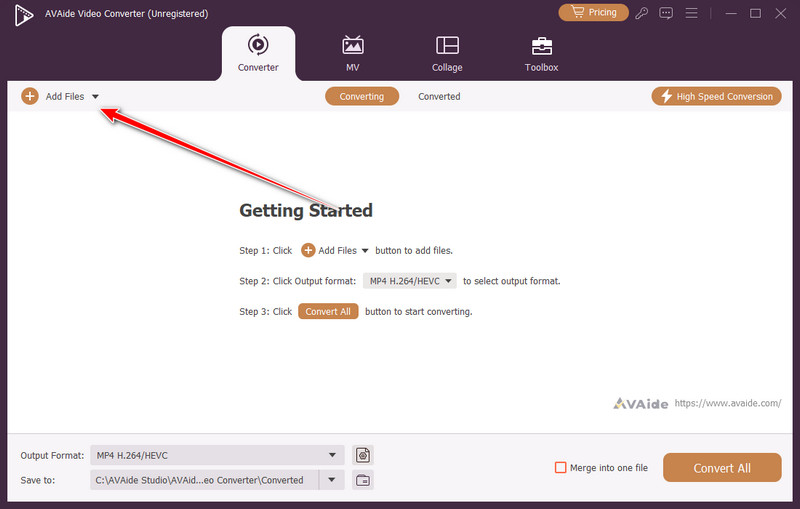
Secure DownloadStep 2Ready the MP4 videos that you want to convert, and click the Add Files. After uploading the video, you can add more if you want to do a batch conversion.
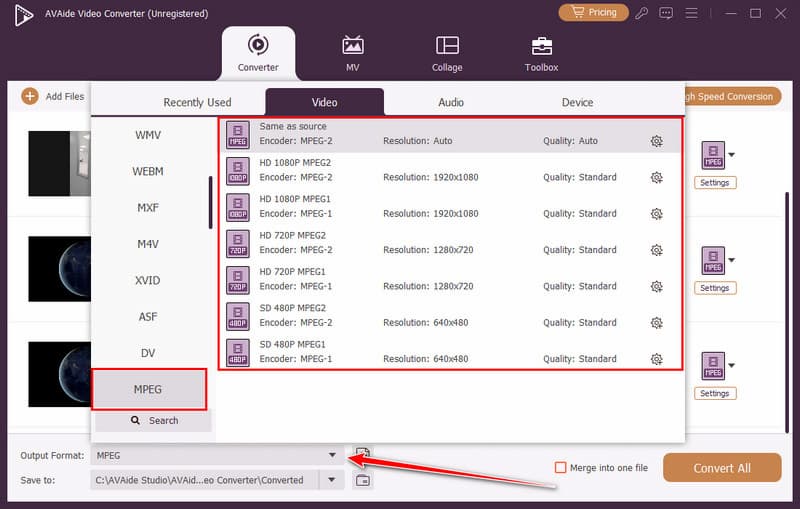
Step 3Now, click the Output Format button to select the MPEG format here. Choose the MPEG settings that you want to use that is available on the presets on the list.
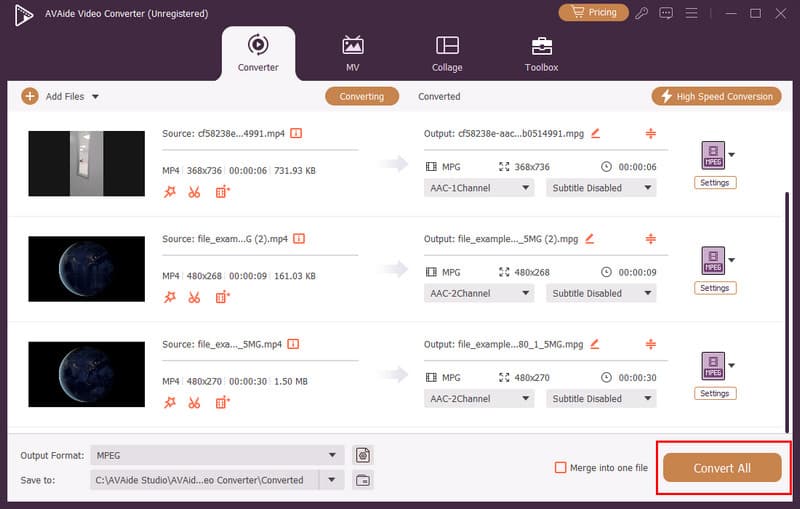
Step 4After that, click the Convert All button to start the processing of MP4 into an MPEG file format. You will get a notification sound when the conversion is done. Check the video with your 4K video player to see the final result.
Part 3: How to Convert MP4 to MPEG Online
Below are reliable online tools you can introduce before adding step-by-step conversion instructions for each platform.
1. Media.io
Media.io is a browser-based converter that allows users to change MP4 to MPEG quickly without installing software. The platform supports common video uploads and delivers downloadable files in a few steps, making it convenient for users who need fast format conversion on any device.
Step 1Visit the Media.io MP4 to MPEG converter page in your browser and log in to your account.
Step 2Upload your MP4 file by clicking Choose Files, then select MPEG as the output format.
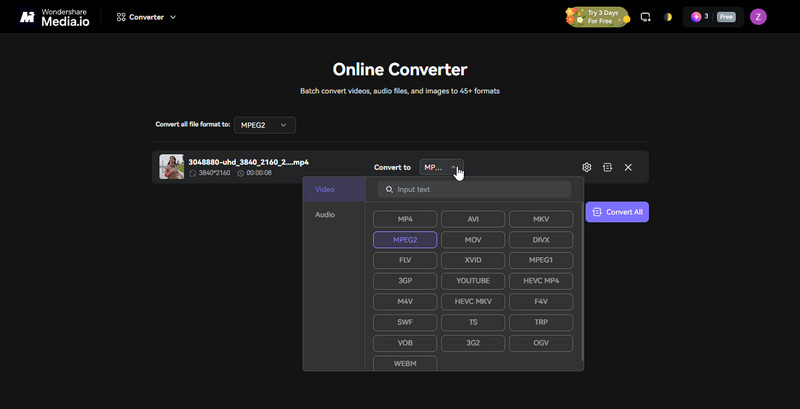
Step 3Start conversion and download the MPEG file once processing finishes.
2. InVideo MP4 to MPEG Converter
InVideo offers an easy online tool focused on video format conversion with a clean interface suitable for beginners. It is a good option for users who want to convert MP4 video to MPEG for free using a simple upload and export process directly in the browser.
Step 1Access the InVideo MP4 conversion tool and click Select your MP4 files to import your video file.
Step 2Select MPEG as the export format and begin the conversion.
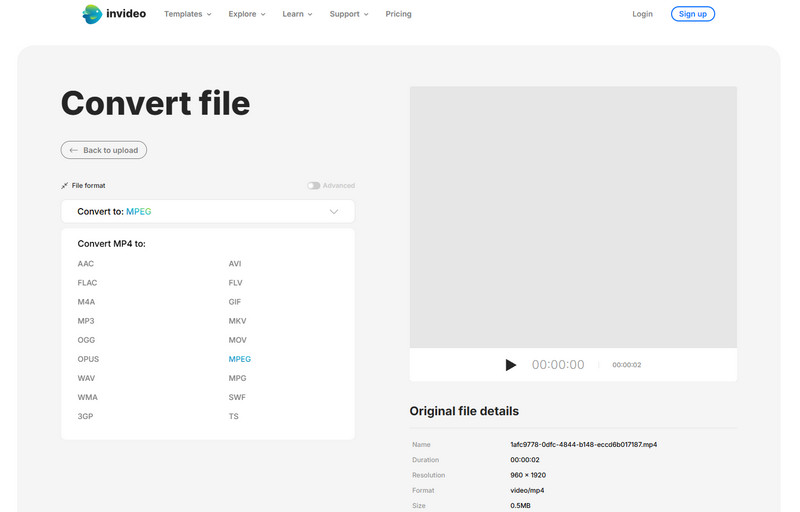
Step 3Download the converted video after processing finishes.
3. MiConv
MiConv provides a straightforward online converter where users upload a file, select MPEG as the output, and download the converted result within moments. It is commonly used by people searching for guidance on how to change MP4 to MPEG without complex software or technical knowledge.
Step 1Open the MiConv converter page, click the Choose File, find the MP4 video you want to convert saved on your device, and upload it here.
Step 2Choose MPEG as the target output format from the available format list.
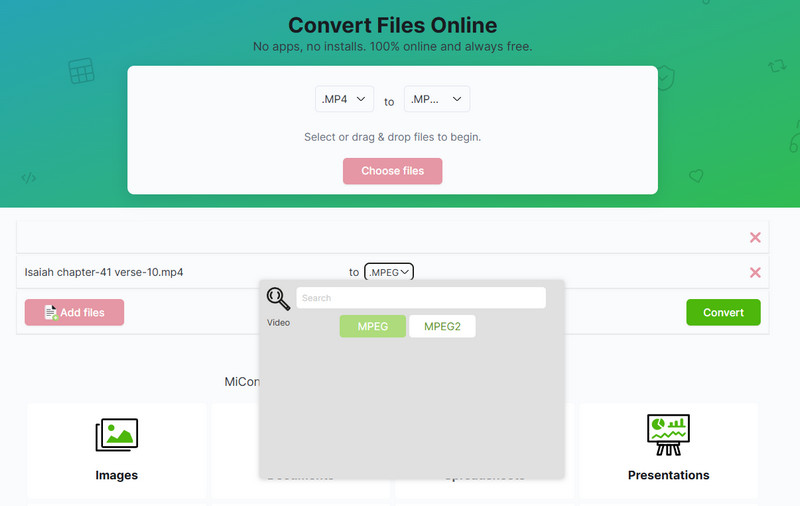
Step 3Run the conversion and download the finished MPEG file.
4. AnyConv
AnyConv is a lightweight web AV1 video converter supporting many media formats and allowing quick conversions with minimal setup. It is often recommended to users researching how to convert MP4 to MPEG through a simple upload, conversion, and download workflow online.
Step 1Visit the official webpage of AnyConv MP4 to MPEG, then click the Choose File button to import the MP4 here.Set the output format to MPEG if it is still not set to it.
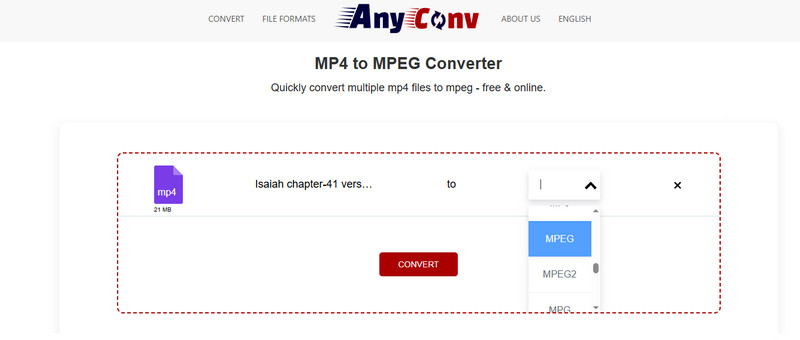
Step 2Then, click the Convert button, wait for several minutes before you can download the converted version.
5. EchoWave
EchoWave is a fast and reliable online converter that lets you change MP4 to MPEG directly in your browser without installing software. It supports drag-and-drop uploads and handles common video formats with ease. Its simple interface makes it beginner-friendly, and users can quickly convert and download files while maintaining good video quality.
Step 1Go 3333to the EchoWave MP4 to MPEG converter online, no need to sign up, then click the Select MP4 files to start importing videos here.Wait until the uploading process is done, then click the dropdown button and choose the MPEG output from the list.
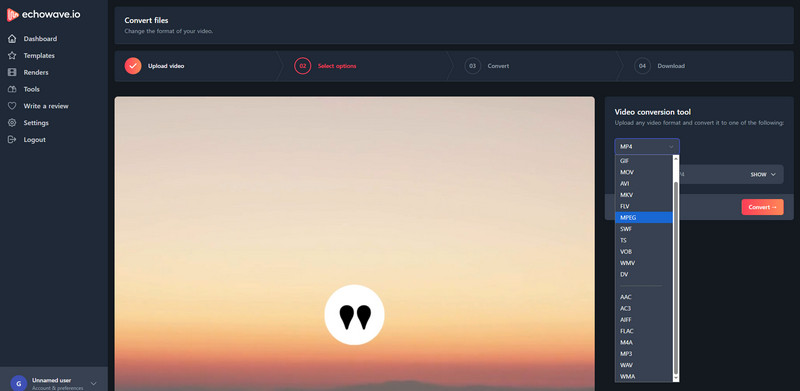
Step 2To get the MPEG video, you need to click the Convert button and download it.
Learning how to convert an MP4 file to MPEG ensures your videos are compatible across devices, editors, and streaming platforms while maintaining quality and manageable file sizes. Using a powerful desktop tool like AVAide Video Converter or turning to convenient online options such as Media.io, InVideo, MiConv, AnyConv, or EchoWave, you can complete conversions quickly and reliably. By understanding the MPEG format and following the right steps, you can manage, share, and archive your videos efficiently without compromising quality.
Your complete video toolbox that supports 350+ formats for conversion in lossless quality.