If you search for MKV to WAV, you will find many tools that can do the job. This guide makes the choice easier. We cover five different ways to convert MKV to WAV. You will find an all-in-one tool, a command-line method, a free audio editor, a free converter, and a browser-based option. Take a look below and choose your preferred method!
- Part 1: Understanding MKV and WAV
- Part 2: Convert MKV to WAV with AVAide Video Converter (Best All-in-One)
- Part 3: Convert MKV to WAV with FFmpeg (Command-Line)
- Part 4: Convert MKV to WAV with Audacity (Free Audio Editor)
- Part 5: Convert MKV to WAV with VLC Media Player (Free)
- Part 6: Convert MKV to WAV Online (Free & Browser-Based)
- Part 7: Troubleshooting Common MKV to WAV Issues
Part 1: Understanding MKV and WAV
What Is MKV
MKV is a video file format. It can hold video, audio, subtitles, and more in one file. A single MKV can also contain several audio tracks. This makes it useful for movies and other video files.
What Is WAV
WAV is an audio file format. It stores sound without the same type of lossy compression used by formats like MP3. This can keep more of the original audio data. However, WAV files can be much larger.
Part 2: Convert MKV to WAV with AVAide Video Converter (Best All-in-One)
For an all-in-one way to convert MKV to WAV, AVAide Video Converter packs everything you need. You can fine-tune the encoder, sample rate, and bitrate. You can also add as many MKV files as you want and convert them in one go. Plus, it includes useful audio tools, such as a trimmer and a compressor, for quick edits.
Step 1Start by opening AVAide Video Converter once downloaded and installed on your Windows or Mac.

FREE DOWNLOAD For Windows 7 or later
 Secure Download
FREE DOWNLOAD For Mac OS X 10.13 or later
Secure DownloadStep 2Add your MKV files by clicking the Add Files button. You can also drag the files straight into the program. This makes it easy to add several files at once.
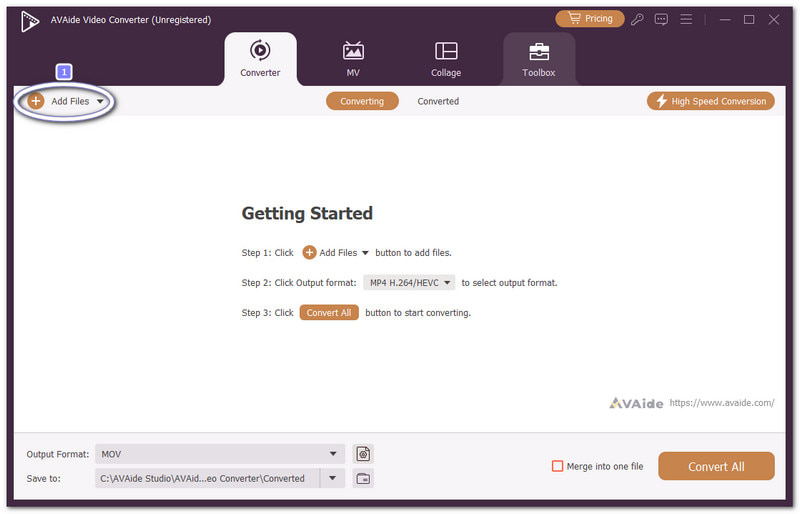
Step 3Next, open the Output Format menu and choose WAV under the Audio tab. If you need to change the audio quality, click the Custom Profile option. You can adjust the encoder, sample rate, bitrate, and other settings.
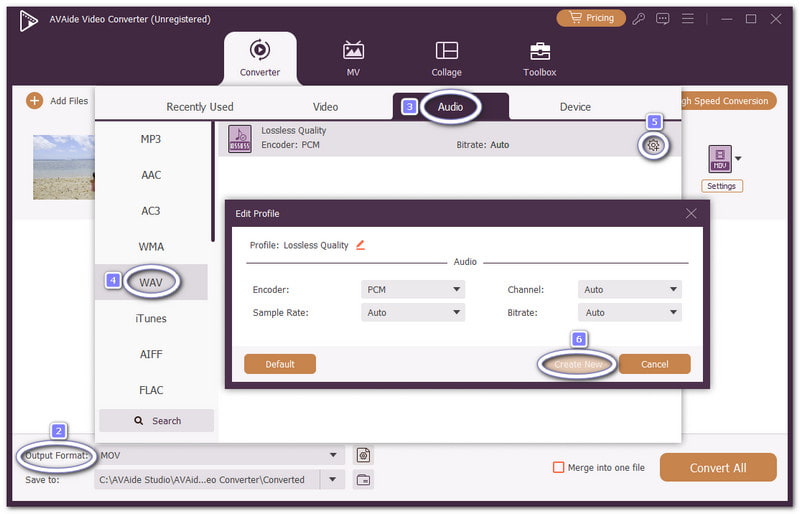
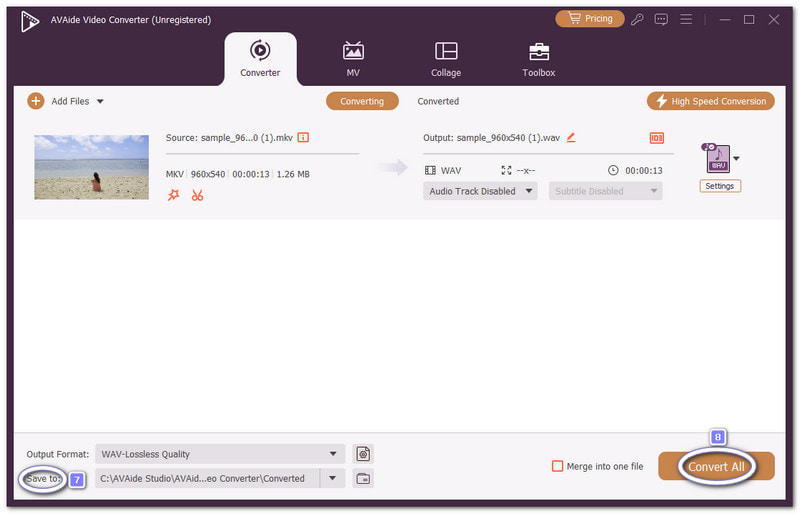
Step 4Finally, choose a folder for the new WAV files. Then, click Convert All. AVAide Video Converter will extract the audio and save it as a WAV in your chosen folder.
Why we selected it: AVAide Video Converter offers more than just MKV-to-WAV conversion. It can also turn the universal MP4 to WAV with ease. Speed is another big plus. Its conversion process can reach up to 120× faster. That means less waiting and more time to enjoy your audio.
Part 3: Convert MKV to WAV with FFmpeg (Command-Line)
With FFmpeg MKV-to-WAV, a simple command can extract audio from an MKV file and convert it to a WAV file. It feels technical, but the process is quick.
Step 1Press Windows + R. Type CMD. Then, press Enter to open Command Prompt.
Step 2Copy the folder path of your MKV file. In Command Prompt, type cd video_path. Replace video_path with your copied folder path. Press Enter.
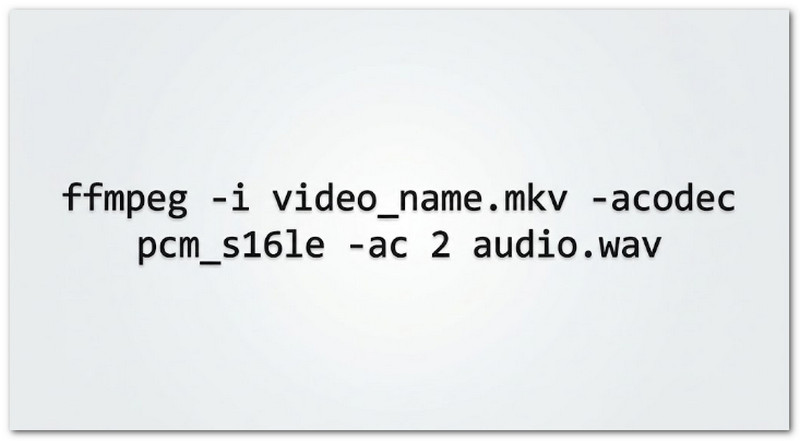
Step 3Type ffmpeg -i video_name.mkv -acodec pcm_s16le -ac 2 audio.wav. Replace video_name.mkv with your actual MKV file name. This command tells FFmpeg to save the audio as a WAV file.
Step 4Press Enter. FFmpeg will start the conversion. When it finishes, you will find the new audio.wav file in the same folder.
Part 4: Convert MKV to WAV with Audacity (Free Audio Editor)
Do you want to convert MKV to WAV and see the audio before saving it? Audacity makes that possible. You can view the waveform and work with the sound. Then, you can save the audio as a WAV file.
Step 1Open Audacity. Go to File > Import > Audio. Find and select your MKV file.
Step 2Wait for the audio to load. You will see the audio waveform in the editor. If there are several tracks, select the one you want to keep.
Step 3Check the selected audio. You can use Audacity's editing tools to trim or adjust it before saving.
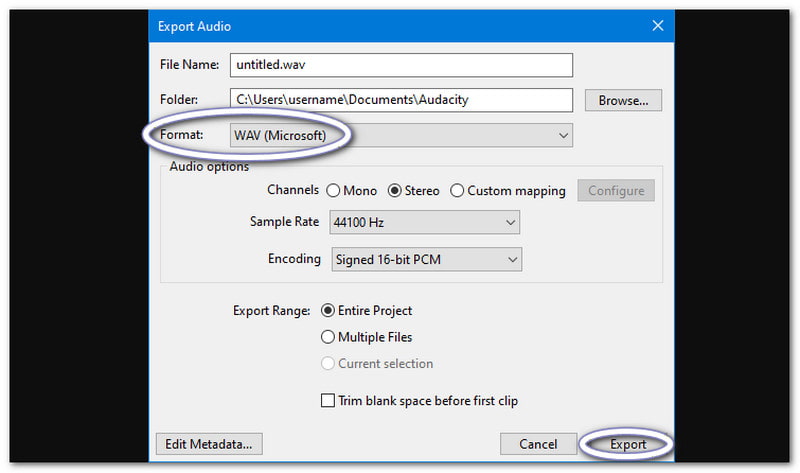
Step 4Go to File > Export Audio. Choose WAV as the file type. Set the save location and export the audio.
Part 5: Convert MKV to WAV with VLC Media Player (Free)
VLC does more than play your MKV videos. It can also serve as a free MKV-to-WAV converter. You can have the audio from your video file. The conversion happens within the familiar VLC interface.
Step 1Open VLC Media Player. Click Media > Convert/Save.
Step 2Click Add. Find your MKV file and open it. Then, click Convert/Save.
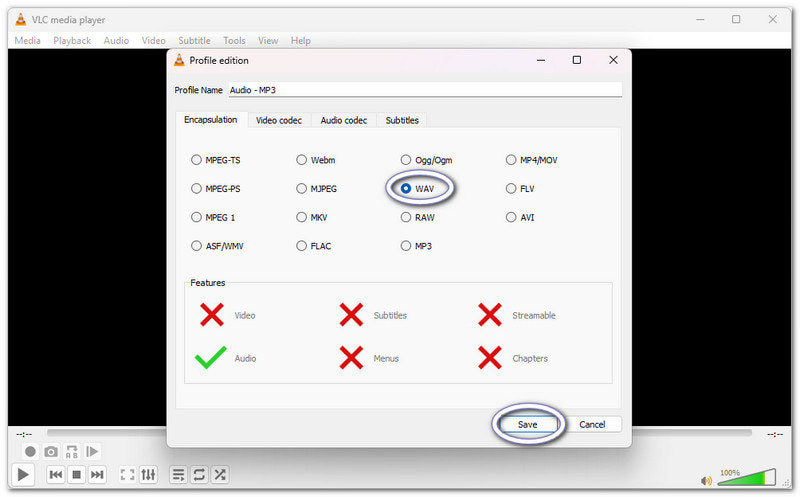
Step 3Open the Profile list. From the options, place a bullet next to the WAV format. Then, click Save.
Step 4Click Browse. Pick where to save the WAV file. Give it a .wav name. Click Start and let VLC finish the conversion.
Part 6: Convert MKV to WAV Online (Free & Browser-Based)
No extra software is needed here. FreeConvert handles MKV-to-WAV online conversion in your browser. You can also use it to convert MKV to MP3. You can adjust the audio before converting. Options include volume, fades, and trimming.
Step 1Open FreeConvert's MKV to WAV Converter. Click Choose Files and upload your MKV file.
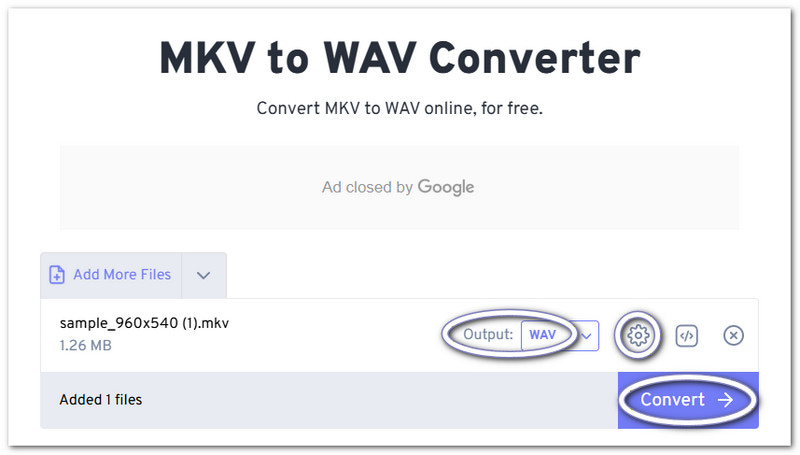
Step 2As you can see, WAV is already set as the output format. If you want, you can open the Wrench button. You can change the volume, apply fade-in and fade-out effects, and trim. Hit Click Apply Settings once done.
Step 3For the final step, click Convert and proceed to download your new WAV file.
Part 7: Troubleshooting Common MKV to WAV Issues
Some MKV files may not convert as expected. The good news is that most problems have simple fixes. Check the issue below and try the matching solution.
1. Audacity Can't Import MKV Files
Audacity may not support the audio inside your MKV file. Check if FFmpeg support is installed and enabled in Audacity. Then, try importing the file again.
2. FFmpeg Command Not Found
Did Command Prompt show "FFmpeg is not recognized"? FFmpeg may not be added to your system PATH. Add its folder to PATH. Then, reopen Command Prompt and run the command again.
3. Online Converter Has File Size Limits
Large MKV files can hit upload limits. FreeConvert, for example, lists a 1-gigabyte file limit. If your video file is too large, use a desktop program like AVAide Video Converter instead.
4. Converted WAV Has Poor Quality
Changing MKV to WAV will not make bad audio better. If the original MKV has poor audio, the WAV file will have the same limitations. Check the audio quality of the MKV first. Also, look at the sample rate and bitrate before you start.
5. Conversion Takes Too Long
Converting large MKV files may take longer. A slow upload may also cause online tools to take longer to respond. Close programs that consume a lot of system resources. A desktop converter might operate more quickly if the file is very big.
6. Only Part of the Audio Is Extracted
Check the MKV for multiple audio tracks. You may have selected only one track during conversion. Also, check the trim settings. A set start or end time can limit the exported audio.
The MKV to WAV converter introduced gives you plenty of ways to convert your files. You can keep it simple with VLC or Audacity. You can also use FFmpeg for more control or an online platform for a quick fix. For Windows and Mac users, AVAide Video Converter brings everything into one easy place. The choice is yours!
ABOUT THE AUTHOR

Your complete video toolbox that supports 350+ formats for conversion in lossless quality.