You may have a MOV video with great sound, but the video itself is not needed. MOV files take up too much space. Fortunately, converting MOV to OGG lets you keep the audio without the heavy video, in a small and easy-to-use format. This write-up will show you how to do it fast and easy, keeping just the audio you want.
Part 1: Can I Convert MOV to OGG
Yes! You can convert MOV to OGG, but there are some things to know first. MOV is mainly a video format, while OGG is mostly for audio. It means when you convert MOV to OGG, you are usually keeping just the sound from the video. The video part will be lost because OGG does not support video.
Simple Definitions:
- MOV: It is a video file format made by Apple. It keeps high-clarity video and sound, but the files are big. It is often used for editing.
- OGG: It is a free audio format. It compresses sound well, keeping good clarity but smaller file sizes. Mostly used for music or web audio.
Comparison: MOV vs. OGG
- Feature
- Main Use
- Type
- File Size
- Compression
- Best For
- Compatibility
| MOV | OGG |
| High-quality video and audio | High-quality audio only |
| Proprietary (Apple) | Open-source |
| Usually large | Small and efficient |
| Moderate, keeps quality | Lossy, very efficient |
| Editing videos professionally | Streaming, music, and smaller storage |
| Works best on Apple; moderate elsewhere | Works on many open-source players |
Part 2: Best Way to Convert MOV to OGG Without Losing Quality
You have a MOV video with an audio track you want to use for your project or music player. If that is the case, you can easily convert MOV to OGG without losing any quality. AVAide Video Converter makes this simple and fast.
With just one click, your video starts converting immediately, saving time and effort. Not only that, but besides MOV to OGG, it also supports other formats like MOV to MP4 or MP4 to OGG. It can really handle lots of video and audio conversions like that while keeping everything clear.
- Supports over 300 formats and ready-made profiles.
- Speeds up file conversion up to 120×.
- Fine-tune audio settings like bitrate and sample rate.
- Enables batch conversion for multiple videos or audio files.
- Lets you trim videos and audio to get the perfect length.

 Secure Download
Rely on the guide below to learn how to convert MOV to OGG on Mac and Windows using AVAide Video Converter:
Step 1Refer to the Download buttons above and download AVAide Video Converter for Windows or Mac. After the download, install the program by following the on-screen guide. Once finished, AVAide Video Converter will open right away.
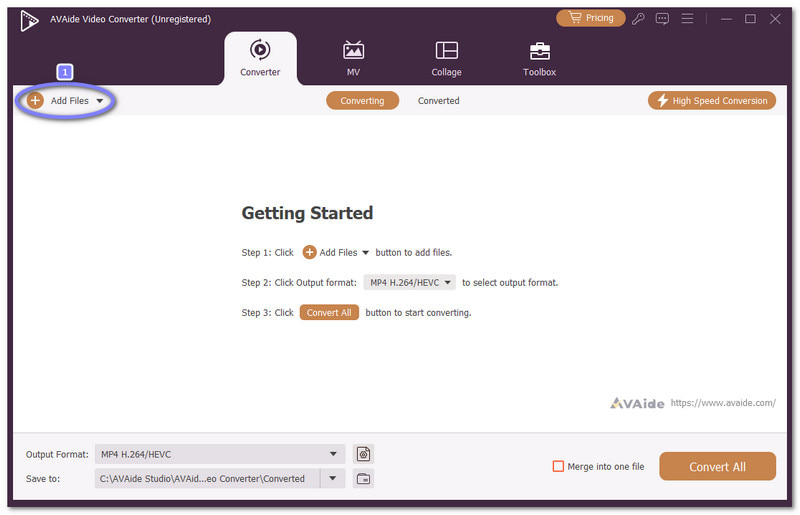
Step 2You will land on the Converter tab by default. What you need to do now is press the Add Files button to import the MOV file you want to convert. Fortunately, you can add one file or multiple files at the same time.
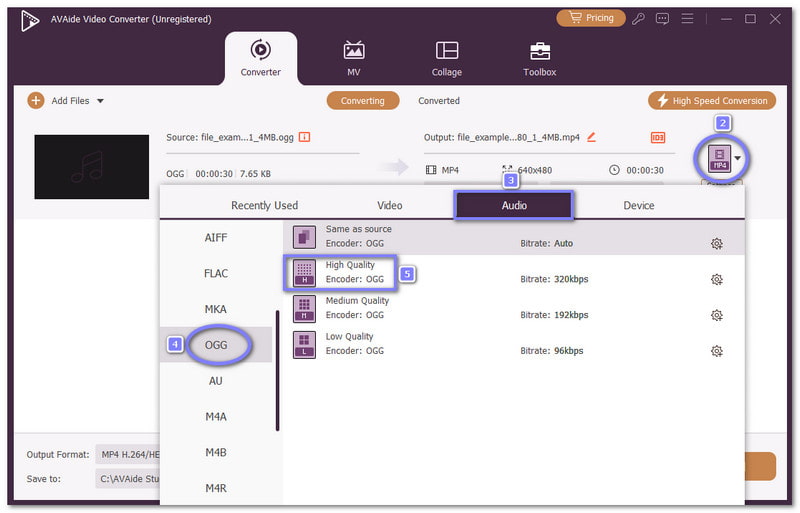
Step 3Head to the Format drop-down menu beside your file. Then, go to the Audio section, scroll down and select OGG. Then, on the right side, please choose High Quality for clearer sound.
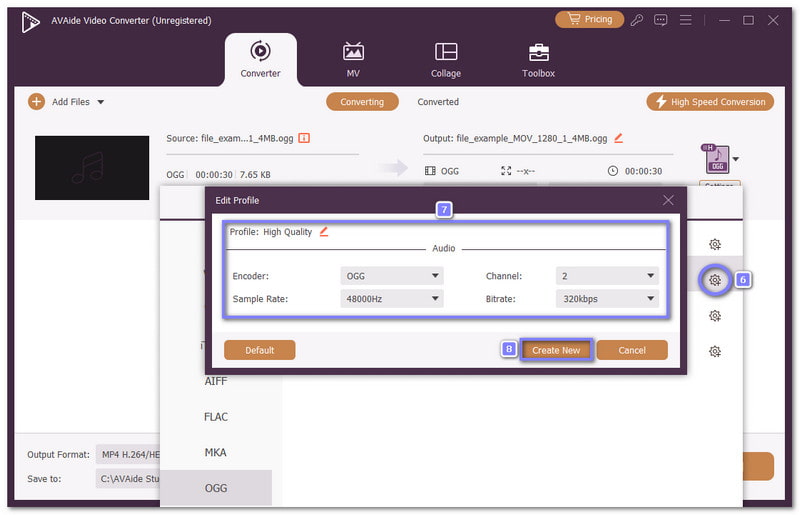
Step 4For better audio results, click the Cogwheel button. Here, set a higher bitrate and sample rate. After that, press the Create New button to save your custom settings.
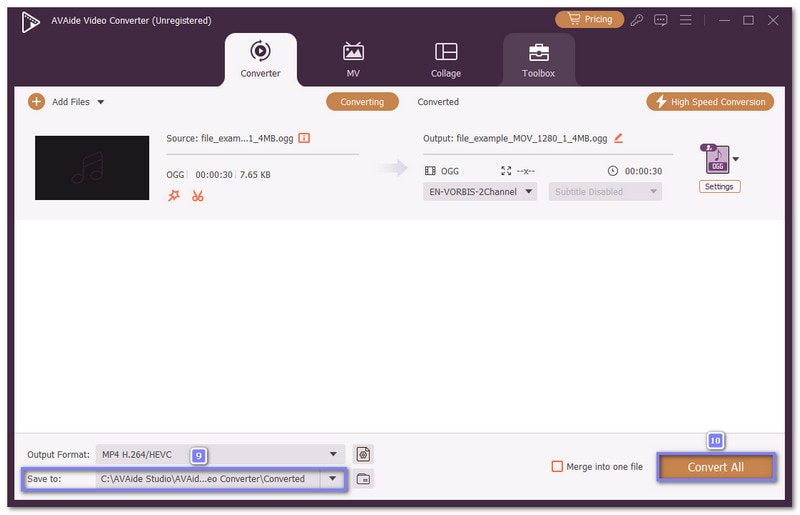
Step 5It is time to choose a folder where to store your output in the Save To option. Once chosen, proceed to click the Convert All button to start the process. After that, you will get an OGG file that has clean and clear audio.
Part 3: Other Feasible Ways to Convert MOV to OGG
1. FreeConvert
FreeConvert is a MOV to OGG converter online. You can also use it to turn MOV to MP3, WAV, WMA, and other formats. You can import files from your local or online storage, like Google Drive. It supports files up to 1 gigabyte. You can also fine-tune audio settings if needed.
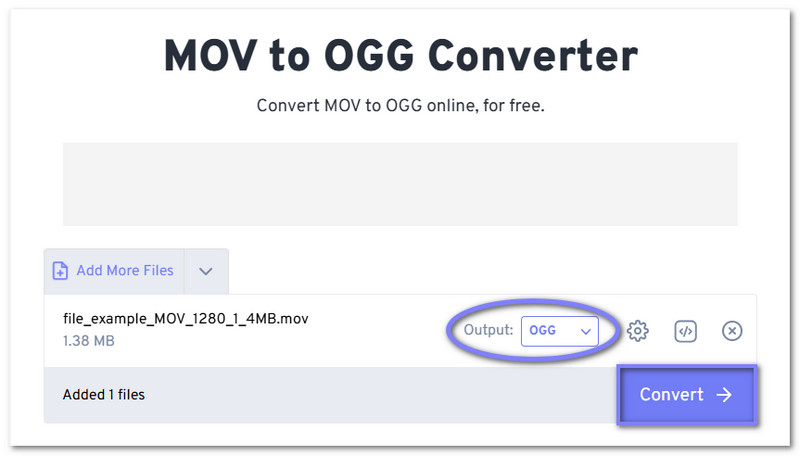
Step 1Go to the FreeConvert - MOV to OGG Converter website using your browser. Next, click the Choose Files button. You can upload a MOV file from your device. You can also use Dropbox, Google Drive, OneDrive, or a URL.
Step 2After the file loads, check the output format. OGG is already selected by default. You do not need to change it.
Step 3If you want more control, click the Cogwheel button. Here, you can configure audio clarity or trim the file. If you made some changes, click the Apply Settings button to apply everything.
Step 4You are settled, so click the Convert button. FreeConvert will now process your MOV file. The conversion usually takes a short time. Once done, hit Download to save your OGG file to your device.
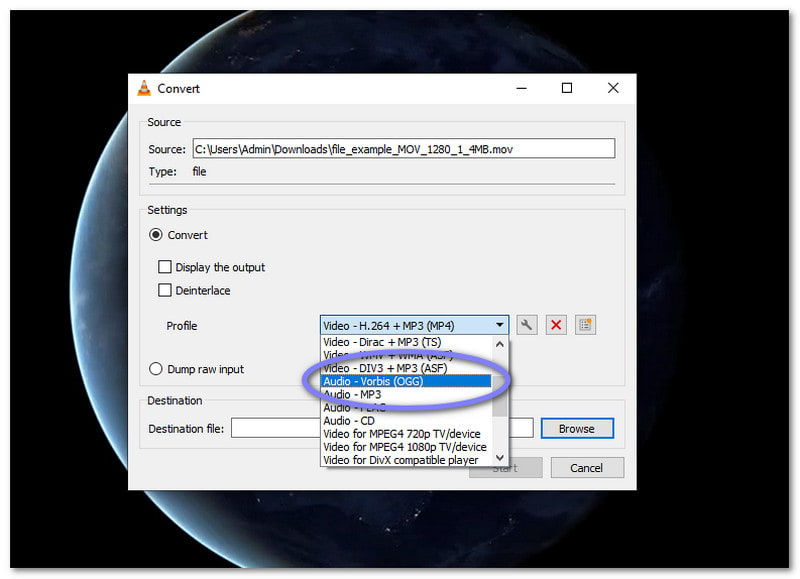
2. VLC
It is known for playing almost any video or audio file, but many users do not know that VLC can also convert files. It makes it a smart choice as an MOV to OGG converter and can also convert MOV to M4A when needed. It is free and runs on Windows, Linux, and Mac. Unlike FreeConvert, VLC does not need the internet to function.
Step 1Open VLC on your computer. Make sure it is updated to avoid errors.
Step 2Click Media in the top menu. From the list, choose Convert / Save. A new display will appear.
Step 3In the File tab, click Add and select your MOV file. After adding it, click Convert / Save at the bottom.
Step 4In the Profile section, open the drop-down menu. Then, please scroll and choose OGG as the output format. It sets the correct audio type.
Step 5Click Browse to choose a save location. Name your file, then click Start. VLC will convert and save the OGG file.
3. Audacity
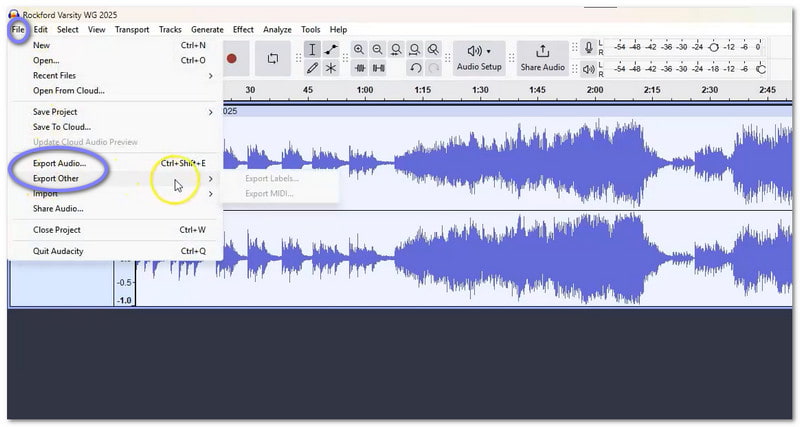
Audacity is a great choice when audio clarity matters most. It does not convert video but extracts audio from MOV files. The perks are that you can edit the sound before saving it as OGG. Trimming and volume changes are easy to do. With the FFmpeg plugin installed, MOV files load without issues.
Step 1Install Audacity on your computer and make sure the FFmpeg plugin is also installed. This plugin lets Audacity open MOV files.
Step 2It is time to run Audacity and navigate to the File menu. Click Open, then select your MOV file. Audacity will load only the audio part of the video.
Step 3After the audio appears on the timeline, check if it plays well. You can trim or adjust the sound if needed.
Step 4Then, go back to the File menu. Choose Export, and select Export as OGG. Pick a folder and type a file name.
Step 5Finally, click Save to start exporting. Please wait for it to finish, and your OGG file is now ready to use.
These days, it is not impossible to turn a video into audio, just like converting MOV to OGG. With the MOV to OGG converters mentioned above, you can easily get the audio from your video and use it for projects, music players, or other purposes.
If you want the best way to convert MOV to OGG without losing quality, go for AVAide Video Converter. It works offline and handles both audio and video conversions smoothly!
Your complete video toolbox that supports 350+ formats for conversion in lossless quality.