Want to create a video project that you are going to present, but you notice that your WMV files cannot be played on your Mac. Converting them from WMV to MOV is the fastest way to regain control. This tutorial takes you through several different conversion possibilities, including integrated software or free software such as VLC and Handbrake. You can retain the quality of your video by taking these steps and completing your project on time.
Part 1: WMV vs MOV
In order to maintain a seamless interaction in video viewing and editing among the devices, we, in most cases, need to convert WMV to MOV. The differences between these two formats can help you to decide which one fits you. Here is a direct comparison between them, including the main characteristics, compatibility, and applications:
| Features | MOV | WMV |
| Full Name | QuickTime Movie | Windows Media Video |
| Developer | Apple | Microsoft |
| File Extension Name | .mov | .wmv |
| Platform Its Supports By Default | Mac, some Windows, iOS, and other default media players | Windows with limited support on Mac |
| Best Use | Editing, cross-platform sharing, and high-quality playback | Streaming, Windows-based projects |
| File Size | Larger due to higher quality | Generally smaller |
| Ease of Editing | Highly, mainly on the Apple ecosystem | Moderate |
| Ideal for | Professional video project and editing | Everyday video container |
Part 2: How to Convert WMV to MOV on Windows/macOS
For anyone looking to change WMV to MOV without compromising quality or speed, AVAide Video Converter delivers a seamless solution. Designed for both Windows and macOS, it handles a wide range of formats, making it a versatile choice for video editing or sharing. The conversion engine is ultra-fast, and large files are converted effectively, and smart presets make it easy to select a format without being an expert. The UI is simple and easy to utilize, so that you can work on your projects and not on the software. It can easily be tried on free downloads so that you can begin converting videos at once.
Step 1Visit the main website of AVAide Video Converter and download the free version suitable for Windows and Mac. Follow the installation prompt and setup, then launch the converter to get started.

FREE DOWNLOAD For Windows 7 or later
 Secure Download
FREE DOWNLOAD For Mac OS X 10.13 or later
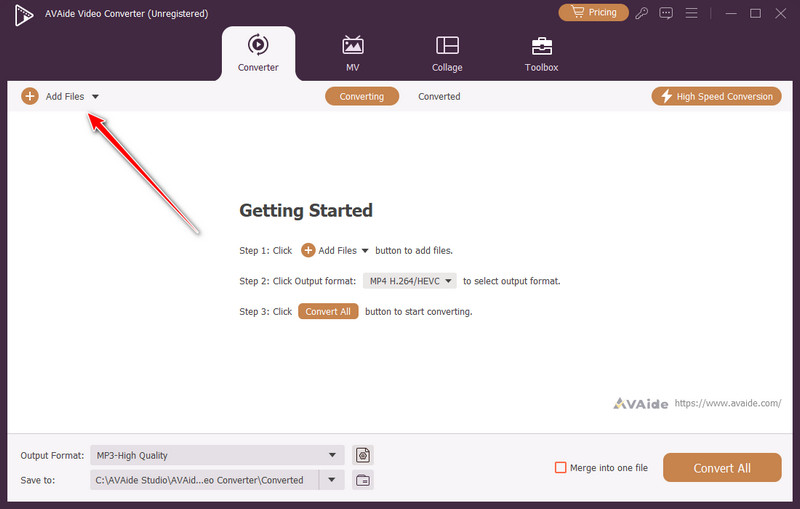
Secure DownloadStep 2On the main interface, drag and drop the WMV videos you want to convert or click the Add Files button instead to do so.
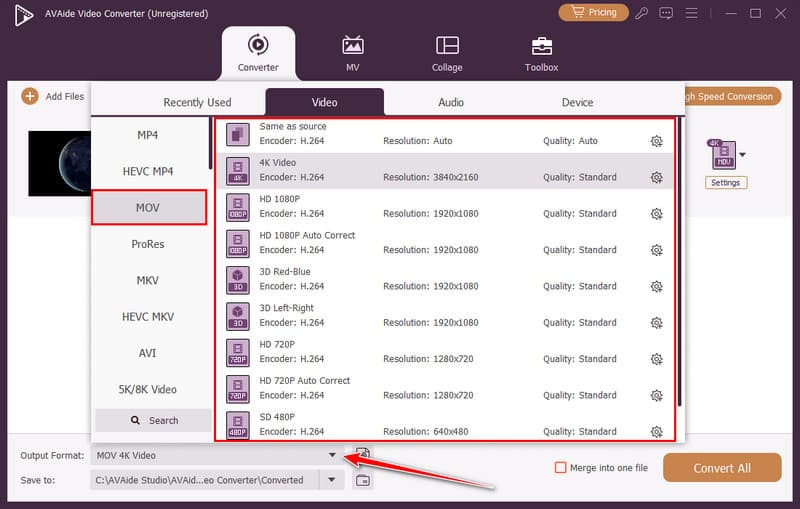
Step 3Next, set the output format to MOV by clicking the dropdown button > Video > MOV, and choose the MOV settings you want to get from here.
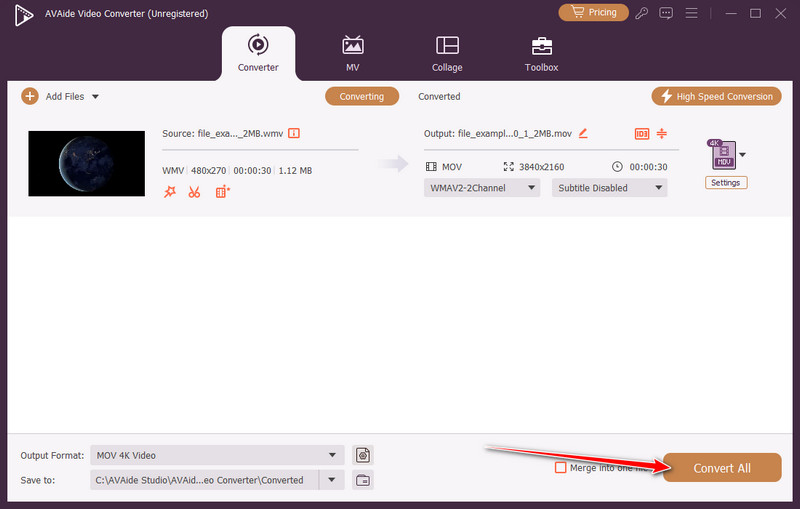
Step 4Finally, click the Convert All button, and its ultra-fast conversion process will play a vital role in getting your files instantaneously. Once successful, the file folder will appear on your screen, and click it to play the video in MOV format.
Part 3: How to Change WMV to MOV Using VLC
VLC is among the tools that a great number of people already have. A lot of its users regard it as a mere media player, but it does have an in-built converter, which runs silently. If you need to convert a WMV file to MOV without extra software, VLC gets the job done. It is free, stable, and practical. The interface is not flashy, and the settings can feel a bit technical at first, which is why many users are looking for VLC alternatives, but for quick format changes, it is a dependable choice.
Step 1Open VLC and click Media at the top, then choose Convert/Save. Click Add to import your WMV file, then press Convert/Save again.
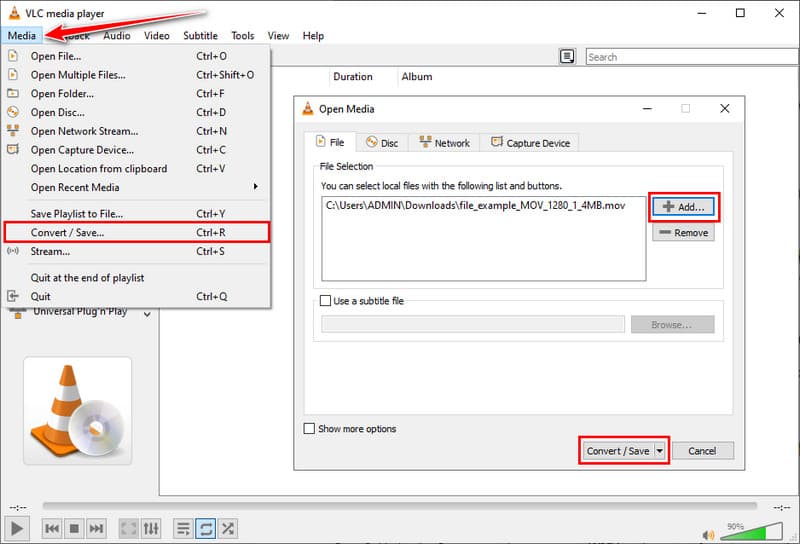
Step 2Under Profile, select a format that supports MOV. If needed, click the small settings icon to ensure the file is saved as .mov.
Step 3Click Browse, choose where to save the file, and rename it with the .mov extension. Click Start and let VLC process the video. When it finishes, open the saved folder and play your new MOV file.
Part 4: How to Convert WMV File to MOV with Handbrake
HandBrake is not assembled as a format changer. It is a video transcoder that is control-oriented. That difference matters. It allows you to codec, constant quality control, frame rate control and compression control instead of presets only. If you need to convert WMV to a MOV file while managing file size and visual clarity, HandBrake offers a more technical path. It is free, open source, and widely trusted by video professionals who value precision over automation, and you can also rip DVD with HandBrake. The interface may look detailed, but once you understand the layout, the workflow becomes logical and efficient.
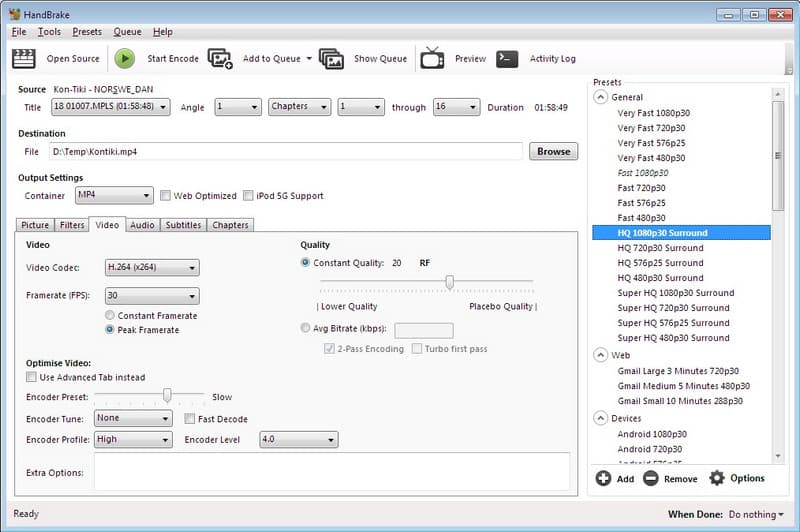
Step 1Download and install HandBrake from its official website. Open the program and click Open Source to load your WMV file.
Step 2After the file loads, go to the Summary tab and choose a preset that matches your target quality. Adjust the format settings if needed and ensure the output will be saved as .mov.
Step 3Move to the Video tab if you want more control. Here you can adjust codec, resolution, frame rate, or quality slider depending on your needs.
Step 4Click Browse to choose where to save the file, then select Start Encode to begin the process. Once finished, open the destination folder to access your MOV file.
Part 5: How to Convert WMV to MOV File Online
If you want to convert WMV to MOV for free without installing desktop software, FreeConvert is a practical online solution. It is completely browser-based and can play the usual video files, such as WMV and MOV. The interface is simple, and the procedure is not complex even to a first-time user. Although upload speed is dependent on your internet connection and free plans have file size restrictions, it is efficient for fast and infrequent conversions.
Step 1Visit the official FreeConvert website and click the Choose Files button to import your WMV video from your device, Google Drive, or Dropbox.
Step 2Once the file is uploaded, select MOV as the output from the format dropdown menu.
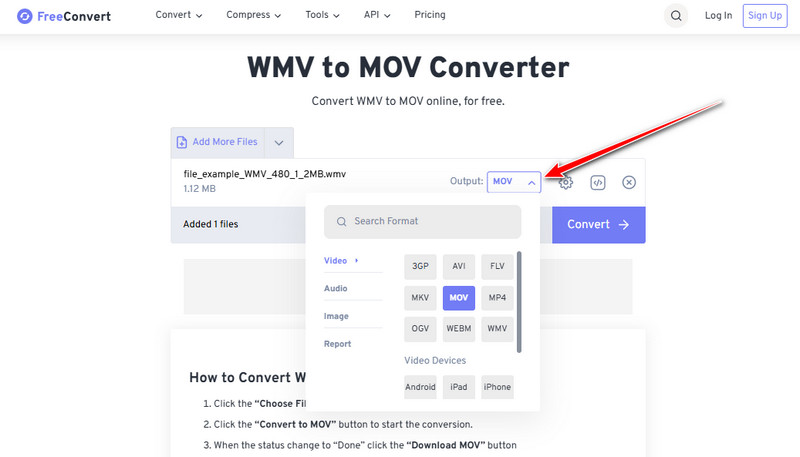
Step 3If needed, click the settings button to adjust resolution, video codec, or compression level. You can also keep the default settings for standard quality output.
Step 4Tick the Convert button and wait for the process to complete. After conversion finishes, download your MOV file directly to your device.
Mac users often struggle to play WMV files, which leads to searching for a Quicktime convert MKV to MOV. The positive thing is that compatibility can be solved with the help of a good converter, and the quality will be preserved. With these tips in this guide, you will be able to convert your videos fast, retain your high-resolution, and have your playback and editing smooth across devices.
Your complete video toolbox that supports 350+ formats for conversion in lossless quality.