A DVD is still very functional and popular when it comes to official and high-quality movies. However, if you want to play a DVD on a computer, you need a specific DVD player to recognize the video formats in a DVD. Where can you find a reliable DVD player for a laptop and a desktop? Don't worry, this article helps you collect 11 excellent players that maintain high-quality and magnificent compatibility and influence. Choose the player that best suits your needs based on the pros and cons outlined in this article.
Part 1: 11 Best DVD Players for Windows 11 and Mac
Please have a look at the powerful DVD players for Windows 10, 11, and Mac. You will be amazed at how high the video quality they can keep for your excellent DVD.
Top 1: AVAide Blu-ray Player
When it comes to excellent DVD players, they should be easy to operate and deliver the best video quality. That's precisely why AVAide Blu-ray Player takes the top spot. Its clean and intuitive interface makes it effortless for beginners to get started. Advanced users can access more convenient control options through the menu bar for a smoother viewing experience, such as chapter menus, fast-forward, and rewind functions.

FREE DOWNLOAD For Windows 7 or later
 Secure Download
FREE DOWNLOAD For Mac OS X 10.13 or later
Secure Download- Pros
- Play DVDs, Blu-ray discs, ISO images, and digital videos.
- Support a wide range of multimedia formats.
- Play DVDs with the original resolution.
- Offer advanced options, like playlists, video effects, etc.
- Bypass encryptions and region codes.
- Cons
- It may take a while to load an HD movie.
Here are the basic steps to play a DVD on Windows:
Step 1Launch the best DVD player once you install it on your PC. Insert the DVD that you want to watch into your computer.

Step 2Click the Open Disc button, select the main video on the disc, and click OK to load the DVD.

Step 3After the DVD loads, the video will start playing. There is a quick control bar at the bottom. If you want advanced controls, the top menu bar is available.

Top 2: VLC Media Player
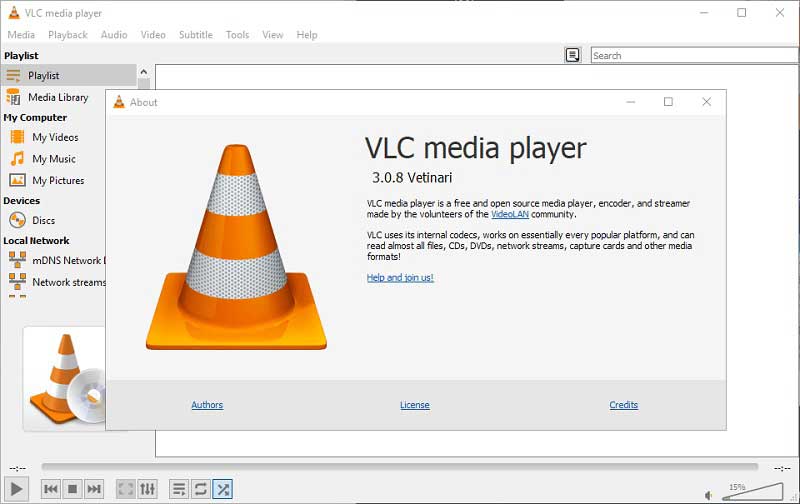
VLC Media Player is a versatile media player and free DVD player on Windows 10 and earlier. In the latest versions, it can play DVDs, CDs, and Blu-ray discs. Since it is open source, everyone can download and use it for free. It is also undergoing continuous optimization, encompassing features such as selecting titles, chapters, audio, and subtitle tracks, fast-forwarding, rewinding, and jumping to specific timestamps.
- Pros
- Play DVDs and Blu-ray discs smoothly.
- Control VLC using shortcuts.
- Adjust settings according to preferences.
- Built-in an equalizer to boost the sound.
- Cons
- The interface cannot be customized.
- The learning curve is not friendly.
Top 3: PotPlayer
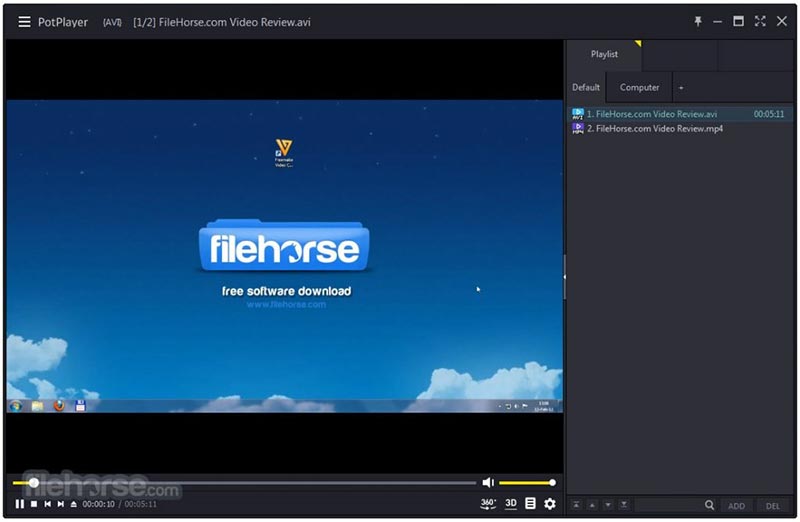
PotPlayer is one of the best DVD players on Windows 7 or later. It is free if you do not mind viewing some ads in the interface. It includes a huge package of codecs including DVD playback in H.265. Plus, it supports tons of skins.
- Pros
- Compatible with a wide range of formats.
- Manage videos with playlists.
- Support 3D and 360-degree DVD videos.
- Completely free of charge.
- Cons
- There is no way to remove annoying ads in the interface.
- It may crash during playing DVDs.
Top 4: RealPlayer
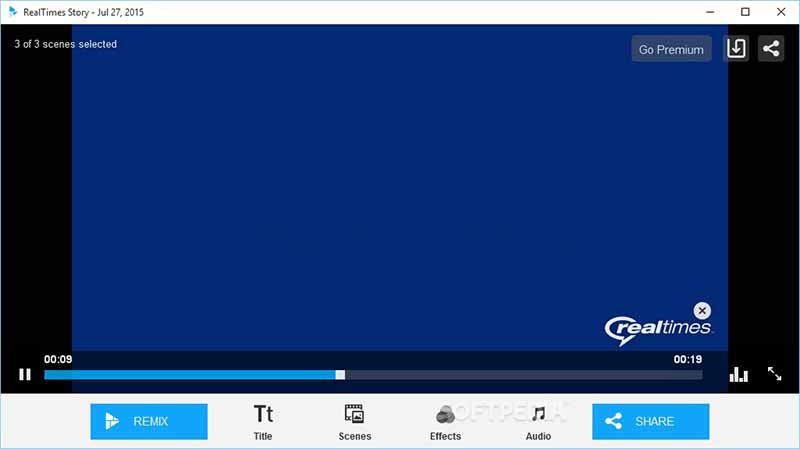
RealPlayer is a decent DVD player on Windows 10 and earlier. Now, it is free to download and everyone can use it for free with some limits. If you want to get the full version, you can purchase a plan, which costs $4.99 per month.
- Pros
- Come with an intuitive interface.
- Provide cloud storage.
- Convert video file formats.
- Offer advanced privacy settings.
- Cons
- It lacks video effects.
- It cannot sort video files.
Top 5: Media Player Classic
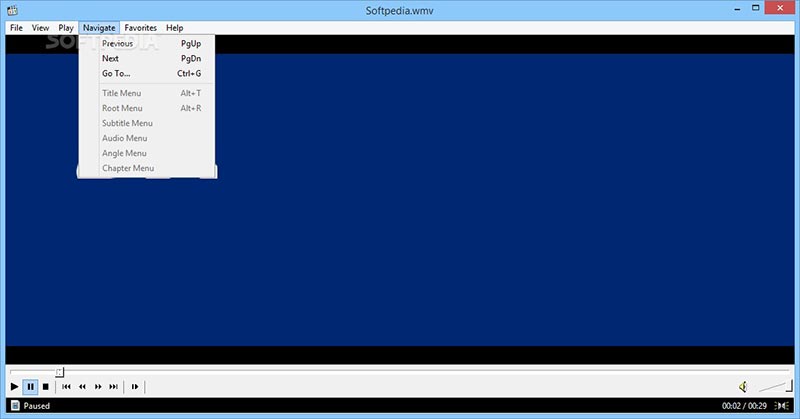
Media Player Classic is a free media player and DVD player for Windows. The interface is much like Windows Media Player so that beginners can navigate the interface simply. Moreover, it does not take up much space. Additionally, it takes up very little space and does not cause significant lag when playing larger DVD files.
- Pros
- Offer great custom options.
- Support 360-degree DVD videos.
- Play digital videos up to 8K.
- Integrate a straightforward interface.
- Cons
- It lacks bonus features.
- It has not been updated for years.
Top 6: PowerDVD
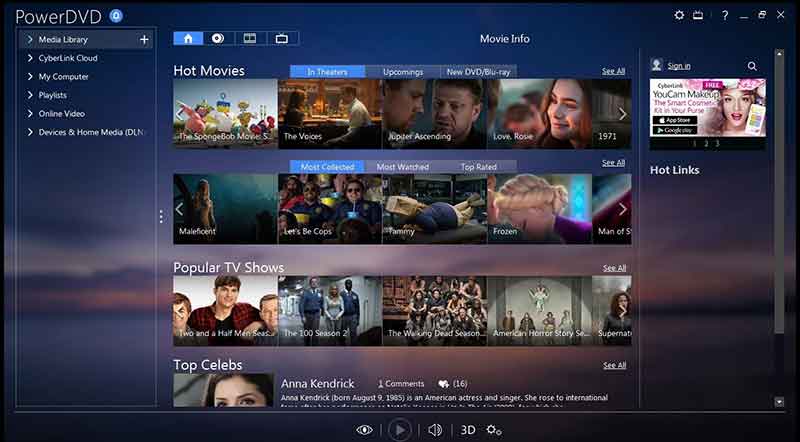
PowerDVD is the DVD player for Windows released by CyberLink. It allows you to enjoy the latest visual technologies, such as playing 4K Blu-ray, HDR discs, 360-degree VR, and more if you pay $99.95.
- Pros
- Support HDR DVDs and 360 VR.
- Offer the Big-Screen TV mode.
- Come with image stabilization.
- Integrate a customizable interface.
- Cons
- It may not work with protected DVDs.
- It cannot work with Netflix.
Top 7: GOM Player

GOM Player is a capable DVD player for Windows. It can handle any video format, including DVDs, 360-degree VR videos, as well as online video streams. Plus, it allows you to search for subtitles and add them to your videos. It now features a synchronized lyrics recommendation function that automatically displays lyrics matching the video content. This is a handy feature for users who enjoy watching movies or TV shows with lyrics displayed.
- Pros
- Play DVDs for free.
- Support excellent formats.
- Find subtitles according to videos.
- Download extra codecs.
- Cons
- It includes extra software.
- The interface is not user friendly.
Top 8: KMPlayer

KMPlayer is a popular free DVD player on Windows 7 and earlier. It covers various types of container formats, such as DVDs, VCD, popular digital videos, and more. It's also one of the best 3D DVD players for Windows users. Moreover, users can capture audio, video, and screenshots when playing DVDs.
- Pros
- Free to download and use.
- Play 3D DVD videos.
- Control equalizer remotely.
- Offer highly customizable options.
- Cons
- It takes lots of sources when playing DVDs.
- There are annoying ads.
Top 9: Kodi
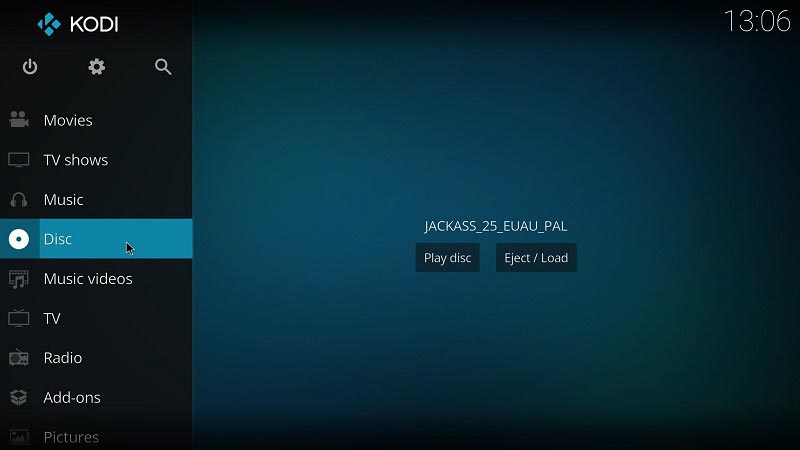
Kodi is a popular media center and free DVD player for PCs. Users can customize almost every aspect of the software due to its open source roots. Kodi's extensive plugin support offers numerous additional features, including DVD playback enhancements and support for different DVD regions. The latest update to Kodi ensures unmounted DVD drives are correctly identified and accessed, eliminating a common source of playback errors.
- Pros
- Supports a variety of add-ons.
- Compatible with lots of devices.
- Come with a customizable GUI.
- Connect to streaming services.
- Cons
- It is awkward to control the playback.
- The learning curve is steep.
Top 10: BS Player
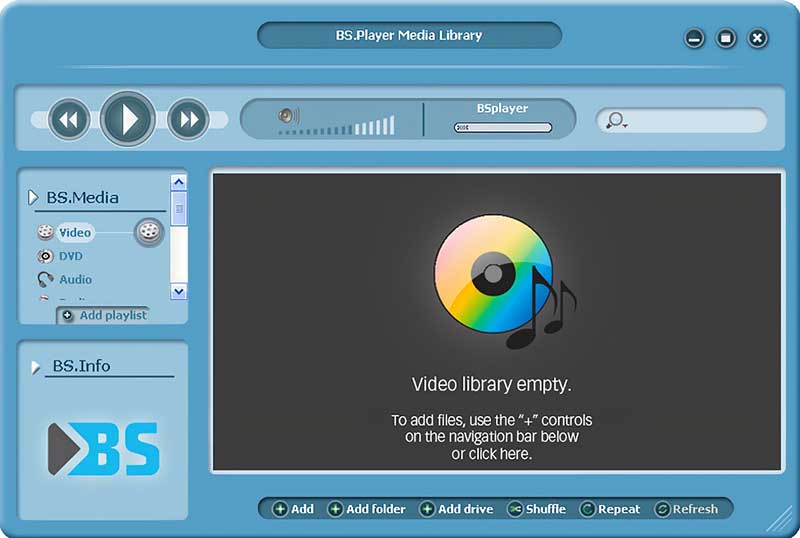
BS Player is a flexible DVD player for Windows. It provides a free version with limited features, but it is enough to watch DVD movies on your desktop. Moreover, the playback is great due to the hardware acceleration.
- Pros
- Support Chromecast.
- Built-in hardware acceleration.
- Support 3D DVD videos.
- Offer a friendly on-screen guide.
- Cons
- It cannot cast subtitles.
Top 11: 5KPlayer
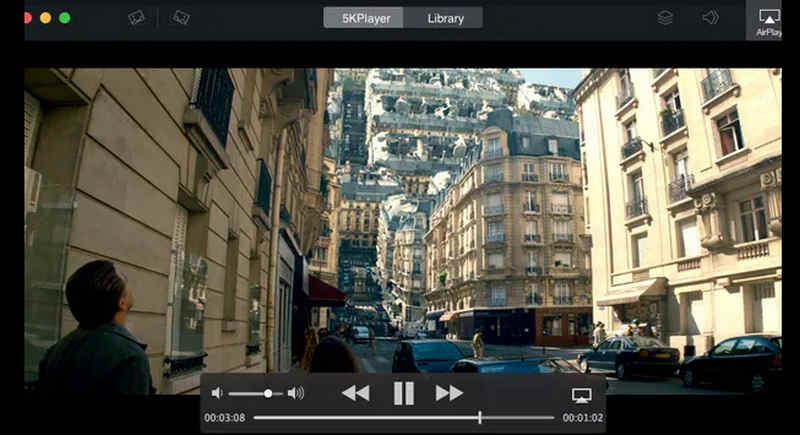
5KPlayer is an outstanding DVD player for Mac and Windows. It supports video quality up to 5K and plays DVDs on your computer for free with pristine picture quality, making it popular among DVD enthusiasts. Additionally, it helps you stream video or audio from external devices or mobile devices and can function as a screen mirroring receiver or transmitter.
- Pros
- Support many popular video codecs.
- Play video up to 5K resolution.
- Support screen-cast.
- Cons
- It may cheat on your default player setting.
- The interface may be complicated.
Part 2: Only a DVD Player is Not Enough
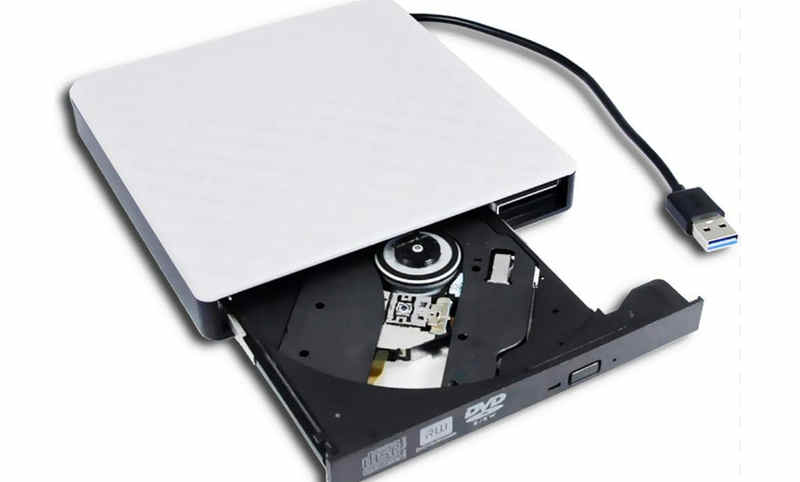
It's not enough when you only have a DVD player. You also need a DVD drive that can read your DVD disc and convey it to your computer. Your best DVD player won't cost money, while a DVD drive will. However, it won't cost much today. Also, a DVD drive is reliable enough to work well and durably. Therefore, pick up a desired DVD drive on the market and associate it with your best DVD player!
Part 3: FAQs about Windows DVD Player
Why I cannot play a DVD on my Windows 10?
Windows 10 or 11 cannot play DVDs because there is no built-in DVD codec, outdated DVD drivers, or corrupted specific registry entries. You can run the Troubleshooter to diagnose it.
How do I get Windows to recognize my DVD drive?
Firstly, run Windows Troubleshooting to fix this problem. Moreover, open Device Manager, check your DVD drivers, and update them. Now, your PC should recognize your DVD drive.
How to play commercial DVDs with Windows Media Player?
Put the DVD into your PC, open Windows Media Player, and select the DVD drive. Typically, the disc will start playing. If not, you need to install the plugin.
This article has identified and reviewed the top 11 best DVD players for Windows 11/10/8/7/Vista/XP. Some of them are totally free of charge, others ask you to purchase a license after the free trial. You can pick an appropriate program according to your situation and our review. AVAide Blu-ray Player is the best option for beginners. It offers the best video quality. If you have other questions about this topic, please feel free to leave your message below this post.
ABOUT THE AUTHOR

Full-featured multimedia player to play Blu-rays, DVDs, 4K UHDs, and other video/audio files.