Losing your Blu-ray player remote, or finding it's suddenly stopped working, doesn't have to ruin your movie night. While it feels like a hurdle, most modern Sony, Samsung, and LG players are designed with built-in redundancies that allow you to control Blu-ray without remote.
If you're stuck at the Open tray screen, you don't need to shop for a replacement just yet. This guide explores three practical methods to regain control of your playback, from utilizing hidden physical buttons to leveraging smartphone integration. Whether you are using a legacy disc deck or a high-end 4K UHD player, here is how you can play your Blu-ray movies without a remote control.
Part 1: 3 Ways to Control Blu-ray Player Without Remote
Way 1. Use Buttons on Disc Player to Play Blu-ray Without Remote
Most modern Blu-ray players, from budget models to high-end 4K decks, feature a set of built-in physical buttons that can control Blu-ray player without a remote. While these are often discreetly hidden on the front or top panel, they provide essential hardware-level control when your remote goes missing.
Common Button Layouts & Locations
- Sony & Samsung Players: Typically place the Power and Eject buttons on the front right corner. Some premium models use touch-sensitive soft-touch buttons that light up only when the device is active.
- LG Players: Often feature a minimalist design where the Play/Pause and Stop buttons are located on the top edge or near the disc tray.
- Legacy Models: Older players usually offer a full tactile row including Menu Navigation (Up, Down, Left, Right, and Enter/OK), allowing you to bypass the DVD/Blu-ray menu without a remote.
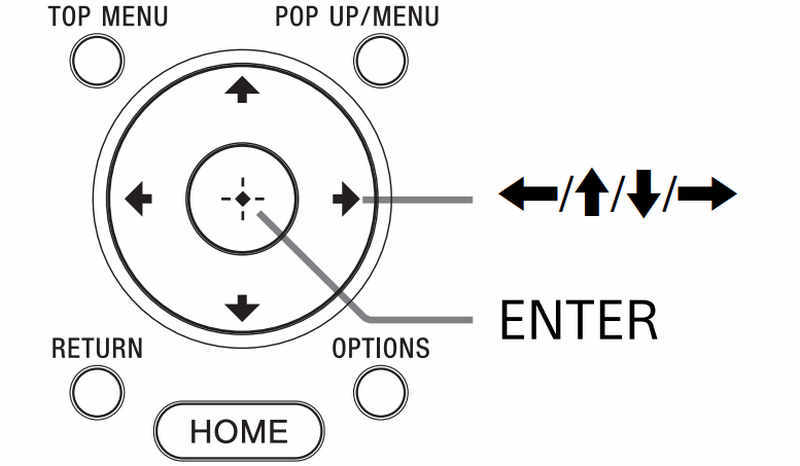
| Button | Function |
| Power / Eject | Wake the device and load/unload your Blu-ray disc. |
| Play / Pause | Start the movie immediately (often bypasses trailers). |
| Stop | Ends playback and returns to the home screen. |
| Skip (Prev/Next) | Navigates between chapters or menu items. |
| Menu / Enter | Pro Tip: On many Sony and LG units, holding the ‘Play’ button for 3 seconds can sometimes act as an ‘Enter’ command to start the film. |
Way 2. Control Blu-ray Player Without Remote via Remote App
If your player lacks physical buttons, your smartphone can act as a powerful backup. Depending on your phone’s hardware and your player’s connectivity, you can choose between Wi-Fi-based apps or Infrared (IR) blasters.
Option A: Official Brand Apps (Wi-Fi Control)
Most top-tier manufacturers have integrated Blu-ray control into their broader smart home ecosystems. This is the most stable method but requires both devices to be on the same 2.4GHz/5GHz Wi-Fi network.
- Sony: Use the Sony | BRAVIA Connect (formerly Home Entertainment Connect) app. It has replaced the discontinued TV SideView and offers seamless pairing for modern Sony Blu-ray decks and soundbars.
- Samsung: The SmartThings app is the go-to hub. Once you add your Blu-ray player as a Device, you get a full virtual remote interface on your dashboard.
- LG: While the LG ThinQ app primarily focuses on TVs and appliances, many Wi-Fi-enabled LG Blu-ray players can be discovered and controlled via the Device Connector menu within the app.
Option B: Third-Party Universal Apps (IR or Network)
If you have an older player or a mix of brands, third-party apps are excellent alternatives:
- For Phones with IR Blasters (e.g., Xiaomi, older Samsung): Apps like ASmart Remote IR or Peel Smart Remote send direct infrared signals just like a plastic remote. No Wi-Fi is needed.
- For All Smartphones (Wi-Fi): AnyMote and SURE Universal Remote are industry standards. They support an extensive database of codes for Philips, Panasonic, and even niche brands like Magnavox.
Example: How to Use a Sony Blu-ray Player Remote Player App
Step 1Download Sony | BRAVIA Connect on your phone. Ensure that your phone and Sony disc player connect to the same Wi-Fi.
Step 2On your Sony player, go to Settings > System Settings > Quick Start Mode and set it to On. This allows the app to wake up the player even when it's off.
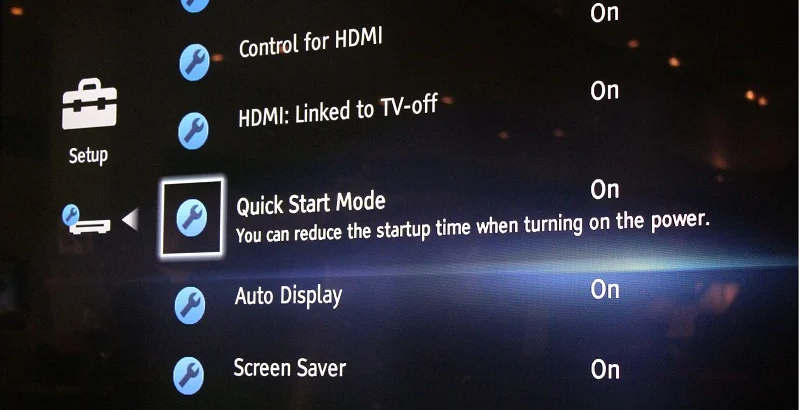
Step 3Launch the Sony | BRAVIA Connect app. Tap the Add to scan for devices.
Step 4A 4-digit registration code may appear on your TV screen. Enter this into your phone to finalize the secure link. Then, you can control the Blu-ray player without a remote easily.
Way 3. Play Blu-ray Without Remote on a Computer
While physical buttons and mobile apps are helpful workarounds, they often feel clunky compared to a seamless desktop experience. If you don't want to always press buttons to control a disc player for playback, the most efficient solution is to play your Blu-ray discs directly on your computer.
By using an external or internal Blu-ray drive paired with professional software like AVAide Blu-ray Player, you transform your PC into a high-end home theater for Blu-ray playback.
- Navigate complex Blu-ray menus instantly with mouse and keyboard.
- Unleash the 1080p and 4K cinematic visuals.
- Easily bypass region locks and encryptions.
- Manage chapters, subtitles, and audio tracks easily.
Here are the steps to play a Blu-ray disc without remote
Step 1Download the Blu-ray player software on your desktop. Insert a Blu-ray disc into your computer's disc drive. Then, click Open Disc on the main interface to enter the new window.

Step 2Select the Blu-ray disc you just loaded. After that, click OK to proceed to load the disc.

Step 3Now, the software will play your Blu-ray movie automatically without a remote. And you can view its playback control window. From there, you can navigate the buttons such as Next, Pause, Stop, Eject, and more.

When you click the Stop button, it will exit the playback window. And if you click the Eject button directly, it will eject your Blu-ray disc automatically. All in all, if you lost you remote, you can still find the alternative way to play your favorite Blu-ray movies.
Tips: If you want to free software to play your high-quality Blu-ray movies on a Windows computer, you can get some free Blu-ray players for Windows here.
Part 2: Digitize Your Blu-ray for Playback Anywhere
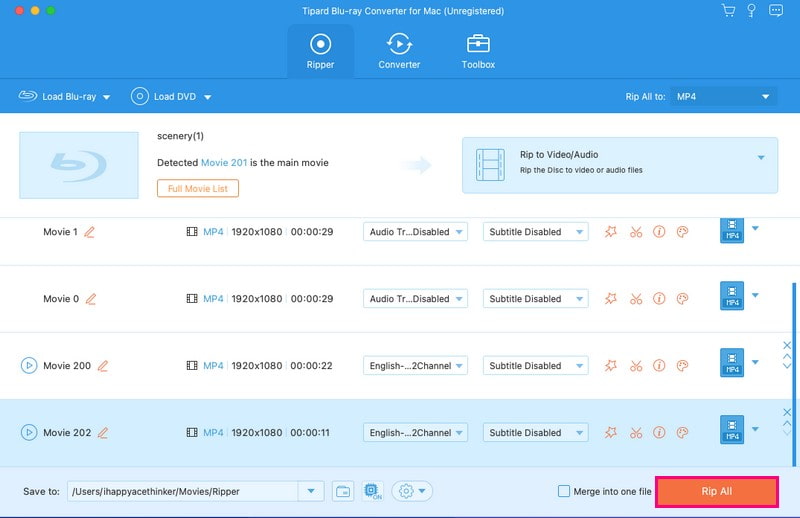
Streaming is more convenient than physical media. Maybe you can consider rip your Blu-ray to a digital format like MP4, MKV, MOV, etc. Those digital formats have modern codecs, like HEVC and AV1, which can highly compress the video while keeping the best visual quality. Therefore, you can store the Blu-ray movies on any device for playback anywhere. Tipard Blu-ray Converter is a good choice. It supports lossless MKV and HEVC MP4, letting you select lossless backup or higher compatibility.

FREE DOWNLOAD For Windows 7 or later
 Secure Download
FREE DOWNLOAD For Mac OS X 10.13 or later
Secure DownloadPart 3: FAQs of Controlling Blu-ray Player Without Remote
Can a universal remote work on a Blu-ray player?
Yes, a universal remote can work on a Blu-ray player, provided the remote supports the specific brand's infrared (IR) codes.
Can I program Sony Blu-ray remote to TV?
Yes. It is also possible to program a Sony Blu-ray remote control to operate your TV. Many Sony Blu-ray remotes come with universal or multi-brand control features. It allows the remote to be programmed to control other devices, such as TVs.
How to get a universal remote code for Sony Blu-ray player?
You can find it in the user manual or instruction guide accompanying your universal remote control. You may also find it on the manufacturer's website.
Can I use my Samsung TV remote to control my Samsung Blu-ray player?
Yes, you absolutely can. Since both devices are Samsung, the process is usually seamless thanks to a feature called Anynet+, which allows control signals to travel through the HDMI cable. When you press Play on your TV remote, the TV sends that command directly to the Blu-ray player.
Don't get nervous when you lose your disc player remote. This article tells you how to get Blu-ray to play without remote in 3 ways. You can use a remote app on a phone, directly use the buttons on the disc player, or install Blu-ray player software, like AVAide Bllu-ray Player, on a computer to directly watch the movie. The three ways can help you play Blu-ray discs seamlessly.
ABOUT THE AUTHOR

Full-featured multimedia player to play Blu-rays, DVDs, 4K UHDs, and other video/audio files.