Windows 10 no longer includes built-in support for DVD playback. You don’t have a pre-installed DVD player to watch your DVD collection on it. As a Windows 7 user, you can handily play DVDs on Windows Media Player. However, it no longer plays DVDs on Windows 10. You will need a third-party DVD player to do it.
There are many DVD playback software out there that can work with Windows 10. This post shares three methods to play DVDs on Windows 10. You can keep reading and use a preferred DVD player to watch your DVD movies.
Part 1. How to Play DVDs on Windows 10 with Windows DVD Player
Windows DVD Player is an official DVD-playing tool developed by Microsoft. If you upgrade your computer to Windows 10 from Windows 8.1/8/7/ with Windows Media Center, you can free get it from Microsoft Store. Or you need to pay $14.99 for Windows DVD Player. Ensure your Windows PC has a DVD drive and follow the steps below to play DVDs.
Step 1Download and install Windows DVD Player from the Microsoft Store. You need to pay for it, as it is not a free DVD playback app.
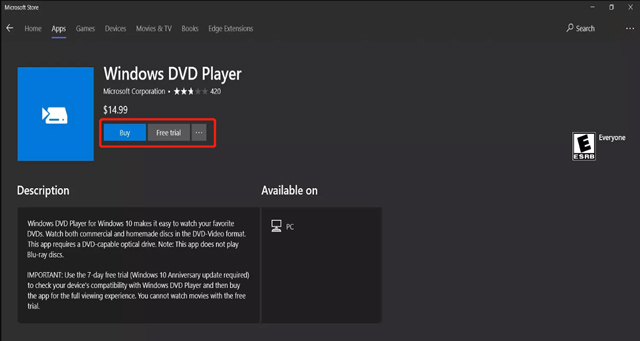
Windows DVD Player gives you a 7-day free trial to test if your system is compatible. But you cannot play DVDs on your Windows 10 PC during the free trial.
Step 2Open Windows DVD Player and insert your DVD into your computer's DVD drive. Once the DVD is in the drive, Windows Media Player should recognize it automatically, and a dialog box will show to ask if you want to play it. It supports both commercial and homemade DVDs. You get basic playback features and controls to smoothly play DVDs on a Windows 10 or 11 laptop.
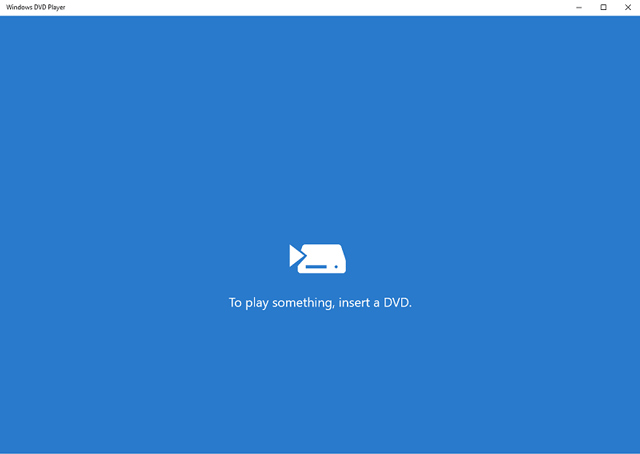
If the dialog box doesn't appear, you can click the Start menu, type and search Windows Media Player in the search bar, then click the application icon to open Windows Media Player. Then you can use it to play DVDs on your computer with ease.
Part 2. How to Play DVD on Windows 10 Using AVAide Blu-ray Player
AVAide Blu-ray Player is an easy-to-use Blu-ray and DVD-playing software that can play any DVD discs, folders, and ISO image files. This DVD player supports Windows 10/11, Windows 8, Windows 7, and macOS. Besides Blu-rays and DVDs, it can play 4K, 1080p/720p HD videos, and lossless audio in all commonly-used formats. It gives you all the controls of DVD playback. It is designed with advanced options to freely adjust playlists, video effects, and more. You can take the following guide to play a DVD on your Windows 10 PC using it.
- Play Blu-rays, DVDs, folders, and ISO files with high quality.
- Support 4K/HD/SD videos and lossless/lossy audio files.
- Adopt advanced hardware decoding and accelerate technology.
- Offer flexible playback controls to enjoy stable image quality.

 Secure Download
Step 1Free download this AVAide DVD player on your Windows 10 computer and launch it. Insert your disc into your computer’s DVD drive.

Step 2Click the Open Disc button to browse and import your DVD. It will be automatically played in the DVD player. You can freely stop the playback, forward and backward, and adjust volume, brightness, contrast, hue, saturation, and more.

AVAide Blu-ray Player supports Dolby Digital and DTS. So, you can enjoy your Blu-ray or DVD movies with superior audio quality. Moreover, it can play 4K UHD and 1080p/720p HD videos smoothly.
Part 3. How to Play DVDs on Windows 10 Using VLC Media Player
If your Windows 10 computer doesn't have a built-in DVD drive, you should purchase an external DVD drive to read your discs. Another option to play a DVD on Windows 10 is by using a third-party media player like VLC Media Player. VLC is a free multimedia player that can play many different file formats, including DVDs. Here's how to play DVDs on a Windows 10 PC using VLC.
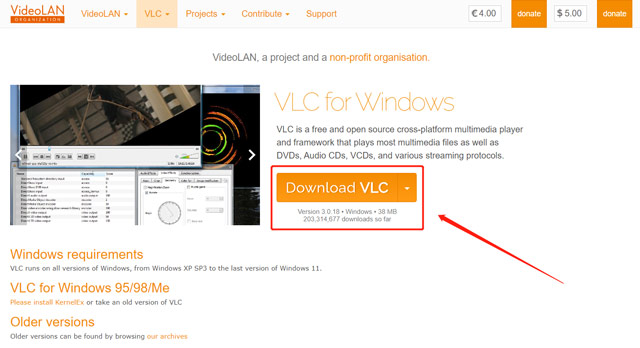
Step 1Download and install VLC Media Player from the official VideoLAN website. Apart from Windows 10, it is also compatible with Windows 7, Windows 8, Windows 11, macOS, and Linux.
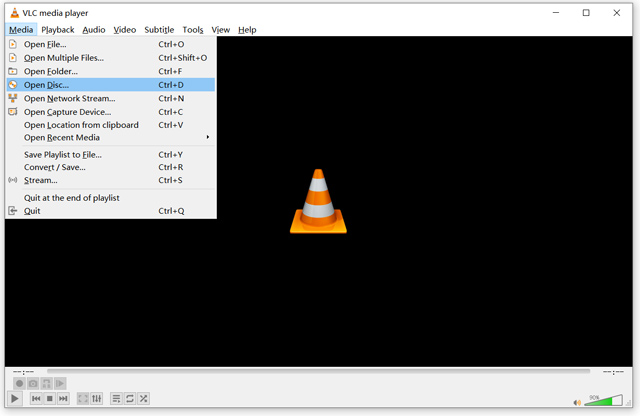
Step 2Insert your disc into your DVD drive and open VLC. Then you should click the Media menu and choose Open Disc from its dropdown.
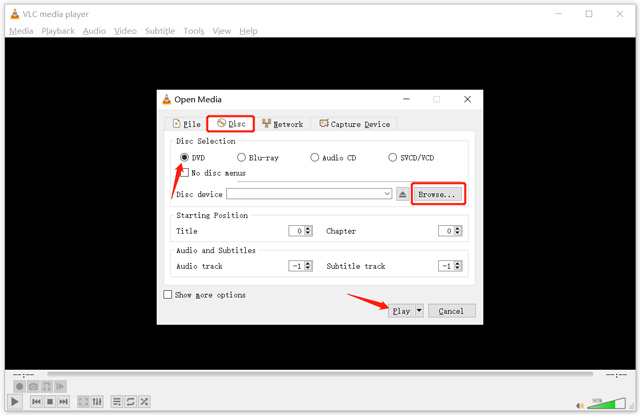
Step 3In the pop-up Open Media window, ensure DVD is selected under Disc Selection. Click the Browse button to load your DVD, then click Play to watch the DVD movie on Windows 10.
VLC Media Player has a concise and user-friendly interface to help you easily play DVDs. You get all controls of the DVD playing, just like watching other media files in VLC. Moreover, it carries many useful functions, including video and audio effects, playlist creation, and subtitle synchronization.
Part 4. How to Play DVDs on Windows 10 with 5KPlayer
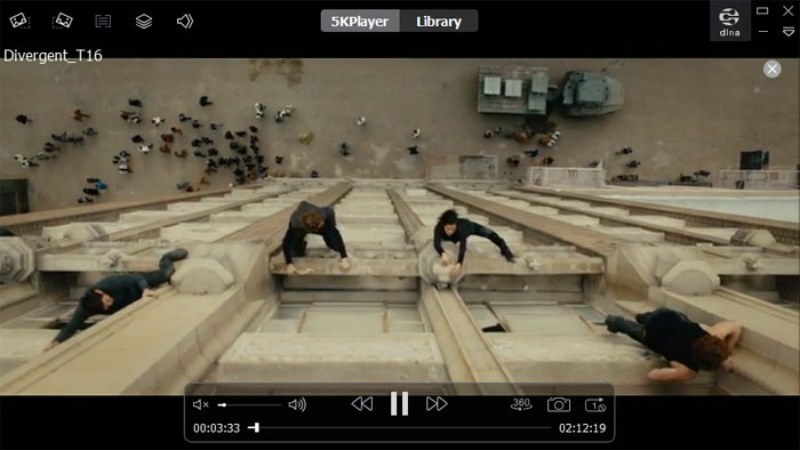
5KPlayer supports direct playback of DVD discs, folders, and ISO images on Windows 10, compatible with both NTSC and PAL formats. It features DVD menu navigation, chapter switching, and multi-audio track/subtitle selection. It is free to use, with an installer size of approximately 40–50 MB. It supports playback of up to 4K video resolution and hardware acceleration (DXVA2), offering good compatibility with standard, undamaged DVDs and those with conventional encryption.
Step 1Free download, install, and launch it on your Windows 10 PC.
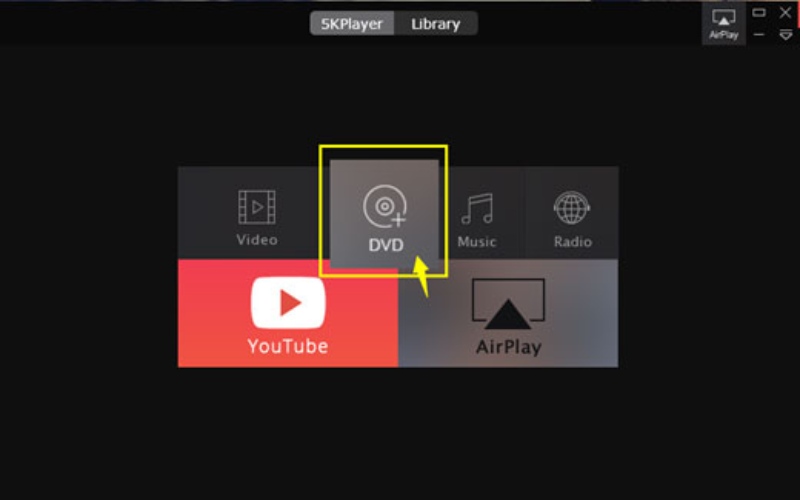
Step 2Insert the DVD disc into the DVD drive on your PC. Click on the "+ DVD" button on the main UI of 5KPlayer to start playing your DVD.
Part 5. FAQs of How to Play DVDs on a Windows 10 PC
How to deal with a DVD drive that can’t recognize?
Check whether the disc is clean and finalized, then try another DVD to rule out hardware failure. If the drive works with other discs, the issue is often disc damage or an unsupported format.
What does a DVD region code error mean?
A region code error means the DVD’s region doesn’t match the drive or player setting. You can change the drive region a limited number of times or use region-free playback software.
Why is DVD playback stuttering, and how to fix it?
Playback stuttering is usually caused by a slow optical drive, high CPU usage, or scratched discs. Close background apps, enable hardware acceleration, or rip the DVD to a file for smoother playback.
Here are four methods for playing DVDs on Windows 10. You can choose between Windows DVD Player, VLC Media Player, or AVAide Blu-ray Player based on your needs. If you're looking for a simple, high-definition DVD viewing experience, AVAide Blu-ray Player is your best choice. Download it now and experience its convenience for yourself.
Full-featured multimedia player to play Blu-rays, DVDs, 4K UHDs, and other video/audio files.