Playing Blu-ray content using a hardware Blu-ray player is a complicated method nowadays because a dedicated disc player device is increasingly outdated. Plus, some of the players are still not cheap. So, we have the best solution if you want to play the content much more efficiently. This post will give you the best method to play your Bly-ray on a PC using disc player software and a cheap disc drive (some legacy PCs may have a built-in drive). With that, you can achieve your goal without purchasing or using a dedicated disc player. Without anything else, read this post for detailed instructions on how to successfully play Blu-ray on a PC.
- Part 1. Prerequisites for Playing Blu-ray on PC
- Part 2. Play Blu-ray on PC with Great Video and Audio Quality
- Part 3. Play Blu-ray on PC Using VLC
- Part 4. Play Blu-ray on PC Using CyberLink PowerDVD
- Part 5. Play Blu-ray on PC Using PotPlayer
- Part 6. Play Blu-ray on PC Using Leawo Blu-ray Player
- Part 7. FAQs of Playing Blu-ray on PC
Part 1. Prerequisites for Playing Blu-ray on PC
Playing Blu-ray on a PC is significantly more hardware-dependent than playing a standard DVD or a digital file. Because Blu-ray uses high-level encryption (AACS) and high-bitrate data, your system must meet specific criteria to avoid "Format not supported or "Disc not detected" errors. Here are the essential prerequisites for a successful setup:
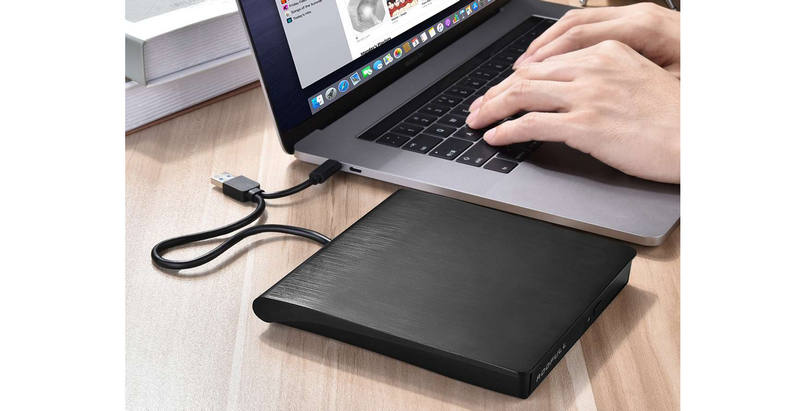
- External Disc Drive: You still need a disc drive to read your Blu-ray discs, unless you have Blu-ray ISO files. Many modern PCs and Macs don't have a built-in disc drive, so an external one is required.
- Blu-ray Player for PC: You need a player software that supports Blu-ray input, like AVAide Blu-ray Player, VLC Media Player, and Potplayer. They can not only play discs, but also support many common and rare digital media formats.
Part 2. Play Blu-ray on PC with Great Video and Audio Quality
Whether you are using Windows 11, 10, 8, or 7, your PC may not have a built-in disc player that can read Blu-ray or even 4K Blu-ray. Therefore, a versatile and widely compatible Blu-ray player is necessary. AVAide Blu-ray Player offers a premium cinematic experience for Windows and Mac users. It delivers high-fidelity video and lossless audio, ensuring every detail of your Blu-ray content is preserved. Beyond playback, the software features a user-friendly interface with advanced tools, including real-time snapshots, color adjustment, and frame cropping. It is a robust, all-in-one solution for seamless Blu-ray playback without the need for complex configurations.
- Play standard, 3D, and 4K Blu-rays seamlessly.
- Manage Blu-ray structure, chapters, subtitles, and audio tracks.
- Handle Blu-rays with old and the latest encryptions.
- Play many other popular and rare multimedia video formats.

 Secure Download
Step 1Download, install, and launch AVAide Blu-ray Player on your PC.
Step 2Insert your Blu-ray disc to your disc drive. Connect the drive with your PC.
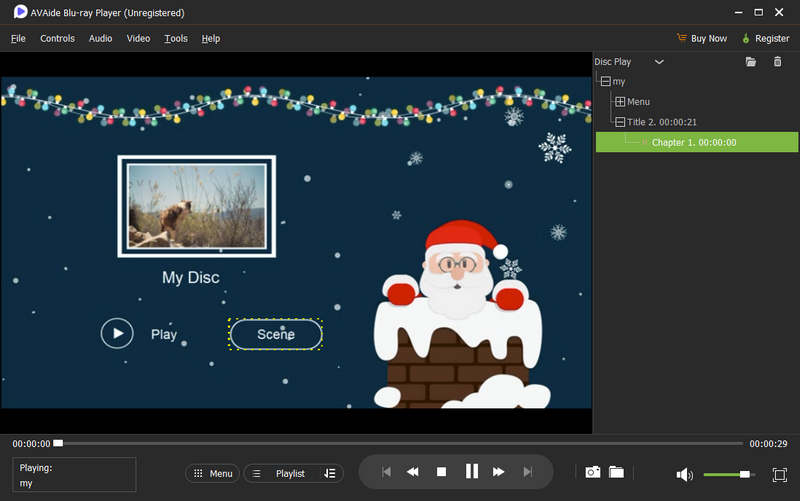
Step 3Click the Open Disc button to load your Blu-ray disc.

Step 4Now, you can watch the Blu-ray on your PC. You can also use your familiar key controls, like direction keys, space key, and ESC, to control the playback.
Part 3. Play Blu-ray on PC Using VLC
Do you prefer a free Blu-ray player for an effective Blu-ray playback? If so, use VLC Media Player. This open-source program is capable of playing your Blu-ray with a smooth process. It can also give you a good experience since it can handle various BD types, making it convenient for users. In addition to that, it can provide different functions. You can crop the video, rotate, trim, record, and more. The only drawback here is that the user interface is dull. Also, it is not capable of handling videos with high-end quality. But still, if you want to learn how to play Blu-ray/DVD on a PC, follow the methods below.
Step 1Download the VLC Media Player software on your computer. After that, you can run it to begin the Blu-ray playback process.
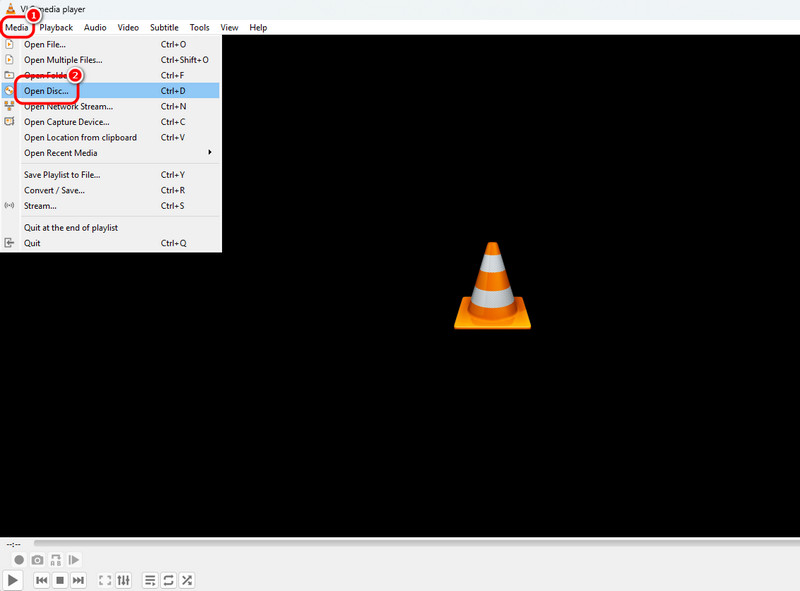
Step 2Then, go to the Media section above and hit the Open Disc option. Once done, you can start browsing the Blu-ray content you want to play.
Step 3After that, you can now watch the content from your Blu-ray. The software also has various playback controls you can navigate below, such as play, pause, volume adjuster, and more.

Part 4. Play Blu-ray on PC Using CyberLink PowerDVD
Suppose you want to play a 4K Blu-ray on your PC. Then the best software we can recommend is CyberLink PowerDVD. This 4K Blu-ray player is among the advanced software you can access on your computer. It has a smooth process of playing Blu-rays since its user interface is simple and the needed features are provided. Moreover, you can also collect various media files from this software. The program has a library section, which lets you organize your files. The only disadvantage here is that it has a slow installation process. You also must have a high-spec computer since the program is resource-intensive. See the steps below to learn how to play 4K Blu-ray on PC.
Step 1Download CyberLink PowerDVD software on your computer. After the installation procedure, you can start with the Blu-ray playback process. But before that, ensure that your Blu-ray is inserted into your computer.
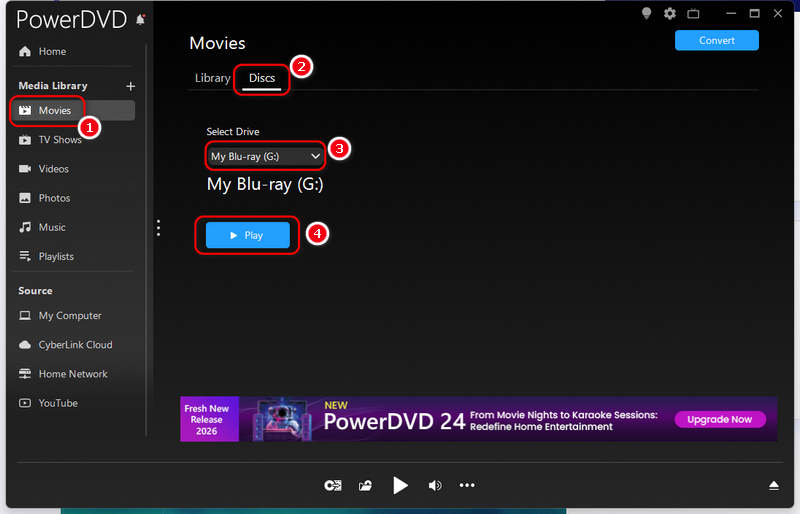
Step 2After you run the software, go to the left interface and select the Movies at left. Then, select Discs and then click the Select Drive dropdown list to select your Blu-ray drive. Then, click the Play button to start playing Blu-ray on your PC.
Step 3You can now enjoy watching your Blu-ray movie. You can control the playback with common key controls.

Part 5. Play Blu-ray on PC Using PotPlayer
PotPlayer is another great Blu-ray player that can give you better Blu-ray results. It also has a simple interface, which is perfect for non-professional users. Aside from that, you can also make some changes to the content during Blu-ray playback. You can adjust the video color, add effects and filters, add subtitles, and more. However, you must be aware that it lacks advanced features since the software is free.
Step 1Access Potplayer on your computer. After that, you can start opening the media player to play Blu-ray.
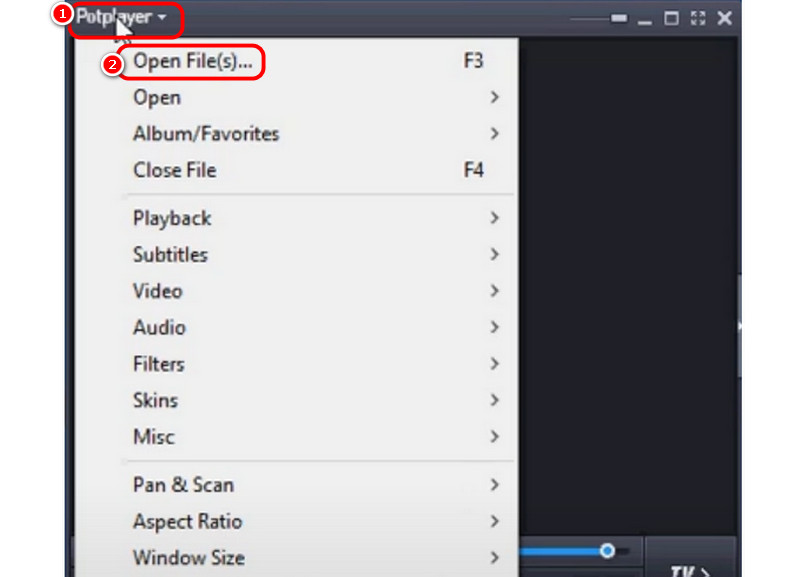
Step 2Click the PotPlayer or the dropdown button above. Then, hit the Open File option to add the Blu-ray from your device.
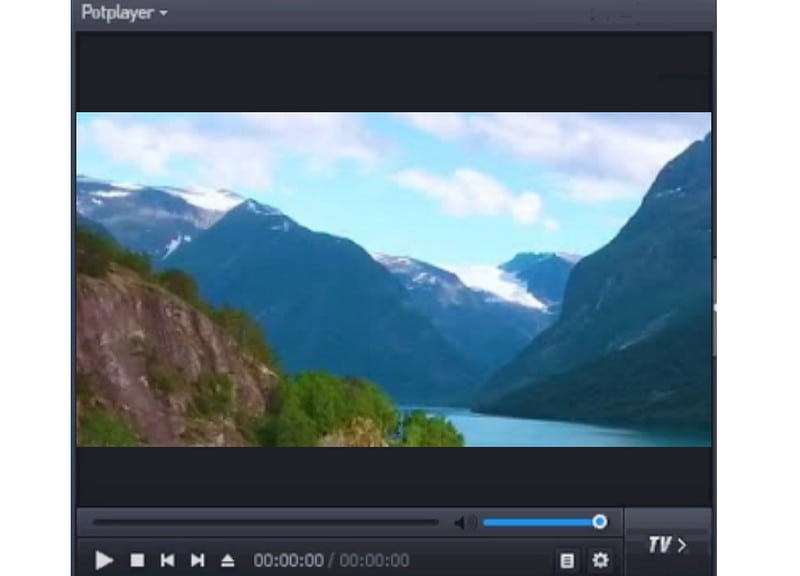
Step 3Once done, the content will appear on your screen. You can now enjoy watching your Blu-ray smoothly.
Part 6. Play Blu-ray on PC Using Leawo Blu-ray Player
You can also play Blu-ray on PC using Leawo Blu-ray Player. This is one of the best software programs for playing excellent Blu-ray content. In addition, it can also ensure tremendous audio quality since it supports Dolby and DTS technologies. The only problem is that various ads pop up on the screen every time you press any keys from your keyboard. You can check the instructions below to have an effective Blu-ray playback process.
Step 1Download and install the Leawo Blu-ray Player on your computer. Launch it after the process of installation.
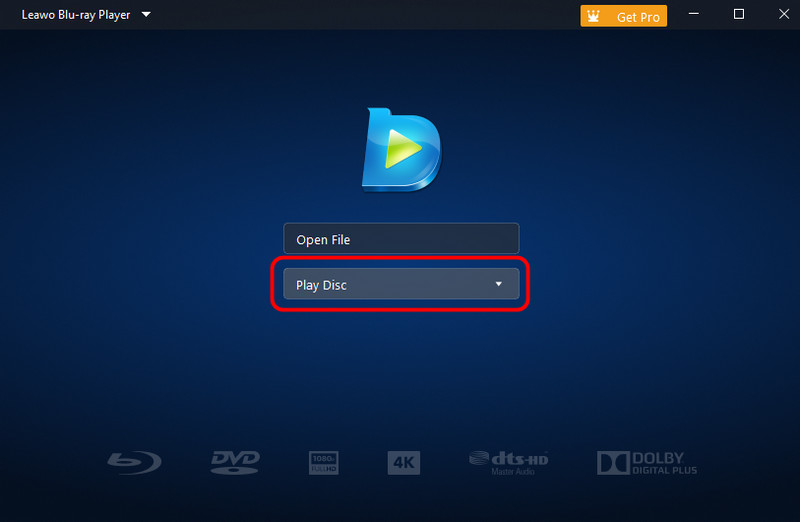
Step 2After that, click the Play Disc button from the interface to start browning the Blu-ray content.
Step 3With that, you can start watching your Blu-ray content on your computer.

Part 7. FAQs of Playing Blu-ray on PC
What is the difference between Blu-ray and 4K Blu-ray?
4K Blu-rays ' resolution is literally 4K (2160p). It uses newer HEVC compared with H.264 in standard Blu-rays. Moreover, nearly all 4K Blu-rays have newer encryptions.
Does a Windows PC have a built-in Blu-ray player?
No, Windows PCs do not come with a built-in Blu-ray player, neither in terms of hardware nor software.
What is the difference between a Blu-ray drive and a Blu-ray player?
A Blu-ray drive works as a bridge between your discs and TV or PC. It reads Blu-rays and let your displays play them. A Blu-ray player hardware has a display and can directly play Blu-rays without other devices or connections.
Thanks to this guidepost, you have learned how to play Blu-ray on PC quickly and effectively. You can use this post as a reference to achieve your desired result. Also, if you want outstanding video and audio quality when playing Blu-rays, use AVAide Blu-ray Player. It can also offer all the required features and functions for a smooth Blu-ray playback.
ABOUT THE AUTHOR

Full-featured multimedia player to play Blu-rays, DVDs, 4K UHDs, and other video/audio files.