Can't get your Blu-ray discs to work on your MacBook? You aren't alone. While the crisp Retina display is ideal for high-definition movies, macOS requires a little extra help to recognize physical media. In this article, we've rounded up 3 effective methods and 4 specific ways to play Blu-ray on Mac with ease. From setting up a compatible external drive to digitizing your library for hardware-free viewing, you'll find everything you need to transform your Mac into a high-end personal theater.
Part 1: 3 Types of Ways to Play Blu-ray on Mac
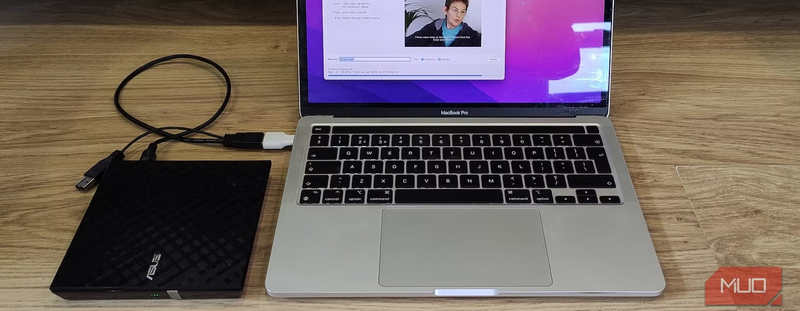
1. Use a Disc Drive and Blu-ray Player Software
Some old Mac models have a built-in disc drive that can play DVDs and Blu-rays, but modern models don't have it. Therefore, you need to buy, rent, or borrow one. When you have a disc drive, you can:
- 1.Connect the disc drive to your Mac via USB (Maybe you need a USB to USB 3.0 adapter)
- 2.Insert your Blu-ray disc to the drive.
- 3.Play the Blu-ray disc with Blu-ray player software on Mac.
2. Digitize Blu-ray to Digital Format
Still, you need a disc drive. You can insert the disc into the drive, and use a Blu-ray ripper program to convert the Blu-ray to a digital format, like MOV, MP4, or ProRes. If you pursue lossless quality, you can convert Blu-ray to MKV.
You May Need to Know: Although lossless MKV can offer original quality, the file size is large. Therefore, a format with HEVC/H.265 codec is more recommended.
3. Redeem Digital Copy of Your Blu-ray Movie
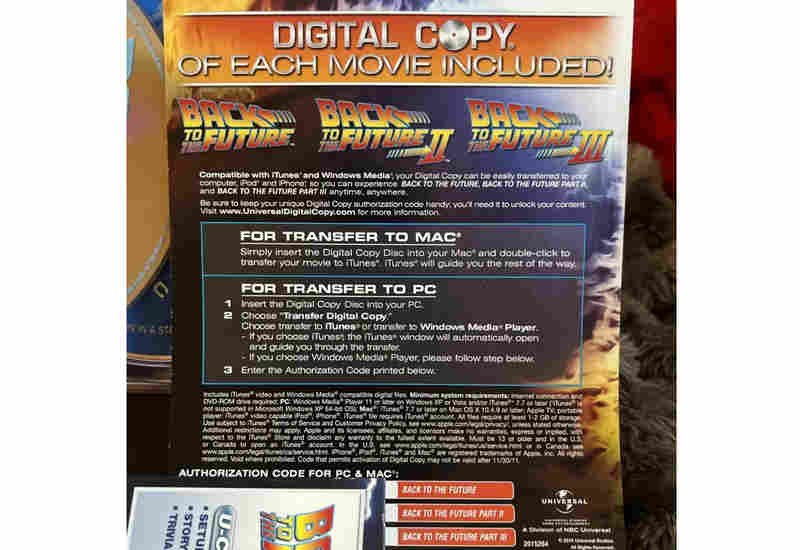
A digital redeem code is a unique 12 or 16-digit code printed on a paper insert found inside the packaging of a new Blu-ray or 4K UHD disc. You can follow the guide to visit a specific website or program, and then enter the code to add the movie's digital copy to your personal library in the platform. Then, you can directly watch the Blu-ray movie on your Mac.
Part 2: Play Blu-ray on Mac with Blu-ray Player Software
For a seamless cinematic journey, we recommend two powerhouse Blu-ray players for Mac: VLC Media Player and AVAide Blu-ray Player for Mac. Both are fully optimized for Apple Silicon, utilizing advanced hardware acceleration to decode massive Blu-ray files without breaking a sweat. You can enjoy whisper-quiet performance and crystal-clear visuals without worrying about your Mac heating up during long movie nights.
1. AVAide Blu-ray Player for Mac
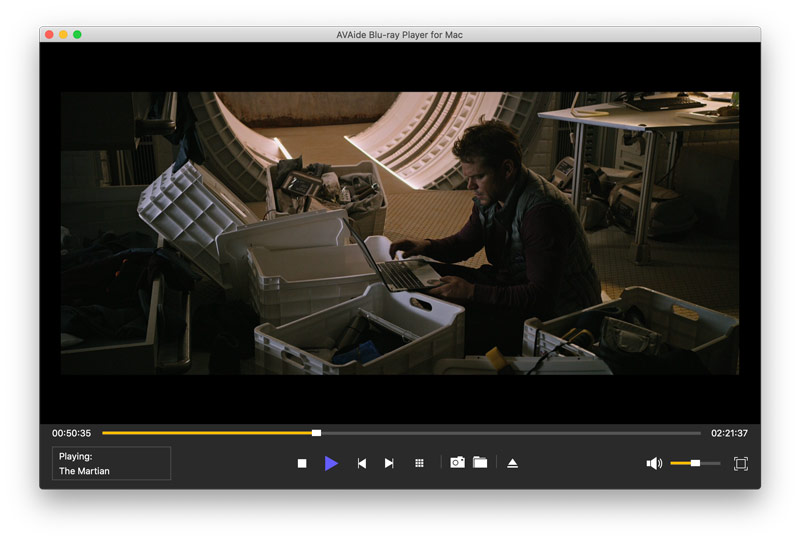
If you're looking for the easiest way to play Blu-ray on Mac without the technical headaches, AVAide Blu-ray Player for Mac is your go-to choice. Designed with a sleek, intuitive interface, it brings 4K and 1080p HD Blu-ray movies to life with stunning clarity and theater-quality sound. Whether you're a tech pro or a complete beginner, the setup is instant. You can effortlessly manage playlists, take snapshots of iconic movie moments, and customize your audio settings for a truly personalized home theater experience, all with just a few clicks.
- Support full GPU acceleration to play Blu-ray discs smoothly.
- Support Blu-rays, 3D Blu-rays, and 4K Blu-rays with encryptions.
- Analyze the disc to let you manage the disc titles, chapters, subtitles, and audio tracks.
- Quickly recognize Blu-rays and provide smooth playback on scratched or blemished discs.
How to Play Blu-ray on Mac with AVAide Blu-ray Player:
Step 1Insert Blu-ray into the Disc Drive
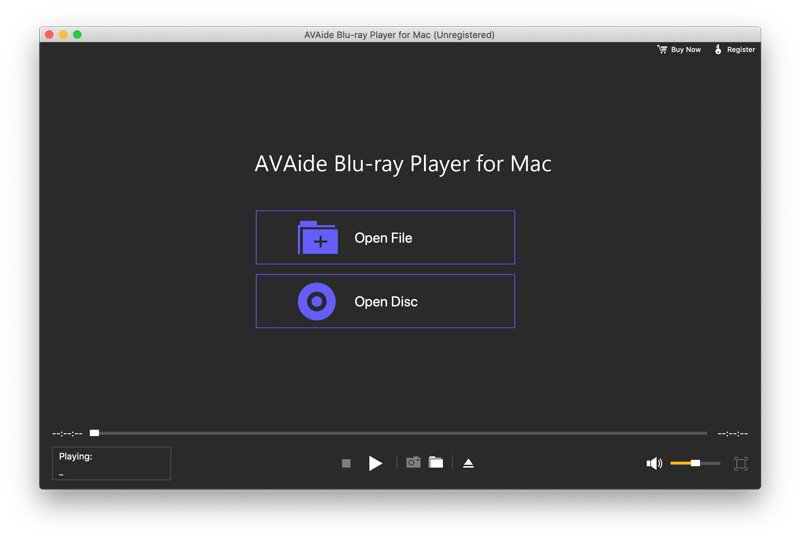
Download, install, and launch AVAide Blu-ray Player for Mac on your Mac computer. Insert your Blu-ray into your drive and connect it to your Mac. Click the Open Disc button to load your Blu-ray.
Step 2Select your Blu-ray to Play
Select the disc drive on the prompt panel. Then, this Blu-ray player software will start playing your disc.
- Click your disc drive in the bottom left corner to access each chapter in the Blu-ray.
- Use your common key controls to control the Blu-ray playback, like Space for pause and resume, Left for backward, and Right for fast forward.
2. VLC Media Player
VLC (VideoLAN Client) is a premier open-source solution for playing Blu-ray on Mac. While the integration of the libbluray project has enabled Blu-ray support, Mac users often encounter a significant catch. While VLC excels at playing DRM-free or homemade Blu-rays, it frequently struggles with commercial discs protected by AACS and BD+ encryption. Understanding these library limitations is the first step toward achieving seamless Blu-ray playback on your Mac.
How to Play 4K Blu-ray (Encrypted Blu-ray) on Mac with VLC:
Step 1Download VLC Media Player
Visit Videola.org and download the latest VLC version for the Mac operating system. Install it on your computer.
Step 2Download Blu-ray Decryption Files
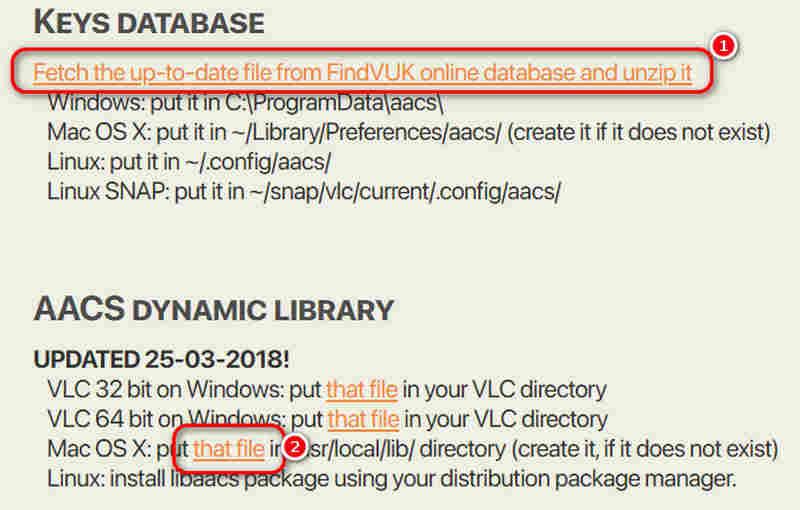
- Visit fvonline-db.bplaced.net/ to download a keybd.cfg file that suits your language (you should unzip it).
- Visit vlc-bluray.whoknowsmy.name to download libaacs.dylib (for Mac computer).
- Some antivirus services may flag these two webpages as a security risk. At AVAide, we prioritize your safety and advise against forcing a visit or downloading files if your security software blocks access.
- Put the keybd.cfg in ~/Library/Preferences/aacs/ (create it if it does not exist).
- Put the libaacs.dylib file in /usr/local/lib/ directory (create it, if it does not exist).
Step 3Play Blu-ray with VLC on Mac
- 1.Connect your external Blu-ray drive to your Mac and insert the disc. Launch VLC.
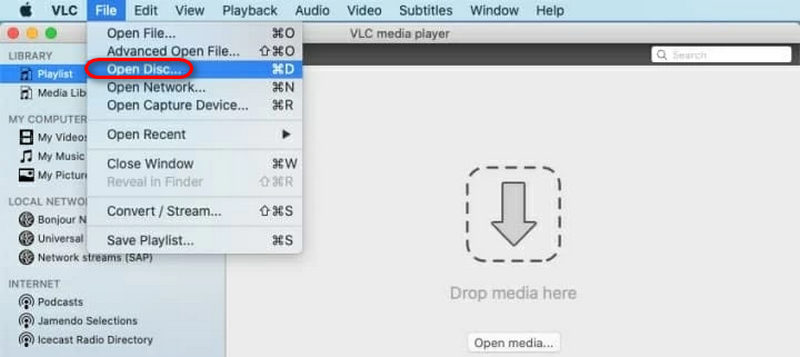
- 2.Go to File > Open Disc.
- 3.In the dialog box, select the Blu-ray tab. Click Open.
- You can select no disc menus if you encounter playback errors.
Part 3: Play Blu-ray on Mac by Digitizing the Disc
If you have a problem decrypting 4K Blu-rays with VLC, you can use a Blu-ray ripper on Mac to rip the Blu-ray to a digital format like MOV and MP4. Then, you can easily play Blu-ray movies on Mac without restriction.
For Mac users seeking a reliable Blu-ray to digital converter, Tipard Blu-ray Converter stands out as a top-tier choice. This versatile software handles the heavy lifting of decryption and conversion, turning physical discs into 1080P/4K videos or lossless MKV files. It provides the flexibility to fine-tune technical specifications like bitrate and codec settings, ensuring no loss in visual fidelity. Therefore, you can try digitizing your Blu-ray for a smooth playback on macOS.
Step 1Download and Install Tipard Blu-ray Converter on your Mac.

FREE DOWNLOAD For Windows 7 or later
 Secure Download
FREE DOWNLOAD For Mac OS X 10.13 or later
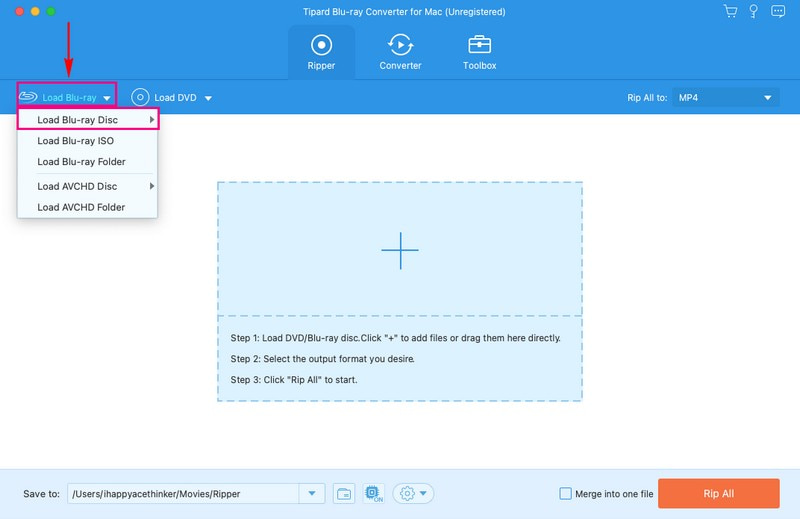
Secure DownloadStep 2Connect your Blu-ray drive to the Mac and insert the Blu-ray disc. Launch Tipard Blu-ray Converter. Hit the Load Blu-ray drop-down menu, and select Load Blu-ray Disc to load your Blu-ray content.
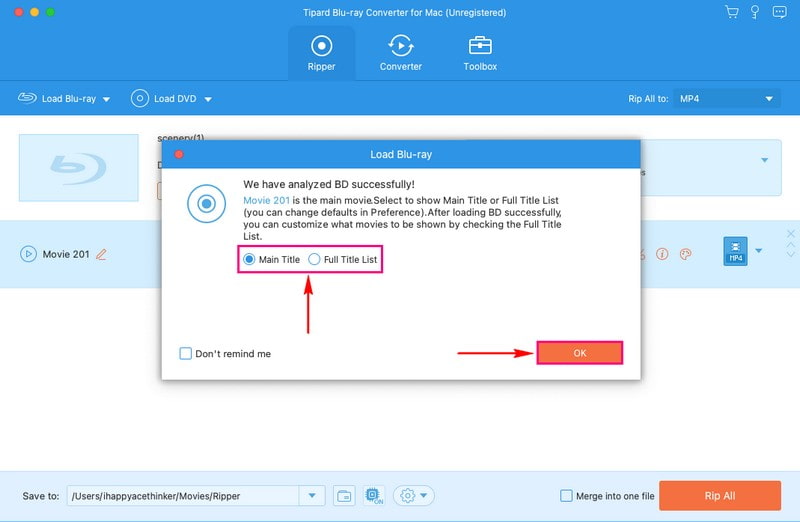
Step 3Select Main Title or Full Title List once Tipard Blu-ray Converter finished analyzing the Blu-ray content. Once chosen, click the OK button to proceed.
Step 4Click the Rip All to drop-down menu to access video formats. You can choose from MP4, MOV, MKV, AVI, WMV, WEBM, and more. Pick the format that suits your playback device or preference.
If you are not okay with the default settings, click the Cogwheel button. Here, you can customize video and audio settings, such as resolution, bitrate, etc. Once settled, click the Create New button to confirm the changes.
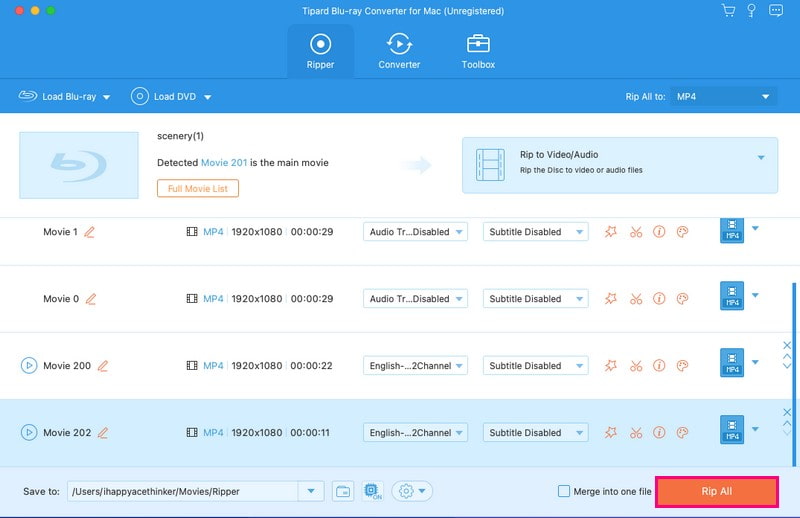
Step 5Once done with your task, press the Rip All button to convert your Blu-ray content to a video format.
Part 4: Play Blu-ray on Mac with a Redeem Code
Using a Redeem Code is one of the most convenient ways to play high-definition Blu-ray content on your Mac without needing a physical disc drive. This method typically involves digital copies bundled with physical Blu-ray purchases or promotional codes from digital retailers. It allows you to get the Blu-ray movie in a digital library, and then you can stream or download it across different devices that can access the library.
Steps to Play Blu-ray on Mac with a Digital Copy Code
Step 1Locate Your Redeem Code
Find the insert inside your Blu-ray physical packaging. It usually contains a 12 to 16-digit alphanumeric code and a specific URL (such as moviesanywhere.com, vudu.com, or a studio-specific site).
Step 2Choose Your Redemption Platform
Depending on the studio (Universal, Warner Bros, Disney, etc.), you will generally use one of the following platforms:
- The Apple TV App: The most native way for Mac users.
- Movies Anywhere: A popular service that syncs your library across Apple, Google, and Amazon.
- Studio Websites: Direct redemption portals provided by the film distributor.
Let's take Apple TV App as an example, follow these steps:
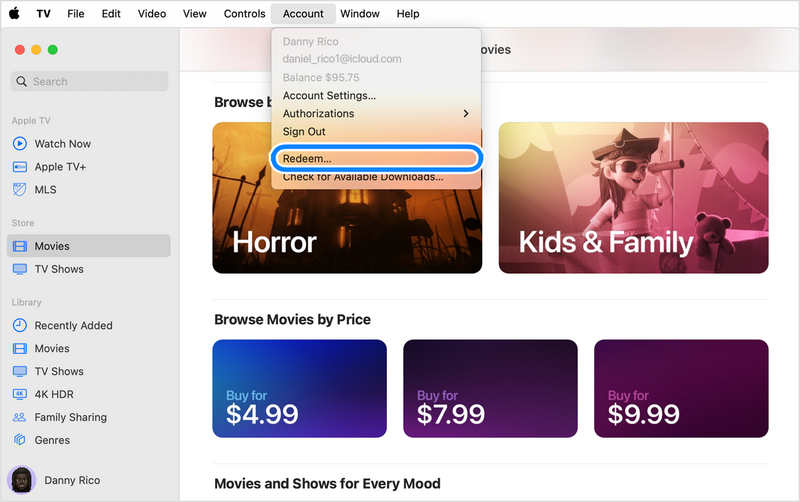
- 1.Open the Apple TV app on your Mac. Click on Account in the top menu bar.
- 2.Select Redeem from the dropdown menu. Enter your Apple ID password if prompted.
- 3.Enter the code manually or use your Mac's camera to scan the code.
- 4.Click Redeem, and the movie will be added to your Library.
Step 3Redeem the Code on Your Mac
Step 4Stream and Download Blu-ray Movie on Mac
Once redeemed, you can find the movie under the Library tab in the TV app.
To Stream: Simply click the Play button to watch Blu-ray movie on Mac.
To Download: Click the Download button (with a cloud icon).
Part 5: FAQs about Playing Blu-ray on Mac
Can QuickTime Player play Blu-ray?1
No, QuickTime Player cannot play Blu-ray discs. it lacks the necessary decryption licenses (AACS/BD+) and the codec support required to read physical Blu-ray data.
What happens if you put a 4K Blu-ray in a regular Blu-ray player?
In most cases, you will see a message like "Unknown Disc", "Disc Error", or the player will simply eject the disc after trying to read it. A regular Blu-ray player cannot open 4K Blu-rays.
Is it worth buying Blu-ray over streaming?
Buying Blu-ray over streaming is worth it if you prioritize quality, ownership, and reliability. Otherwise, streaming is a better choice.
This article explains 4 ways to play Blu-ray discs on a Mac computer. Usually, you'll need a Blu-ray player on Mac and a disc drive to directly play a disc. AVAide Blu-ray Player can easily decrypt 4K Blu-rays and offer stutter-free playback with excellent GPU acceleration. Also, you can rip your Blu-ray to a digital format so that you can play it anytime. If your Blu-ray disc has a redeem code, you can use it to get a digital copy to play directly on your Mac.
ABOUT THE AUTHOR

Full-featured multimedia player to play Blu-rays, DVDs, 4K UHDs, and other video/audio files.