Can a laptop play Blu-ray discs? The short answer is yes! However, since most new laptops do not have disc drives, you will need a few extra tools to make it work. Also, some Blu-ray discs have encryptions and region codes, which will make the playback fail. If you want to enjoy the amazing picture and sound of Blu-ray on your computer, you are in the right place. This simple guide will show you exactly what you need to do, step by step.
Part 1: Things to Prepare for Laptops to Play Blu-ray
To watch Blu-ray movies on your laptop, you cannot just pop the disc in and press play. Most modern laptops have abandoned the internal Blu-ray player (optical drive). Here are the three essential things you need to prepare:
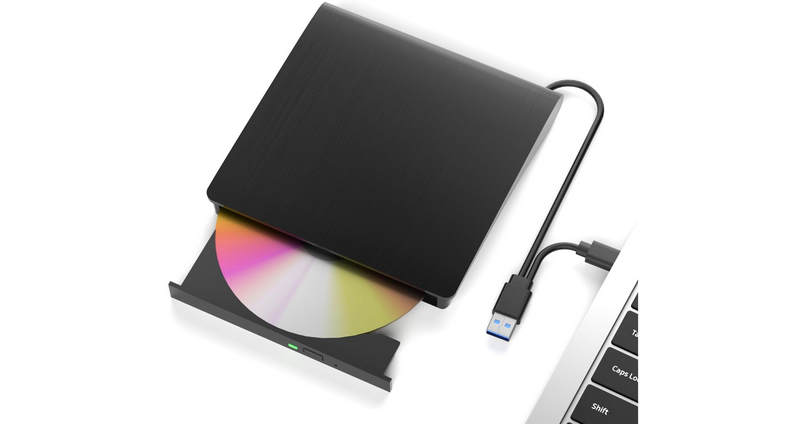
1. An External Blu-ray Disc Drive
Most new laptops do not come with a Blu-ray player disc drive at all. Standard DVD drives cannot read Blu-ray discs because they use different laser technology. You will need to buy an external Blu-ray disc drive that plugs into your laptop using a USB cable. You can easily find these online for a reasonable price.
2. Blu-ray Player Software
Windows Media Player or Mac's QuickTime cannot play Blu-ray movies on their own. You need specialized Blu-ray player software, like AVAide Blu-ray Player and VLC Medi Player. They can fully decode the audio and video in Blu-rays to ensure seamless playback.
3. A Way to Bypass Copy Protections
This is the trickiest part. Almost all commercial Blu-ray discs have strong copy protection (like AACS or BD+) to stop piracy. Standard media players cannot read these protected discs. To fix this, your player software must be able to bypass or decrypt these protections automatically. For example, if you use VLC to play Blu-ray on your laptop, you'll need to manually install decryption files (perhaps even manually compile some files).
Part 2: Play Blu-ray on Laptop with the Best Blu-ray Player
If you want to play Blu-ray on your laptop, the best choice is AVAide Blu-ray Player. It is truly the best Blu-ray player for a laptop recommended for anyone, as it is beginner-friendly. It allows you to watch Blu-ray discs, ISO files, or folders with full menus and the original resolution. The playback is high quality with no delay. It also supports Dolby Digital and DTS audio, so the sound is clear and powerful.
Key Features:
- High-Quality Video Support - Enjoy videos in 720p, 1080p Full HD, and 4K Ultra HD with support for MP4, AVI, MKV, MOV, WMV, and more.
- Instant Screenshot - Capture your favorite scenes while watching.
- Custom Playlist - Arrange your videos the way you like and enjoy seamless viewing.
- Flexible Playback Control - Play, pause, stop, fast forward, rewind, and boost volume easily.
- Advanced Hardware Support - Works with AMD, Intel, and NVIDIA technology for smooth playback.
Here is how a laptop plays Blu-ray work using AVAide Blu-ray Player:
Step 1First and foremost, download and install AVAide Blu-ray Player on your laptop. If your laptop does not have a built-in Blu-ray drive, you will need to connect an external Blu-ray drive. Make sure the drive is compatible with your laptop and properly connected.

FREE DOWNLOAD For Windows 7 or later
 Secure Download
FREE DOWNLOAD For Mac OS X 10.13 or later
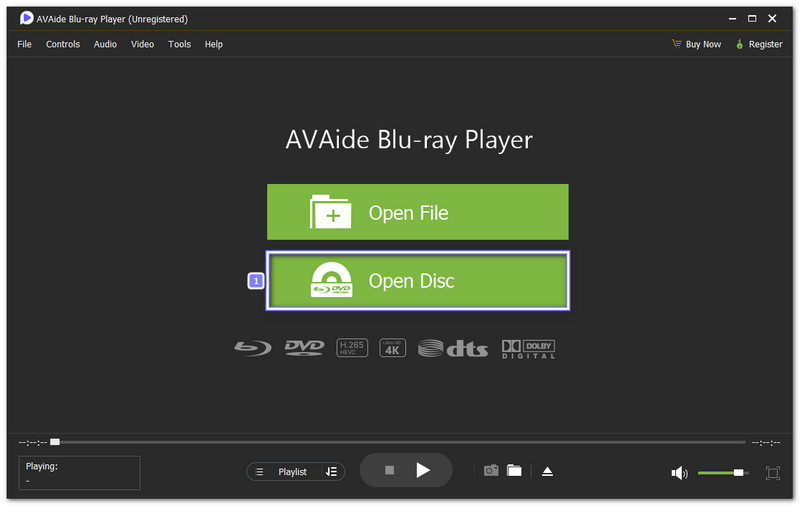
Secure DownloadStep 2 Put your Blu-ray disc into the drive and launch AVAide Blu-ray Player. Good thing, it will recognize the disc without any extra effort. What you need to do now is click the Open Disc button.
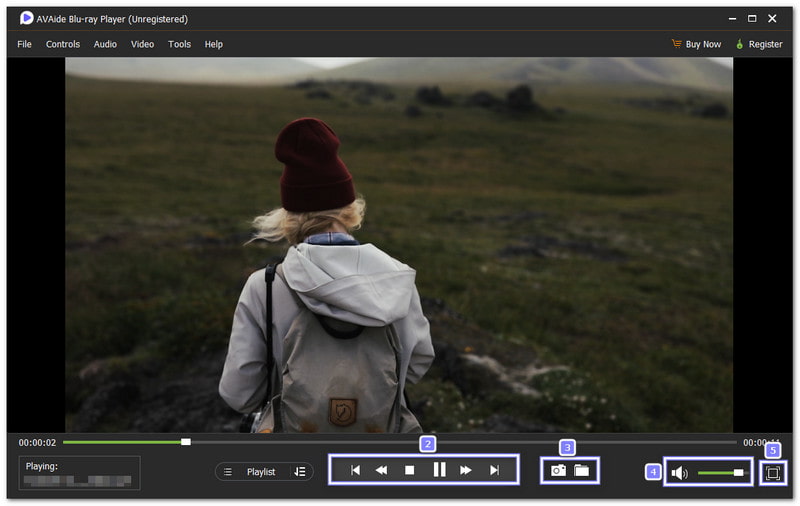
Step 3Your content will play automatically, and you have full control over your viewing experience. You can pause, stop, or resume the movie anytime. The player also allows you to take screenshots, boost the volume, or resize the preview screen. It makes watching your favorite Blu-ray movies on a laptop smooth and enjoyable.
With AVAide Blu-ray Player, you will never encounter the "my Blu-ray player says format not supported" issue, as it supports all Blu-ray formats for smooth playback.
Part 3: How to Play Blu-ray on Laptop with VLC
VLC Media Player works on Windows 11, 10, 8.1, and 7, showing that playing Blu-ray discs on laptops is an easy yes. You can play discs straight from your drive, browse the content, choose chapters, and control playback with ease. You can also pause, play, stop, or boost the volume while watching.
Key Features:
- Free and Lightweight - No cost, simple to install and use.
- Supports Many Formats - Play MP4, MKV, AVI, MOV, WMV, and more.
- Subtitle Support - Add and sync subtitles easily while watching movies.
- Video Effects - Change brightness, contrast, and add simple filters to videos.
- Smooth Playback Control - Easily play, pause, stop, skip forward or backward, and change the volume.
Step 1Get VLC Media Player on your device. Make sure to get the official version from the VLC website to avoid any issues. After installation, launch the program to start the Blu-ray playback process.
Step 2Connect your Blu-ray drive to your laptop if it is not built-in. Then, insert the Blu-ray disc you want to watch. Make sure the disc is clean and properly seated in the drive.
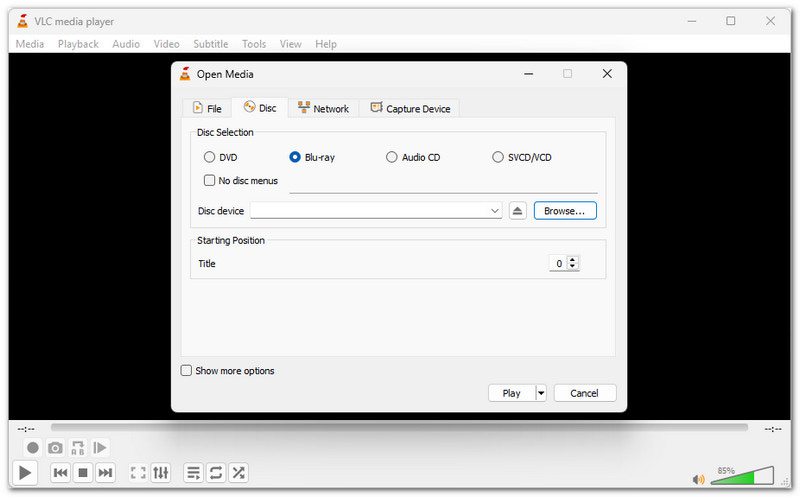
Step 3Click the Media button at the top left of VLC Media Player and click Open Disc. From there, select Blu-ray and choose the disc from your drive. It will load the movie and allow you to browse its content.
Step 4Once loaded, your Blu-ray movie will start playing. Use the buttons at the bottom to control playback. You can play, pause, stop, or boost the volume. In addition, it lets you navigate chapters if available, making it easy to watch your favorite parts anytime.

Note: If your Blu-ray movie has subtitles and you experience a VLC subtitle delay, check if they appear too early or too late. Then, press H to delay or G to advance by 50 ms. Please adjust until they match the audio.
Part 4: How to Play Blu-ray on PC Without a Blu-ray Drive
Yes, laptops can play Blu-ray discs, even without a Blu-ray drive. By converting the disc to a digital format with the help of Tipard Blu-ray Converter, you can still watch your movies with ease.
This program can turn Blu-ray discs into MP4, MKV, MPG, AVI, MOV, and more, so you can watch them on any media player. In addition, it has 30× faster ripping speed and 3-level GPU acceleration. It helps the ripping process finish fast while keeping high video clarity.
Key Features:
- Trim Clips - Cut unwanted parts and keep only what you need.
- Edit Videos - Crop, rotate, and apply effects to your videos easily.
- Media Metadata Editor – Edit video information such as title, cover, and description.
- Enhance Quality - Upscale resolution and adjust brightness and contrast for better video.
- Modify Output Settings - Fine-tune video and audio settings like encoder, bitrate, and sample rate.
Step 1First of all, download and install Tipard Blu-ray Converter on your computer. Once set up, launch it. Then, insert your Blu-ray disc into an external drive if your computer does not have a built-in Blu-ray drive.
FREE DOWNLOAD For Windows 7 or later
Secure DownloadFREE DOWNLOAD For Mac OS X 10.13 or later
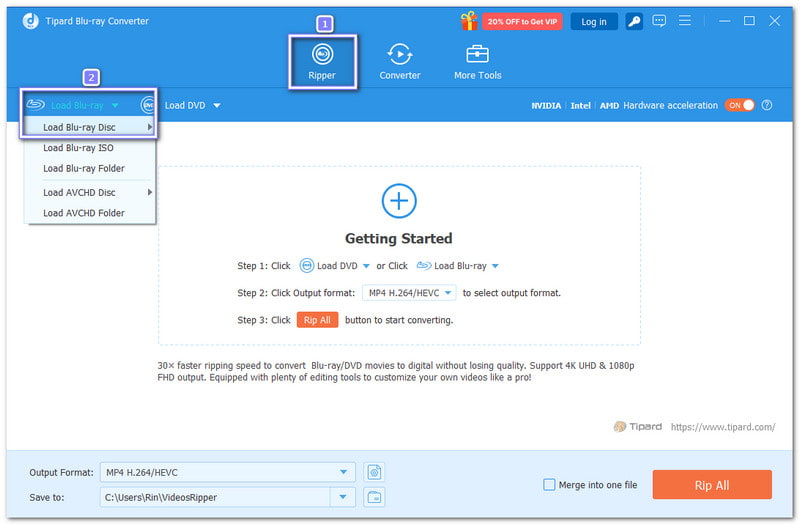
Secure DownloadStep 2On the program's interface, click Load Blu-ray > Load Blu-ray Disc in the upper-left corner. It will load your disc and prepare it for ripping.
Step 3You can choose either the Main Title or the Full Title List. Picking only the parts you need saves storage space and speeds up the ripping process.
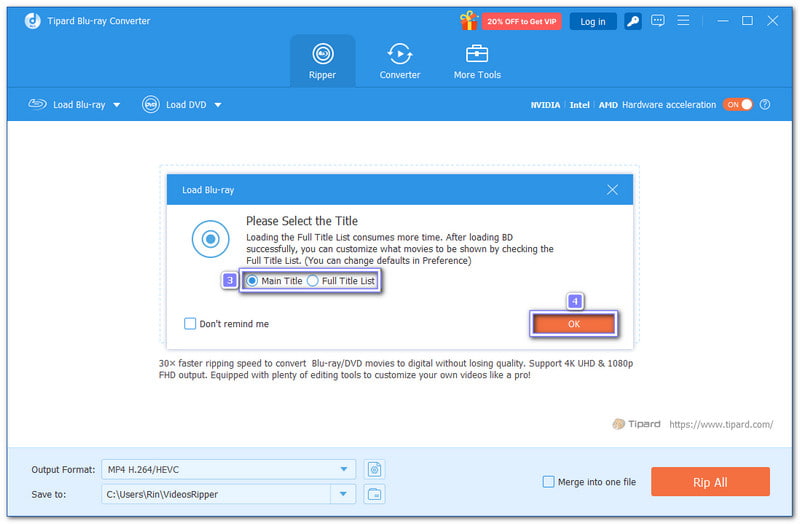
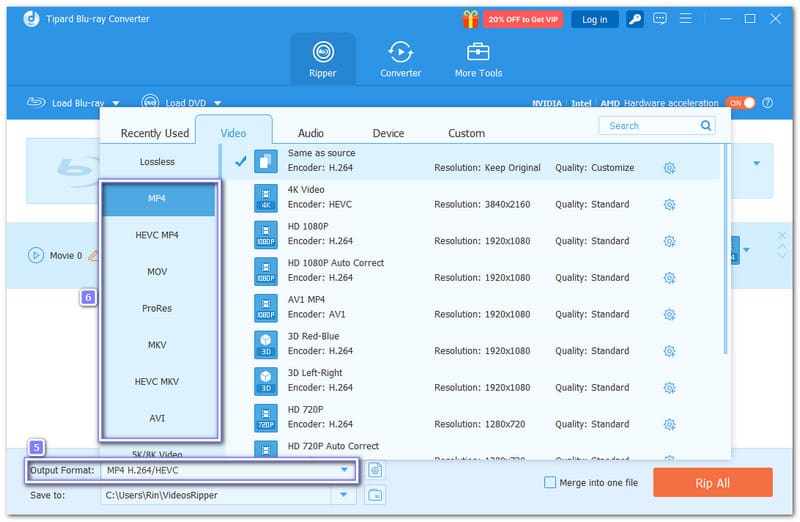
Step 4Let us proceed to selecting your output format. Open the Output Format drop-down menu in the lower-left corner.
Common formats like MP4, MOV, MKV, AVI, and WMV are supported by most media players, and Tipard Blu-ray Converter supports them all. You can type the format name in the find box or scroll through the list to select one that works with your media player.
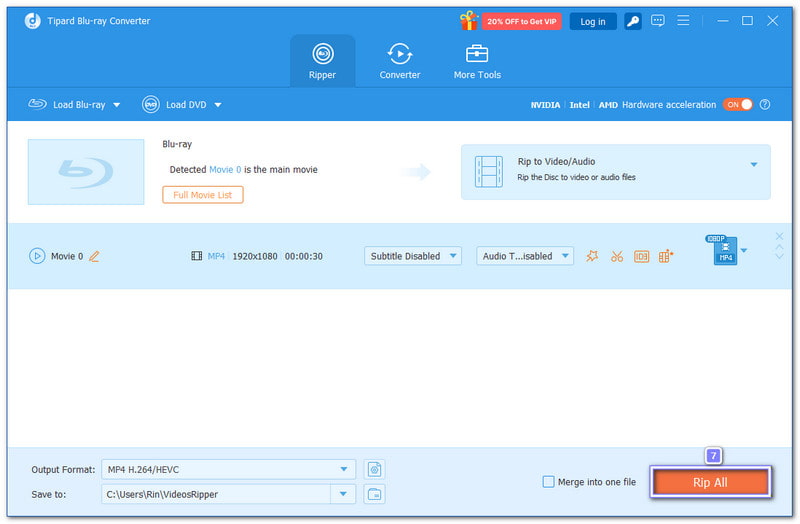
Step 5Once everything is settled, click the Rip All button in the bottom-right corner. Tipard Blu-ray Converter will start converting your Blu-ray into digital files.
Once the process is finished, you can play your Blu-ray content on any computer media player without needing a Blu-ray drive. It really makes it simple to enjoy your movies anytime.
Part 5: FAQs of Laptop Play Blu-ray
Why won't my Blu-ray play on my laptop even after connecting an external drive?
This is usually a software or encryption issue. Unlike DVDs, Windows and macOS do not include native decoding support for commercial Blu-ray discs out of the box due to strict copy protection (like AACS encryption). To fix this, you need a professional media player equipped with decryption capabilities, such as AVAide Blu-ray Player, which can bypass region codes and protections to play the disc smoothly.
Do Blu-rays have digital copies?
Yes, some official bought Blu-rays may have digital copies with codecs. You can enter the codes on some streaming platforms, like Netflix, Apple, and Fandago at Home, and then you'll own the movie in your account.
Do legacy laptops have built-in Blu-ray drives?
Yes, many legacy laptops have built-in disc drives that can play Blu-rays and DVDs. In the past, when you bought a laptop, the seller might have given you an external drive.
This article tells you how to play Blu-ray discs on your laptop or PC. You'll need a disc dive (whether built-in or external) and a reliable Blu-ray player for laptop, such as AVAide Blu-ray Player and VLC. AVAide can automatically bypass encryptions and region codes, while VLC requires your manual decryption.
ABOUT THE AUTHOR

Full-featured multimedia player to play Blu-rays, DVDs, 4K UHDs, and other video/audio files.