While saving Blu-ray collections as ISO image files is the gold standard for digital preservation, playing them back on a PC isn't always a plug-and-play experience. Unlike standard MP4 or MKV files, a Blu-ray ISO is a complex container that requires specialized software to handle its high-bitrate data, encrypted structures, and interactive disc menus.
What's worse, many users ever encountered compatibility errors or struggled with a player that skips the cinematic menus. The challenge isn't just playing the Blu-ray ISO file, it's maintaining the original, lossless quality and the seamless navigation of the physical disc.
In this guide, we will show you exactly how to play Blu-ray ISO on PC without restriction or error. From professional-grade software to high-performance free alternatives, here are the best tools to unlock your digital library and bring the cinema experience to your desktop.
Part 1: The Best Way to Play Blu-ray ISO on PC with Best Video Quality
Supports not only Blu-ray discs but also ISO files and folders, AVAide Blu-ray Player lets you enjoy any physical movies. This player can play Blu-ray ISO on PC while ensuring your media comes to life with crystal-clear resolution, supporting 4K UHD and 3D Blu-rays. It's full hardware acceleration of NVIDIA, AMD, and Intel can play large Blu-ray ISO files seamlessly without taking too much CPU or RAM resources. It also allows you to access and manage Blu-ray titles and chapters. You can easily choose your desired chapters in the Blu-ray ISO.
AVAide Blu-ray Player's playback controls are simple and flexible. You can pause, fast-forward, rewind, or easily adjust the volume. Plus, it supports seamless navigation so you can skip between scenes or chapters smoothly. Thanks to advanced technology, it uses hardware decoding from AMD, Intel, and NVIDIA to ensure smooth, stable, high-quality playback without lag or buffering.
- Play simple, 4K, and 3D Blu-ray ISO on PC with ease.
- Provide full GPU acceleration to open large ISO images effortlessly.
- Offer a user-friendly playlist and convenient playback controls.
- Easily manage and adjust Blu-ray titles, chapters, subtitles, audio tracks, and more, in your Blu-ray ISO file.

 Secure Download
How to Play Blu-ray ISO with AVAide Blu-ray Player
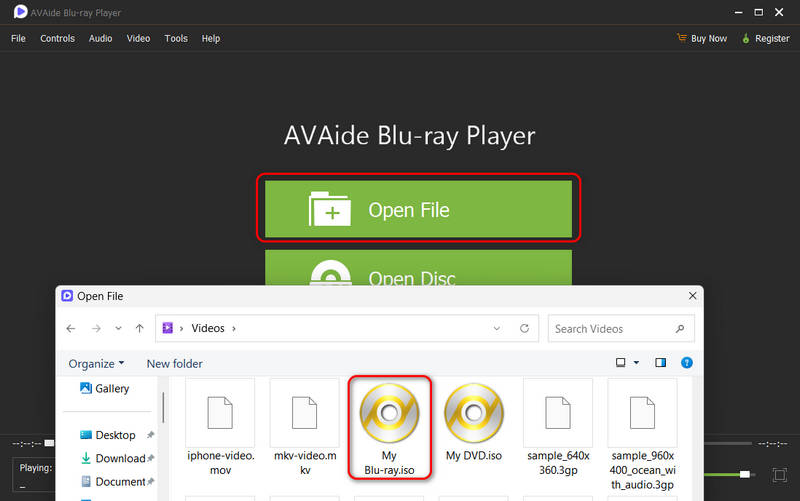
Step 1Load Your Blu-ray ISO File
Download, install, and launch AVAide Blu-ray Player on your PC. Click the Open File button, and then select your Blu-ray ISO file.
Step 2Play Your Blu-ray ISO Movie
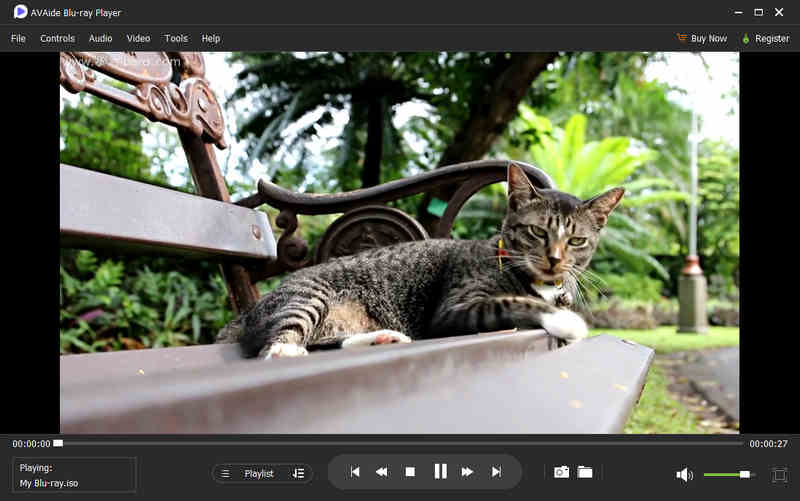
AVAide Blu-ray Player will automatically start playing the Blu-ray ISO you selected. The playback will be smooth and deliver excellent video and audio quality. To make the most of your viewing experience, use the built-in playback controls below the video screen.
Playback controls and additional features include:
- Play/Pause: Start or stop the video anytime.
- Fast Forward/Backward: Skip ahead or revisit a scene quickly.
- Volume Slider: Adjust the sound to your liking, whether you want it louder or quieter.
- Camera Button: Take snapshots of your favorite scenes while watching.
- Wide Screen Button: Switch to full-screen mode for a more immersive experience.
With AVAide Blu-ray Player, watching your Blu-ray ISO files in the best quality is simple and enjoyable. Besides Blu-ray ISO files, you can also use it to play DVD and other video formats. Happy viewing!
Part 2: Play Blu-ray ISO on PC with VLC Media Player
VLC Media Player is an extremely popular tool that makes playing Blu-ray ISO files on your computer simple and convenient. Aside from playing videos, this media player allows you to add subtitles and play files directly from a network or web stream. However, while it can play Blu-ray ISO files, it does not support Blu-ray menus, so navigating through chapters or special features might be tricky.
Step 1Open the VLC Media Player.
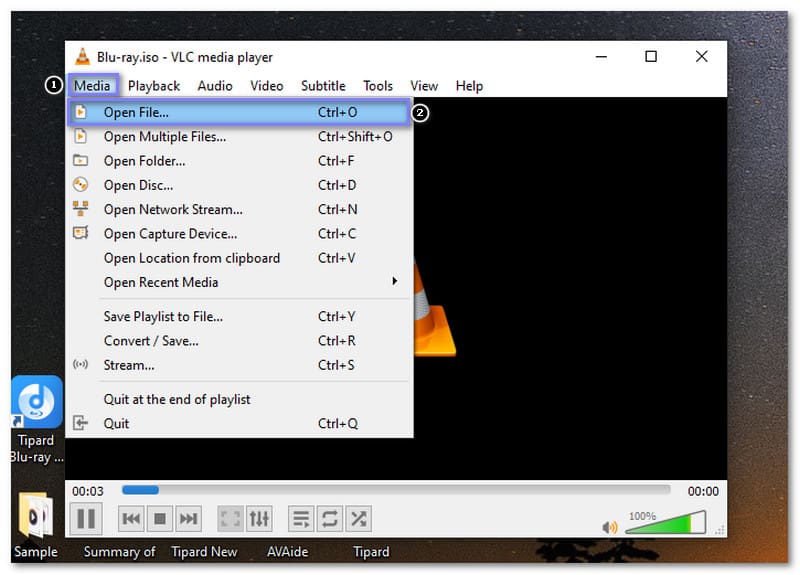
Step 2At the top of the VLC window, click on the Media menu. From the drop-down list, select Open File.
Step 3A window will pop up, similar to a browser. Please navigate through your computer to search your Blu-ray ISO file. Once you locate the ISO file, click on it to select it. Then, press the Open button.
Step 4VLC will start playing your Blu-ray ISO file immediately. You can use the playback controls at the lower window to pause, skip, or adjust the volume.
Part 3: How to Play Blu-ray ISO on PC with Leawo Blu-ray Player
Leawo Blu-ray Player is a reliable Blu-ray ISO player. The built-in playback controls let you pause, fast-forward, adjust volume, or even switch to full-screen mode with a click. It also supports subtitles and multiple audio tracks. It gives you more control over your viewing experience.
Rely on the steps below to learn how to play Blu-ray ISO on Windows 10 using Leawo Blu-ray Player:
Step 1Start by launching the Leawo Blu-ray Player on your computer.
Step 2On the main screen, you will see two choices. Click the Open File button. It will bring up your file explorer, allowing you to browse your computer's folders.
Step 3In the file explorer, head to where your Blu-ray ISO file is saved. Once you find it, click on the file to select it. After selecting the file, hit the Open button. Leawo Blu-ray Player will immediately start playing the file.
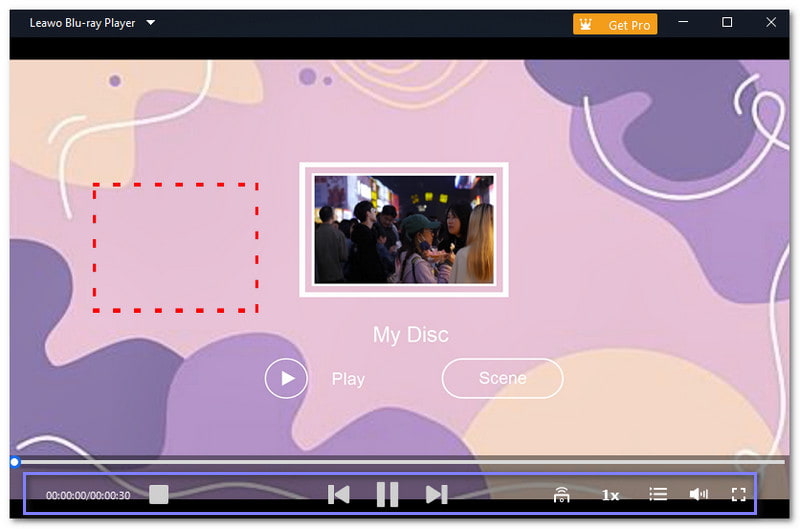
Step 4When your video starts playing, you will see a set of playback controls on the screen. These controls let you pause or resume the video, skip forward or backward, and adjust the volume.
If you want a more immersive viewing experience, you can switch to full-screen mode by hitting the Full-screen button.
Part 4: Easily Play Blu-ray ISO on PC with PlayerFab
Whether you are watching a Blu-ray ISO, a DVD, or other file types, PlayerFab can handle it. It also allows you to adjust subtitles, switch audio tracks, and enjoy full-screen viewing for an immersive experience. Plus, the playback controls are easy to find and use. It gives you control over volume, speed, and skipping scenes. Also, it supports streaming services. You can watch various content straight from the program. It makes it an all-in-one solution for digital entertainment.
Step 1Launch PlayerFab on your computer.
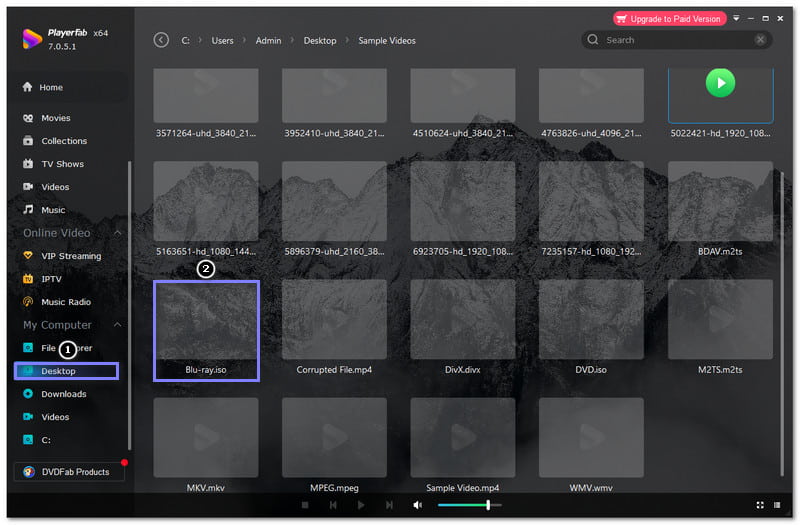
Step 2You will see a menu on the right-hand side of the PlayerFab interface. Click on My Computer, then select Desktop. Look for the folder where your Blu-ray ISO file is saved. Once you find the file, click on it to select it.
Step 3After selecting the ISO file, it will begin playing right away. The video will load and appear on the screen automatically, ready for you to enjoy.
Step 4You can pause the video by hitting the Pause button. To continue watching, click the Play button. Click the Forward and Backward buttons to skip or return to a previous scene.
Move the Volume slider to increase or decrease the sound. For a better viewing experience, click the Wide button at the lower-right corner. It will switch the video to full-screen mode.
You have now learned how to play Blu-ray ISO files on your PC. Each method works well, but the AVAide Blu-ray Player stands out. It offers excellent Blu-ray ISO file decoding, smooth CPU acceleration, and clear video quality, giving you a fantastic viewing experience. If you are interested, do not forget to download the free trial and try it out for yourself!
ABOUT THE AUTHOR

Full-featured multimedia player to play Blu-rays, DVDs, 4K UHDs, and other video/audio files.