Laptop Blu-ray is limited in technical terms. Numerous devices are now disc drive-free free and default media players are not always capable of reading Blu-ray formats. Learning about codecs, system compatibility and playback options would prevent mistakes and inadequate performance. A well-designed Blu-ray player for a laptop ensures smooth decoding, accurate color output, and stable audio support. An overview of major selection criteria is presented below in advance of discussing the best software alternatives that can be found in the current market.
Quick Overview of the 5 Blu-ray Players for Laptops
If you want efficiency in choosing which one is the best to use for your laptop, then this table makes the comparison simple. It highlights system compatibility, Blu-ray support, video quality, ease of use, and ideal use cases for five popular players.
| Features | AVAide Blu-ray Player | VLC Media Player | PotPlayer | GOM Player | Leawo Blu-ray Player |
| Supported OS | Windows and Mac | Windows and Mac | Windows | Windows and Mac | Windows and Mac |
| Video Quality | Supports original quality and up to 4K quality | High-quality | High-quality | High-quality | High-quality |
| Ease of Use | Very Easy | Moderate | Advanced | Easy | Easy |
| Best Used For | Reliable all-around Blu-ray playback | Free and flexible playback | High performance and control | Simple playback with the codec helps | Traditional disc-based viewing |
How to Choose a Blu-ray Player for a Laptop
1. Compatibility with Your Operating System
Always make sure that the operating system of your laptop is compatible with the operating system of the player before making a decision. There are software options that are compatible with Windows and macOS, and there are Windows-only programs. This allows it to be installed without problems and is easy to play.
2. Blu-ray Disc and Folder Support
Ensure that the gamer has the capability of dealing with physical Blu-ray discs, folders, or ISO files. A laptop external Blu-ray player will provide flexibility, and your laptop will be able to access disc-based or stored content without any problem.
3. Video and Audio Quality
Look for a player that preserves original video resolution and audio fidelity. High-quality playback ensures movies are sharp, colors are accurate, and sound is clear, especially for 4K content.
4. Menu and Navigation Features
An effective player must support disc menus and playlists and the selection of chapters. Easy navigation enables you to navigate through scenes, subtitles, and bonus content.
5. Ease of Use
The interface should be simple and intuitive. A clean layout with clear controls and fast loading times makes using the best external Blu-ray player for laptops effortless, even for beginners.
6. Advanced Playback Options
Others come with subtitle management, audio track switching, video enhancement, as well as playback speed control. These features make it better to watch movies in case users are interested in more control.
7. Price and Licensing
Free software can support simple playback, but can frequently be restrictive. Premium customers typically have complete functionality, greater stability, and customer service. Strike the right combination between cost and features.
8. System Resource Requirements
Make sure that your laptop will match the minimum hardware requirements. High-resolution playback, such as a 4K Blu-ray player, requires stronger hardware to avoid lag or stuttering.
Top 1: AVAide Blu-ray Player
AVAide Blu-ray Player stands out for one simple reason. It functions in the manner a Blu-ray player is supposed to. Lots of laptops have a lot of problems with playing discs because of missing codecs or bad software. AVAide provides a solution to this with its emphasis on clean decoding, compatibility and real Blu-ray compatibility. It is compatible with Windows systems ranging from XP and Windows 11, as well as macOS 10.12 and above. As a Blu-ray disc player for a laptop, it delivers original video clarity, accurate audio output, and smooth navigation without forcing users through complex settings.

FREE DOWNLOAD For Windows 7 or later
 Secure Download
FREE DOWNLOAD For Mac OS X 10.13 or later
Secure Download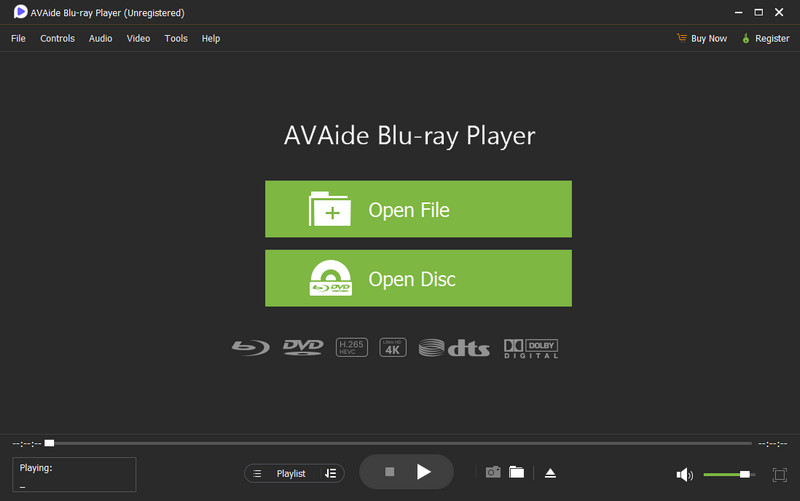
- Pros
- Play Blu-ray discs and folders with regular stability.
- Maintains original video quality and audio clarity.
- Extensive compatibility with Windows and Mac OS.
- Customizable menu and playlists.
- Simple design and quick loading speeds.
- Cons
- A laptop Blu-ray external drive is needed.
- The paid version is restricted to advanced features.
- Less advanced user tools for deep customization.
Top 2: VLC Media Player
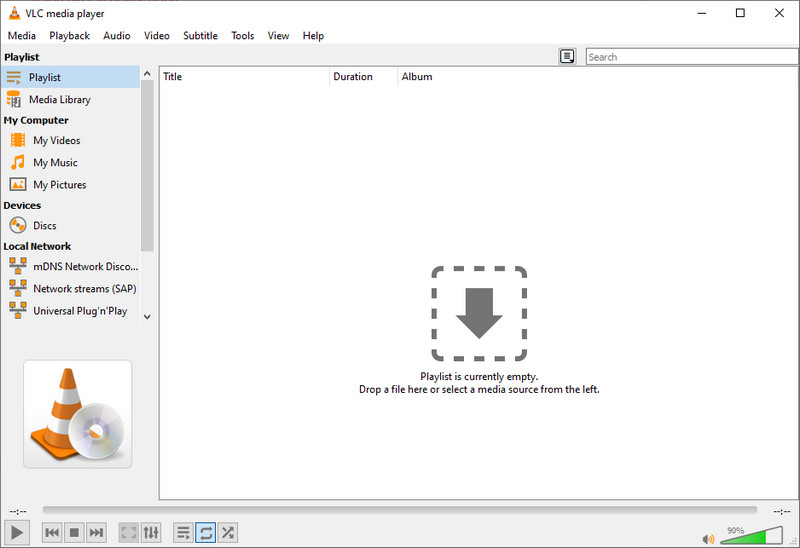
VLC Media Player has a strong reputation, flexibility, and an open source basis. It is compatible with a wide range of media, and no extra charge has to be made to run it on most laptop systems. The Blu-ray playback should be configured additionally, though when configured, VLC can access the disc with basic access and play folders. Being a Blu-ray DVD player as a laptop, this one attracts consumers who enjoy having a free tool and are not afraid of playing with the settings so as to enjoy maximum utility.
- Pros
- Free and open-source software.
- Applications in Windows, macOS, and Linux.
- Blu-ray folder supported and numerous media types.
- Inspirational and easy to carry.
- Cons
- The Blu-ray discs require manual library configuration.
- Limited Blu-ray menu support.
- The system setup determines audio quality.
Top 3: PotPlayer
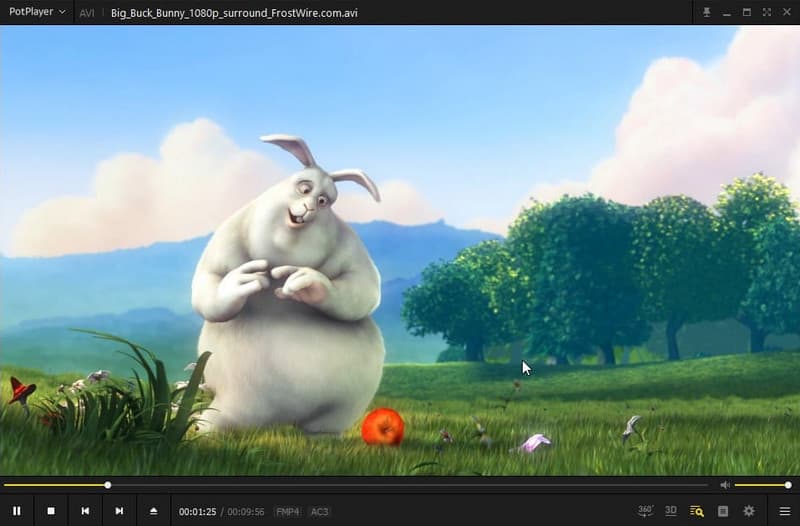
PotPlayer is aimed at users who require functionality and control. It is reputed to have rapid rendering, good codec support and can play high-resolution files easily. Although the menus of Blu-ray menus are limited, the player is good at working with demanding video formats that are demanding. Being a 4K Blu-ray player in a laptop, PotPlayer can work on a powerful computer and is rewarding to those who enjoy finer details in their playback setups.
- Pros
- Superior performance using high-resolution video.
- The built-in codec saves on set-up time.
- Developed playback and audio controls.
- Playback on the latest laptops.
- Cons
- The interface can be confusing to novices.
- Lack of navigation in the Blu-ray menu.
- Windows only supports.
Top 4: GOM Player
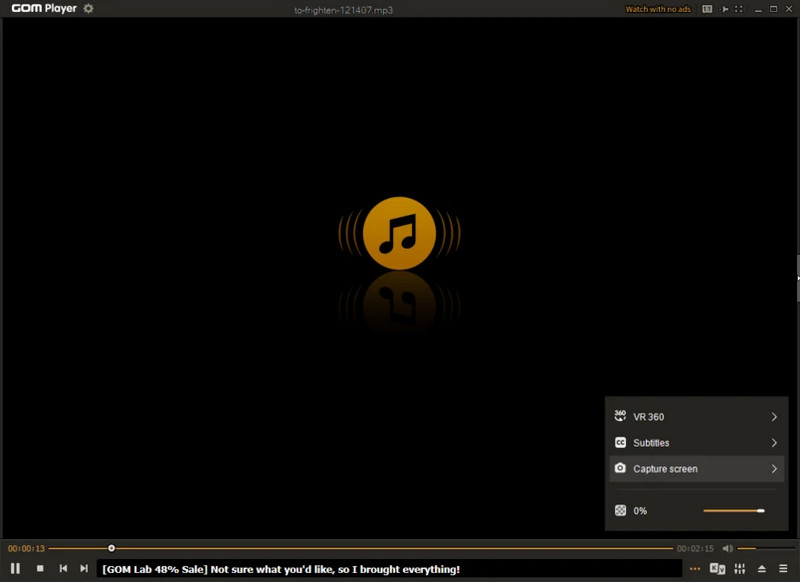
GOM Player has a compromise between ease and personalization. It can support numerous file types and automatically searches for codecs in the event of playback failure. Blu-ray functionality is weaker than that of dedicated players, yet it is popular among users who require flexibility. It is said to be the best Blu-ray player in a laptop when ease of use and simple functionality are more important than having a full disc menu.
- Pros
- Streamlined interface and customization options.
- The automatic codec finder corrects playback problems.
- Accepts numerous types of media.
- Windows and Mac are available.
- Cons
- Full support of Blu-ray discs is limited.
- Advertisements do occur in the free version.
- Professional functions are paid.
Top 5: Leawo Blu-ray Player
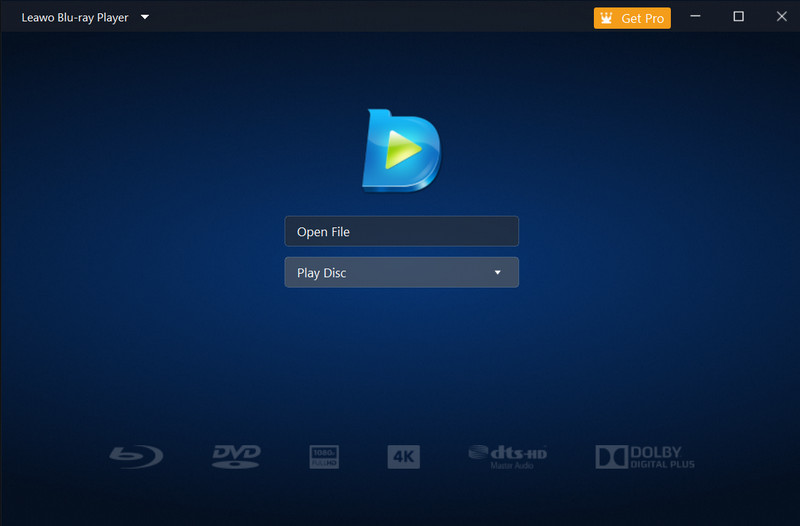
Leawo Blu-ray Player specializes in the use of classic discs and wide compatibility. It helps in supporting Blu-ray discs, folders, and ISO files, and its performance is also stable. The interface is also plain and thus suitable for daily viewing. Due to its ability to operate on a variety of widely used hardware architectures, indicating that it can support any standard system, and the fact that it does not require a lot of resources, being a Blu-ray player on the Lenovo laptop.
- Pros
- Supports Blu-ray discs, folders and ISO files.
- Playback with video output with good stability.
- Easy to navigate and simple interface.
- Interpatriots with most brands of laptops.
- Cons
- The free version has some limitations.
- The interface design is old-fashioned.
- There are a few sophisticated playback controls.
Conclusion
With the right software, watching Blu-ray movies on your laptop can change your life. A reliable Blu-ray disc player for a laptop will guarantee good playback, quality video, and proper audio of the physical discs, folders, or ISO files. There are a plethora of players available by taking into account compatibility, features, ease of use, and system requirements, so that you can select a player that matches your needs or hardware. Having had the choice of these reviewed here, it is now easy to find a solution that not only would be performance-oriented but would work out to be convenient at the same time.
ABOUT THE AUTHOR

Play Blu-ray and DVD discs, folders, and ISO files smoothly on Windows and Mac laptops.