Does the video you want to watch in VLC appear sideways or upside down? Well, VLC lets you handle video rotation without needing another media player. For those using VLC on Windows and Mac, the app offers options to change the video's orientation temporarily or permanently. The process is different if you are using the mobile device version. Without further ado, this guide explains how VLC rotates a video across different devices, including the steps, shortcuts, and limitations, to help you find a better alternative.
Part 1. Why VLC is a Great Choice When Rotating a Video
VLC is a practical choice for rotating videos because it is free, and you are already using it to play videos. With it, you do not need to install a separate software just to fix the angle of a clip. If you are using the desktop version, you will have full control over the rotation applied, whether you want it set temporarily or made permanent. With that, it is a useful option when you want to rotate a video in VLC without relying on a dedicated video editor available on your device.
Part 2. How to Rotate a Video in VLC (Windows & Mac)
1. Temporary Rotation (Viewing Only)
- What it does
When it says "Temporary Rotation," it means it changes how the video is displayed in VLC without affecting the original file. With it, you can rotate a VLC media player video to a specific angle or use the transform option to set it to a different orientation you want.
- When to use
Works well if you want to watch a video in a correct orientation and you do not want to create another copy of the video you are watching or alter the original file.
- Core Steps
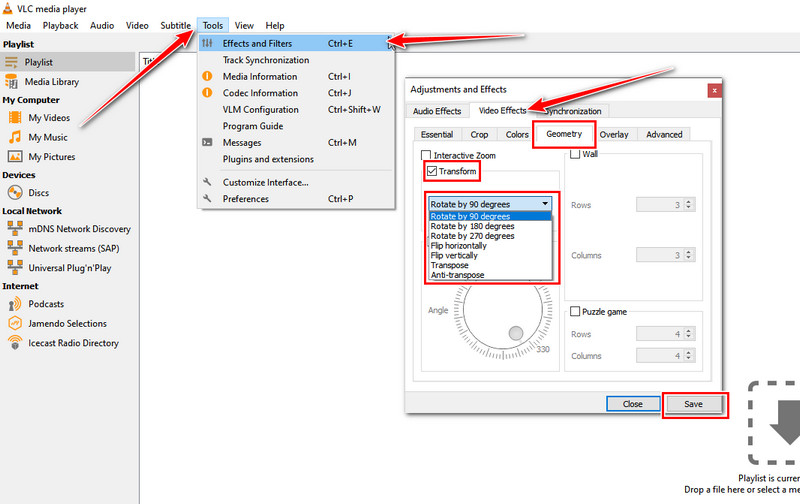
First, open VLC and the video you want to watch. Then, click Tools > Effects and Filters > Video Effects > Geometry. Here, you need to enable Transform and choose the rotation angle by clicking the dropdown button. Finally, close the Geometry window, and you can now play the video at the angle you set earlier.
2. Permanent Rotation (Saving to a New File)
- What it does
Unlike the previous one, Permanent Rotation applies the change to the video. After choosing an orientation from the list in VLC Media Player, you needed to save the new file, which allowed you to keep the prorated version for use in other players or devices you have.
- When to use
This method is suitable if you want to keep the video you have on VLC permanently rotated to the angle you have chosen. It is useful when you plan to share the adjusted orientation video with anyone or play it on other devices without needing to rotate it.
- Core Steps
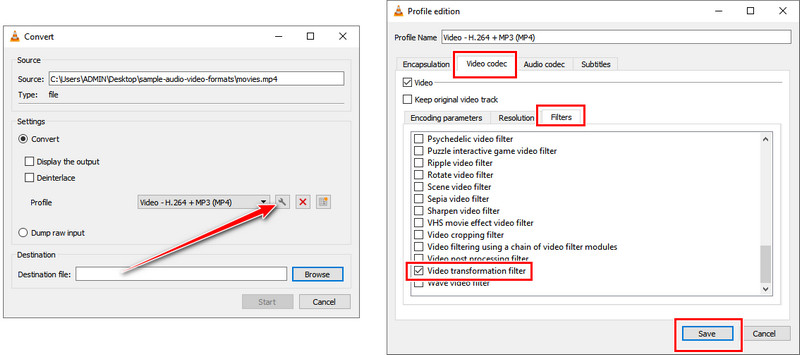
On your VLC, click Media and choose Convert/Save. Tick the plus button to upload the video, then click the Convert/Save button again. Choose the output format you want, select the destination where you want it saved, then click the wrench button. Go to Video Codec > Filters, and tick the box for the Video transformation filter, then click Save. Finally, tick the Save button to start the processing.
Part 3. How to Rotate a Video in VLC (iPhone)
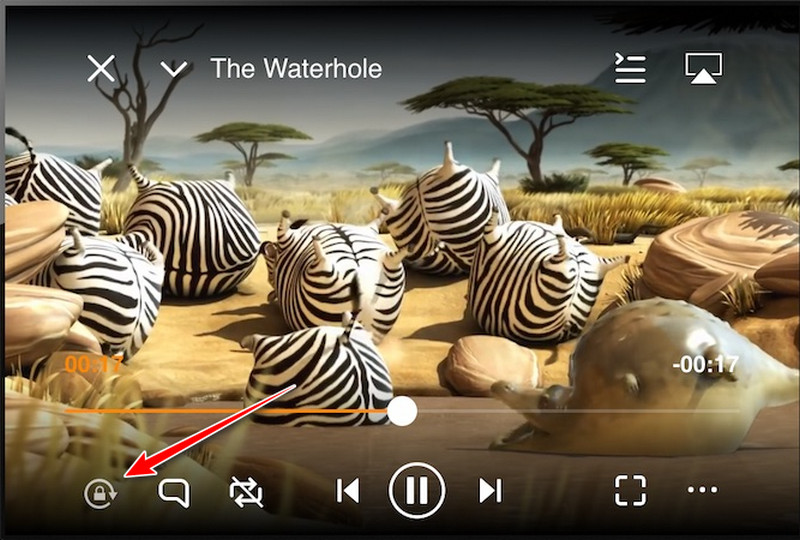
VLC for iPhone handles the video rotation differently from the desktop version. It includes a rotation option during playback, so you can adjust the viewing orientation without opening the video effects settings, unlike the desktop version. Then the change is meant for a temporary rotation and does not permanently alter the original video. To learn how to rotate video in VLC on the iPhone, follow the steps below.
Step 1Open VLC on your iPhone, play the video you want, and rotate your device to the desired angle.
Step 2Tap the screen once to open the available controls, then locate the padlock button to lock the video in its current position so it does not revert to the original version.
Part 4. How to Rotate a Video in VLC (Android)
VLC for Android does not have a feature to change the orientation, but the Android device can automatically adjust it using its sensors. If you want to rotate a movie in VLC, you need to enable the auto-rotation feature on your device and let VLC follow the device's orientation.
Step 1Open the video you want to play on your Android through VLC. Swipe down from the top edge of your screen to open the Quick Settings.
Step 2Here, click the Auto-rotate to enable it. When the color changes to a lighter shade, it means the feature is activated. Go back to VLC, and it should now automatically adjust the video orientation to match your device's orientation.
Part 5. VLC Rotate Video Shortcuts
In the latest version of VLC, there is no shortcut key to automatically rotate the video 180 degrees. To give you a short version of the steps that we have introduced, you can follow the guide we have here:
- Windows: Open the Tools > Effects and Filters, or you can press Control + E. Go to Video Effects > Geometry and enable Transform to select the rotation angle.
- Mac: Open Window > Video Effects > Geometry, then choose the rotation option you want.
- Android and iOS: Neither version has a dedicated shortcut to rotate.
Part 6. Alternative: Use a Dedicated Video Rotation Tool
What is the most important thing to know before you export a rotated video? As you can see, VLC is useful for changing the orientation, but it does not provide a preview workflow to check the final result before exporting. This is where AVAide Video Converter can be a more practical choice than VLC. The software includes a built-in video editing tool that lets you rotate the video as you wish and preview the changes before saving it.
Step 1Download the software to your PC by selecting the appropriate download button here. Then follow the installation process and launch it.

FREE DOWNLOAD For Windows 7 or later
 Secure Download
FREE DOWNLOAD For Mac OS X 10.13 or later
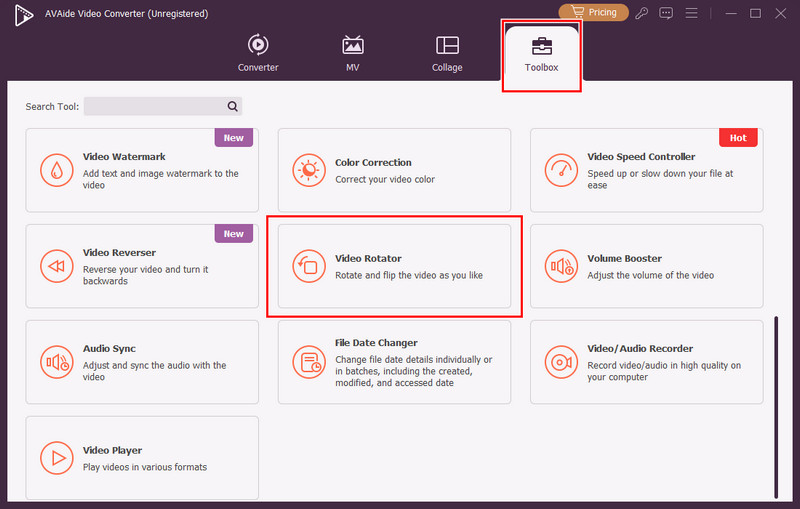
Secure DownloadStep 2Tick the Toolbox and search for the Video Rotator available here. Then, click the + button to import the video you want to rotate.
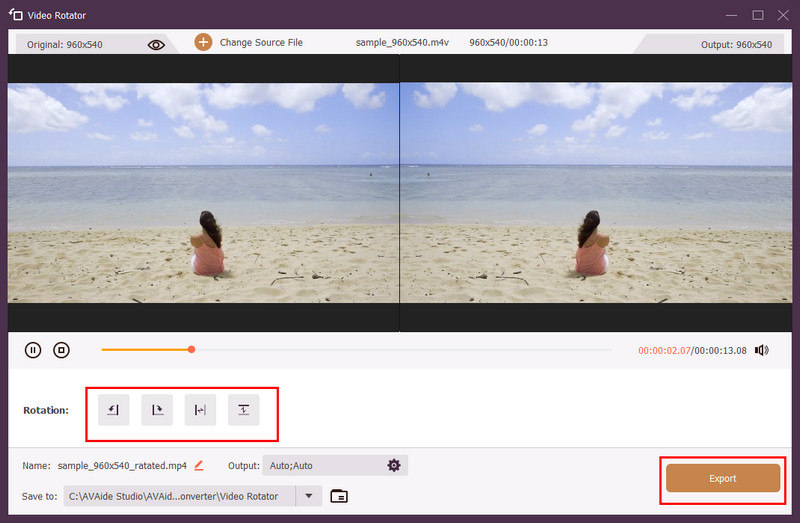
Step 3With it, you can adjust the orientation to 90 degrees left or right and even flip it horizontally or vertically. This is a 100% better choice when you need to permanently rotate and save a video, rather than simply change how it appears in VLC during playback.
To rotate video in VLC, you need to know where to find this feature, and most of it is hidden in the Tools menu. Now that you know how it works, you can have a quick playback in VLC with a different orientation of your choice to correct it or see it from a new perspective. But if you want to rotate a video permanently, we suggest skipping VLC and using AVAide Video Converter, since it rotates videos much better than VLC.
ABOUT THE AUTHOR

Your complete video toolbox that supports 350+ formats for conversion in lossless quality.