When you need to sync audio and video, you can use Premiere Pro to align them. Even a small delay can make the dialogue feel unnatural and affect the overall viewing experience. Imagine watching a movie with delayed sound; isn’t that irritating to watch? Fortunately, you can now learn how to sync audio and video in Premiere using several ways it provides to fix the issue, either by automatically matching clips or by adjusting them manually.
- Why Audio and Video Fall Out of Sync
- Preparing Your Project for Syncing
- Method 1: Auto-Sync Using Audio Waveform (Fastest)
- Method 2: Merge Clips (Quickest for Dual-System Audio)
- Method 3: Synchronize on Timeline (AI Sync)
- Method 4: Manual Syncing (Most Precise)
- Method 5: Multi-Camera Syncing
- Hardware/Sync Issues: Is It Your Equipment?
- Bonus: Easier Premiere Alternative to Sync Your Project
Why Audio and Video Fall Out of Sync
Out-of-sync audio and video can occur due to several reasons. Understanding these reasons first, before you learn how to sync audio and video in Premiere Pro:
1. Dual-System Recording
Doing this improves the output; it means you recorded the audio and video on separate devices and later combined them in a dedicated editor like Premiere Pro. For example, a camera may record video while an external audio device captures audio. In this case, you may notice the recordings are slowly drifting apart from one another, especially during longer takes.
2. Sample Rate Mismatch
With a slight difference in speed, the mismatch can cause the audio to play differently. This becomes noticeable over time in the recording; you might not recognize it right away, but it can create a larger syncing problem in the long run. That is why you need to use the same sample rate to help prevent this issue.
3. Frame Rate Issues
Frame rate is important because it determines how many times per second your video is displayed. If the footage you took is at 1 FPS, put it in another project; the timing may not match properly with this setup. This can cause noticeable drift out of sync between the audio and video from the start.
4. No Timecode
All professionals use timecode to improve the syncing of audio and video. With it, you can use Premiere Pro to match it easily for perfect sync, but without it, you will need to rely on other methods, such as matching audio waveforms, to sync it. This can make the syncing process difficult, especially when working with multiple camera angles and audio sources.
5. Wireless Transmission Delay (Bluetooth/Wi-Fi)
Wireless devices can help with recording without a bunch of wires in your setup, but because they are wireless, they can introduce a small delay in audio transmission. Not all wireless devices you can use may transmit audio while the video is displayed. The delay might seem minor, but as you dig into it, it will become more apparent.
Preparing Your Project for Syncing
1. Import Your Media
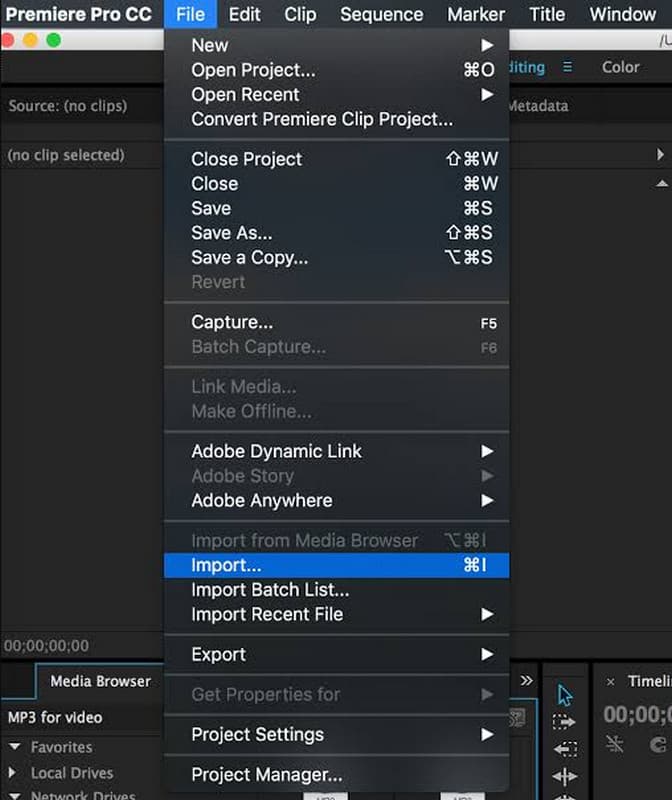
Go to File > Import, select the files you want to sync (such as the video clip and the audio), and click Import. Once you have successfully imported them, the files will appear in the Project panel, where you need to drag and drop them onto the Timeline.
2. Organize Your Footage
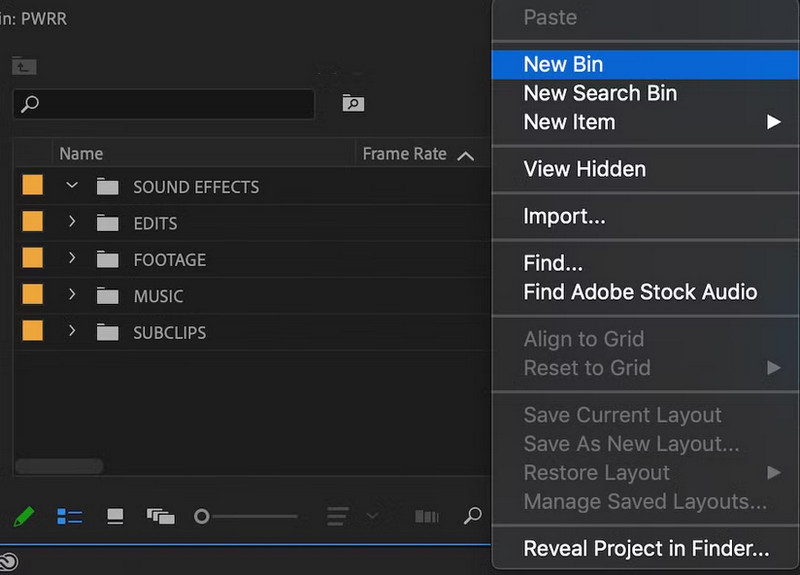
To organize it, create a bin for the video and audio files by clicking the New Bin button. After creating a bin, you can drag items into it. This is important if you are dealing with multiple video and audio clips.
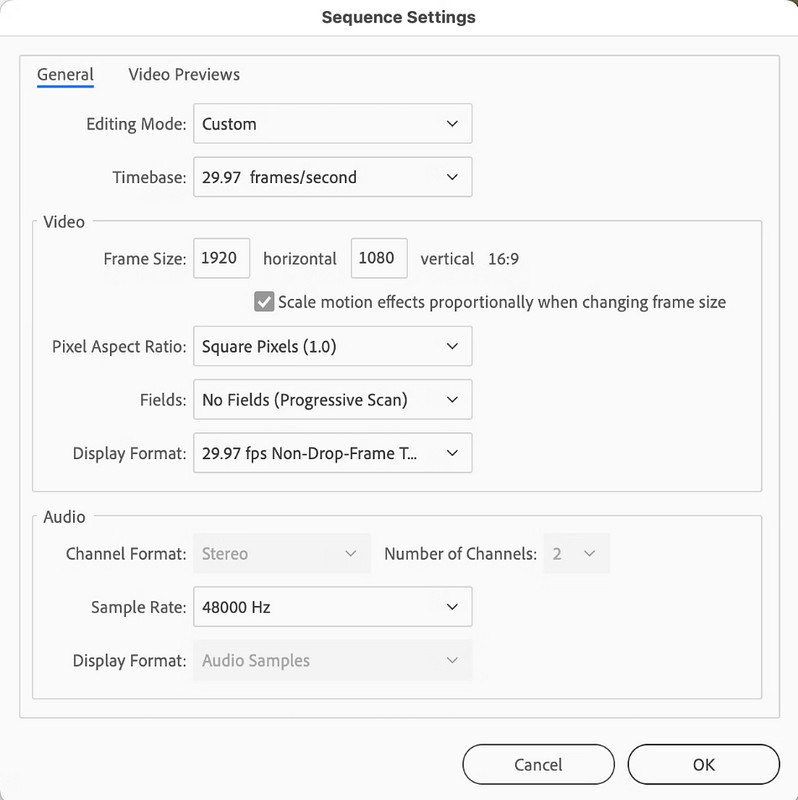
3. Check Your Sequence Settings
Go to the Sequence, then to Sequence settings, to check whether it matches the video footage in the Timeline. Check the Timebase to ensure that the frame rate is right for the footage you are dealing with. You can also review the other information before continuing with the synchronization.
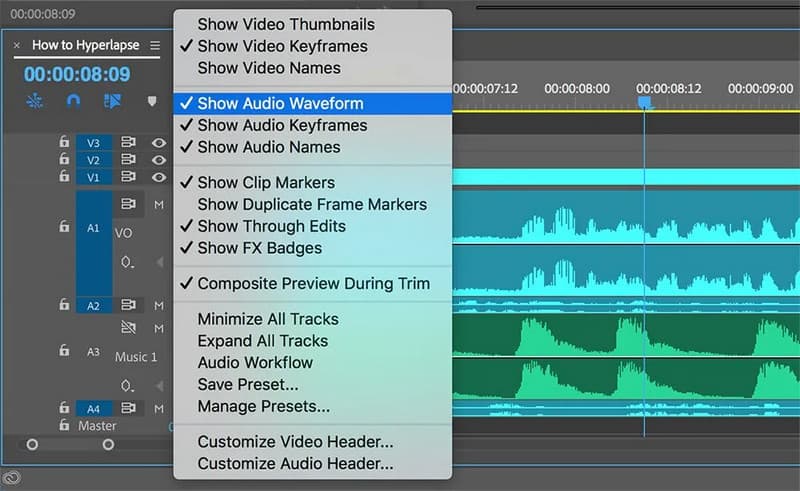
4. Boost Waveform Display
In the Timeline, click the wrench button and enable the Show Audio Waveform. This process helps you find the corresponding point between your camera audio and the separately recorded audio, then align them.
Method 1: Auto-Sync Using Audio Waveform (Fastest)
This one is considered the fastest because it automatically syncs audio in Premiere Pro. The editor compares all waveforms it finds in your video and external audio to align them perfectly.
Step 1In the Project panel, select both clips, then click the right button. Here, choose Synchronize, or go to Clip > Synchronize.
Step 2Select Audio as the synchronization point, then select the audio track to analyze.
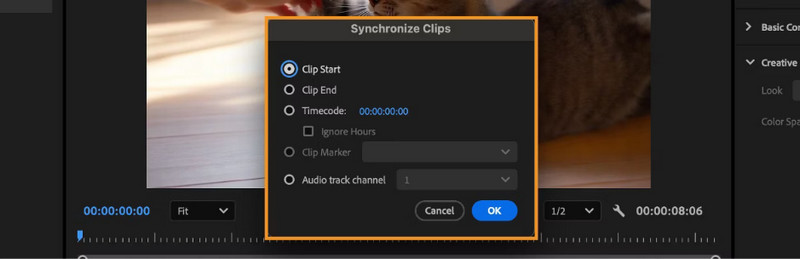
Step 3Press OK to let Premiere Pro match the waveform for you, and after a few minutes, it will align it. Take a quick preview to see if it works.
Method 2: Merge Clips (Quickest for Dual-System Audio)
Merge Clips is useful if your recordings are saved separately, such as from the camera and an external audio recorder. This method combines the two sources into a single clip. It is almost similar to merging two video clips. Compared to other available methods, this one is convenient, and you can easily learn how to sync audio and video in Premiere Pro, even for recordings.
Step 1Select the audio and video clip you uploaded in the panel, then go to Clip > Merge Clip to open a dialog box where you can fix the unsynced issue.
Step 2Here you have variations of synchronization options such as Audio, In Point, Out Point, Timecode, or Clip Maker; choose which you want to use based on your recordings.
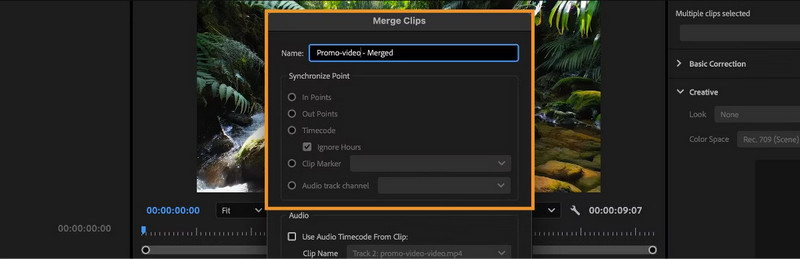
Step 3Then press OK to create a merged clip and view a preview to see if it fixes the issue.
Method 3: Synchronize on Timeline (AI Sync)
If the video and audio clips have already been dragged into the Timeline, then you can't use this method. You can learn how to sync audio and video in Premiere without manually moving the clips, because it uses audio, timecode, markers, and other points to align the clips perfectly with the video.
Step 1Place the imported audio and video clips in the timeline separately. Then, select both files that you want to synchronize.
Step 2Go to the Clip > Synchronize and choose the Audio Track Channel or another suitable synchronization point available here.
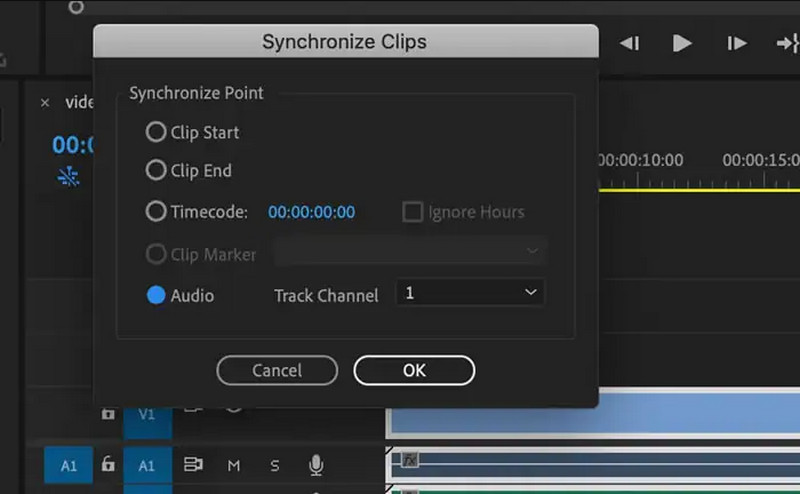
Step 3Press OK, and Premiere's AI will automatically align it in the Timeline for you.
Method 4: Manual Syncing (Most Precise)
To gain more control, you need to perform a manual sync to compare the audio waveform and adjust the external recording until it matches the camera's audio. If you are wondering how to sync sound in Premiere, you can follow the steps here.
Step 1After importing the clips, place them on the timeline separately, expand the audio tracks, and zoom in until you see clear audio waveforms.
Step 2Find the same waveform of the recording on your video and audio, such as spoken words or if you clap, and drag the external audio until it lines up with it.
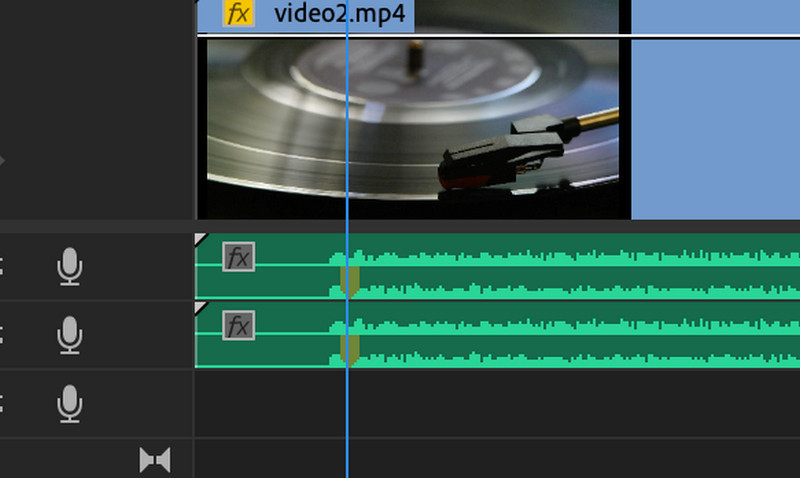
Step 3Play the section to check the timing and make any necessary adjustments before linking to the audio.
Method 5: Multi-Camera Syncing
Multi-camera syncing is designed for projects that involve recording from multiple cameras. The Adobe Premiere Pro sync audio and video workflow can easily match the audio, timecode, markers, and other sync points across multiple camera angles.
Step 1Now that the videos are uploaded, select them all and right-click them. Choose the Create Multi-Camera Source Sequence.
Step 2Select the synchronization method you want to use, similar to method 2.
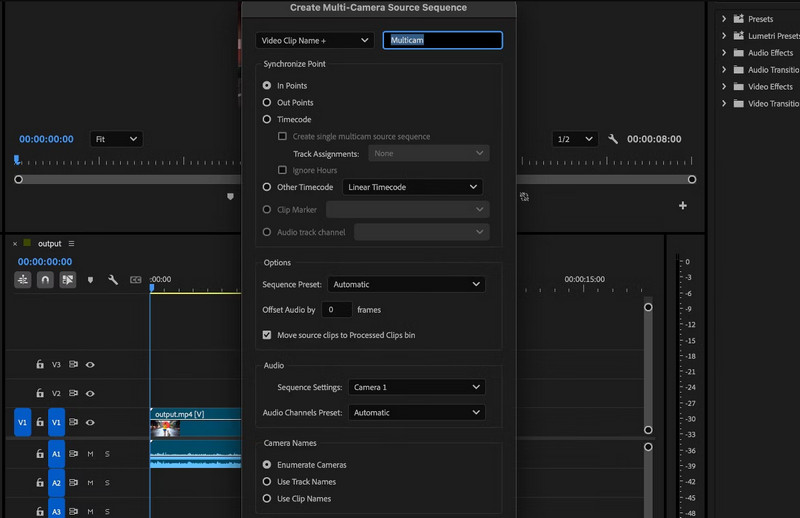
Step 3Press OK to create a multicamera sequence, then open it in the Timeline to edit and switch between the camera angles you have taken.
Hardware/Sync Issues: Is It Your Equipment?
Often, the problem of syncing is caused by your camera, microphone, audio recorder, cables, or playback devices. So, before you spend many hours adjusting the project, take a quick look at your equipment to see if it is calibrated and working properly before recording. You can also play the original files outside Premiere Pro to see if the delay is already present before editing. If the file remains out of sync even before you import it, the problem is more likely related to the recording you made or the playback equipment you have. This fixes the audio and video being out of sync.
Bonus: Easier Premiere Alternative to Sync Your Project
Not everyone can afford Premiere Pro, and sometimes beginner editors struggle with its extensive features. Instead of using Premiere Pro for simple syncing, try AVAide Video Converter. It is specialized software for Windows and Mac that handles several problems you are most likely to encounter with video and audio clips, including out-of-sync issues. Compared to Premiere Pro, it's a cheaper, beginner-friendly option that still delivers professional output. So, do you want to get this now? We recommend clicking the button below.

FREE DOWNLOAD For Windows 7 or later
 Secure Download
FREE DOWNLOAD For Mac OS X 10.13 or later
Secure Download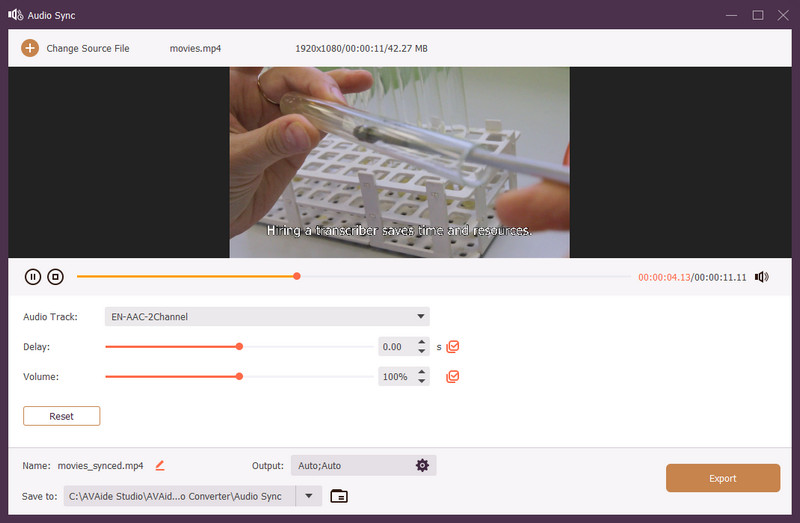
Now you have learned how to sync audio and video in Premiere Pro using the available methods. All the tasks are working, and choosing automatic wav merging, clipping, merging clips, timeline syncing, and so on can actually help with your project. If you ever encounter this problem again, you can always rely on the steps in the method here to quickly fix it and properly align the video and audio.
ABOUT THE AUTHOR

Your complete video toolbox that supports 350+ formats for conversion in lossless quality.