It spoils your binge-watching when the audio and video are out of sync, and to be fair, it is not enjoyable when there is an audio delay. You might have tried everything to fix this problem, but you ran out of solutions. So, this article provides more tips for fixing audio delay in your video, depending on whether you are using a computer or a smartphone. But before anything else, let's start with why audio is out of sync and its possible causes.
- Part 1. Why Does Audio Go Out of Sync with Video?
- Part 2. Universal Fixes – Try These First
- Part 3. How to Fix Audio and Video Out of Sync on Windows 11 PC
- Part 4. How to Fix Audio and Video Out of Sync on iPhone
- Part 5. How to Fix YouTube Audio and Video Out of Sync
- Part 6. FAQs About Audio & Video Out of Sync
Part 1. Why Does Audio Go Out of Sync with Video?
If you are wondering why a problem, such as audio being out of sync with the video, occurs, there are many possibilities. In this part of the article, you are about to learn the common causes of audio delay and how to quickly run a diagnosis of the video and your device.
1. Common Causes
One of the most common causes of audio delay in a video is high video resolution or the use of special effects. If your device can barely support high definition, the audio will definitely play first. Additionally, if you are using an external device such as a soundbar, there is a high likelihood of audio lag in the video. Other than that, here are more causes of audio delay to consider:
- Streaming videos online with a slow internet connection.
- Bugs in media players are causing desynchronization.
- Loose HDMI cable or other faulty connections.
- Video variable frame rate that is not supported by the device.
2. Quick Diagnosis Tips
The easiest way to check whether audio and video are out of sync is to switch or close the media player you are using. Try playing the video on another device to see if the problem is in the media file or the device itself. If these simple tips do not solve the problem, check the next part for more advanced solutions.
Part 2. Universal Fixes – Try These First
To synchronize the audio in the video, you can use the following methods. This section outlines general solutions you can try to address the audio delay.
1. Restart Everything
Start by force-closing the media player application. If you are streaming online, close the website, including any open tabs. Then, restart the device and try playing the video again.
2. Check and Update Everything
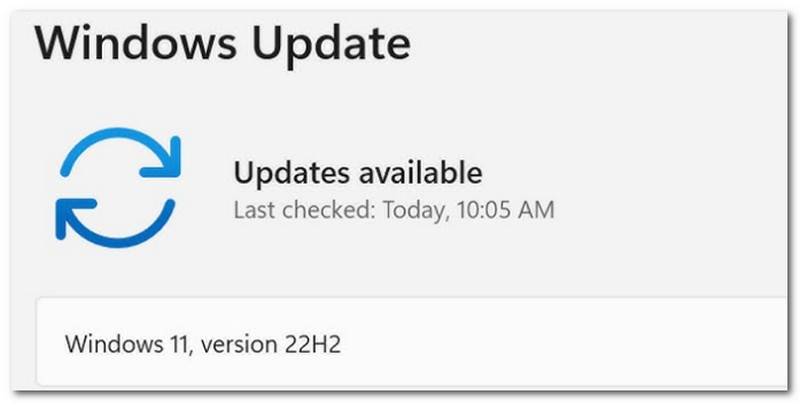
The operating system of your computer or phone plays a pivotal role when there is an audio delay. Make sure your device is up to date to remove any unseen bugs that could be causing the video issue.
3. Check Your Internet Connection
A slow internet connection can be the very reason for the audio delay in the video. Consider unplugging and restarting the internet router. Connect to another internet network if necessary.
4. Disable Audio Processing
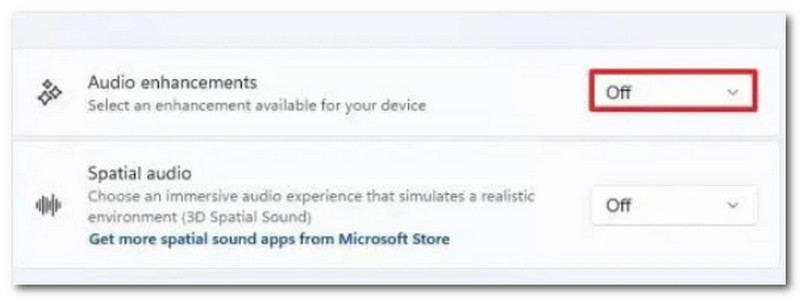
Audio enhancements are activated on modern devices by default. To turn it off, go to the settings and search for "AI" or "Audio enhancements." While this feature helps with clear audio recording, it can hinder video playback.
5. Clear Cache
Accumulated cache from various websites and applications can cause lag on your device and, eventually, in your videos. You can clear the cache on your device and in your web browser to eliminate audio delays when streaming online.
Part 3. How to Fix Audio and Video Out of Sync on Windows 11 PC
If the general solutions did not fix the audio delay in your video, check the following advanced solutions for audio and video that are out of sync.
1. Update Graphics Drivers
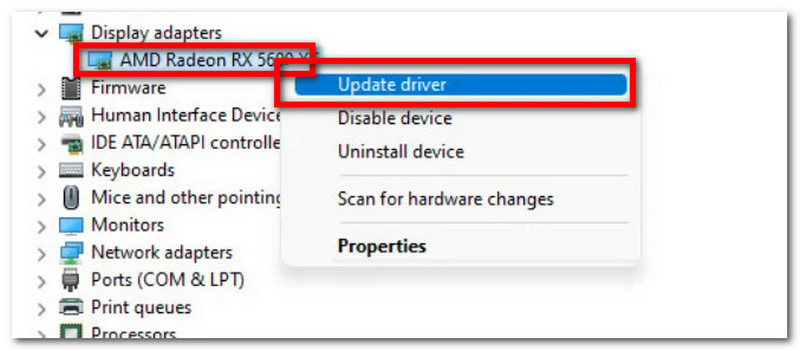
To run your videos smoothly and stop crashes, you must update graphics drivers. To easily update graphics drivers, go to Settings and search for Windows Update. Click the Check for Updates button. Your device will work with any needed updates, including graphics drivers. Restart your device and try to play the video.
2. Change Audio Format
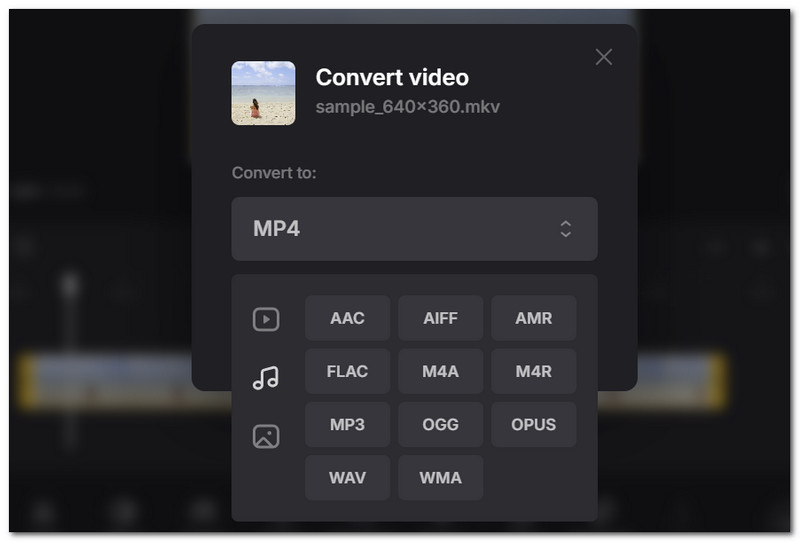
Sometimes, the problem lies in the audio container that causes audio delay. To fix this, it is recommended to use an audio converter. Go online and search for Clideo. Upload the video and choose a widely supported audio format, such as MP3 or AAC. Download and check for audio delay.
3. Disable Exclusive Mode
The Exclusive Mode helps lock one app to control your device's speakers. You will have to turn it off to allow other apps, like a media player, to play video without delays. To turn off this feature, go to the Sound settings of your computer and scroll down until you see the More Sound Settings. Right-click the main speakers of the device and select Properties. From the Advanced tab, tick off the Allow applications to take exclusive control of this device. Then, click Apply to save the changes.
4. Disable Fast Startup
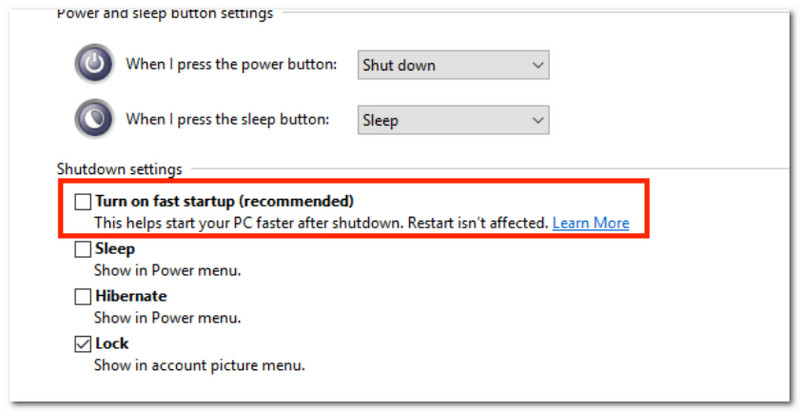
Fast Startup is a huge help in reducing your device's boot time. But its downsides include breaking pre-installed services like OneDrive and causing audio delay in your videos. Just launch the Start menu and enter Control Panel. From the left menu, go to Change what the power buttons do, then navigate to the Change settings that are currently unavailable. Toggle off the Turn on fast startup (recommended) option and save the changes.
5. Turn Off Hyper-V
To fix performance issues with your computer and media player, disable Hyper-V in the settings. Open the Start menu and enter Turn Windows features on or off in the dialog box. Scroll down until you see the option Hyper-V. Uncheck the box, then click OK to save.
6. Check Refresh Rate
Another way to fix audio out of sync with the video is to check the Refresh Rate. It will help verify visual motion and check that hardware like cables is properly working. Just go to System Settings and click Displays. Choose the desired refresh rate to ensure the video plays smoothly.
7. Use AVAide Video Converter
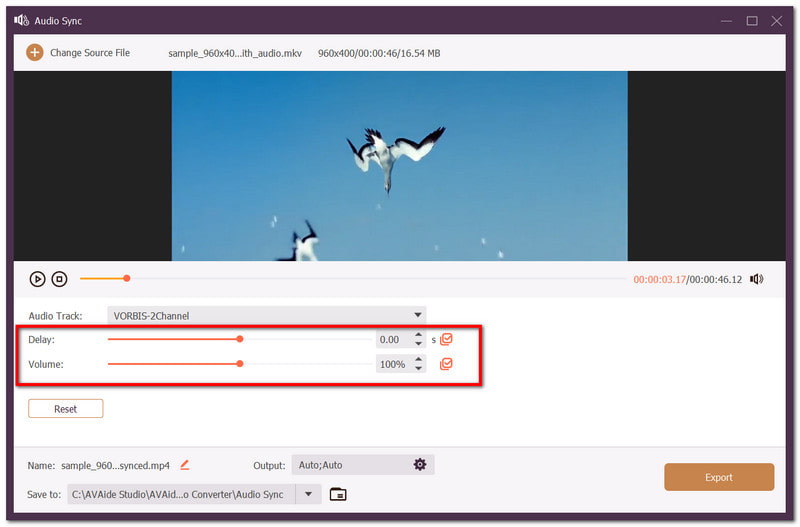
If you are out of solution, the next thing you should do is to use AVAide Video Converter. This is a multi-purpose tool designed to help re-sync audio and video in just a few clicks. It supports a wide range of media formats, allowing you to fix audio delay in MP4, MKV, VOB, and other formats. Other than this, it offers volume boosting and delay, and even lets you reset the settings if you are not satisfied. Furthermore, AVAide will be the top-tier solution as it guarantees excellent video quality. Here are the steps to get started:
Step 1Download and install the software on your computer. Open it and go to the Toolbox to select the Audio Sync tool.

FREE DOWNLOAD For Windows 7 or later
 Secure Download

FREE DOWNLOAD For Mac OS X 10.13 or later
Secure DownloadStep 2Upload the video you want to edit. When the audio and video are not in sync, use the Delay setting to synchronize them.
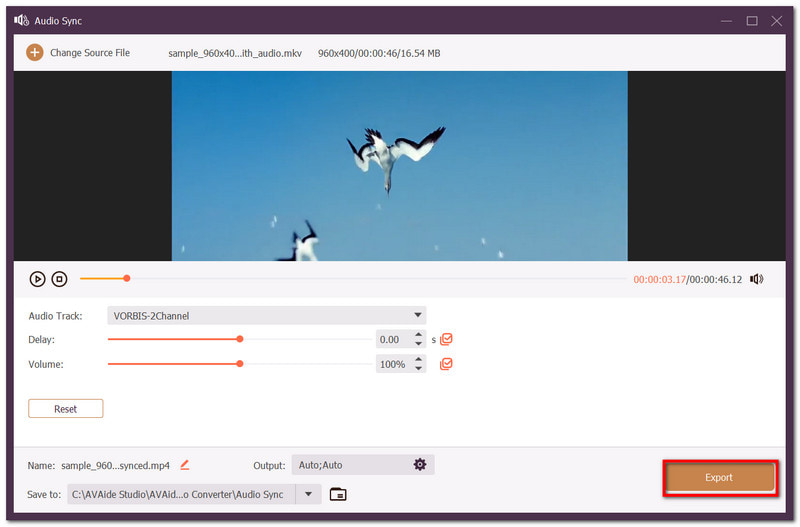
Step 3Preview the video once it is done editing. Click the Export button to save the synchronized audio and video.
Part 4. How to Fix Audio and Video Out of Sync on iPhone
Even with an iPhone delivering the best photo and video quality, you may encounter issues such as audio being out of sync with the video. Try these solutions to fix audio desynchronization.
- Test other media files to see if the problem lies with the video or the media player.
- Close the Photos app or any media player you use for streaming.
- Restart the device to eliminate temporary system errors.
- Check for updates on streaming platforms and OS.
- Connect to a stronger internet connection when streaming.
Part 5. How to Fix YouTube Audio and Video Out of Sync
It is only natural to encounter errors while watching on YouTube, especially since it hosts millions of videos. YouTube audio and video can become out of sync if your internet connection is unstable or the website is undergoing an app update. If you're confident with your internet connection, then you might try these tips to fix the audio delay:
1. Refresh page
A simple solution that fixes most errors all the time. Hit the Refresh button on YouTube or close and re-open if you are using the app version.
2. Headphones
If you are using wireless headphones, try using wired ones. Compared to Bluetooth headphones, wired headphones can transmit electrical signals instantly, eliminating the possibility of audio delay in your YouTube videos.
3. Change Video Resolution
Try lowering the video resolution on both YouTube and your device. A high-definition video can cause lag and timing problems with the video and audio. Just make sure to refresh the page again once the resolution is lowered.
Part 6. FAQs About Audio & Video Out of Sync
Why is my streaming video and audio out of sync?
Media processing, such as encoding, decoding, and signal transmission, plays a major role in audio delay. Most of the time, high-definition streaming can cause this problem due to the computationally intensive processing required.
Can I fix Prime Video audio and video out of sync?
Yes. You can simply force stop and restart the app. This will fix the issue with Prime Video audio out of sync.
Why is OBS audio and video out of sync?
Audio is processed faster than visuals, and 'OBS video audio out of sync' occurs when your computer's CPU is overloaded and it drops video frames, causing a delay. OBS Screen Recorder may also cause audio delay when the distribution of sample rates across your devices is mismatched.
In this article, you have discovered methods for fixing audio that is out of sync with video on various devices, such as computers and mobile phones. Among the solutions mentioned, the best workaround is AVAide Video Converter, which offers simple yet effective audio resyncing. It offers other essential tools to compress, convert, and edit video to create the content you want. Get the free version now on Windows and Mac.
ABOUT THE AUTHOR

Your complete video toolbox that supports 350+ formats for conversion in lossless quality.