MOV files are rich video data and therefore can be easily edited and played. Lightweight animations are, however, preferred by various websites and messaging platforms. That is why developers and creators tend to convert MOV to GIF when they require a short loop that loads fast in browsers. The conversion requires careful handling of frames, color limits, and compression. This article explains the purpose behind the format change and introduces several tools that produce clean, high-quality GIF results.
Part 1: Why Convert MOV to GIF
MOV files are great for keeping high-quality video, though they are not always the most convenient format for fast visual communication. In most situations, developers require a quick-loading looping short animation that is easy to use on multiple platforms. That is why a great number of users transform a video into a GIF when they need to turn a short clip into a lightweight image that can be more easily shown on the Internet. Shown below are some of the practical reasons why individuals convert to this.
1. Instant Looping for Visual Demonstrations
One major advantage of GIFs is automatic looping. Compared to the normal video files, GIF files keep repeating themselves without the need for playback features. This renders them applicable in tutorials, walkthroughs, and demonstrations in a hurry. When converting MOV to GIF, the viewers can view the action over and over again without having to restart the video.
2. Better Compatibility Across Platforms
Not every platform handles video files the same way. Some need a video player, and others limit the playback in some layouts. These dilemmas do not happen with a GIF since it is directly supported by the majority of browsers and apps, as well as messaging platforms. To have a constant display of the animation on all devices, a good MOV to animated GIF way is used.
3. Faster Visual Communication
Sometimes you only need to highlight a short action, such as clicking a button or showing a quick motion. A GIF eliminates the necessity of a complete video playback and makes the viewer concentrate on the significant moment. A large number of creators transcode .mov to GIF in order to produce small images that can tell them more information quickly than a complete video clip.
4. Ideal for Tutorials and Documentation
Technical manuals tend to make use of brief illustrations. Rather than putting big videos, most authors convert MOV into GIFs that have a clear illustration of every step. This method maintains the documentation in a lightweight format but still provides the readers with visual context.
5. Easier Sharing and Embedding
GIF files are simple to embed in blogs, knowledge bases, forums, and chat tools. They usually play automatically inside the page without extra controls. Because of this flexibility, many creators rely on a MOV to GIF converter to prepare animations for websites, presentations, and help centers.
6. Flexible Editing and Reuse
Once a GIF is created, it can be reused in many different places. A single animation may appear in support articles, product pages, or social media posts. Many editors convert from MOV to GIF so they can reuse short clips as looping visual assets across multiple projects.
7. Simple Format Conversion for Short Clips
In many situations, you only need a brief moment from a longer video. Instead of sharing the entire file, you can convert .mov to .gif and focus only on the relevant frames. This keeps the animation short, clear, and easier for viewers to understand.
Because of these advantages, many creators choose to convert MOV to animated GIF when they want lightweight, looping visuals that work across many platforms. In the next section, we will explore how to convert MOV to GIF while maintaining high visual quality.
Part 2: Convert MOV to GIF with High Quality
When image quality is important, there is a significant difference when a full-featured converter is being used. AVAide Video Converter is set to target users who would like to have additional control when converting MOV to animated GIF, particularly when you are interested in preserving motion and having visuals that are clear. The software also allows you to customize the GIF frame rate and resolution in order to ensure that the animation is just as good as the original clip. It also supports batch conversion, which is useful when working with several MOV files at once. On top of that, the built-in editing tools allow you to trim the video and capture the exact moment you want, making it easy to turn a longer recording into a focused and polished GIF.
Step 1Download and Install
First of all, you need to download the best video converter that AVAide developed on your computer by clicking the download button, then follow its installation process.

FREE DOWNLOAD For Windows 7 or later
 Secure Download
FREE DOWNLOAD For Mac OS X 10.13 or later
Secure DownloadStep 2Upload MOV File
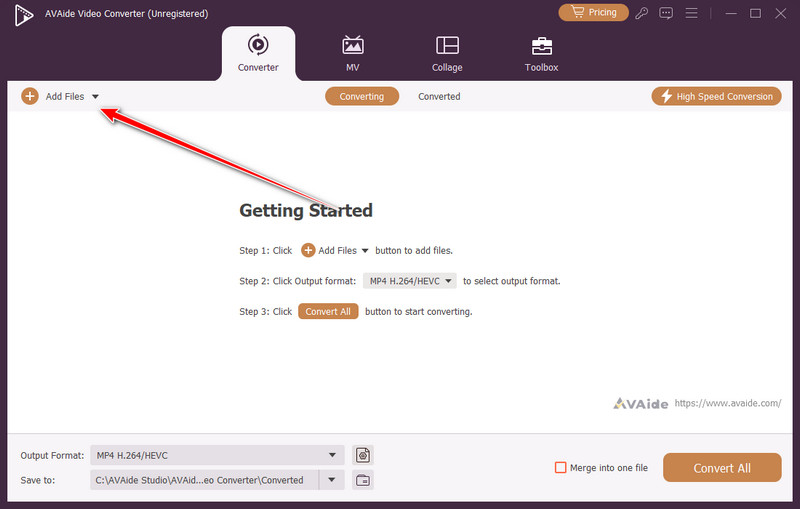
Start the app on your computer and click the Add Files button to upload the MOV video to this app. Here, you can import multiple video files at the same time to convert them at once.
Step 3Select GIF Output Format
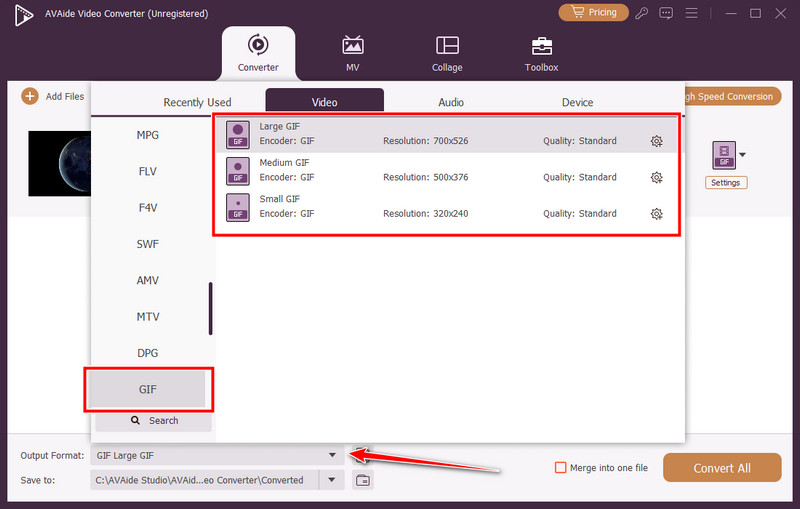
Go to the Output Format, search for GIF, and select the type of GIF preference you want to achieve based on the listing available here.
Step 4Export Animated GIF
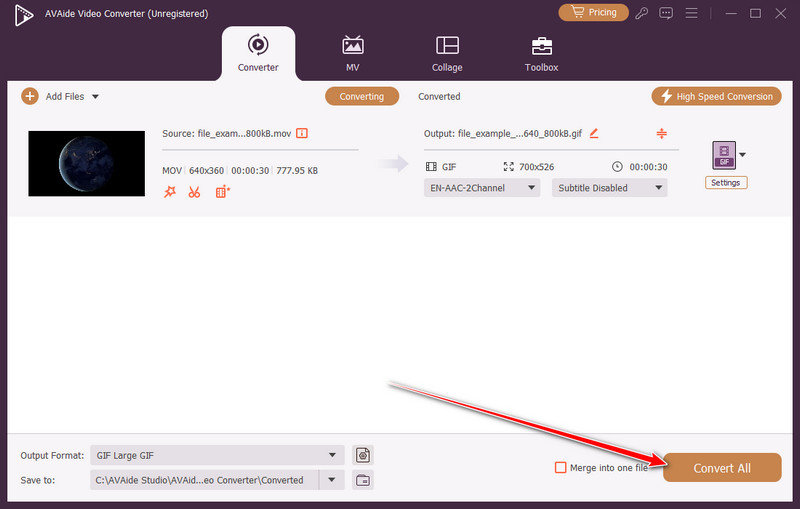
Finally, the MOV is ready to be converted into an animated GIF, so click the Convert All button to start the processing.
Part 3: Convert MOV to GIF with Adobe Express Online
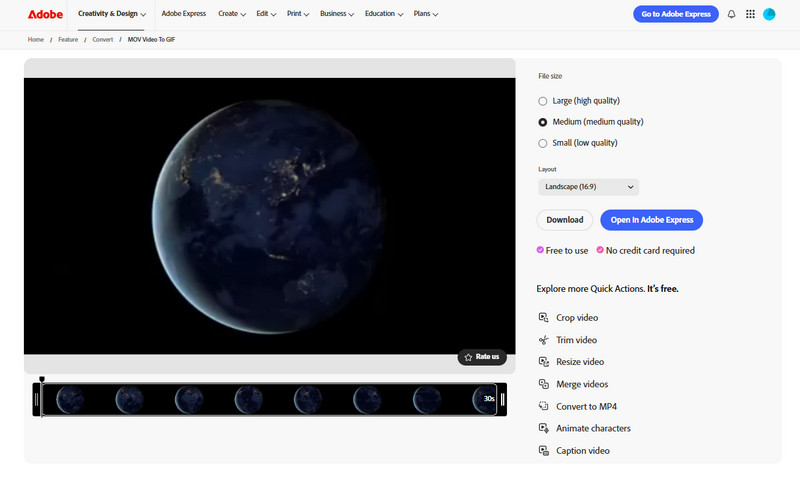
If you want a quick method without installing software, Adobe Express provides an easy browser-based converter, making it an excellent alternative to the Photoshop photo editor. The Adobe MOV to GIF tool lets you upload a short video, trim the part you need, and download it as a looping GIF in just a few steps. This makes it a convenient option for creating simple animations for social media, tutorials, or quick visual content.
Step 1Open the Adobe Express video-to-GIF converter and upload your MOV file from your device.
Step 2Once the video loads, trim the clip to select the part you want to turn into a GIF. You can also adjust the layout or size if needed.
Step 3Tick the download button to export the GIF and save it to your device. The animation will be ready to use or share online.
Part 4: Convert MOV to GIF with Zamzar
Zamzar is another simple online tool that helps users convert video files without installing software. In case you want to know how to convert MOV to GIF, this site has a simple solution that can be done in a browser. The type of file supported by Zamzar is a wide variety of file formats and offers you the opportunity to upload a MOV file, convert it into a GIF, and download the final product within a few steps. This renders it a handy alternative, especially when the user requires a fast conversion, despite the conversion of PNG to TIFF.
Step 1Go to the Zamzar MOV to GIF converter page and click Choose Files to upload your MOV video from your computer.
Step 2After uploading the file, choose GIF as the output format so the system knows which format you want to convert the video into.
Step 3Click the Convert Now button to start the conversion process. Zamzar will process the video and prepare the GIF file.
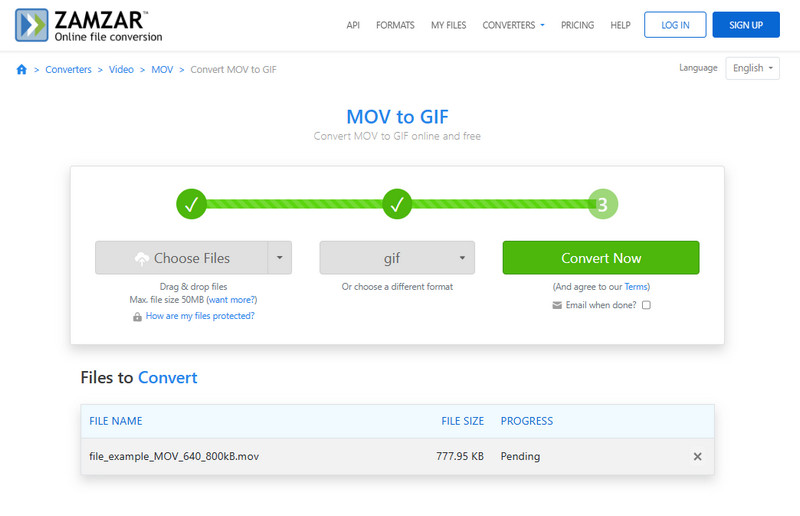
Step 4Once the conversion is complete, click the Download button to save the GIF to your device. You can then use the animation in posts, tutorials, or messages.
Part 5: Convert MOV to GIF with CloudConvert
CloudConvert is a versatile web converter that is compatible with various devices, including Apple computers. This tool is popular among many users who need to convert MOV to animated GIF on Mac, as it can be used right in the browser and does not need to be installed. It supports a wide range of file formats, making converting MOV to WebM possible, and also allows you to adjust settings such as video length, resolution, and frame rate before creating the GIF. This helps produce cleaner animations while keeping the file size manageable.
Step 1Visit the CloudConvert MOV to GIF converter page and click Select File to upload the MOV video from your Mac or device.
Step 2After the file uploads, choose GIF as the output format. If needed, you can trim the video or adjust options like resolution and frame rate to control the final animation quality.
Step 3Click the Convert button to start processing the video. CloudConvert will transform the MOV file into a GIF animation.
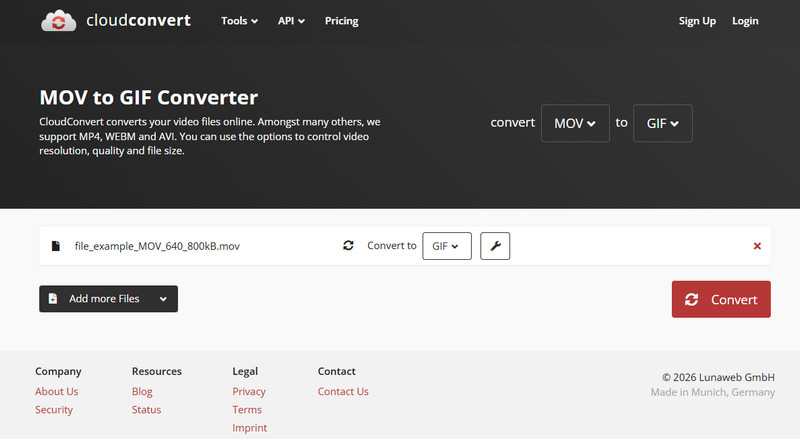
Step 4Once the conversion finishes, click Download to save the GIF to your device and use it for tutorials, posts, or visual content.
Part 6: Comparison of the 4 MOV to GIF Converters
- Features
- Unlimited Batch Conversion
- Internet Required
- Additional Editing Features
- Free to Use
| AVAide Video Converter | Adobe Express | Zamzar | CloudConvert |
| Yes | No | Limited to 5 | Limited to 5 |
| No | Yes | Yes | Yes |
| Yes | Yes | No | No |
| Yes, but you can also choose a paid plan | Yes | Yes | Yes |
Converting MOV files to GIFs is a trivial method of sharing highlight videos without huge files or a complex viewer. On a Mac, knowing how to convert MOV to GIF on Mac lets you create smooth, looping animations that are easy to use in tutorials, posts, or presentations. Using the right tool ensures the GIF keeps good quality while highlighting just the part you want. This makes your content more engaging, quick to load, and ready to share anywhere.
ABOUT THE AUTHOR

Your complete video toolbox that supports 350+ formats for conversion in lossless quality.