A DAV file is a special kind of video file. It usually comes from CCTV or security camera systems. However, the problem is that DAV files do not work well with most media players. They cannot be easily opened or played. Sometimes, they do not even let you share or edit them.
But here is the good part. You can turn those disadvantages into something good. When you convert DAV to MP4, everything gets easier. MP4 works on almost any device. It plays fast. It shares fast. And you can even edit it without any trouble.
You are lucky to be here because we are going to show you how to convert DAV to MP4 the right way. It is easy, and you will be done in no time. Let us get started and make your video files better!
Part 1: What Is DAV and Why Convert It to MP4
A DAV file is a specialized video format created by digital video recorders (NVRsDVRs) and network video recorders (NVRs), commonly used in CCTV and security camera systems (NVRslike Dahua). To ensure security and prevent tampering, these files are heavily encrypted and compressed.
Why Should You Convert DAV to MP4?
- Universal Compatibility: MP4 is the most widely supported video format in the world. Once converted, your footage will play instantly on any smartphone, tablet, Mac, or Windows PC.
- Easy Sharing and Uploading: DAV files are stubborn and difficult to send. An MP4 file can be easily emailed, messaged, or uploaded to cloud storage and video platforms without any errors.
- Effortless Editing: If you need to trim a specific clip or highlight an event for insurance or legal purposes, video editing software readily accepts MP4, whereas DAV files are rejected.
Part 2: How to Convert DAV Files to MP4 in Batch
You have already decided to convert DAV to MP4 because you know MP4 is a more widely supported format that is easier to use and plays on many devices. Now, you need a tool that works well and does the job fast. The best choice is AVAide Video Converter.
This program is compatible with both Windows and Mac. It can change your DAV files to MP4 in just one click. You do not have to worry about losing video quality. The video stays clear and sharp. It also supports various other formats, including AVI, MOV, MKV, and more. If you want to convert other videos later, you can use the same tool.
Without further ado, learn how to convert DAV to MP4 below!
Step 1Click the Free Download button below to download AVAide Video Converter on your computer. Then, install and launch it.

FREE DOWNLOAD For Windows 7 or later
 Secure Download
FREE DOWNLOAD For Mac OS X 10.13 or later
Secure DownloadStep 2You are automatically on the Converter tab. Now, press the Add Files button to import your DAV files. You can add and convert multiple DAV files.
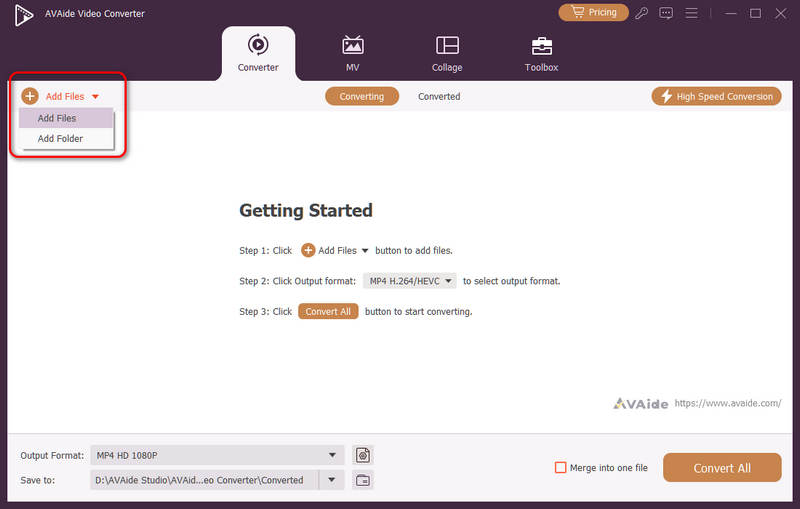
Step 3Once your DAV files are uploaded, click the Output Format drop-down menu in the bottom left corner. A list will show up. Pick MP4 from the Video section. Then, you can select a desired MP4 preset based on your target device's resolution, like HD 1080P or 4K Video.
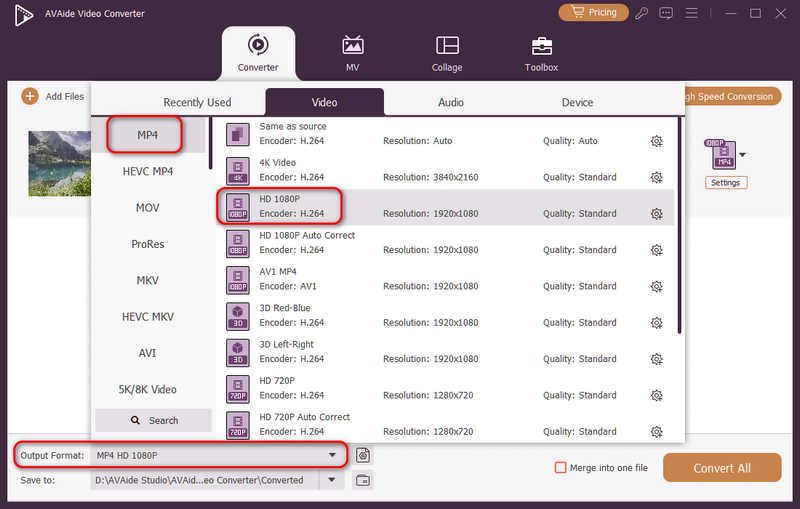
You can also click the Custom Profile button (with a gear icon) on your selected preset bar, and then you can adjust the video codec to H.265/HEVC, which can efficiently shrink the video size while keeping the quality.
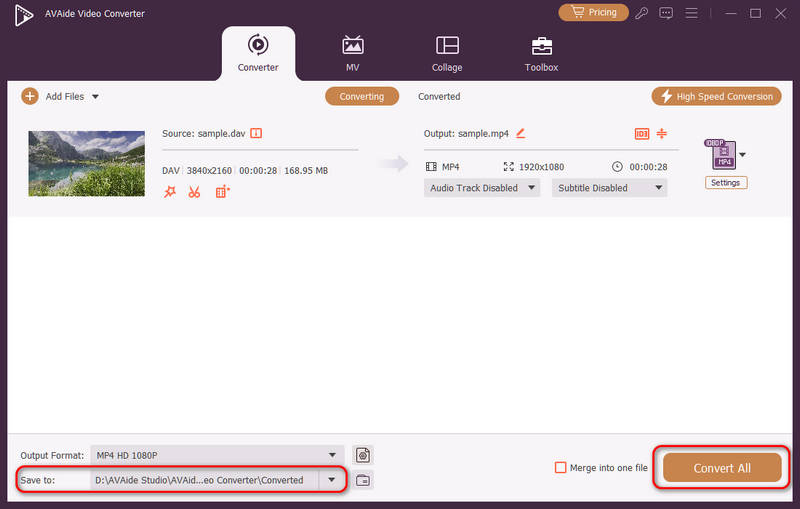
Step 4Click the Save to dropdown button to select a desired output folder for your upcoming MP4 file. Then, click the Convert All button to easily convert your DAV files to MP4 in batch.
Extra Advice: You can further customize your video with AVAide Video Converter to make it exactly how you want it. You can fine-tune the output settings. You can change things like the video encoder, frame rate, and bitrate. You can also use it to increase video resolution. These options help you get the best balance between video quality and file size. It is useful if you want to watch videos on multiple devices or save space on your computer.
Part 3: How to Convert DAV to MP4 with VLC
VLC is not just a player; it can also convert videos. DAV files are tricky because they come encrypted from DVRs like DVR365. To learn how to convert DAV files to MP4 in VLC, you first need to save the DAV files from your DVR to your computer. After that, open VLC and go to File > Convert/Save. Add your DAV file, then choose MP4 as the format. Pick where to save the file, and start converting. VLC is a free and cross-platform player that works on both Windows and Mac. However, sometimes VLC converts DAV files to AVI first, so you might need another converter to make AVI into MP4.
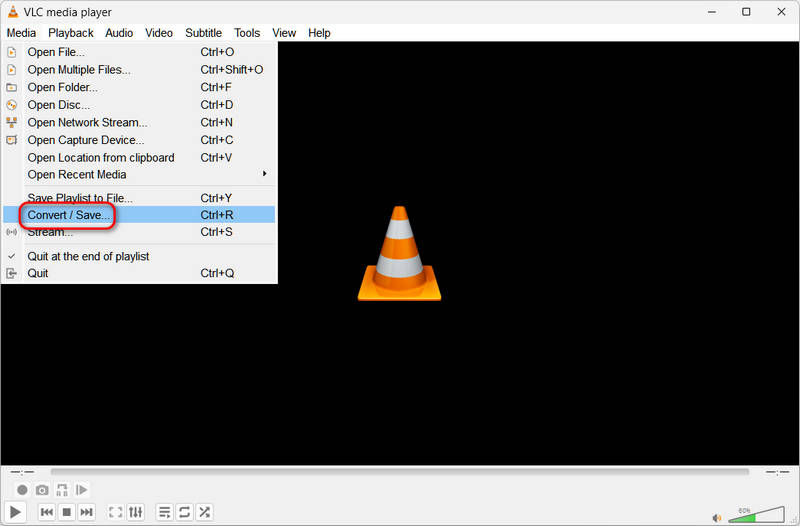
Step 1Launch VLC Media Player. Click the Media button in the top left corner. Then, click the Convert / Save button to add your DAV files.
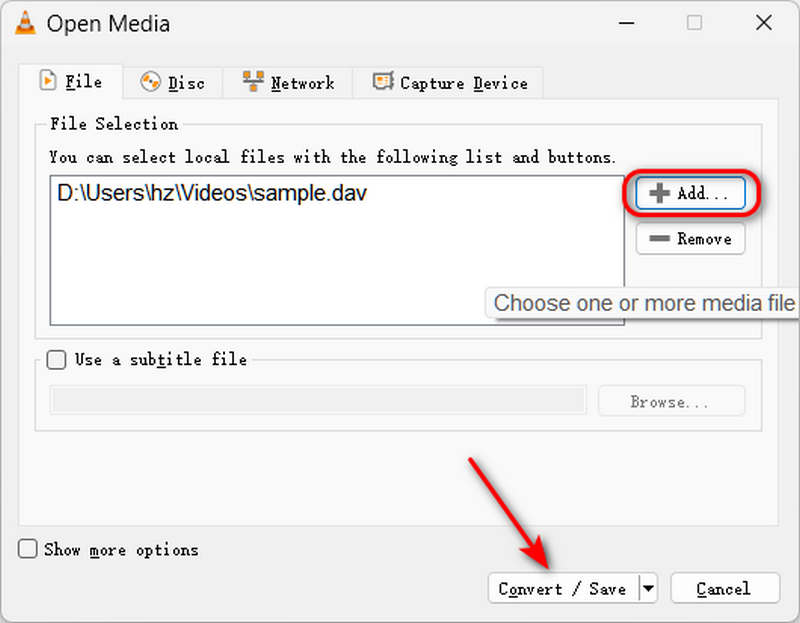
Step 2Click the Add button to add your DAV files. You can also import multiple files into VLC. Then, click the Convert / Save button on the bottom side.
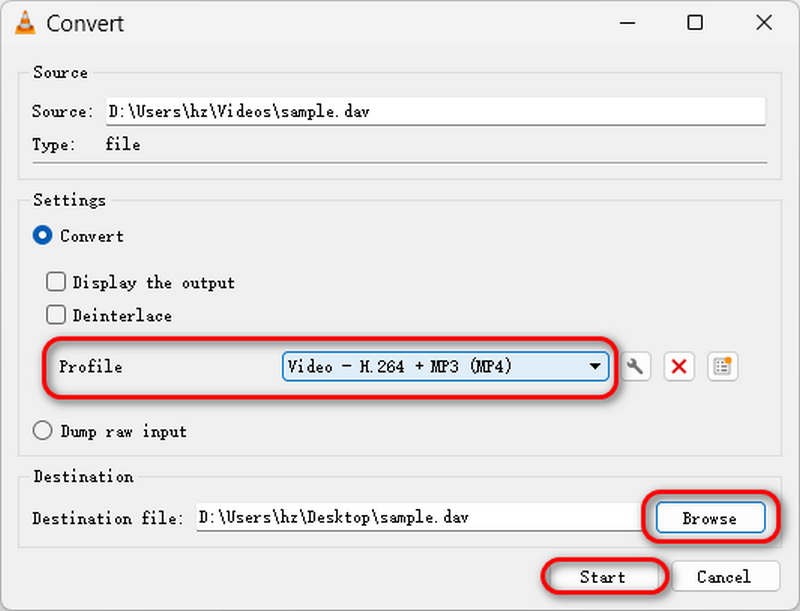
Step 3Click the Profile dropdown list and select Video – H.264 + MP3 (MP4). Then, click the Browse button to select a destination folder for your MP4 video. Finally, click the Start button to convert DAV files to MP4 with VLC.
Part 4: How to Convert DAV to MP4 with MiniTool Video Converter
MiniTool Video Converter is a straightforward program designed specifically for converting videos, such as DAV to MP4. It supports various formats and allows you to edit your videos as well. You can trim, crop, or add effects before saving. It also lets you enhance video quality, resolution, and more. Additionally, it is fast and can convert multiple videos simultaneously, which is beneficial if you have numerous DAV files to convert to MP4 or other formats.
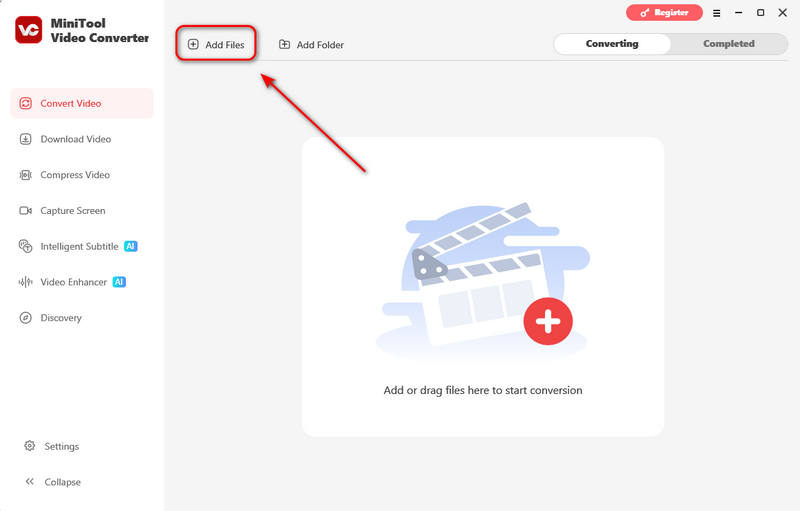
Step 1Launch MiniTool Video Converter. Click the Add files button to add your DAV files to this DAV to MP4 converter.
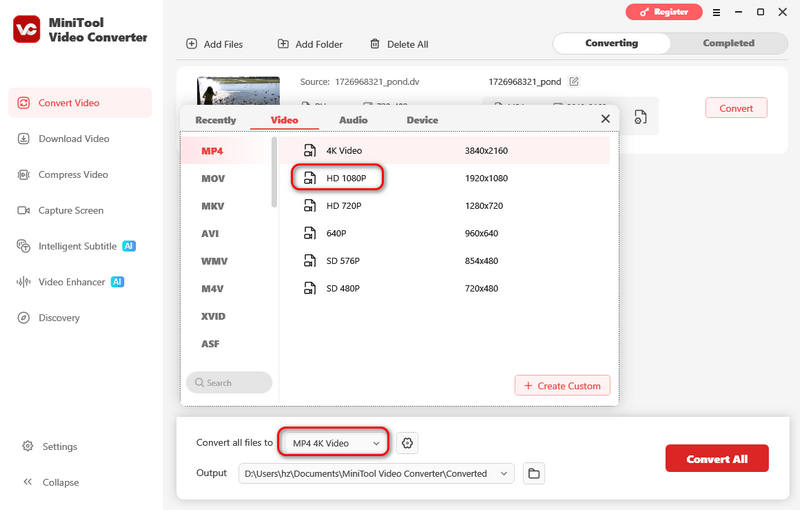
Step 2 You can see that the output video format is set to MP4 4K Video by default. If you don't need a 4K resolution, you can click the dropdown button and select HD 1080P or another preset.
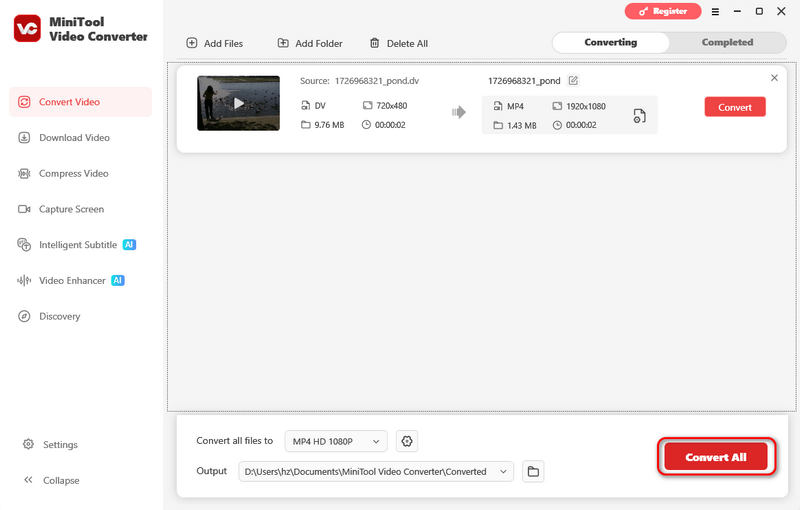
Step 3Finally, just click the Convert All button to convert DAV file format to MP4 easily.
Part 5: How to Convert DAV to MP4 Online
If you prefer not to download software and want to learn how to convert a DAV file to MP4 online, Online-Convert is a good choice. It is a website that changes your DAV files to MP4 right in your browser. You upload your file, pick the MP4 format, and can even fine-tune video or audio settings before conversion. It supports a range of file types, not just video. The best part is that it is free and works on any device. However, the speed depends on your connection and the file size.
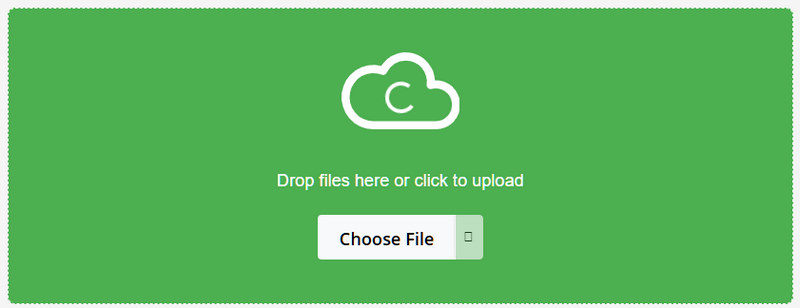
Step 1Go to the official webpage of Online-Convert DAV to MP4 converter. Then, click the Choose file button to upload your DAV videos.
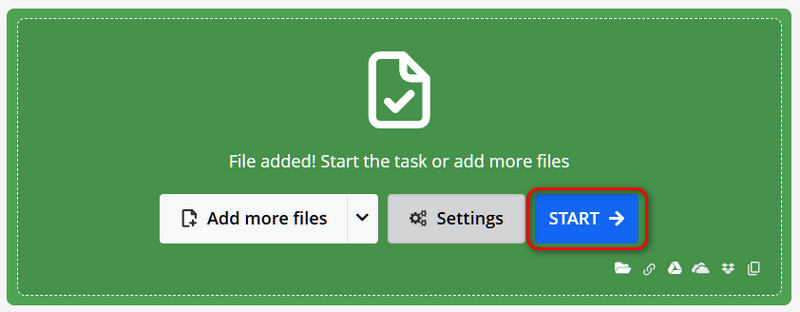
Step 2If you need to adjust the output settings, like video codec, resolution, FPS, and more, click the Settings button to do that. But you don't need to do that if you choose the most standard output configuration. Finally, click the START button to convert DAV to MP4 easily.
Part 6: FAQs of Converting DAV to MP4
What is the best DAV to MP4 converter?
The "best one" mainly depends on your specific needs. If you need to convert multiple large DAV files, you'll need a DAV file format to MP4 converter that has strong GPU acceleration, like AVAide Video Converter.
What is the difference between MP4 and DAV?
While both formats can contain the exact same underlying video data, often using standard H.264 or H.265 video codecs, the fundamental difference lies in their compression container and encryption. An MP4 file is a universally recognized container that standardizes this video data so any modern media player can decode and play it instantly. In contrast, a DAV file takes that very same H.264/H.265 video stream and wraps it in a proprietary, encrypted container designed by security manufacturers (like Dahua) to prevent tampering. Therefore, while their core audio and video compression codecs are often identical, DAV locks that data behind a proprietary wall, whereas MP4 makes it universally accessible.
What player plays a DAV file?
DAV files mainly use common H.265 or H.265+ codecs, so most modern media players can play them. However, audio streams also matter. Therefore, a powerful player, like AVAide Blu-ray Player, can easily play them with seamless audio playback.
We hope you are now happy and settled, knowing that converting DAV to MP4 offers numerous advantages. We are really glad that we helped you learn how to change DAV to MP4 the right way.
If you want it easy, fast, and without losing quality, AVAide Video Converter is the best one to use. It works on both Windows and Mac. It supports a range of video formats, not just MP4. You can even tweak settings like resolution or bitrate if you want to.
ABOUT THE AUTHOR

Your complete video toolbox that supports 350+ formats for conversion in lossless quality.