The WMVs can be restrictive to work with unless you are required to have audio only. Encoding WMV to MP3 gives you the liberty to listen anywhere on any device without losing the quality. The confusing formats or bad tools used by many users have been the major problem as to why a structured approach is important. We will proceed to install trusted software, free online services, and step-by-step tutorials with Windows Media Player and VLC Media Player to ensure easy conversions and set outcomes.
Part 1: How to Convert WMV to MP3 with the Best Software
To convert WMV to MP3 easily, AVAide Video Converter stands out as a multipurpose tool for all users. It is free to download on Windows and Mac, making it open and accessible to anyone. The software converts WMV videos to high-quality MP3 audio in a matter of clicks and in a reliable way. The user-friendly interface and speed are achieved by making sure that neither amateurs nor experts have any technical barrier in extracting audio, thereby preserving the original sound quality and saving time in all conversions.
Step 1Before you can try to use this converter, you need to download it first by clicking the download button that we have below. Then, follow the installation and setup it requires before you can launch and use it.

FREE DOWNLOAD For Windows 7 or later
 Secure Download
FREE DOWNLOAD For Mac OS X 10.13 or later
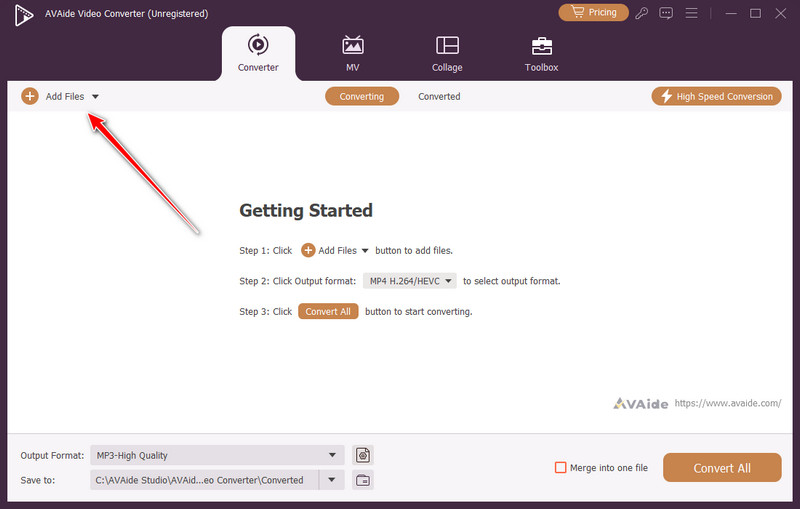
Secure DownloadStep 2Next, click the Add Files that is in the upper part of the interface to search and upload the WMV file you want to convert into MP3.
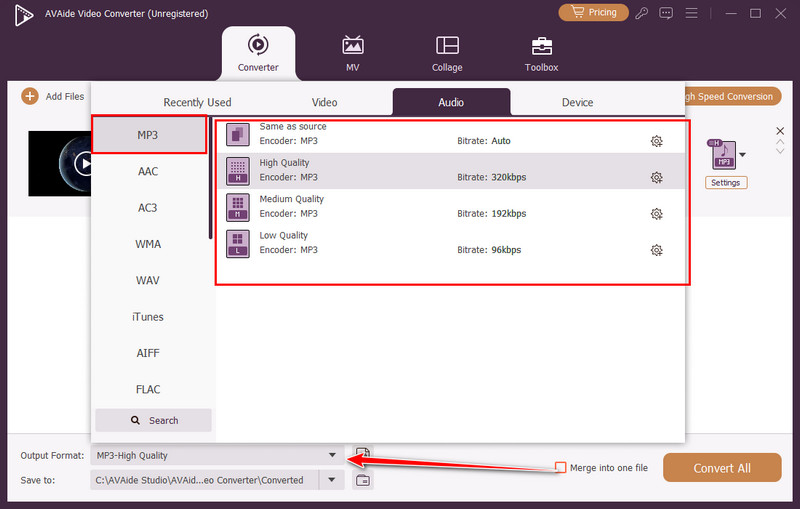
Step 3As we continue, click the Output Format, select Audio, and choose the MP3 format. After you click the MP3, you need to select which format settings you want to get as an audio.
Step 4Finally, you can now extract the audio from WMV by clicking the Convert All button, then wait for the process you be successful.
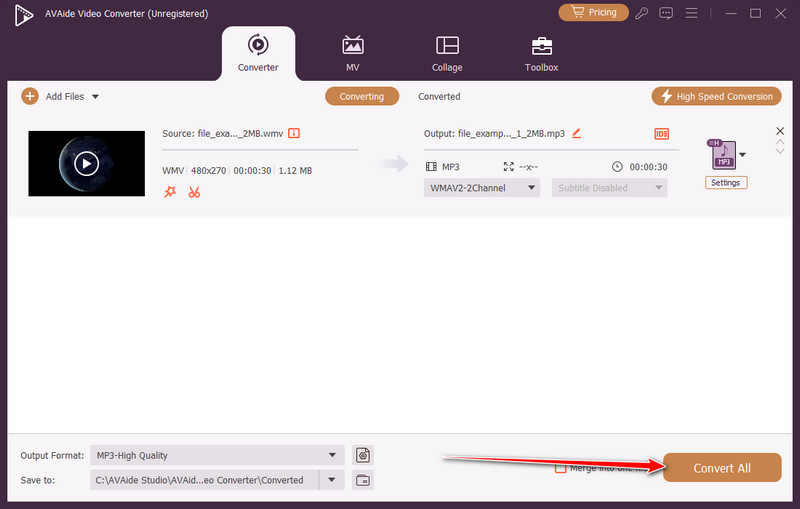
With AVAide Video Converter, anyone can convert WMV to MP3 for free in just a few clicks, preserving the original audio quality and saving time. Aside from converting, it also offers a way to tweak the MP3 file based on your needs, which is why this MP3 editor and converter is a complete tool for multiple file problem.
Part 2: How to Convert Video WMV to MP3 Online Free
If you need a quick way to convert from WMV to MP3 without installing software, the free online 123APPS Audio Converter is a handy tool that will convert audio files in your browser. It enables users, regardless of their experience levels, to post files effortlessly and translate videos into decipherable MP3 sounds in a few clicks. As an online version, it is compatible with any device and does not require complex installation, so in any case, you need some audio, it is easily extracted and always ready.
Step 1Open your browser and visit the 123APPS Audio Converter website, then upload the WMV file you want to convert from your device, cloud storage, or URL source.
Step 2After the file uploads, click the format selection area and choose MP3 as the output format for your audio file. Adjust audio quality or bitrate settings if needed, then click the Convert button to start processing your file.
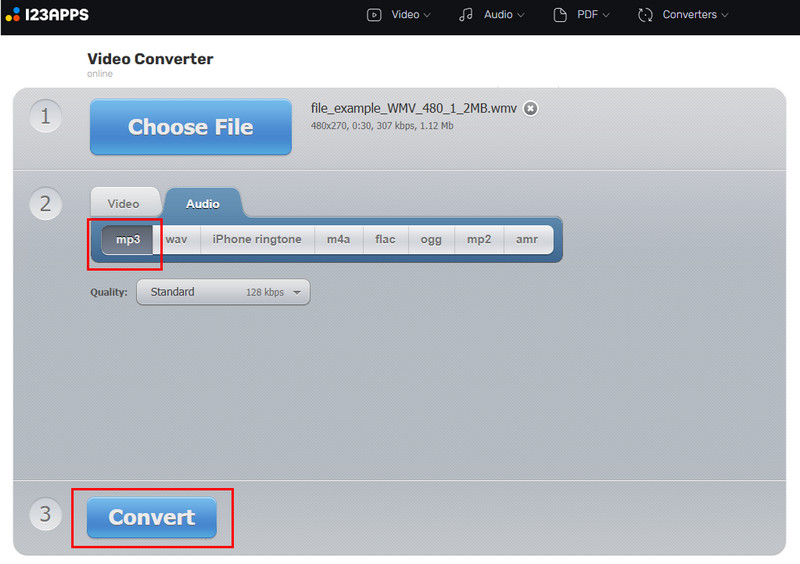
Step 3Once the conversion is complete, download the converted WMV file to your device so you can play or share it anytime.
Using 123APPS, you can convert video WMV to MP3 online for free without downloading software or dealing with complicated settings. The tool works across devices and browsers, making it a practical solution for anyone who needs quick, high-quality audio from WMV files anytime, anywhere.
Part 3: How to Convert from WMV to MP3 via Windows Media Player
Many users try converting WMV to MP3 with Windows Media Player since it is already built into Windows computers. Although the program is unable to directly convert WMV files, it can convert WMA audio to MP3, which is an alternative when it is extracted in audio form in the first place. Since it is free and preinstalled, it is an option that users who do not want to install additional software have and just require a basic audio conversion solution.
Step 1Open Windows Media Player and insert the CD or open the media source containing the WMA audio file you want to save.
Step 2From the top menu bar, click Organize, select Options, and open the Rip Music tab to adjust file conversion settings.
Step 3Tick MP3 from the Format drop-down menu and adjust the audio quality slider based on your preferred sound quality and file size.
Step 4Tick Apply and then OK to save settings, then start ripping the audio so the file is saved in MP3 format on your computer.
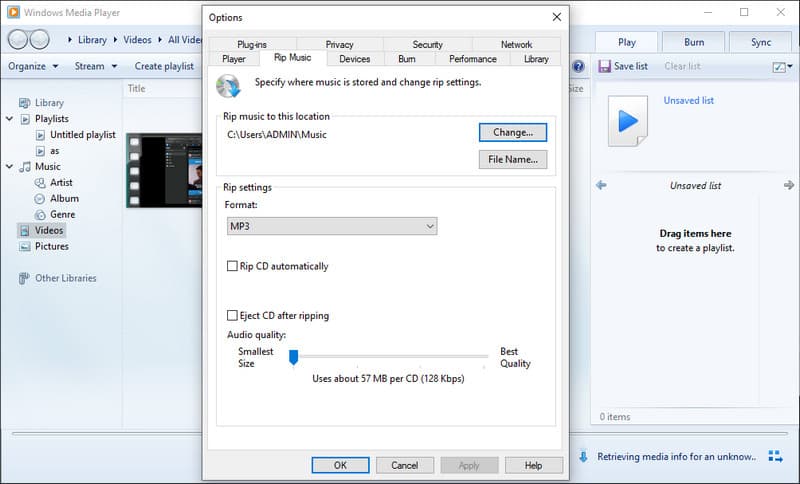
While Windows Media Player cannot directly convert WMV files, it still allows users to convert WMV files to MP3 through WMA audio extraction. Its preinstalled availability makes it a convenient option for users who prefer a free, built-in solution without installing extra software, and you can even use Windows Media Player to convert MP4.
Part 4: How to Convert a WMV File to an MP3 Using VLC Media Player
Should you require an open-source, free, and flexible means to convert WMV to MP3, VLC Media Player offers a trustworthy platform that can work on various platforms without the need to install any other paid software. Known for playing almost any media format, VLC also includes a built-in conversion feature that allows users to extract audio from video files easily, making it a practical choice for beginners and experienced users who want quick results without complicated setup.
Step 1Open VLC Media Player, click Media in the top menu, then choose Convert/Save to open the conversion window.
Step 2Click Add to browse and select the WMV, then hit Convert/Save at the lower part of the window to proceed.
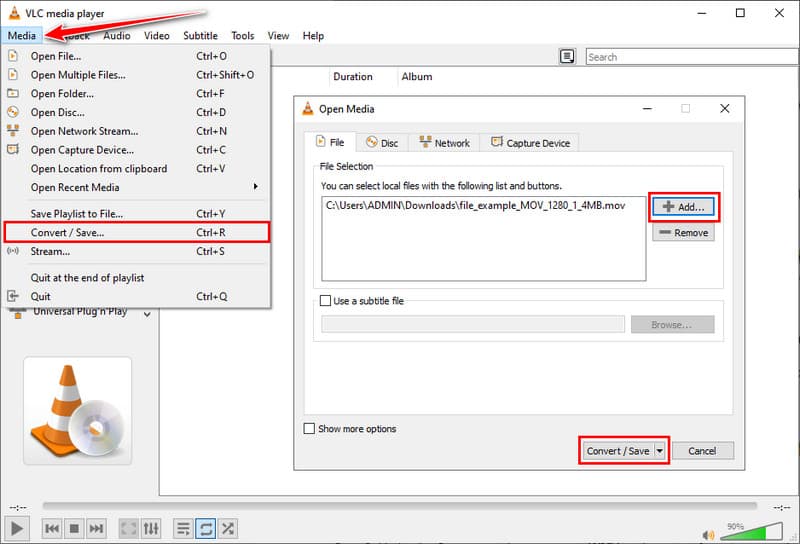
Step 3In the Profile section, choose Audio - MP3 as the output format, then click Browse to select the destination folder and set a file name for the new MP3 file.
Step 4Click Start to begin conversion and wait until the progress bar completes, after which your MP3 file will be saved in the selected location, ready for playback.
VLC Media Player offers a free and flexible way to convert WMV to MP3, alternatively, letting users extract audio from videos quickly and reliably. Its cross-platform nature and easy conversion process make it a perfect tool for anyone who desires to control the quality of audio and, at the same time, keep the workflow as uncomplicated as possible.
Converting your WMV videos into MP3 audio opens up new ways to enjoy your media, whether for listening on the go, editing, or sharing with others. Using either desktop programs such as AVAide or the use of free online software, as well as a versatile player such as VLC, has made the process easy, quick and effective. Anyone is capable of converting WMV to MP3 without losing quality or wasting more time by knowing the steps and selecting the right method that fits into your working process. This enables one to extract audio from video easily, conveniently, and effortlessly.
ABOUT THE AUTHOR

Your complete video toolbox that supports 350+ formats for conversion in lossless quality.