WebM files also tend to fail when used in Apple devices due to the use of the codecs and container that cannot be fully supported by apps in macOS and iOS. It is this discrepancy that leads to playback and editing issues despite the video being okay. Converting WebM to MOV solves this by placing the video in a format optimized for Apple software and hardware. This guide explains format differences first and gives you an idea of how to solve the problem promptly.
Part 1: WebM vs MOV
1. What is WebM?
WebM is a web streaming video format that is an open source. It typically takes VP8, VP9, or AV1 video and Opus or Vorbis audio. Its strengths are that it has a small file size, can be loaded quickly, and supports a wide range of browsers. Nevertheless, Apple devices do not support WebM entirely, and this can cause playback or editing problems. For creators needing Apple compatibility, converting .webm to .mov is often necessary.
2. MOV Overview
MOV is an Apple format that is optimized to be used in macOS and iOS. It generally utilizes H.264, H.265 or ProRes coded and high-quality video, alpha channels, as well as professional editing processes. Although MOV is a bigger file compared to WebM, it guarantees a smooth playback and integration with Apple. Choosing to convert WebM to MOV guarantees compatibility for editing and sharing.
3. Codec Differences
WebM is based on the basis of codecs that are not entirely supported by Apple software, whereas MOV is based on the basis of codecs that are optimized to be used in QuickTime and Final Cut Pro. Such a difference is the reason why it is typical that videos cannot be imported or played properly on Apple devices. Using a reliable WebM to MOV converter resolves these issues while preserving video quality.
4. Use Case Scenarios
Online streaming and browser-based applications should use WebM, and professional editing, playing on Apple devices, and post-production processes should use MOV. Knowing when to convert from WebM to MOV will assist in preventing any compatibility issues, as well as guarantee that the video is in the necessary quality.
5. Quality and Workflow Considerations
WebM to MOV conversion retains visual fidelity, supports alpha channels, and supports easy editing in Apple tools. MOV offers better quality and, consistent workflow to the professional creator to convert a WebM file to MOV to use during post-production or to use in a device.
Part 2: How to Convert WebM to MOV with Alpha
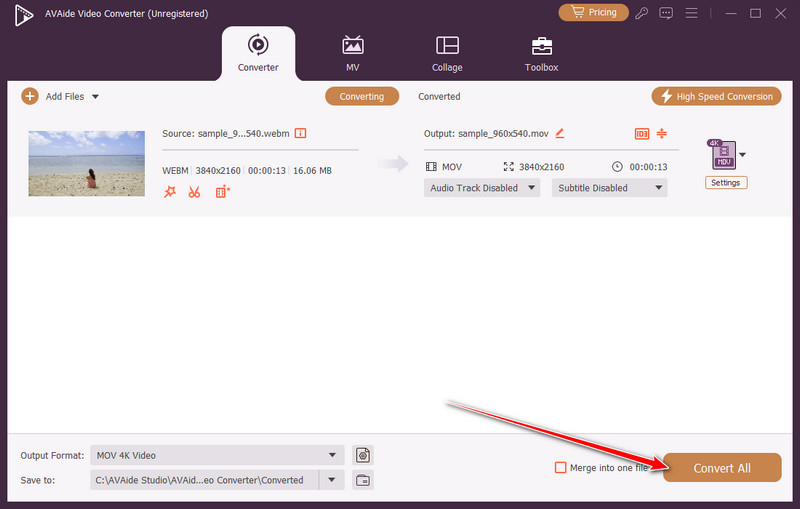
Desktop converters are the best option for preserving the video quality during conversion. AVAide Video Converter is required with both amateurs and professionals, and the tool supports such formats as MOV, MP4, MKV, and AVI. It comes with the basic editing features like trimming, cropping, and rotating and works well on Windows and Mac. If you need to convert WebM to MOV on Mac, AVAide keeps alpha channels intact and ensures files are fully compatible with Apple editing software, making it a fast, dependable choice for both personal and professional workflows.
Step 1Firstly, download the video converter button by ticking the download button that we have here, then follow the installation process, and launch it afterwards.

FREE DOWNLOAD For Windows 7 or later
 Secure Download
FREE DOWNLOAD For Mac OS X 10.13 or later
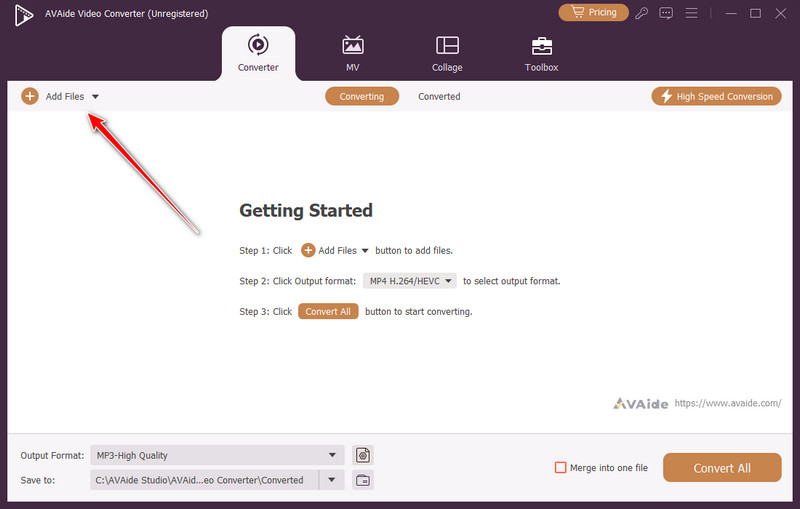
Secure DownloadStep 2By ticking the Add File button, you are able to import the WebM video that you have saved or downloaded on your desktop.
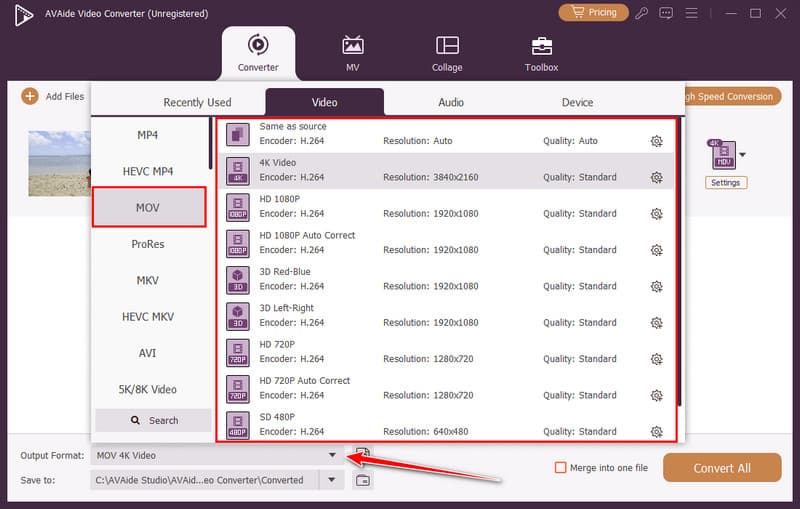
Step 3Then, click the dropdown button to choose the MOV format that is on it to have it set as an Output Format.
Step 4Finally, hit Convert All. The software will quickly turn your WebM file into MOV while keeping quality and transparency intact, so it is ready for editing or playback on the Apple ecosystem.
Part 3: How to Convert from WebM to MOV Online
1. CloudConvert
CloudConvert is a well-known online platform that makes it easy to convert from WebM to MOV while preserving video quality. The cloud processes conversions fast, and you can instantly download the MOV file, which you can play, edit, or share on Apple devices.
Step 1Go to the CloudConvert website and upload your WebM video.
Step 2Select MOV as the output format and adjust settings as needed.
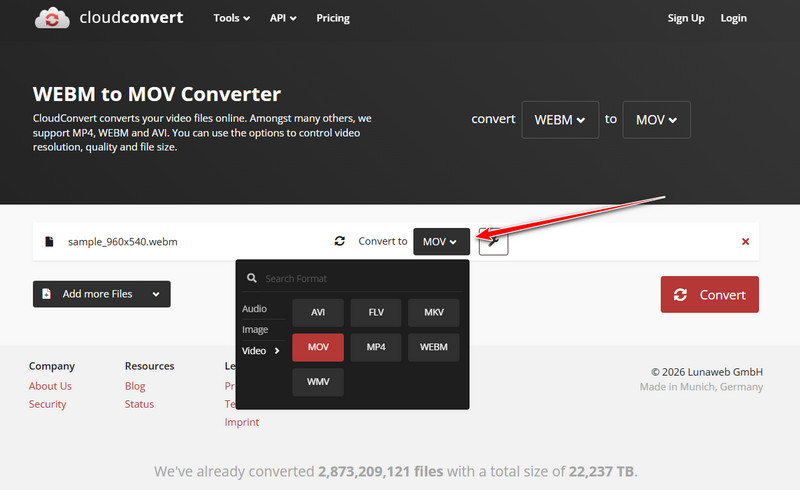
Step 3Tick Convert to start the process, then download the MOV file once the conversion is complete.
2. Convertio
Convertio is another versatile online converter that allows you to convert webm file to mov efficiently and without software installation. The platform also prioritizes fast processing times and maintains the original quality of your video, ensuring the MOV output works smoothly on Mac or iOS devices.
Step 1Open the Convertio website and drag your WebM file into the upload area.
Step 2Choose MOV as the target format.
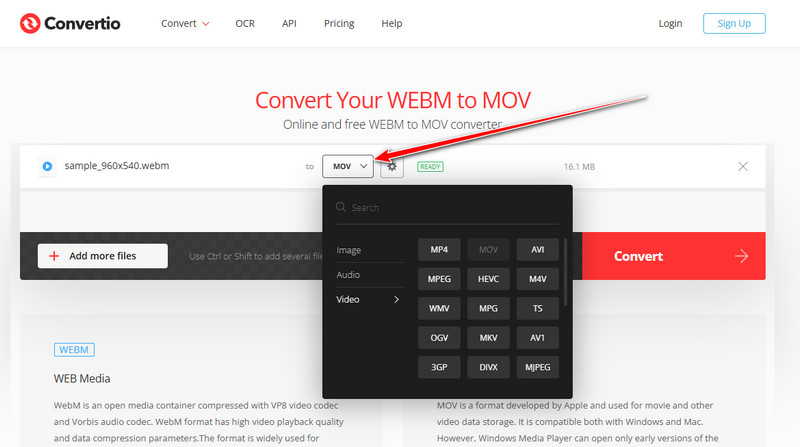
Step 3Click Convert, then download the finished MOV file for immediate use in editing or playback.
3. FFmpeg
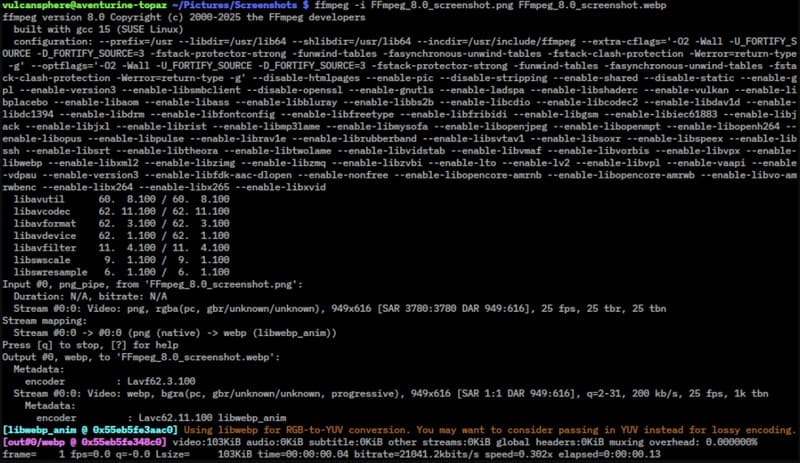
FFmpeg is a reliable, open-source tool for video conversion that supports nearly all formats. If you need to know how to convert WebM to MOV, FFmpeg lets you preserve video quality and alpha channels while producing a MOV file compatible with Apple devices. Plus, you can manage to crop video on FFmpeg easily, as long as you have the right command.
Step 1Install FFmpeg on your computer.
Step 2Open the command-line interface and navigate to your WebM file’s folder.
Step 3Enter the command: ffmpeg -i input.webm -c:v copy -c:a copy output.mov
Replace input.webm and output.mov with your file names, then press Enter.
Step 4After conversion, your MOV file is ready for playback or editing on Mac or iOS.
Part 4: How to Convert WebM File to MOV Using Handbrake
HandBrake is a trusted open-source video converter favored by both beginners and professionals. It allows users to change formats without losing quality and runs on Windows, Mac, and Linux. As a WebM to MOV converter free, it offers a straightforward interface and reliable performance, making it easy to convert WebM files into MOV format for smooth playback or editing on Apple devices.
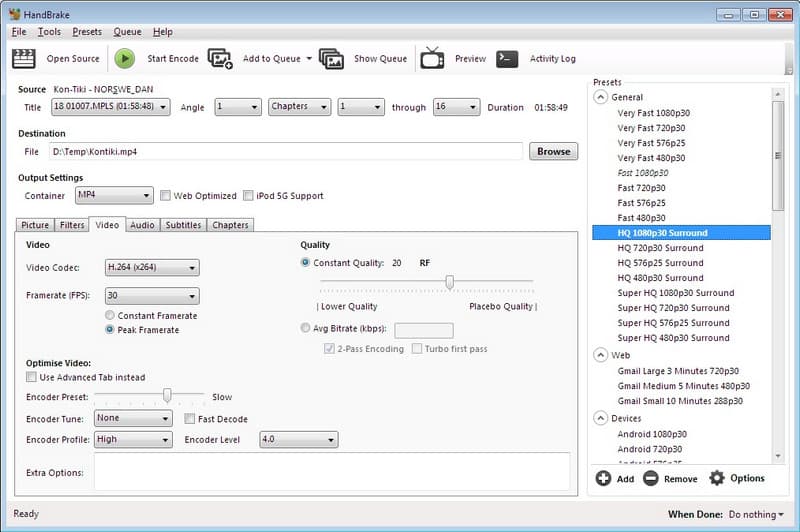
Step 1Download and install HandBrake on your computer. Open HandBrake and click Open Source to select your WebM file.
Step 2In the Format section, choose MOV as the output format. Adjust settings if needed, such as video codec or quality, then click Start Encode.
Step 3Wait for the conversion to finish. The resulting MOV file will be ready for editing or playback on Mac or iOS devices.
Video files can be problematic to work with, particularly when they are not compatible with Apple devices. WebM to MOV, and you can forget those headaches; your videos are smooth, high-quality, and can be edited. Assuming you use a desktop utility such as AVAide, an internet-based one such as CloudConvert or Convertio, or more sophisticated software like FFmpeg and HandBrake, you have a sure footing at your disposal. Need transparency in your project? The solution is to allow you to change WebM to MOV with alpha without straining, and have your videos just when you want them.
ABOUT THE AUTHOR

Convert WebM to MOV and 350+ other formats in high quality for smooth playback and editing on Apple devices.