Suppose you had recorded an MKV webinar to record slides and audio. All that is required now is the voice of a podcast or transcript. Video data is added without value in this scenario. Turning MKV to MP3 enables you to drag out the audio stream into a small, compatible file. The trick is to pick the appropriate tool and quality of results in order to maintain clarity. You will find the difference between the formats below, with practical steps for desktop and online.
Part 1: MKV vs MP3
When planning a .mkv to MP3 conversion, it helps to understand what each format is built to do. MKV and MP3 serve very different purposes in digital media. One of them is a versatile video and audio storage. The other is the compressed audio format, which is aimed at playback and storage efficiency. It is awareness of their disparity that helps to avoid loss of quality and technical mistakes. Here is a clear comparison.
1. Format Type
- MKV is a multimedia container format. It can hold video, audio, subtitles, and metadata in one file.
- MP3 is a compression of an audio file. It stores only sound data.
2. Primary Purpose
- MKV is applied to movies, TV shows, recordings, and complicated projects in the media.
- Music, podcasts, audiobooks, and voice recordings are done in MP3.
3. File Size
- MKV files are often large because they include video streams and multiple tracks.
- MP3 files are much smaller due to lossy audio compression.
4. Content Support
- MKV may have several audio channels, subtitle channels and chapters.
- MP3 can only hold one audio stream with simple metadata such as title and artist.
5. Codec Flexibility
- MKV can carry many codecs such as H.264 for video and AAC or MP3 for audio.
- MP3 uses a fixed audio encoding standard based on MPEG-1 or MPEG-2 Audio Layer III.
6. Compatibility
- MKV playback depends on media players that support the container and its codecs.
- MP3 is supported by almost all devices, operating systems, and media players.
7. Editing and Conversion
- Extracting audio from MKV requires selecting the correct audio track.
- MP3 files are easier to edit, share, and transfer across devices.
Part 2: How to Convert MKV to MP3 on Windows/macOS
Some converters feel clunky or overly technical. AVAide Video Converter feels calm and efficient. When you need to convert MKV to MP3, it does not overwhelm you with confusing panels or risky settings. It is compatible with Windows and macOS and safeguards your audio quality not by converting it to lower quality but by removing the original soundtrack. The speed is impressive, even with large files, so you are not left waiting. With massive format support, it becomes that reliable media tool you keep installed because it simply gets the job done right.
Step 1To test the app for converting, just click the download button that we have here, suitable for your Windows or Mac. Install the app promptly before you are able to use it and launch it afterwards.

FREE DOWNLOAD For Windows 7 or later
 Secure Download
FREE DOWNLOAD For Mac OS X 10.13 or later
Secure DownloadStep 2On the main interface of the app, tick the Add Files button to add the MKV videos you want to convert into MP3. Once uploaded, follow the next steps.
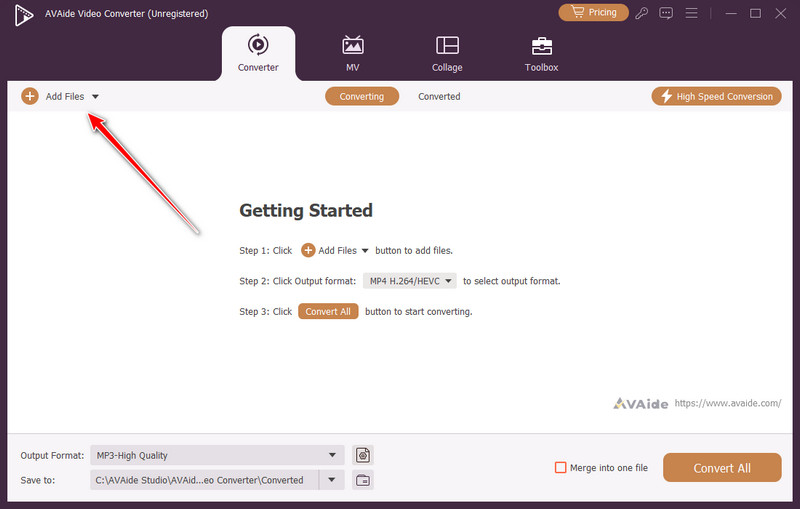
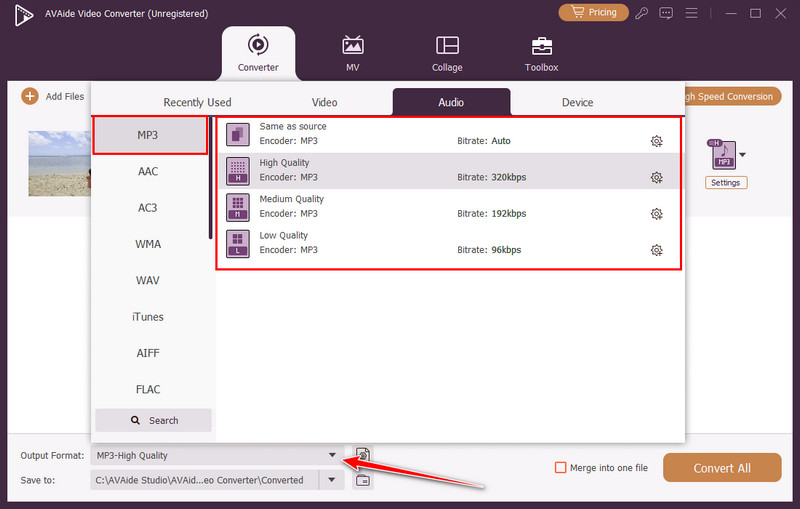
Step 3Here, you need to set the output format you want to achieve, and that is the MP3. To do it, you need to click the dropdown button, go to the Audio, and select MP3.
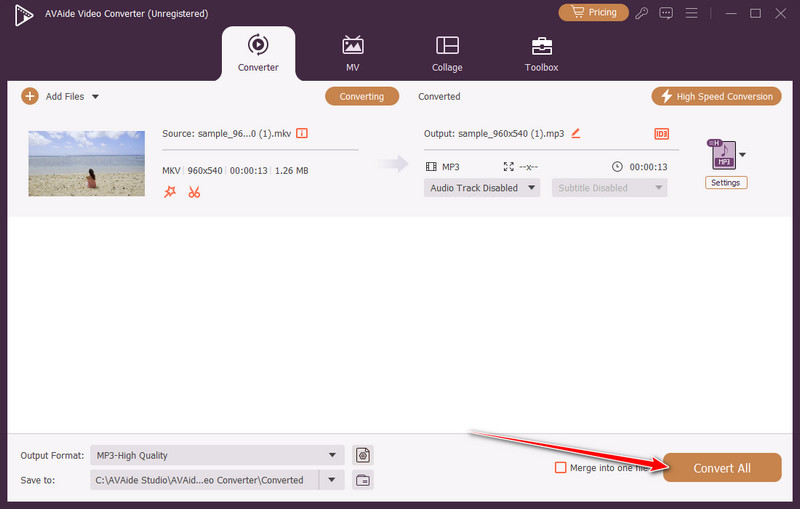
Step 4Finally, you are ready to extract the audio content from the MKV video you have uploaded to the app. With its fast conversion process, you will get the result in no time.
Part 3: How to Change MKV to MP3 Online
Online converters are suitable because they can be used to extract audio from MKV videos without the need to install software. Being easy to use, running right in your browser and capable of dealing with small to medium files, they are convenient to use. The following are four trusted online tools, each having a step-by-step tutorial and review.
1. Zamzar
Zamzar makes it simple to convert MKV to MP3 without technical complications. Its cloud-based platform is beginner-friendly and supports a wide variety of formats, including the conversion of PNG to TIFF. It is a practical choice for casual users who want quick results without installing software.
Step 1Visit the Zamzar website and click the Choose Files button to upload your MKV file.
Step 2Pick MP3 as the output from the available options.
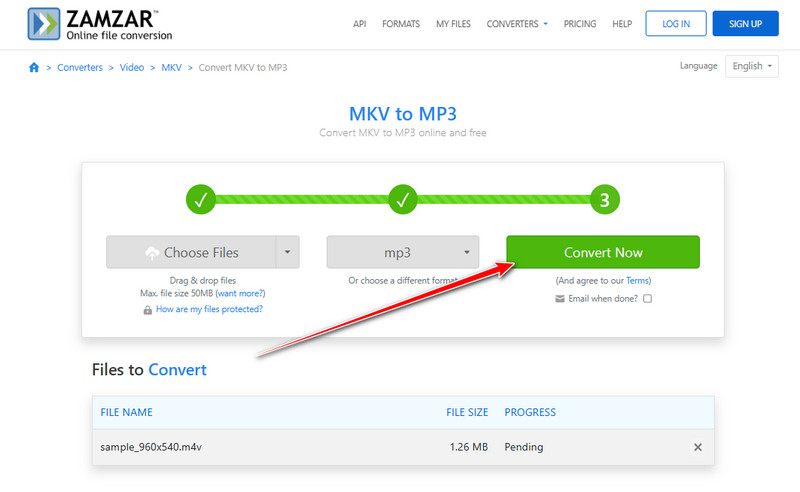
Step 3Click the Convert Now button to start the conversion process.
Step 4Once the conversion finishes, download your MP3 file from the provided link.
2. Online-Converter
Online-Converter is ideal if you want to change MKV to MP3 with more control over audio settings. It provides the option to change bitrate, sample rate and trimming, which is appropriate in the case of the user being quality conscious but at the same time avoids any software installation.
Step 1Open the Online-Convert website and go to the audio converter section. Import your MKV file from your computer or enter a file URL.
Step 2Pick MP3 as the target format, then adjust settings like bitrate or audio length if needed.
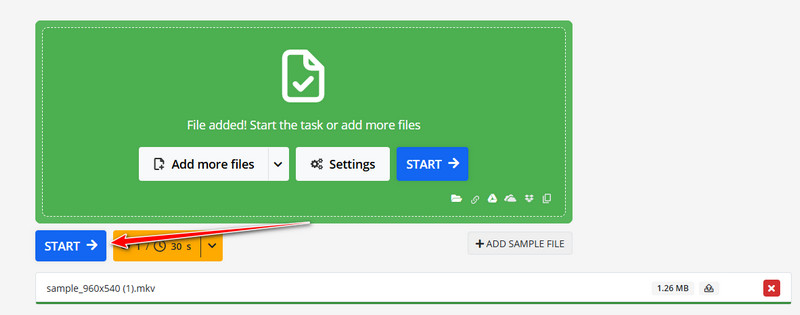
Step 3Tick Start to begin conversion, and download your MP3 file after it completes.
3. AConvert
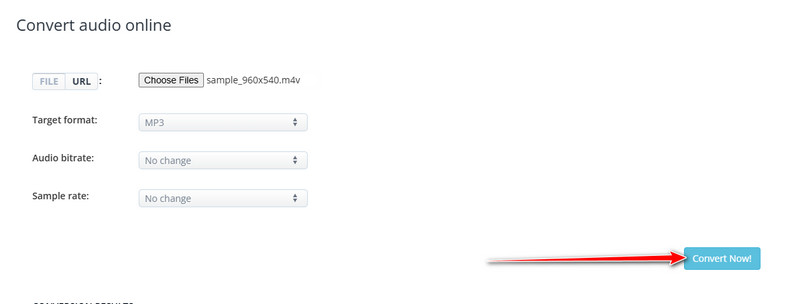
AConvert works as a free MKV to MP3 converter with support for multiple media types. It allows bitrate selection, providing a balance between audio quality and file size when converting formats like WMA to MP3 and more. Its simple interface makes it reliable for casual conversions without additional software.
Step 1Go to the AConvert website and click the Choose File button to upload your MKV video.
Step 2Pick MP3 as the output format and select the desired bitrate if necessary.
Step 3Click the Convert Now! button to start processing. Once finished, download the converted file to your device.
4. ConvertFiles
ConvertFiles is designed for users who need to convert MKV audio to MP3 quickly and efficiently. It has a clean interface and minimum setup requirements, which makes it applicable for quick conversions. It is an effective alternative to amateur users who require the reliability of online tools without the need to install software.
Step 1Visit the ConvertFiles website and upload your MKV file using the upload button.
Step 2Pick MP3 as the output from the available list. Click Convert Now to begin processing the file.
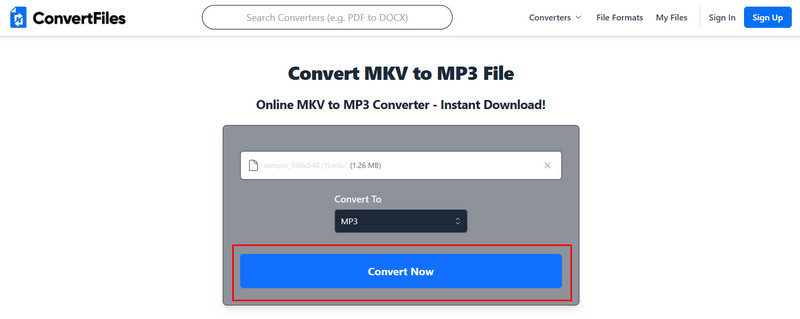
Step 3Download your MP3 file once the conversion is complete.
The hunt for the best MKV to MP3 converter is over since the converters mentioned in this list are sure to be able to meet the audio extraction requirements of your MKV files. You like a fast online solution, or something more powerful on the desktop, both versions give good results and maintain audio quality.
In general, online converters such as Zamzar, Online-Convert, AConvert and ConvertFiles are quick and handy in solving casual tasks. In case you work with large files or want to be more in control of audio options, desktop programs like AVAide Video Converter are able to provide quality, efficient and flexible conversion.
ABOUT THE AUTHOR

Your complete video toolbox that supports 350+ formats for conversion in lossless quality.