M4V files have a video container with H.264 video and AAC audio streams, which are frequently included in them. Although it is efficient in playback, this structure is not the best in case you just require sound. M4V to MP3 conversion simply rips out the audio track and puts it in a format that is created to be compatible with all audio. It makes the files smaller and easier to cross-device and to cross-editor. In this guide, you will learn how to convert with high fidelity, compare online tools, and understand the format trade-offs.
Part 1: How to Convert M4V to MP3 with the Best Quality
When audio quality matters, the tool you choose makes all the difference. Many converters compress files too aggressively or strip metadata during export. That is why AVAide Video Converter stands out for users who want to convert M4V to MP3 without losing clarity. It has high-bitrate output, hardware acceleration and batch processing on Windows and Mac. The interface is, however, clean, and conversion is quick even on big files. In addition to MP3, it supports various video and audio formats, which makes it a convenient answer to the daily media processes. Our next step is to go through the step-by-step process of getting the finest quality output with this software.
Step 1Install AVAide Video Converter on your computer by clicking this download button. Then, follow the initial setup that it requires for installation before you start using it.

FREE DOWNLOAD For Windows 7 or later
 Secure Download
FREE DOWNLOAD For Mac OS X 10.13 or later
Secure DownloadStep 2Tick the Add Files button here to import the M4V file you want to convert, or you can drag and drop it on the interface if you want an easier way to upload a video.
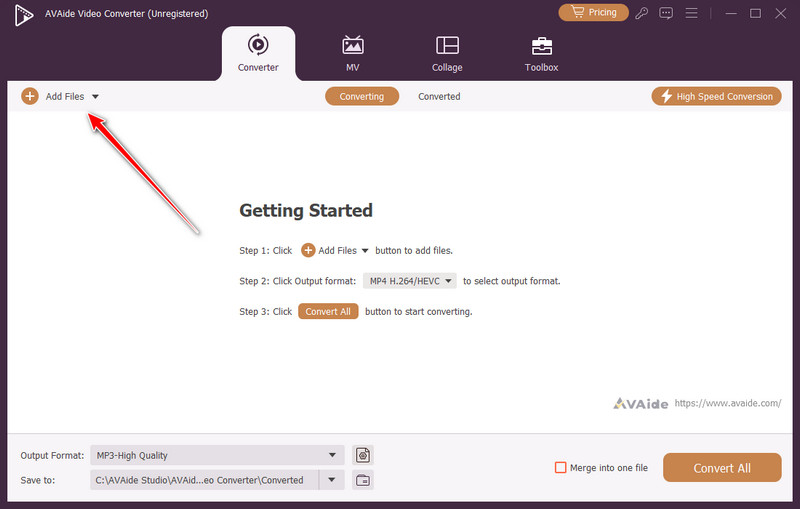
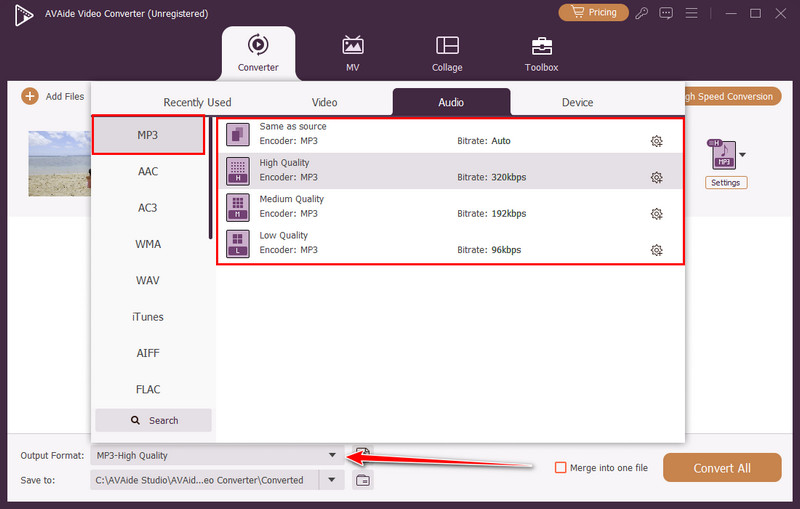
Step 3Once a video is uploaded, set the output format you want to achieve by clicking the Output Format. Here, you can see variations of output formats you can choose from, but for now, click MP3.
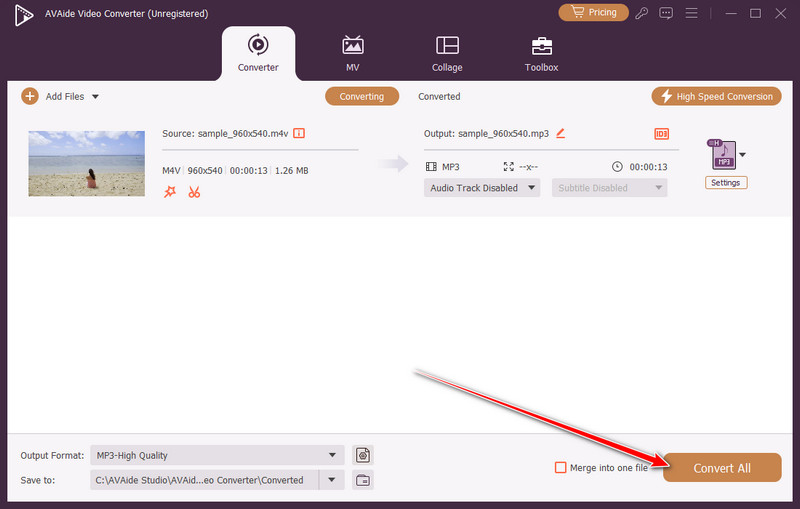
Step 4Click Convert All to export the MP3 file to your computer. The software will process the file quickly while preserving audio clarity. Once finished, your audio file is ready for playback or editing.
Part 2: How to Convert M4V to MP3 Online
Online converters are the most handy in cases where you do not want to install software to extract audio. They play directly on a browser, are cross-platform, and are best suited to M4V to MP3 conversion. While most tools offer free access, speed, file size limits, and audio quality can vary. Below are five trusted online tools, reviewed with practical insights, and step-by-step instructions to make the process smooth and reliable. Each tool’s review includes one of the targeted keywords naturally.
1. DigitalOfficePro
DigitalOfficePro is a fast and reliable browser-based tool that makes it easy to change M4V to MP3. It can handle a variety of video and audio files, perform batch processing, and can be imported using Google Drive or Dropbox. The interface is simple and clean, and guarantees quality output without unneeded complexity.
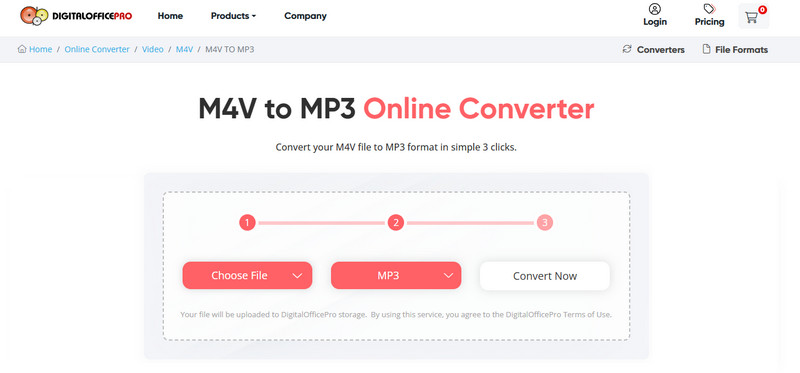
Step 1Visit DigitalOfficePro and upload your M4V video from your computer or cloud storage.
Step 2Select MP3 as the output format.
Step 3Click Convert Now and download your MP3 once the process finishes.
2. MiConv
MiConv is a simple online solution that allows users to convert M4V to MP3 online. It works across all major browsers, offers drag-and-drop uploads, and automatically removes files from the server after processing. Batch uploads are supported, making it practical to upload multiple files at once.

Step 1Open MiConv and upload your M4V file by clicking the Choose File.
Step 2Choose MP3 as the output format under Audio.
Step 3Click Convert and download your MP3 file after completion.
3. RunConvert
RunConvert is a free online converter that allows you to convert an M4V file to MP3 with minimal setup. The service operates fully on the cloud, is unregistered and allows optional audio-quality controls. Its user-friendly interface makes the process of converting rapid and simple.
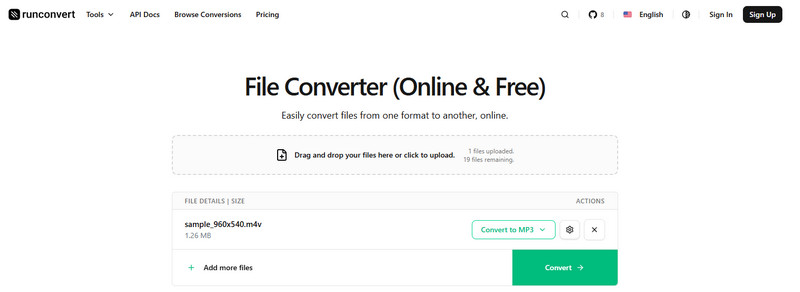
Step 1Go to RunConvert and upload your M4V file saved on your device.
Step 2Select MP3 as the target format after clicking the dropdown button.
Step 3Click Convert and download the MP3 when it finishes.
4. Clideo
Clideo offers a secure, browser-based solution for M4V to MP3 conversion. It supports cloud uploads and works across Windows, Mac, and mobile devices. Users can also use it as an MP3 cutter and adjust quality settings, giving more control over the final MP3 output.
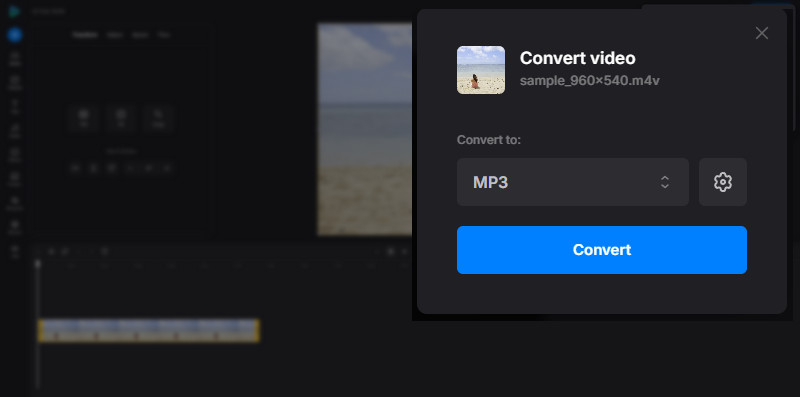
Step 1Open its official page for M4V to MP3, click Get Started, and upload your video.
Step 2Select MP3 as the output format.
Step 3Click Convert and download your MP3 file.
5. Online UniConverter (Media.io)
Online UniConverter lets you convert M4V to MP3 online for free with a beginner-friendly interface. It can support a large collection of video and audio formats, maintain audio quality, and run files fast, though it is not a specialized audio editor. Unobtrusive bitrate adjustments are also used to ensure good sound.
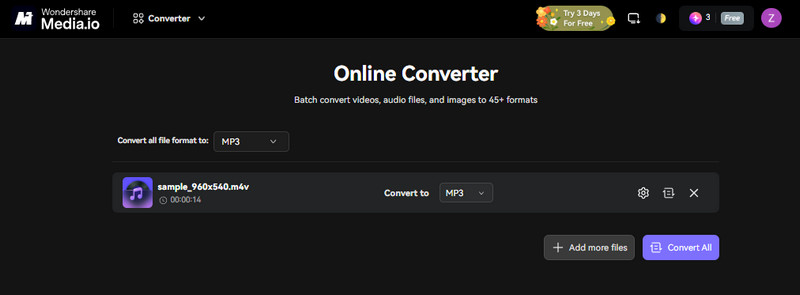
Step 1Visit Media.io and upload your M4V video.
Step 2Select MP3 as the output format.
Step 3Click Convert and download the resulting MP3.
Part 3: M4V vs MP3 - Why You Need to Convert M4V to MP3
1. Background Listening Without Video Playback
Video files require active playback, which consumes more battery and system resources. Background listening is made possible with the extraction of audio when using other applications or locking up your screen. It can be used in lectures, interviews and protracted discussions.
2. Removing DRM Restrictions (When Legally Permitted)
A few M4V files, particularly old ones, can have digital rights management. Audio extraction may be used to enhance playability on devices that do not support secure video formats in situations when the content is legally owned and licensed to be used personally.
3. Creating Podcasts or Study Materials
Students and professionals often extract audio from recorded webinars or training sessions. Audio files are easier to replay during commutes or workouts. This improves learning efficiency without needing to watch the screen.
4. Improving Workflow Efficiency
Video editing software requires more processing power than audio tools. If your project only needs sound, working with MP3 reduces CPU load and speeds up editing, exporting, and file transfers.
5. Archiving Audio Content Separately
Some users store soundtracks, recorded voice notes or speeches as a part of video files. Storing audio in the MP3 format is useful in managing media libraries better and eliminating duplication of video information.
6. Faster Streaming and Uploading
Sound files use less bandwidth as compared to video. When uploading any type of content to a site, a podcast service, or cloud storage, MP3 is a better choice as it allows faster speed of transfers and consumes less data.
7. Universal Format Support
MP3 is also among the most common audio formats in the world. It is compatible with smart television sets, automobiles, game systems, and other systems that are not up-to-date.
It is a question of purpose; either M4V or MP3. When you just want audio, it is pointless to have the video layer since it increases the amount of size and reduces compatibility. Sound is easier to extract, stores less, and is easier to edit. Nowadays, you can find trustworthy desktop and browser applications that can convert M4V into MP3 free of charge and with little effort. Pay attention to the quality settings and the platforms that are trusted to have quality audio and playback on all your gadgets.
ABOUT THE AUTHOR

Your complete video toolbox that supports 350+ formats for conversion in lossless quality.