Converting videos from AVI to MP4 allows older AVI videos to be converted and given a new life in an up-to-date format that can easily be shared or played. This guide explores the options of easy conversion and the methods for it.
Part 1. Which Format Is Better, AVI or MP4?
What Is AVI?
AVI (Audio Video Interleave) is a multimedia container format introduced by Microsoft in 1992. The AVI file can contain video and audio, subtitle tracks, and lots of codecs. The AVI format uses much less compression and thus produces larger files, but higher quality than newer formats. AVI has historically been widely used in video editing, archiving, and playback on Windows.
What Is MP4?
MP4 (MPEG-4 Part 14). This is a multimedia container format and one of the most common formats with modern attributes. MP4 files are media containers that can hold video, audio & images along with modern codecs. Although MP4 files are considerably smaller than those made by other formats, it is necessary to sacrifice some visual quality because of compression. MP4s are the easiest format to work with and have solidified themselves as an industry standard for how we share things these days.
Quick Comparison Table
| Feature | AVI | MP4 |
| Developer | Microsoft | MPEG (Moving Picture Experts Group) |
| File Extension | .avi | .mp4 |
| Compression | Lower compression | Higher compression |
| File Size | Larger | Smaller |
| Video Quality | High, especially with less compression | High with efficient compression |
| Streaming | Limited | Excellent |
| Device Compatibility | Best on Windows and older media players | Compatible with almost all modern devices and platforms |
| Editing | Good for editing due to less compression | Supported by most editors, though compressed files may be less flexible |
| Best For | Video editing, archiving, and local playback | Streaming, sharing, mobile playback, and everyday use |
Part 2. Why Convert AVI to MP4?
Although AVI files are of higher quality, they are larger and do not capture as much market support as MP4 files. MP4 files are more versatile and smaller, making them easier to transport. AVI files are larger, of higher quality, and less compatible with cross-platform uses than MP4 files. Converting files from AVI to MP4 increases versatility and decreases the size of the file.
- Decrease File Size: When comparing MP4 and AVI files, MP4 files are smaller, and files in the MP4 format maintain good quality because of the compression techniques that the format employs.
- Better Device Compatibility: MP4 files can be played on virtually every computer, smartphone, tablet, smart TV, and in every web browser without needing to be supplemented with additional codecs.
- Easier to Share: There are many more MP4 file-compatible platforms for social media than AVI files. Therefore, sharing an MP4 file is much easier.
- Improved Streaming: MP4 files are easier to stream than AVI files and therefore contain less lag and are more pleasant to view.
- Less Storage Wasted: MP4 files also contain smaller file sizes than AVI files, so more videos can be housed on an electronic device.
Part 3. How to Convert AVI to MP4 on Windows & Mac
1. AVAide Video Converter
The user-friendly converter, AVAide Video Converter, converts AVI to MP4 format in no time at all. This converter was manufactured for both Windows and Mac PCs. This converter is a good choice because it supports a multitude of audio and video formats (over 1000) and maintains the original quality. This converter includes a suite of editing tools to enhance the video quality the user desires prior to export.
- Convert AVI to MP4 and more than 1000 other formats.
- Convert to 4K, 5K, and 8K formats with no reduction in quality.
- Up to 120× faster conversion with GPU hardware acceleration.
- Batch converts multiple AVI files at once.
- Edit, enhance, compress, cut, trim, and more before conversion.

 Secure Download
Step 1Install AVAide Video Converter Software in Windows and Mac. Run the program after entering it into the program store.
Step 2On the Converter tab, click Add Files or drop an AVI file(s) in the program window.
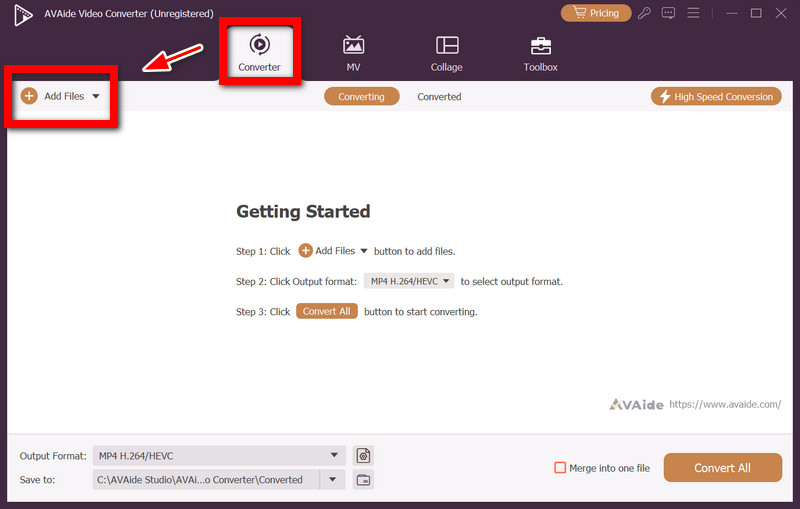
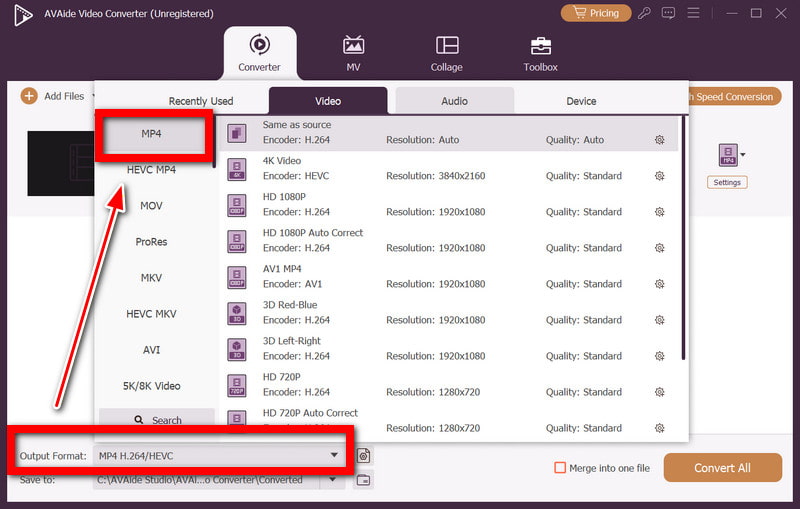
Step 3Click the Output Format menu, and select Video and then MP4. The output file can also be configured to be the same as the source, 1080P, or 4K.
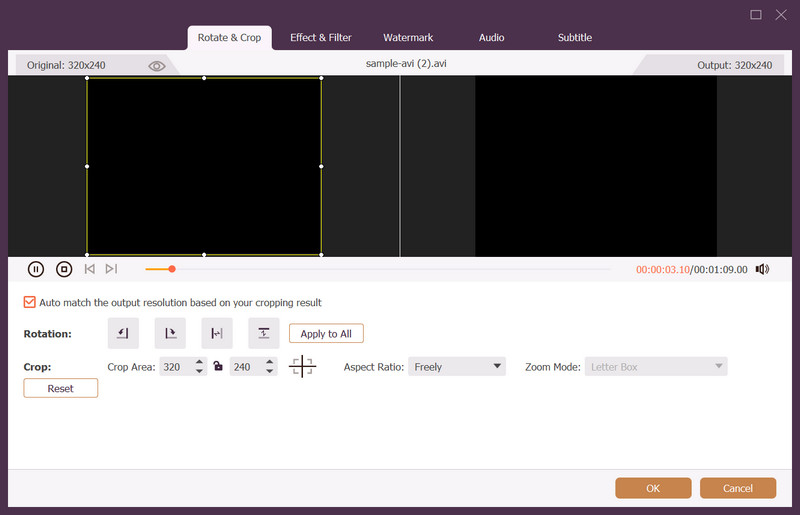
Step 4You can also use the program to edit the videos by trimming, cropping, rotating, filtering, compressing, and enhancing them (optional). All editing features will be used before the conversion of the video.
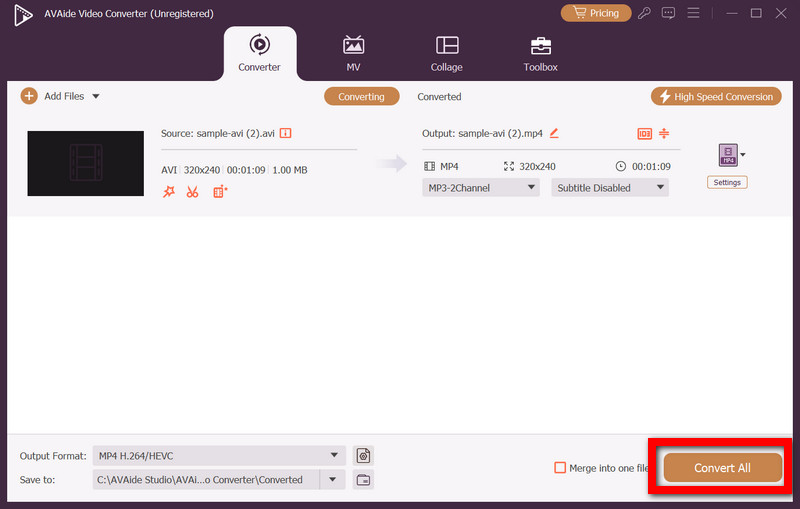
Step 5Click on the folder you would like to place the converted file into. Last but not least, click the Convert All button to convert AVI to MP4. After finishing, you should end up with a converted video in the output folder, and it should be in the MP4 format.
2. VLC
VLC Media Player is a media player that contains editing and conversion capabilities. A lovely tool for converting MP4 to AVI or vice versa, without downloading additional software. VLC is a free software for Windows and Mac. Great for simple translations.
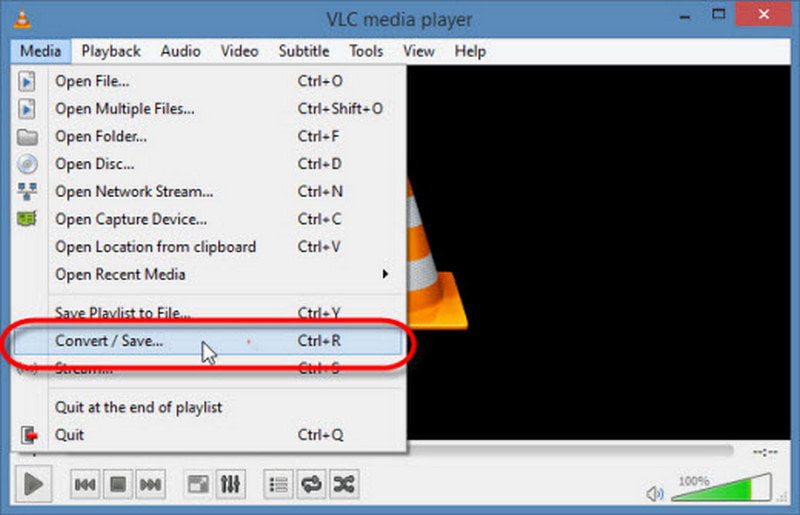
Step 1To open VLC, download and open it, and click on Media > Convert / Save.
Step 2Click Add to add the AVI file and then click Convert / Save.
Step 3Select an MP4 profile from the Profile menu.
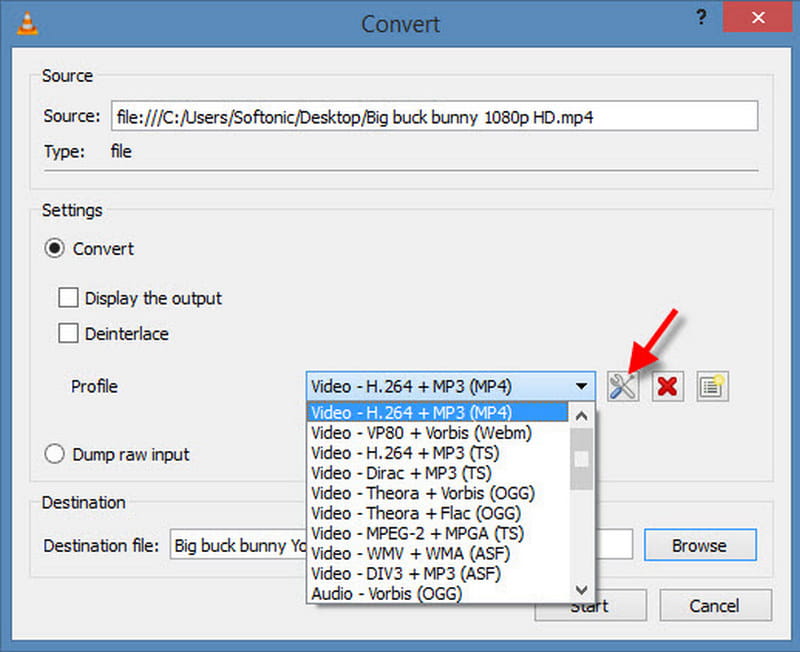
Step 4Browse to the output folder, type the name with the .mp4 extension, and click Start.
3. HandBrake
HandBrake is an open-source, free video transcoder program that allows converting AVI into MP4 easily. It provides some advanced encoding settings allowing users to adjust the quality, resolution, and compression ratio. Therefore, it suits those users who require more detailed control of the output video.
Step 1Launch HandBrake, select Open Source, and then import the AVI file.
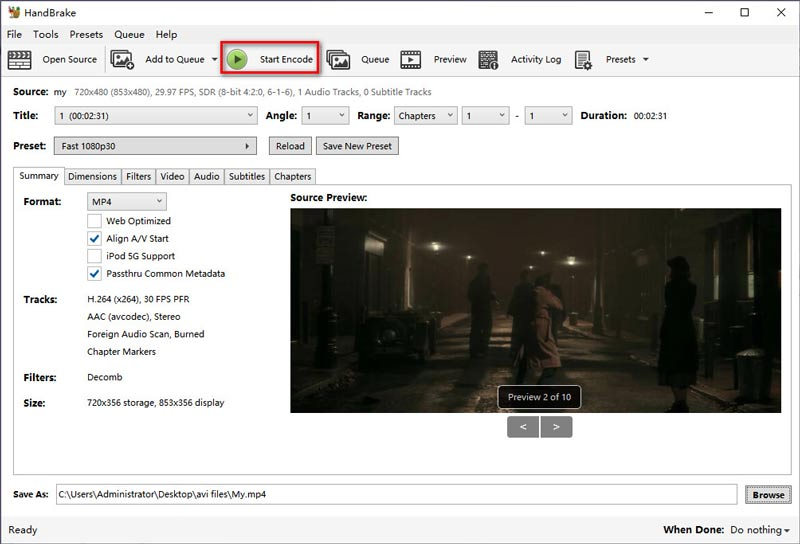
Step 2Switch to the Summary tab and select the format as MP4.
Step 3Depending on the software you use, you will have an opportunity to set different video settings, such as encoder, resolution, and others.
Step 4Choose the save folder on your computer and click Start Encode to decode AVI and encode it into MP4. Then search for the output MP4 file in the save folder selected by you.
4. FFmpeg
FFmpeg is an exceptionally powerful command-line program that can be employed to convert pretty much any video format out there. It is an ideal program for people who love to have control over the settings or perform tasks such as FFmpeg crop video, or prefer interacting with the computer through the command line only.
Step 1Install it, and bear in mind that after installation, the default folder will usually be where FFmpeg installs all programs. Then copy the AVI file to the same folder.
Step 2Run Windows Command Prompt or Mac Terminal and continue from there.
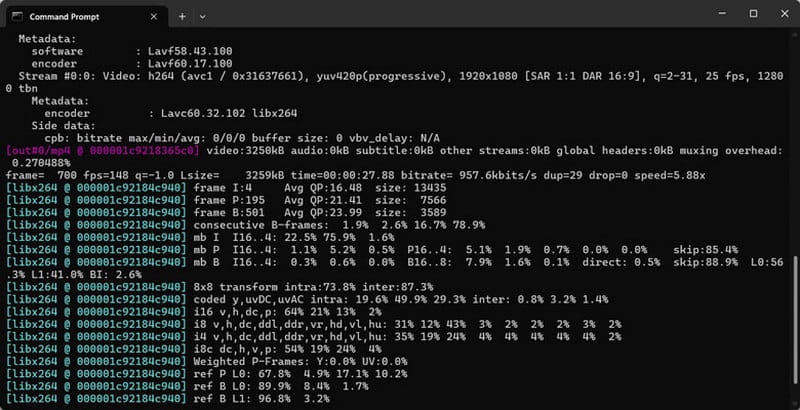
Step 3You will need to enter the following command: ffmpeg -i input.avi output.mp4
Step 4Adjust the text in order to fit the real names of both the input file and the output file. Just press Enter and let FFmpeg do its job of conversion.
5. FreeConvert
FreeConvert is your one-click online solution for file conversion between different formats, without leaving your browser and installing additional programs. FreeConvert can read the AVI files from your storage, from cloud storage, or even provide a link to the file on a website.
Step 1Firstly, you launch FreeConvert in the browser window and upload an AVI file using either a file selection tool or specifying the location on the site.
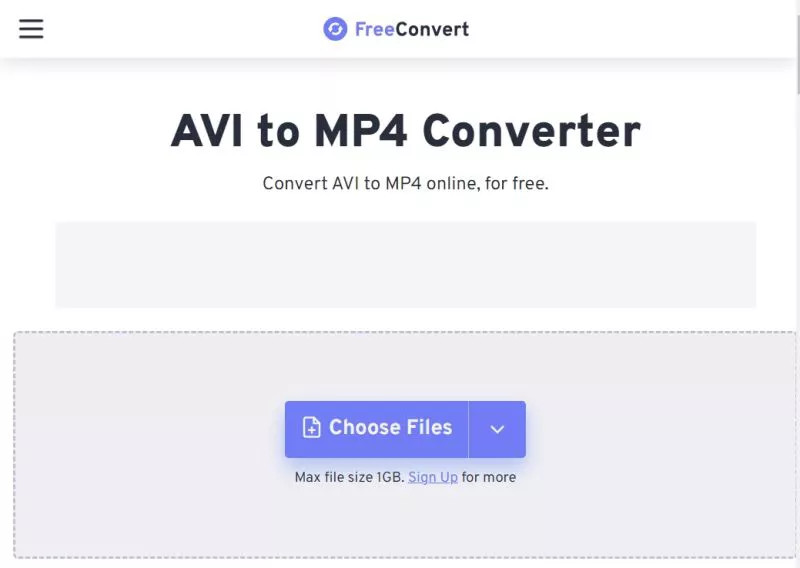
Step 2You choose that the result file will be in the MP4 format.
Step 3As well, you may change some parameters such as the codec, resolution, compression, and so forth.
Step 4Proceed to the conversion by clicking Convert and downloading the file.
Part 4. How to Convert AVI to MP4 on a Mobile Phone
1. The Video Converter (iPhone)
Conversion of AVI videos to MP4 format on iPhone devices is possible using the Video Converter software by Float Tech, which can become the most popular converter on the App Store. This application supports many different file formats, and you can use the Video Converter for conversion of video from Files, Photos apps, or from any cloud service.
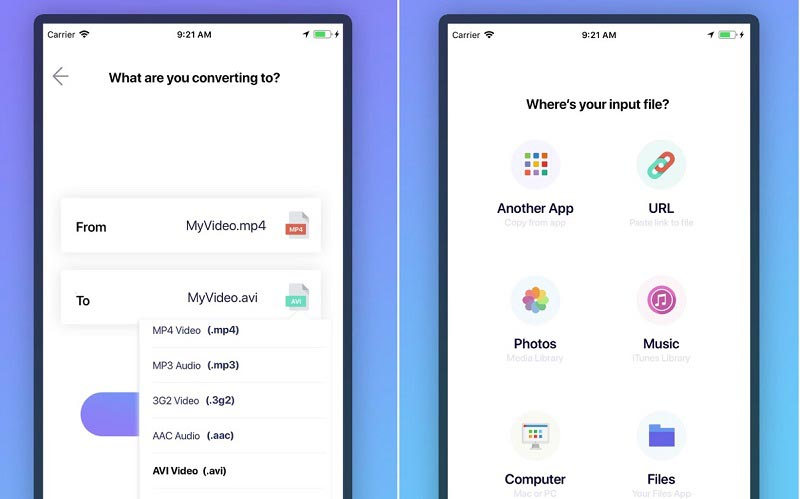
Step 1Download and launch Video Converter from the App Store.
Step 2Click on Import File and choose your AVI video from your iPhone.
Step 3Choose the MP4 file format and click Convert.
Step 4Wait till conversion completes and save the file to Photos or Files.
2. VidSoftLab Video Converter (Android)
The most common video converter for Android devices is VidSoftLab Video Converter. In addition to the possibility of working with AVI, MP4, MKV, MOV, FLV, and other file formats, VidSoftLab Video Converter provides such features as video compression, trimming, and merging.
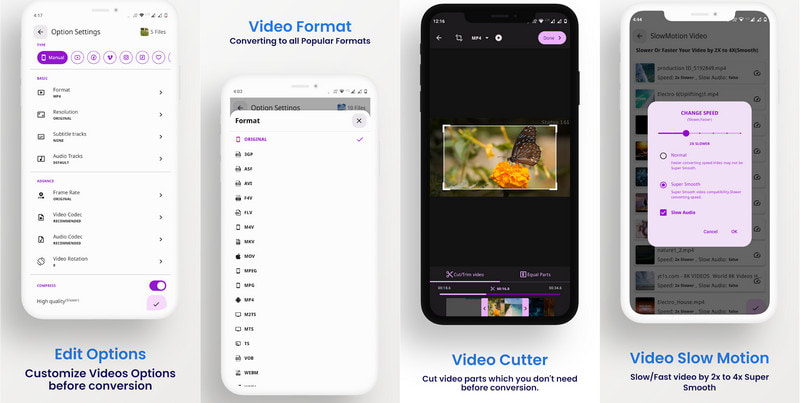
Step 1Install Video Converter by VidSoftLab from the Google Play Store and launch it.
Step 2Press the Video Converter button and choose the AVI file from the device storage.
Step 3Choose MP4 as the output format and customize the settings.
Part 5. Comparison & Decision Guide
| Feature | AVAide Video Converter | VLC | HandBrake | FFmpeg | FreeConvert | The Video Converter | VidSoftLab |
| AVI to MP4 Conversion Quality | ✔ | ✔ | ✔ | ✔ | ✔ | ✔ | ✔ |
| Preserve Original Quality | ✔ | ❌ | ✔ | ✔ | ❌ | ❌ | ❌ |
| Batch AVI Conversion | ✔ | ❌ | ❌ | ✔ | ❌ | ❌ | ❌ |
| Adjust Resolution & Codec Settings | ✔ | ❌ | ✔ | ✔ | ❌ | ❌ | ✔ |
| Edit Video Before Conversion | ✔ | ❌ | ❌ | ❌ | ❌ | ❌ | ✔ |
| Fast Conversion Performance | ✔ | ❌ | ❌ | ✔ | ❌ | ❌ | ❌ |
Which AVI to MP4 Converter Should Be Chosen?
AVI to MP4 converter preserves the quality of the video files in MP4 format. AVAide Video Converter is the best AVI to MP4 converter that helps in batch conversion and conversion of AVI to MP4 files.
- AVAide Video Converter (Best all-around): This conversion tool helps in AVI to MP4 conversion, quality-aware conversion, batch conversion, and video editing.
- VLC (Best for basic conversion): VLC is a free conversion tool that works pretty well in the basic AVI to MP4 file conversion, but does not have any advanced functionality.
- Advanced Users: FFmpeg is the best conversion tool for technically skilled users.
- FreeConvert (Best for online conversion): FreeConvert is the best AVI to MP4 conversion tool that converts AVI files to MP4 files in seconds.
- Video Converter for iPhone: It is an application used to convert AVI video files to MP4 files on iPhone.
- Video Converter for Android by VidSoftLab: It is an application for converting AVI to MP4 files without much editing and compression.
Part 6. FAQs on Converting AVI to MP4
Is there any reduction in the video quality due to the conversion from AVI to MP4?
The video quality depends on the conversion procedure and also on the codec used. The conversion from AVI to MP4 or even AVI to MPEG maintains high-quality videos as well as shrinks their size due to the process of efficient compression.
How long does the AVI to MP4 conversion take?
The conversion duration depends on the length of the video, the size of the file, the computer performance, and the speed of the converter. Small videos will be converted in seconds, while larger high-quality videos will take longer.
Is it possible to convert AVI files of different codecs to MP4?
Most of the AVI files can be converted to MP4 format without regard to the codec. A good converter will automatically process video codecs and convert them to MP4 format.
Knowing how to turn AVI files into MP4 makes videos easier to store, share, and play across different platforms. Choosing the right converter helps maintain quality, improve compatibility, and create MP4 files ready for modern devices.
ABOUT THE AUTHOR

Your complete video toolbox that supports 350+ formats for conversion in lossless quality.