MOV files are of very high quality and usually have a limitation of playback and compatibility on the current browsers and systems. The solution to these problems is converting MOV to WebM, which will preserve its clarity and roughly decrease the file size, making its sharing much easier. Here, the guide dissects the necessity of conversion, the most dependable online and desktop utilities, and describes the options, such as ffmpeg and After Effects. Every step is viable, experienced, and made in such a way that your videos are always ready to be used on any platform.
Part 1: Why and When You Need to Convert
MOV files are popular for their high-quality video, but they often encounter playback and compatibility issues on many devices, browsers, and online platforms. This is where converting .mov to WebM becomes essential. WebM is an adapted format to web streaming, which is smaller in size, loads faster, and has a wide range of browser compatibility without loss of visual quality.
You must convert when your MOV file is not compatible with your target platform, you would like to stream faster, or need compatibility with web editors and sharing tools.
Part 2: Best Way to Convert MOV to WebM
AVAide Video Converter offers a beginner-friendly way to convert MOV to WebM on both Windows and Mac, making it a practical choice for users who want fast results without technical steps. The software supports alpha-transparent videos, one-click conversion to ensure quick processing, and simple editing options, which enable the user to trim or adjust a video before exporting, which helps in producing a video that is ready in order to use, even though the entire process will remain smooth and easy to handle.
Step 1First of all, you need to download the software by going to its official webpage or by clicking the download button that we have here. Then, click the downloaded package to install the app and wait for several seconds before you launch it.

FREE DOWNLOAD For Windows 7 or later
 Secure Download
FREE DOWNLOAD For Mac OS X 10.13 or later
Secure DownloadStep 2On the main interface of the converter, click the Add Files at the top to upload the MOV video you want to convert. If it is multiple MOV, you can still do so by uploading them all here.
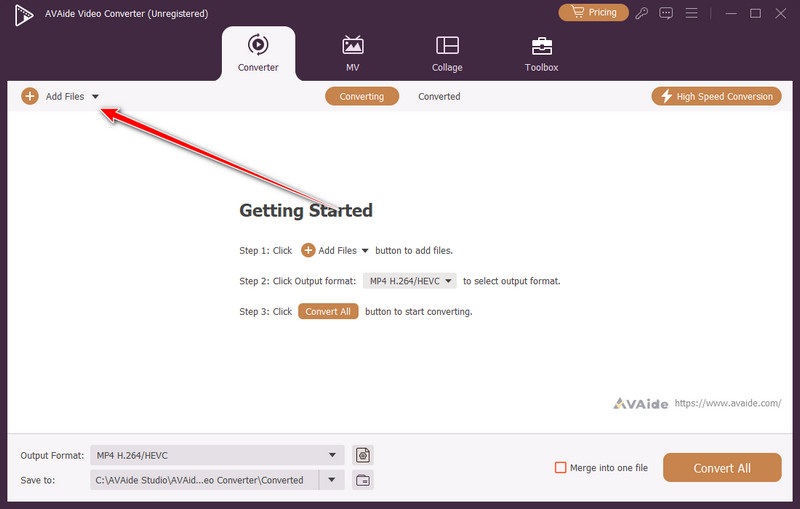
Step 3Tick the dropdown button of the output format, go to the Video, select the WebM format, and the option you want to use from the list that appears.
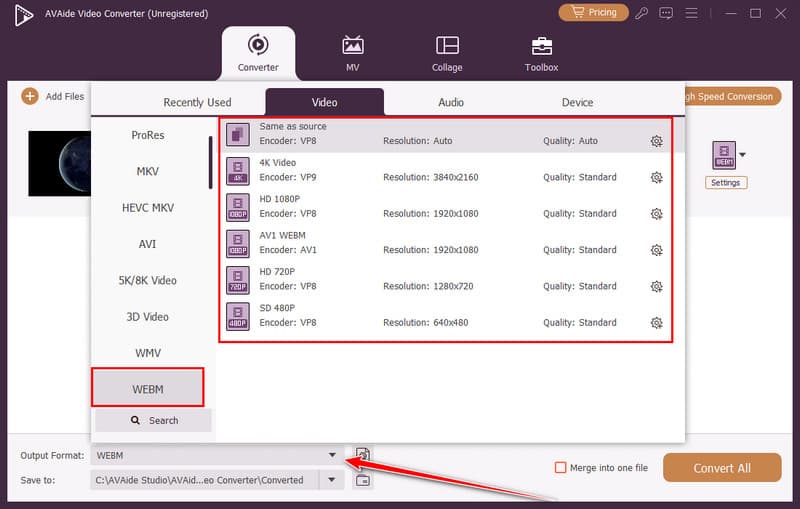
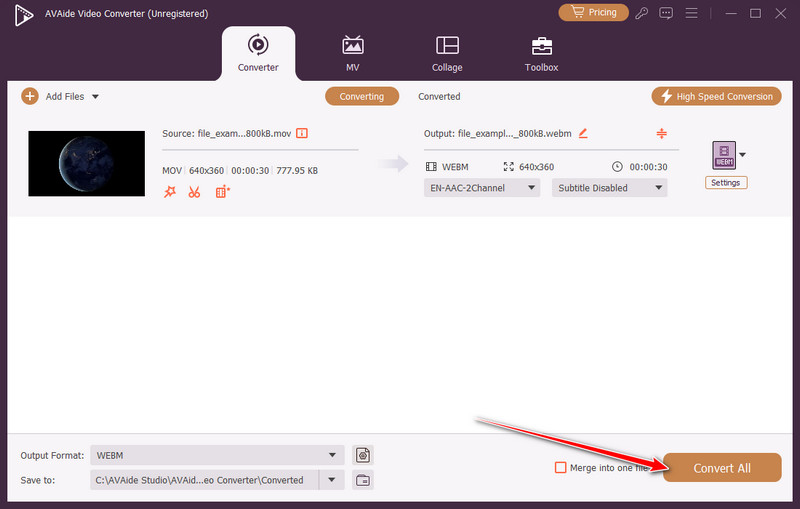
Step 4Finally, after choosing the format output you want to achieve and its settings, click the Convert All button, and wait for several seconds as the conversion begins. Once done, you will be able to play the video with the help of a WebM player on your computer.
Part 3: Best Way to Convert MOV to WebM Online Free
CloudConvert is a practical online solution for users who need to convert MOV to WebM with alpha without installing software. The web-based converter is directly browsable, has transparent video output, and is compatible with Windows, Mac, and mobile platforms. It has an easy-to-use interface, supports uploading of files from the local storage or cloud drive, and simple format configuration that makes it an easy option to quickly convert online videos in a free manner, assuming it will play and be compatible.
Step 1Visit the official CloudConvert website using your browser. Click Select File to upload your MOV video from your device, Google Drive, Dropbox, or by pasting a file link.
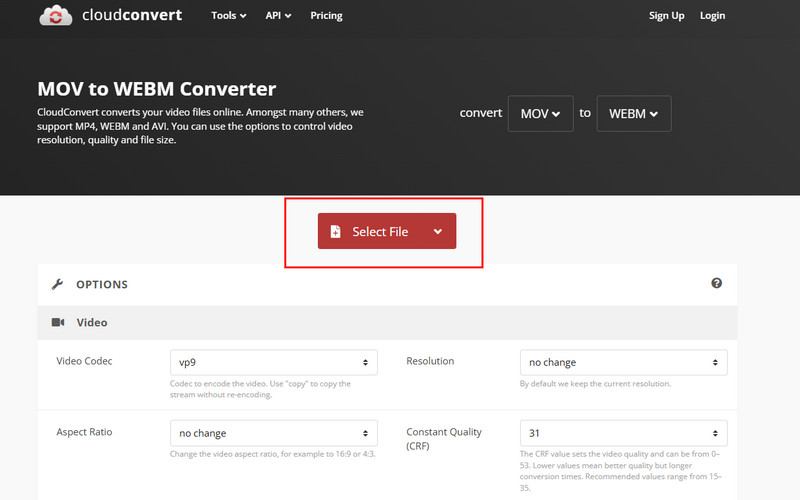
Step 2After uploading, click the format dropdown menu and choose WebM as the output format. Open the settings option if you want to adjust video parameters or enable alpha transparency when available.
Step 3Tick the Convert button to begin processing your file. The conversion may take a few moments, depending on file size and internet speed.
Step 4Once the conversion finishes, click Download to save the WebM video to your device, and you can then use or upload it wherever the WebM format is supported.
Part 4: 3 Other Ways to Convert MOV to WebM
1. FFmpeg
FFmpeg is a potent command-line tool widely used by developers and video professionals who need precise control over video processing, such as doing a FFmpeg video crop. It also allows high-quality encoding choices, batch, and automation, thereby making it more suitable for technical users who desire to encode MOV to WebM FFmpeg without sacrificing quality and with customization of output preferences, but may be less user-friendly than graphical converters to the beginner user.
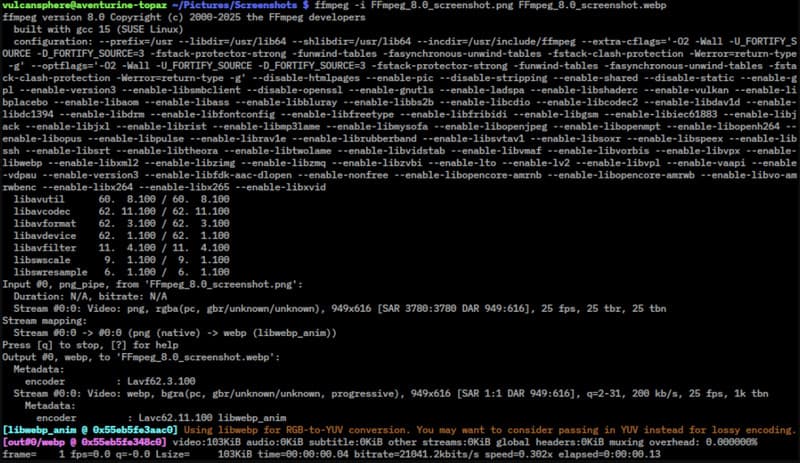
Step 1Download FFmpeg from the official website and follow the instructions to install it on Windows, Mac, or Linux. Make sure it is added to your system PATH.
Step 2Move your MOV file to a simple folder, then open Command Prompt or Terminal. Use cd to navigate to the folder containing your video.
Step 3Use a conversion command to export WebM. For a simple conversion, type:
ffmpeg -i input.mov output.webm
Step 4Press Enter to run the command. FFmpeg will process the video and save it as a WebM file in the same folder. Check playback to confirm conversion success.
2. After Effects
Adobe After Effects is mainly used for motion graphics and visual effects, but it can also export projects into WebM format using plugins or custom workflows. Many creators prefer it when they already edit animations or composited videos and want to convert MOV to WebM Mac or Windows projects directly after editing, though the software may feel complex for simple conversion tasks.

Step 1Open After Effects and import your MOV file into a new composition. Drag the file to the timeline.
Step 2Go to Composition > Add to Render Queue. Alternatively, use File > Export > Add to Adobe Media Encoder Queue if using AME.
Step 3In the Render Queue, click Output Module and select WebM using a plugin like WebM for After Effects. Configure settings such as resolution, frame rate, and alpha channel if needed.
Step 4Choose the destination folder by clicking Output To, then click Render or Start Queue in AME.
3. EZgif
EZgif is a lightweight online tool designed for quick video editing, like resizing videos on EZgif, and GIF processing without installing software. It allows users to upload files, adjust basic settings, and convert MOV to WebM free directly in a browser, making it convenient for small projects, although upload limits and slower processing may affect large video files.
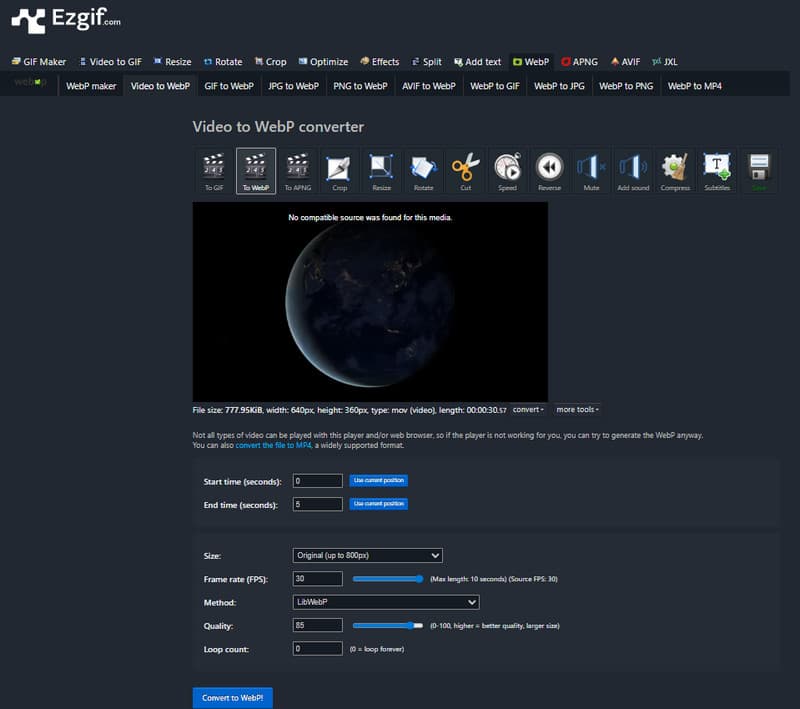
Step 1Click Choose File to upload your MOV file from your device. Optionally, you can paste a URL. Press Upload Video.
Step 2Once the video is uploaded, adjust optional settings such as start/end time, resize, or frame rate. Check the box for maintaining transparency if your MOV has alpha.
Step 3Click Convert to WebM. The processing may take a few seconds to a few minutes, depending on file size.
Step 4After conversion, click Download to save your WebM video. You can now play it or upload it online immediately.
When you need to convert MOV to WebM, the best way to do so is by using a dedicated video converter. Though there are thousands of selections available today, choosing the perfect one for the right job will save you time. Whether you want it to be done with a specialized tool like the AVAide, online with CloudConvert, or with the other options mentioned in Part 4, ensure to pick the best based on the information you already got from here.
Convert, edit, and optimize MOV, WebM, and 350+ other formats in high quality on Windows and Mac.