"I am a new YouTube content creator, and I know editing is important. I learned that YouTube has an official editing application called YouTube Create. But I feel more comfortable editing with a bigger screen and using a mouse. So now I am wondering, is YouTube Create available for PC?"
We will answer that question here! We will also show various ways to use it using your desktop computer. Not only that, but we will also introduce the best alternative to YouTube Create for PC. With that, you will have another dependable option to consider to edit your video content.
Part 1: What Is YouTube Create
YouTube Create is a free application made by YouTube to help creators make videos right from their phones. It works for both short clips, like Shorts, and longer videos. The application is simple to use, so anyone can create content without needing complicated programs or dealing with ads. To see what it can do more, please keep reading.
Key Features:
- Includes a collection of free music and sound effects.
- Finished videos can go straight to your YouTube channel.
- Add captions automatically in some languages with just one tap.
- Use generative AI sounds and remove unwanted background noise.
- Use filters, effects, stickers, and animated images to make your video fun.
- Cut, trim, split, crop, and add transitions. Also, merge videos, photos, and audio.
YouTube Create makes video-making easy for beginners and professionals, all from your phone. It helps you make your content look good and ready to share.
Part 2: Is YouTube Create Available on PC
The question now is, is YouTube Create available for PC?
Unfortunately, YouTube Create is made mainly for mobile phones. It does not work directly on a PC. Officially, YouTube Create works on Android phones with 4 gigabytes of RAM or more and on iPhone XR or newer running iOS 17 or higher. In addition, it is only available in certain countries.
Part 3: How to Use YouTube Create on PC
Even though there is no official YouTube Create for laptop or PC, you can still use the YouTube Create on a computer using either an Android emulator or screen mirroring. Both methods let you access the application, but in different ways.
Method 1: Using an Android Emulator
If you want to use the YouTube Create on your PC, an Android emulator like BlueStacks is a great option. It makes a virtual Android device on your computer. You can install the application, open it, and use all the features just like on a phone. The bigger screen makes editing easier and faster.
Step 1Install a reliable Android emulator like BlueStacks on your Windows or Mac computer.

Step 2Open the emulator and sign in with your Google account to access the Google Play Store.
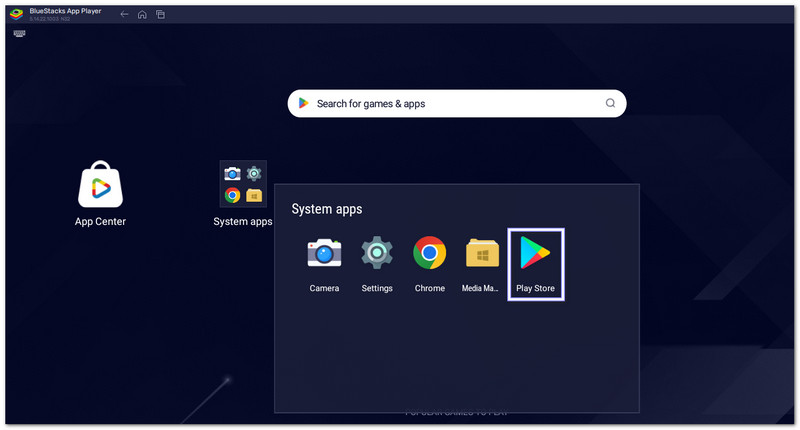
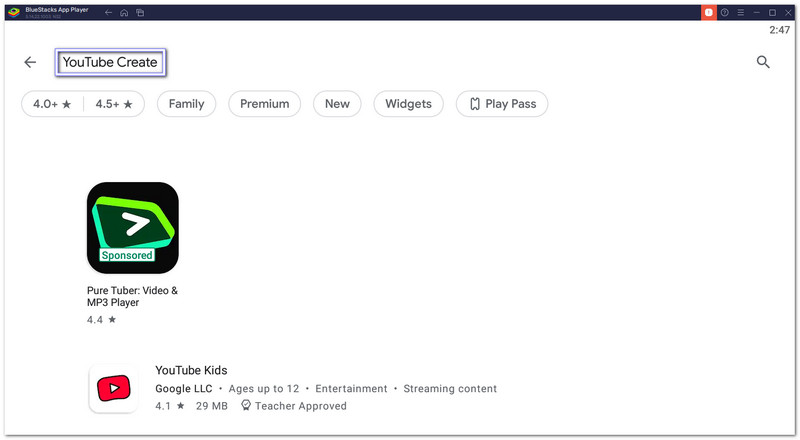
Step 3Search for YouTube Create in the Play Store inside the emulator and install the application.
Step 4After installation, click the YouTube Create button on the emulator's home screen to open the application.
Start editing your videos using your mouse and keyboard. You can trim clips, add music, apply effects, and use all the application's features just like on a phone.
Method 2: Using Screen Mirroring
Screen mirroring lets you show your phone screen on a PC monitor. You can open the YouTube Create software on your phone and see it on a bigger screen. Some tools even let you control the application from your computer. It is a simple approach to use mobile applications while enjoying a larger display.
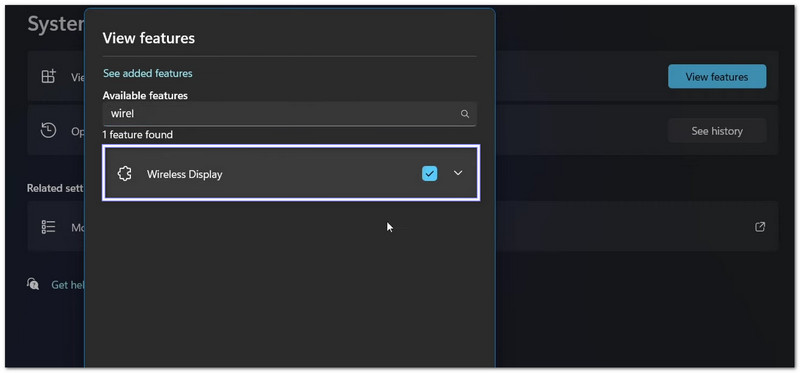
Step 1On your Windows PC, go to Settings > System > Projecting to this PC and enable the Wireless Display optional feature if it is not already installed.
Step 2After that, open the Connect app on your PC. It makes your computer discoverable to your phone.
Step 3On your Android phone, swipe down to open the Quick Settings panel and press the Cast, Screen Share, Smart View, or Mirror Screen option.
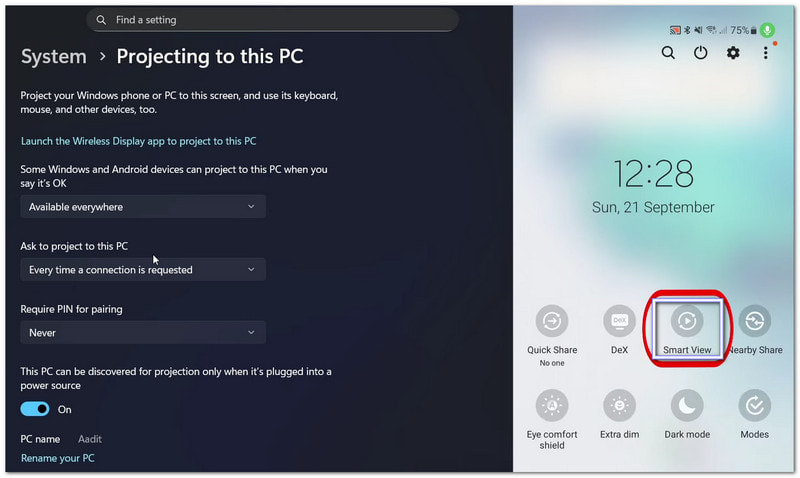
Step 4Pick your PC's name from the list of available devices. Your phone screen, including the application, will now show on your PC monitor.
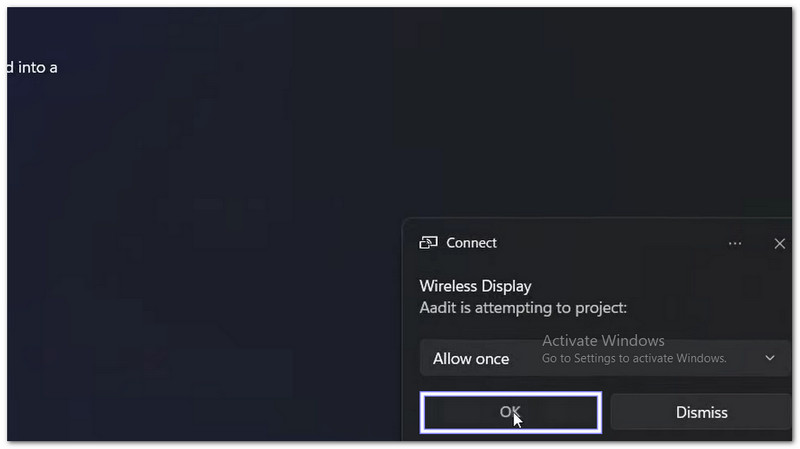
You can now control the YouTube Create from your phone while seeing it on the bigger screen. Some tools may also allow you to interact with the application using your mouse.
Part 4: Best Alternative to YouTube Create for PC
As shown above, you can use YouTube Create with an Android emulator or screen mirroring. But setting them up can take a lot of time. Fortunately, AVAide Video Converter, this YouTube Create for PC, is easy to download and install on Windows or Mac. It is simple to get started and has many editing features.
You can crop, rotate, apply effects and themes, trim clips, add watermarks, and include audio. It supports many video formats for both input and output, like MP4, MOV, AVI, MKV, WMV, and more. From importing to editing and exporting, everything is smooth and fast with AVAide Video Converter.
- Apply one of the 42 creative filters.
- Add audio for background music or voiceovers.
- Choose one from the 51 ready-made video themes.
- Support for 720p, HD, 2K, 4K, or custom resolution.
- Convert video to MP4, MKV, MOV, AVI, or WMV for easy uploading.

 Secure Download
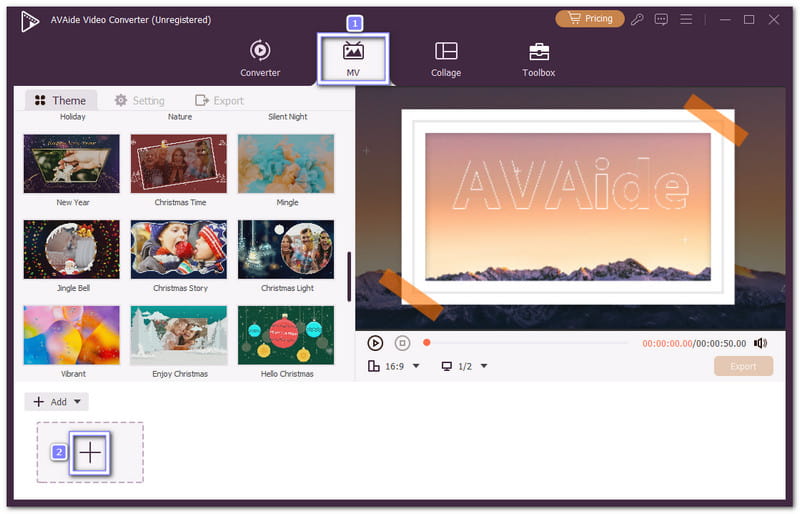
Step 1On your Windows or Mac, download and set up AVAide Video Converter. Open the program once it is installed and navigate to the MV tab. Then, click the Add button to import one or more videos. You can arrange them in the order you want for your project.
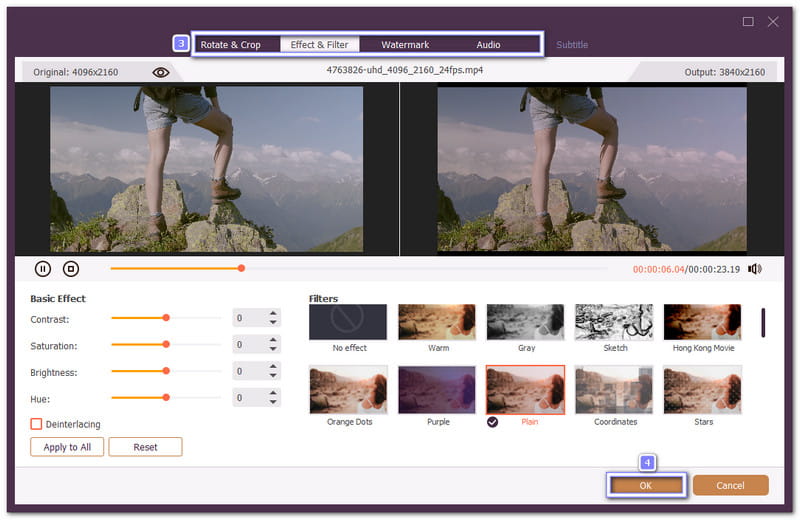
Step 2Click the Edit button to start refining your video. You can crop the video frame, rotate it to the left or right, apply filters, and adjust brightness, contrast, and saturation. You can also incorporate a text or image watermark to protect your YouTube content. Once done, click OK to apply your edits.
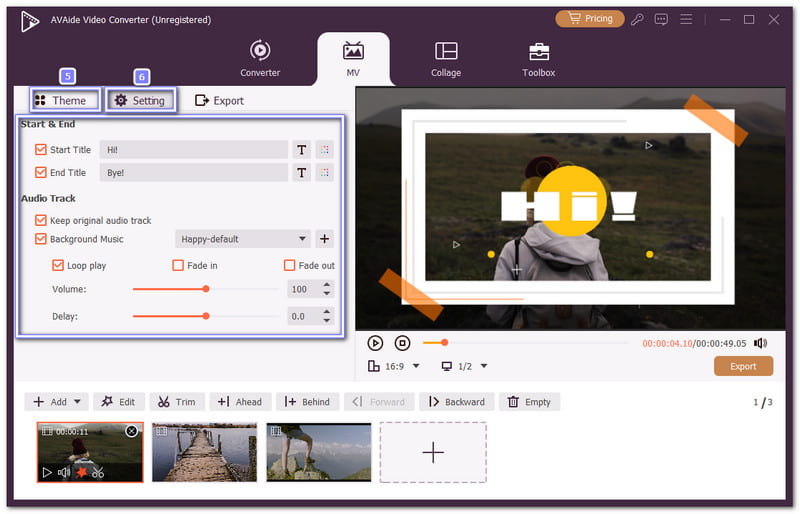
Step 3Now, choose a theme from the 51 available options. Apply the one that best fits your video style. Then, go to Settings to add start and end titles, keep the original audio, or replace it with new music. You can also boost the volume if needed.
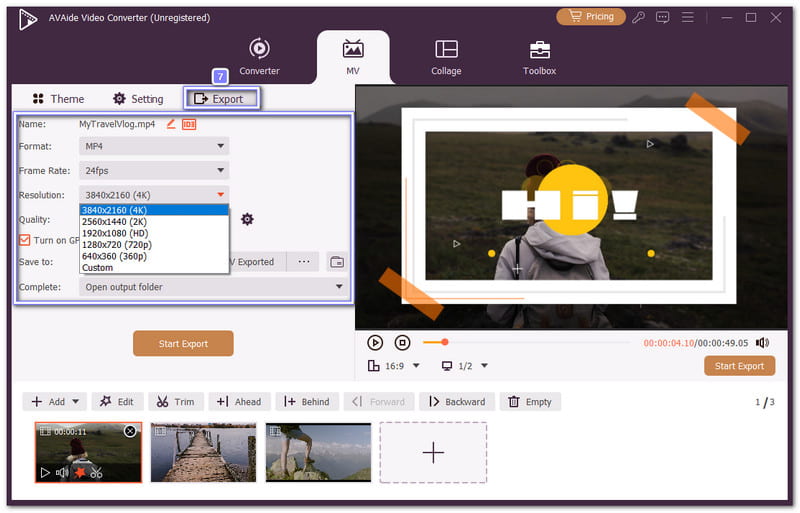
Step 4After finishing your edits, move to the Export tab. Here, you can change the video file name, choose a format like MP4, MOV, WMV, or AVI, and adjust the resolution up to 3840×2160 (4K) for the best clarity.
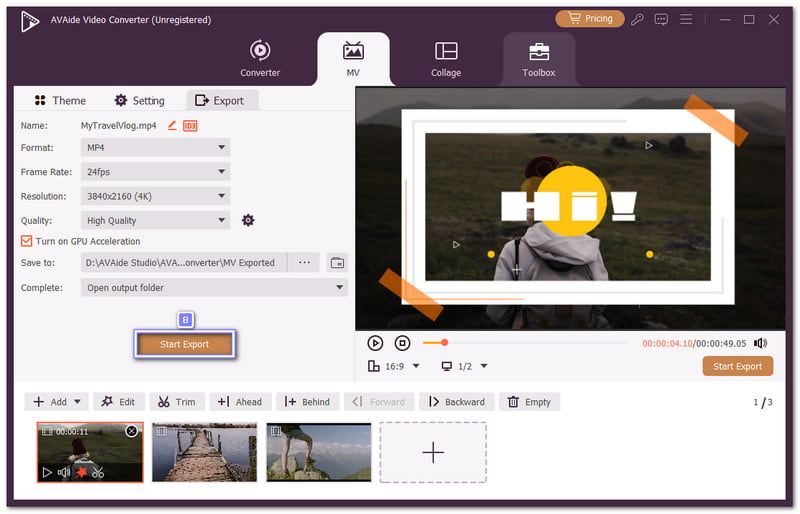
Step 5Hit the Start Export button to save your edited video to your computer. Now your content is ready to upload to YouTube or share online.
Not hard to set up and use, right? Whenever you need to edit your video, whether to trim, crop, add effects, or enhance the video quality, AVAide Video Converter can help you.
To wrap up, it is possible to use YouTube Create on PC, but it is not easy. The setup takes time and needs extra tools, which can feel confusing. If you want a simpler way to edit videos on a computer, AVAide Video Converter is a good alternative to YouTube Create for PC. It gives you many editing tools that help improve your videos. With better edits, your content can look more exciting and get more views and comments.
Your complete video toolbox that supports 350+ formats for conversion in lossless quality.