AVI files can be hard to play or share. They are large and often do not work on many devices. Turning AVI to MP4 makes videos smaller, easier to use, and widely supported. Using the right method keeps the quality high and playback smooth. This guide covers the easiest ways to convert AVI to MP4 on Windows, Mac, online, and mobile devices.
Part 1. Why Is This AVI File Giving Me Headaches?
AVI files can be frustrating to use. Many people struggle because of compatibility issues, large file sizes, or playback errors. Understanding the differences in AVI vs. MP4 helps explain why these problems happen and why converting AVI files can make videos easier to watch and share. Here are the three most common issues:
1. My phone will not open this!
AVI is an older video format that is not supported on many modern devices, including most smartphones and tablets. Attempting to play an AVI file can result in errors or the video not opening at all. Using a reliable AVI to MP4 converter ensures your videos are compatible across devices so that you can watch or share them without hassle.
2. This file is huge!
AVI files tend to be large because they use less efficient compression methods. This can quickly eat up storage space and make transferring videos slower. By converting AVI to MP4, you can reduce file size while maintaining good quality, making videos easier to store, email, or upload online.
3. The audio and video are out of sync.
The way AVI files handle audio and video streams can sometimes lead to playback issues, such as audio lagging behind the video. A trusted AVI to MP4 format converter re-encodes the file in a more modern format, keeping audio and video properly synchronized for smooth, error-free playback.
Part 2. Best Way to Convert AVI to MP4 on Windows & Mac
Now that you know the real problems that occur with AVI files, it is time to use the AVI to MP4 video converter and fix them. Use the AVAide Video Converter to convert your files while keeping video quality intact quickly. This tool works smoothly on both Windows and Mac, making your AVI files smaller, compatible, and ready to play on any device. Learn how it works with the tutorial we listed here.
Step 1Download now the AVAide Video Converter for free on your Windows or Mac by clicking the button here. Then, follow the installation, setup, and click Start Now to launch it.

FREE DOWNLOAD For Windows 7 or later
 Secure Download
FREE DOWNLOAD For Mac OS X 10.13 or later
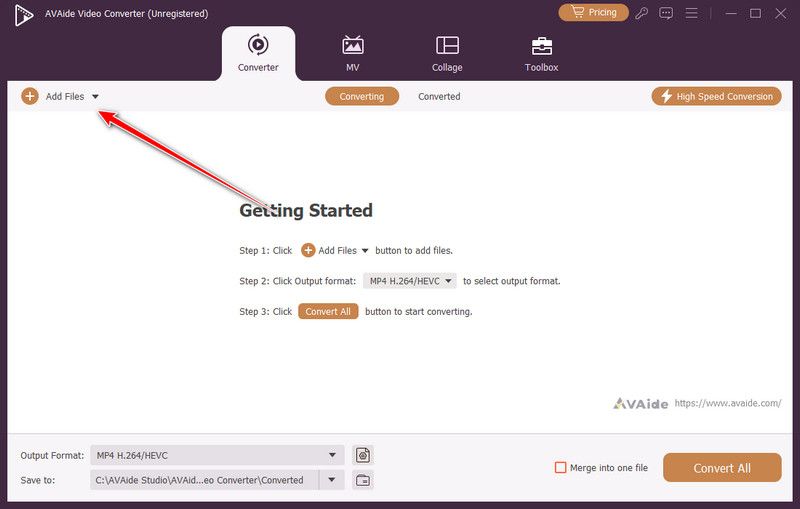
Secure DownloadStep 2On the main interface of the converter, click the Add Files button and upload the AVI file you want to convert into MP4. Here, you can upload multiple AVI files simultaneously and convert them if you want.
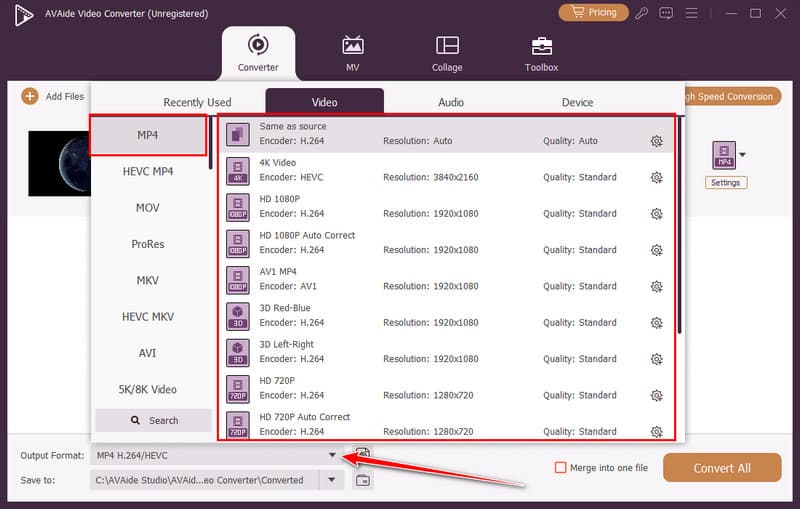
Step 3Click the dropdown button on Output Format, and select MP4 under the Videos. Available here are different settings for MP4. Choose which one you prefer the most, and get it as an output.
Optional: Do you want to edit the AVI video you have uploaded before converting it into MP4? Then, click the magic wand button to see all the available magical things you can do to make your converted AVI a better version.
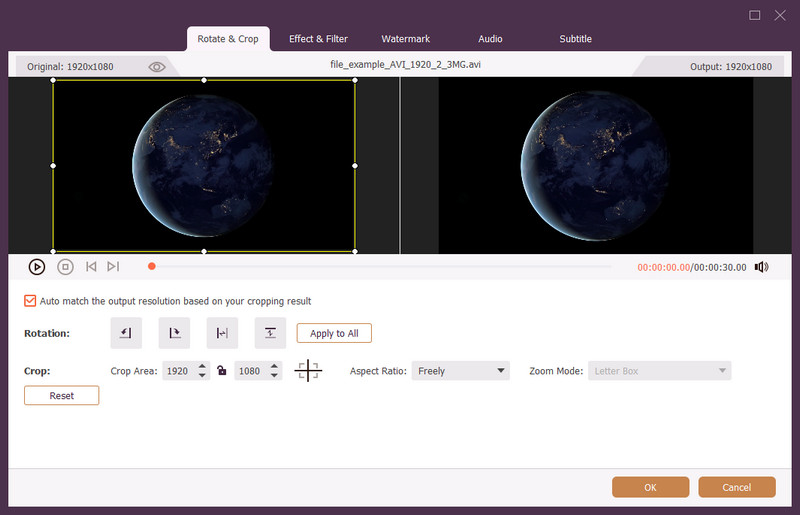
Step 4Finally, click the Convert All button and start the exporting process.
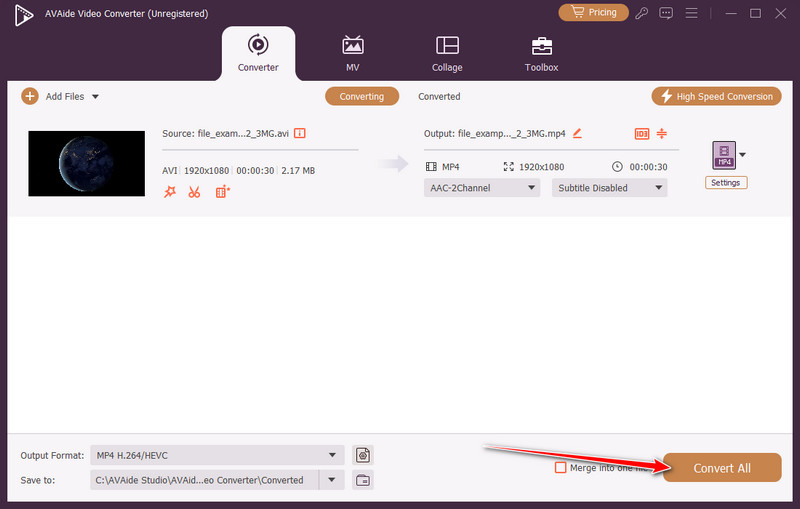
As you can see, this AVI to MKV converter app is reliable and can convert other files, not limited to MP4 and MKV. In case you want to use a free-to-download app that is available online, then check out the list of available converters online that we have in the next part.
Part 3. How to Change from AVI to MP4 Free Online
Converting AVI files to MP4 does not always require installing software. Several online tools let you handle this quickly and for free. Here are three of the best options.
1. AVAide Free Video Converter Online
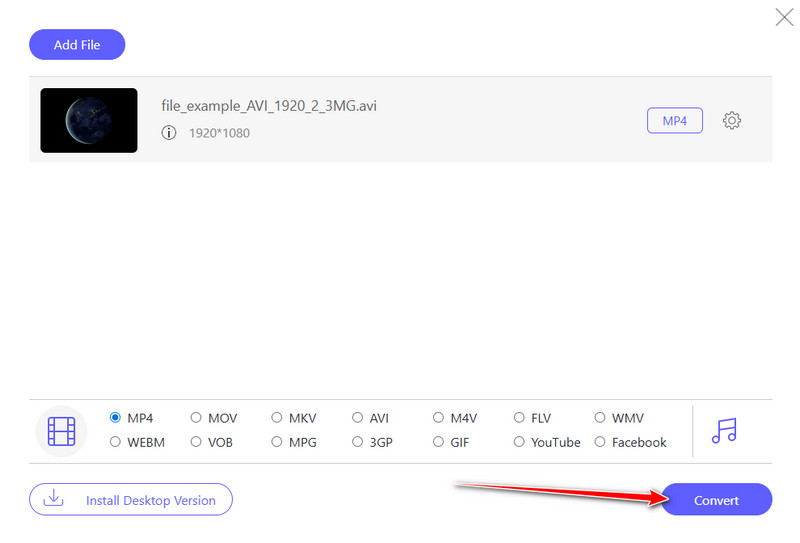
If you want to change from AVI to MP4 quickly, AVAide Free Video Converter Online is a solid choice. Simply upload your AVI file, select MP4 as the output format, and start the conversion. The tool works directly in your browser, produces high-quality MP4 files, and does not add watermarks. It is perfect for fast, occasional conversions without any software installation.
Step 1Open your browser, search the official page of the video converter online that AVAide has, and click Add Your Files to upload the AVI.
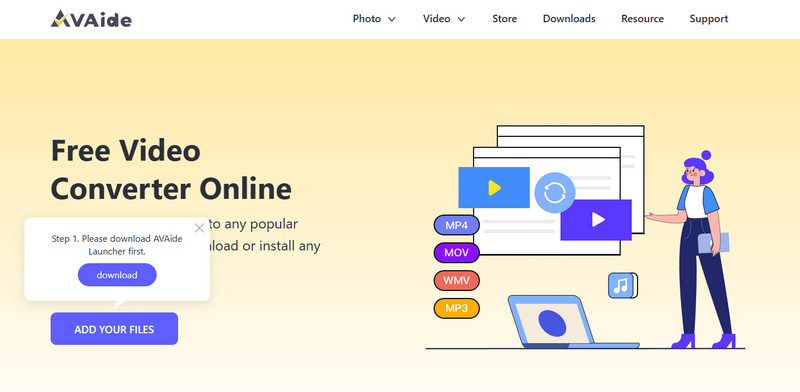
- If this is your first time using it, you need to download the AVAide launcher, click the downloaded file to set up, and upload the AVI.
Step 2Set the MP4 as your output, but you can also choose other available output formats that are listed here.
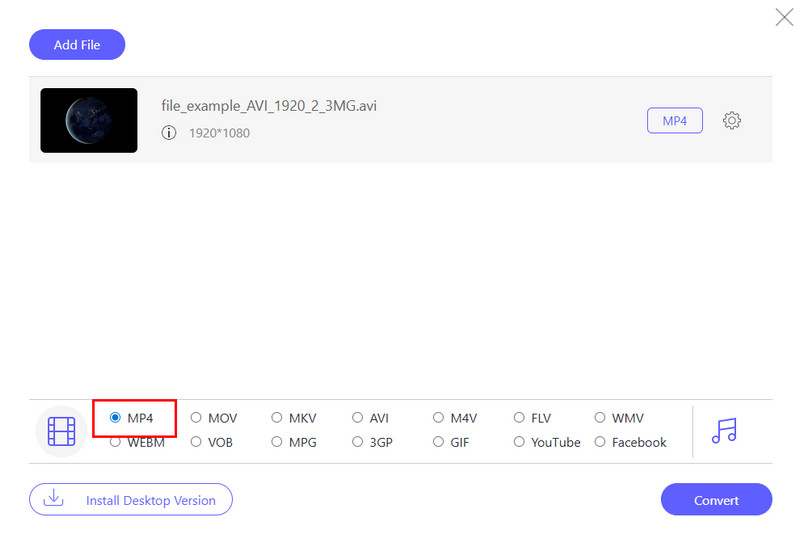
Step 3To convert, tick the Convert button and wait for several minutes to get the freshly converted AVI.
2. Adobe Express
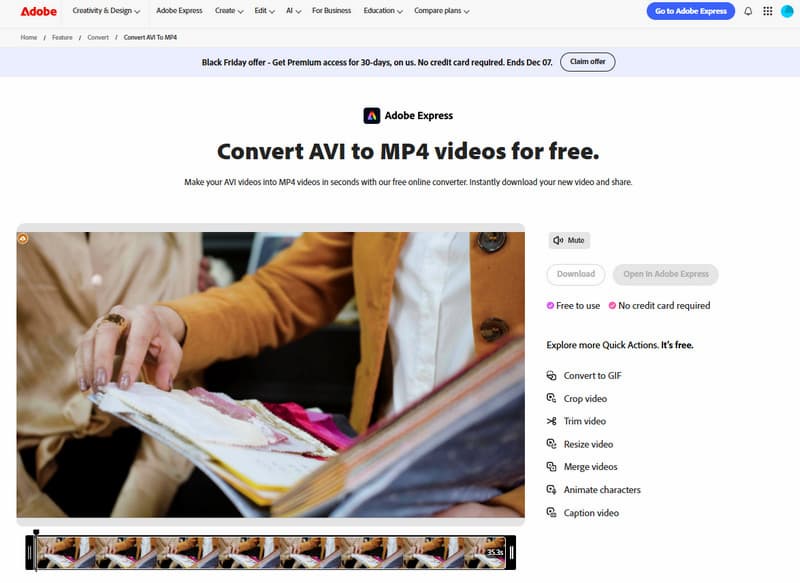
Adobe Express serves as a reliable AVI to MP4 converter free. Its browser-based platform allows you to upload AVI files and export them as MP4 in a few clicks. The interface is simple and user-friendly, making it ideal for users who prefer a familiar, trusted platform to perform quick online conversions.
Step 1Go to Adobe Express and find the Convert AVI to MP4 online, then click the Upload your Video.
Step 2Adjust the video timeline if you want to trim it and click Download to save the final output. If you want to resize a video on Instagram, this online tool has a feature for it.
3. Veed.io
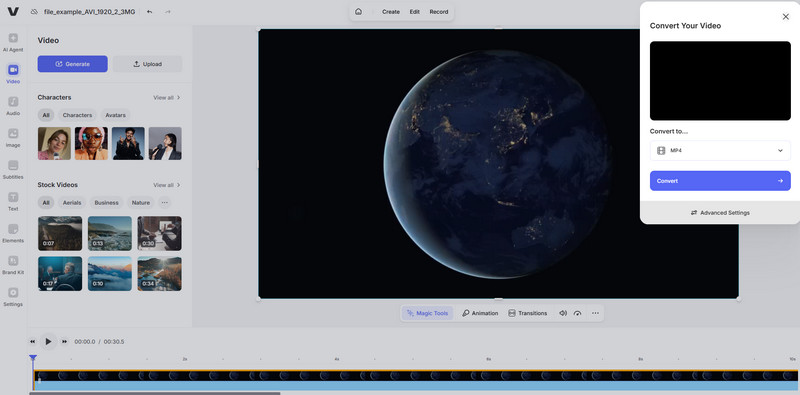
Veed.io is another excellent option to transfer AVI to MP4 directly online. The tool supports multiple video formats and lets you convert AVI files to MP4 without downloading anything. Veed.io also provides basic editing options, such as trimming, cropping, and compressing, so you can prepare your video exactly as needed before or after conversion.
Step 1Open a new tab and search for the Veed.io AVI Converter Online. Then, click Add AVI Files to import them here.
Step 2Set the Convert to format to MP4 and click Convert to proceed.
Part 4. How to Transform AVI to MP4 on iPhone/Android
Converting AVI files on mobile devices has never been easier. With the right apps, you can transform AVI to MP4 directly on your phone or tablet without needing a computer. Here are two of the best options for Android and iOS users.
1. AVI to MP4 Converter (Google Play)
This app is a reliable AVI to MP4 converter freeware for Android. It supports a wide range of video formats, converts files quickly, and keeps the video quality intact. Its uncluttered, intuitive interface makes it easy for beginners and experienced users alike. The app also allows basic editing, such as trimming videos before conversion, making it a versatile mobile solution.
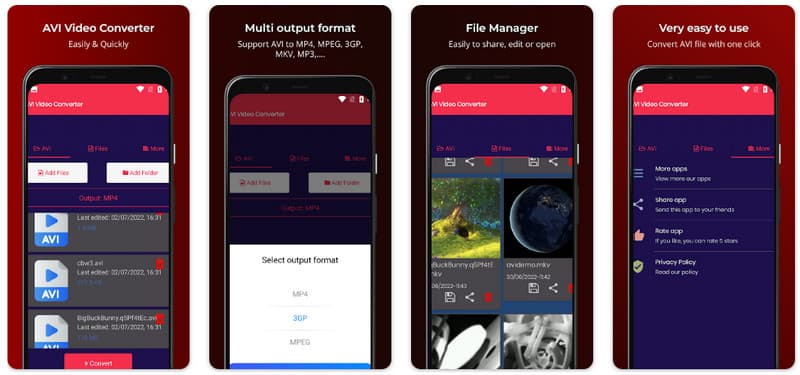
Step 1Install AVI to MP4 Converter from Google Play and open the app.
Step 2Tap Add Files or Folder and choose the AVI file from your device.
Step 3Choose MP4 as the output format, then tap Convert. Once finished, save or share your new MP4 file.
2. AVI Converter, AVI to MP4 4+ (App Store)
For iOS users, this app makes it simple to learn how to change video format from AVI to MP4 directly on an iPhone or iPad. It supports multiple input formats, converts videos quickly, and preserves the original quality. Users can also adjust output settings like resolution, frame rate, and video aspect ratio. Its easy-to-navigate design ensures even beginners can handle conversions efficiently.
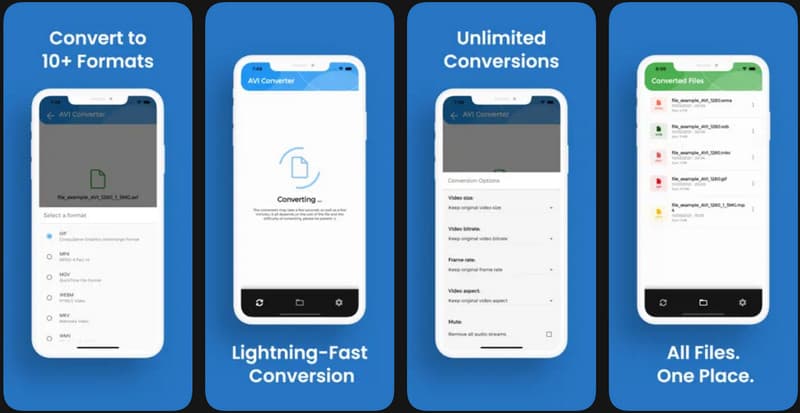
Step 1Download AVI Converter, AVI to MP4 4+ from the App Store and open it.
Step 2Grant the app access to your video library, then select the AVI file you want to convert.
Step 3Choose MP4 as the output format and tap Convert. When the process completes, save the file to your device or share it directly.
Both apps provide fast, reliable, and user-friendly ways to convert AVI videos on the go. Whether on Android or iOS, these mobile solutions let you make videos compatible, easier to store, and ready for playback anywhere.
Working with AVI files can be challenging due to compatibility issues, large sizes, and occasional playback errors. Converting them to MP4 solves these problems, making videos easier to watch, share, and store. Understanding the AVI vs. MP4 format helps you choose the best option for your needs and ensures that your videos remain high-quality and playable across devices.
Your complete video toolbox that supports 350+ formats for conversion in lossless quality.