Video projects are normally fragmented into more than one clip, particularly in the AVI format of the old. This may complicate the playback and make editing more difficult than it can be. In case you have to merge AVI files, it is not just a matter of combining clips. The compatibility of codecs, the order of the file, and the loss of quality are all factors involved. With the right approach, you can combine videos smoothly without errors or rework. This guide explains the key challenges, proven methods, and common issues to help you get clean results every time.
Part 1: Challenges of Merging AVI Files
At first glance, it seems simple to combine AVI files. Just put them together, and you are done, right? In reality, it is rarely that easy. AVI is an older format, and not all files are built the same, even if they share the same extension.
One common issue is codec mismatch. Two AVI files may look identical, but if they were created using different codecs, they may not merge properly. This can lead to errors, missing audio, or files that refuse to play.
Another problem is audio and video sync. When clips come from different sources, timing can slip during the merge. The result is a video where the sound does not match what you see on screen.
File size can also slow things down. Large AVI files take more time to process, and some tools may even lower the quality during merging without making it obvious.
Finally, not every tool handles AVI well. Some software struggles with older formats, which can turn an easy task into a frustrating experience. Understanding these challenges makes it much easier to avoid problems later on.
Part 2: Top 3 Ways to Merge AVI Files
1. AVAide Video Converter
AVAide Video Converter is a good candidate, should you want a dependable and easy method of joining AVI files into one. It suits both amateurs and users with advanced knowledge, and the process can be carried out without addressing the problems with codecs and unsuccessful results. The tool has a huge library of video formats and works with the AVI format, although it relies on alternative sources. Also, it does not degrade the original video quality in the process of merging, which is important when working with older formats.
- Supports fast merging with no noticeable quality loss
- It has batch processing for combining multiple AVI files
- Built-in video editing tools for trimming, cropping, and adjusting
- Maintains audio and video in sync during merging
- Easily supports all AVI codecs and other multimedia files

 Secure Download
Platform Supported: It is available on Windows and macOS, making it accessible for the majority of computer users.
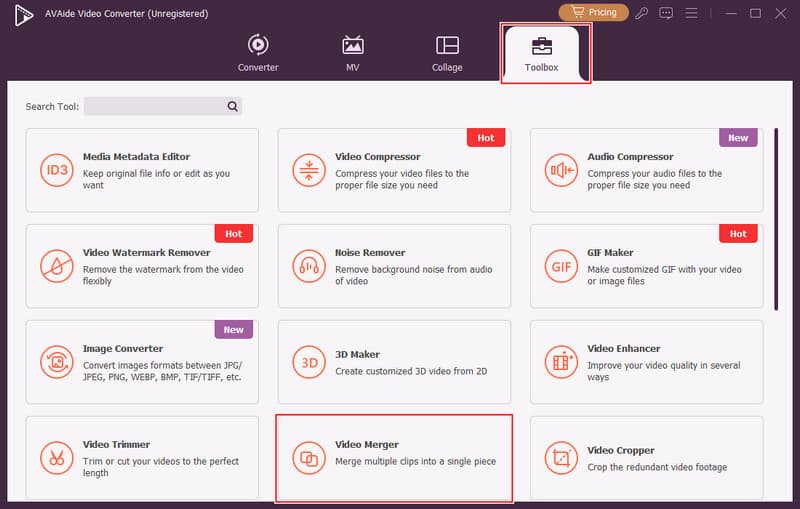
Step 1Open the Video Merger
Install AVAide Video Converter on your computer. To use the feature, you need to go to the main interface, More Tools, and Video Merger.
Step 2Upload and Arrange Files
Click the + button to import the AVI files you want to merge. After adding, you can order your order, making each clip move forward or backward in what you want.
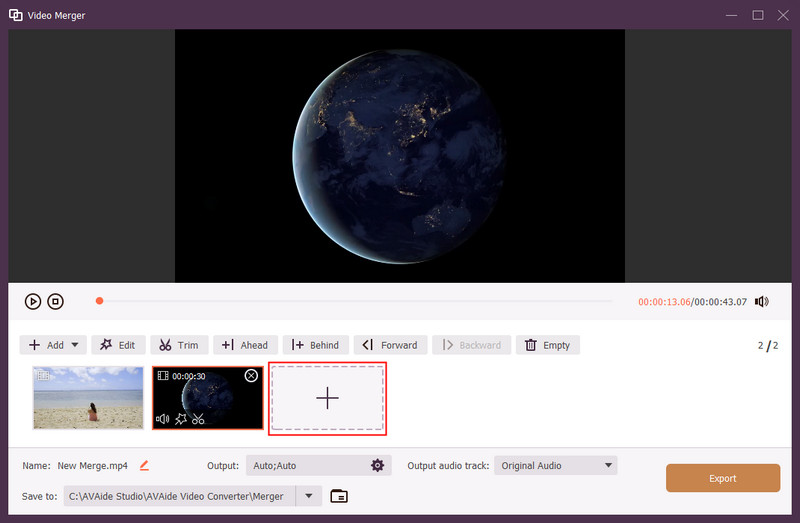
Step 3Export the Merged Video
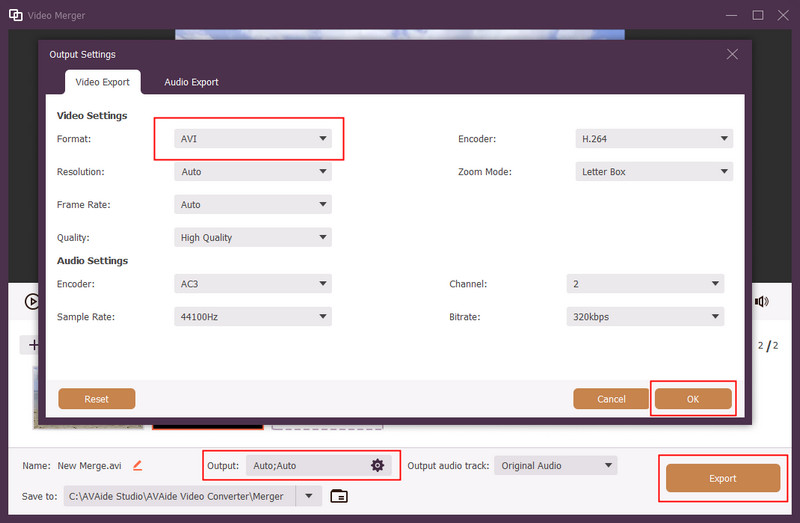
After organizing your clips, go to the Output and select AVI as the format, then click OK to save the changes. Click Export to start the merging process. Wait for the tool to process your files and save the final combined video to your device.
2. VLC Media Player
VLC Media Player is a free and widely used tool that can help merge AVI videos without installing heavy editing software. While it is mainly known as a media player, it also includes basic conversion and merging features. It works best when your AVI files share the same codec and format settings.
Key Features:
- Free and open-source software
- Supports a wide range of video formats
- Built-in conversion and merging function
- Lightweight and easy to install
- No watermark on output files
Platforms: Available on Windows, macOS, and Linux
Step 1Open VLC and go to the Media menu, then select Open Multiple Files.
Step 2Add your AVI files and check the Play another media synchronously option, then click Convert.
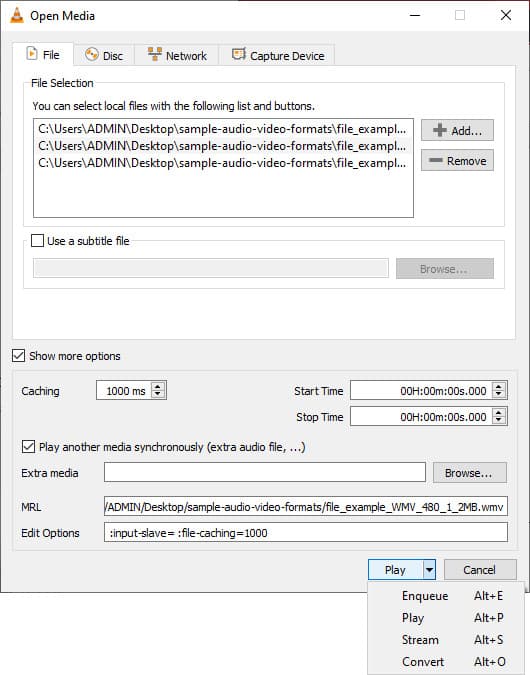
Step 3Choose the output format and start the process to merge the files into one.
3. Clideo Online Video Merger
Clideo is a browser-based tool that lets you combine two AVI files without downloading software. You can use this web tool as a video size reducer to compress video size. It is a good option for quick tasks, especially if you only need to merge a few clips. Since it runs online, it is simple to use, but performance depends on your internet speed and file size.
Key Features:
- None of the software needs to be installed.
- Clean and simple interface
- Playing various types of videos, such as AVI.
- Enables simple arrangement of clips before merging.
- Browse is directly in your browser.
Platforms: Web-based
Step 1Go to the Clideo website and upload your AVI files.
Step 2Arrange the clips in the correct order and adjust settings if needed.
Step 3Click Export and download the final combined video once processing is complete.

Part 3: Common Issues of Merge AVI Files
Merging AVI files can look simple, but a few technical issues often get in the way. Here are the most common problems you may face:
1. Audio Out of Sync
When learning how to combine AVI files, many users notice that the audio does not match the video after merging. This usually happens when the files have different frame rates or audio settings.
2. Large Output File Size
If you try to merge two AVI files, the final output can become much larger than expected. This is common when the tool does not compress or optimize the video properly.
3. Codec Incompatibility
Errors or playback problems can occur when you combine two AVI files into a single file, due to differences in codecs. Without matching the formats, some files might not merge altogether.
4. Header Corruption
The issues may arise when joining AVI files into a single file, particularly in instances where it is interrupted. This can corrupt the file header, resulting in the video becoming unplayable.
5. Quality Loss After Merging
A good number of users who join AVI files in a single file observe that the quality deteriorates. This usually occurs when the software remakes the video, but does not retain the original settings.
Bonus: Recommended Tool to Avoid These Issues
To prevent these typical issues, it is possible to use a trusted AVI joiner freeware application such as AVAide Video Converter. It manages codec discrepancies without hassle, maintains audio and video synchronization, and merges without any loss of original quality. It is also compatible with large AVI files, which helps to minimize the risk of errors or corrupted output.
Part 4: FAQs of Merging AVI Files
Can VLC merge video files?
Yes, VLC is capable of combining video files. It takes advantage of the convert feature and opens multiple files. It is ideal when using videos of the same format. Otherwise, mistakes can occur.
What is the best video merging software?
A good option is AVAide Video Converter. It is easy to use and maintains video quality. It also handles different file types without errors.
How to merge subtitles with any video permanently using VLC?
Open VLC and go to Convert/Save. Add your video and subtitle file. Turn on the subtitle option, then start the conversion. The subtitles will be added to the video permanently.
Merging AVI files can be as easy as you know when you know the ropes. Codec problems, file size and sync issues, and so on, there is an obvious solution to any problem with the appropriate approach. It also becomes easier to learn how to join AVI files when you employ good tools that safeguard quality and minimize errors. With this guide and its tips, you will be able to seamlessly combine your videos, producing a final product that is clean and seamless.
ABOUT THE AUTHOR

Your complete video toolbox that supports 350+ formats for conversion in lossless quality.