When you need to combine audio files for an audiobook, podcast, or music mix, having the right tools ensures smooth, high-quality results. This guide explores the top solutions, practical uses, and common challenges.
Part 1: Top 10 Ways to Combine Audio Files
1. AVAide Video Converter (Best Overall Choice)
User-friendly audio file merging tool. AVAide Video Converter handles merging of audio files in formats like MP3, M4A, WAV, and FLAC without quality loss. It also offers advanced features like noise reduction, editing audio file metadata, and fast batch processing.
- Merges audio files in different formats.
- Supports M4A, MP3, FLAC, OGG, etc.
- Combine audio files into one track and loop audio for continuous playback.
- Uses hardware acceleration for faster audio processing and exporting.

 Secure Download
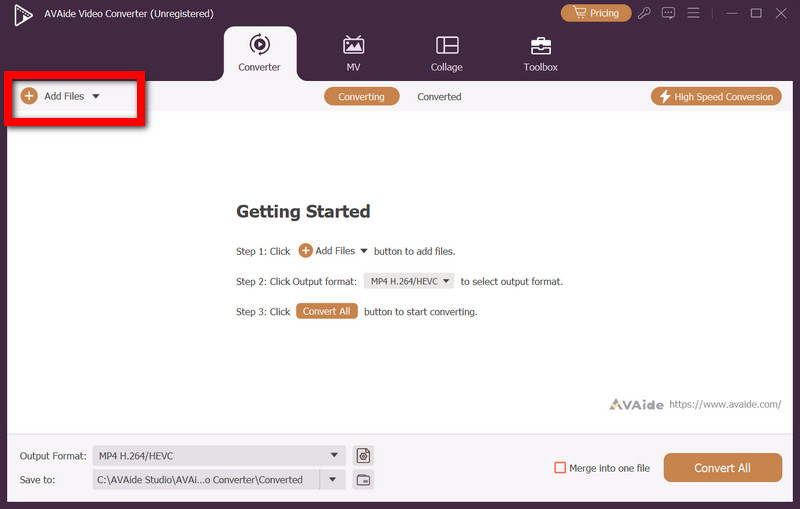
Step 1Upload Your Audio Files
Use the Add Files button to upload audio clips to combine them. Supported formats include MP3, WAV, M4A, and more.
Step 2Arrange and Edit Clips
Organize files in the playback order. Use trim to cut unwanted sections, volume adjust, and edits to ensure smooth transitions.
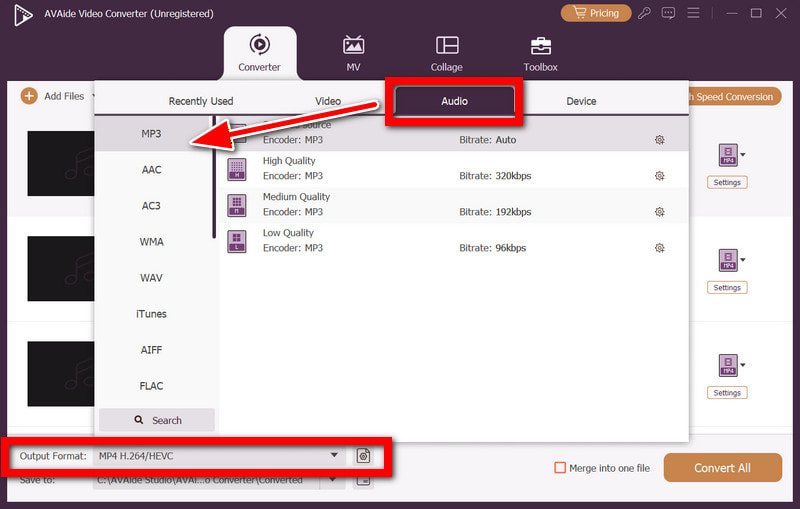
Step 3Set the Output Type
Pick your desired output format for the final merged document. Options include MP3, WAV, AAC, etc. Consider your purpose for the format and the compatibility with your devices.
Step 4Activate Merge Feature
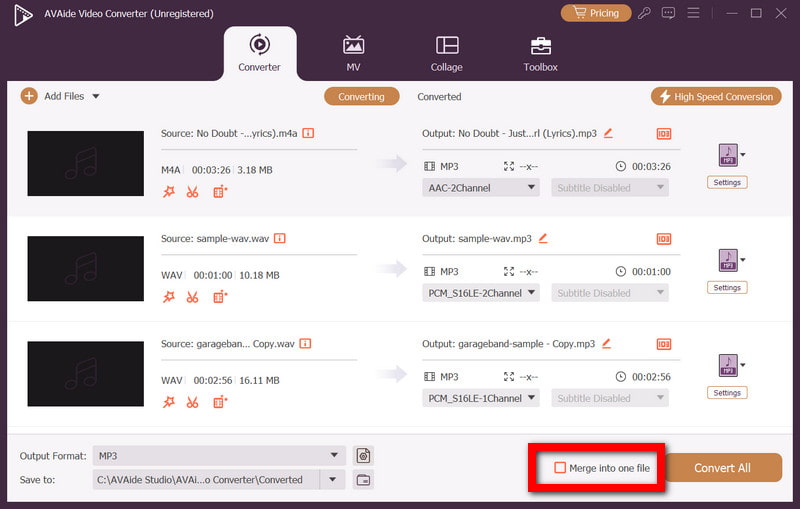
Switch on the Merge into one file option, and all the selected clips will be merged into one continuous audio file, allowing for uninterrupted and continuous playback.
Step 5Convert and Export
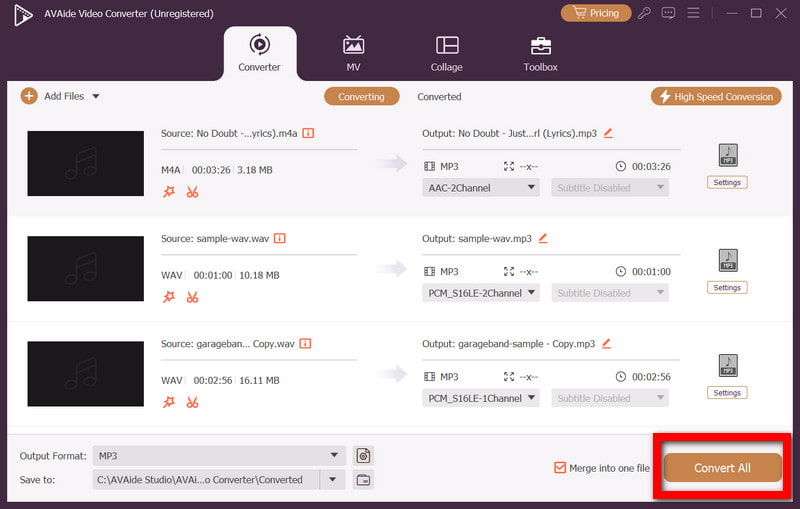
Select Convert All to begin the merging process. The newly merged audio file will be available in the selected folder and can be listened to or shared.
2. Audacity
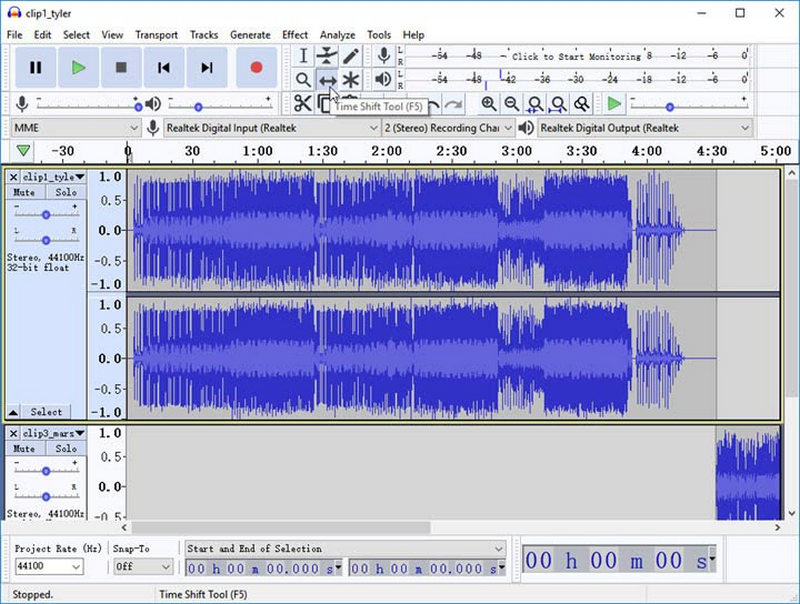
The audio files can be merged in a sophisticated manner since Audacity is an open-source audio editor that allows users the liberty to adjust and mix audio files that are in different positions. Therefore, it can be used for the more advanced audio editing tasks.
Performance: The application can be dependable, but it is dependent on the system when using several files or high-definition audio, as it may become slightly slower with large audio files. You can also use Audacity to remove background noise to improve overall sound quality.
Instructions: In order to perform the merging of the audio files in Audacity, import the audio files that are to be used. All of the files will appear as individual tracks. This will give you the capability to adjust and position the tracks on the audio tracks' timelines. Be sure that you have the order of the tracks in order, as you will not be able to change the order after exporting the files.
3. VLC Media Player
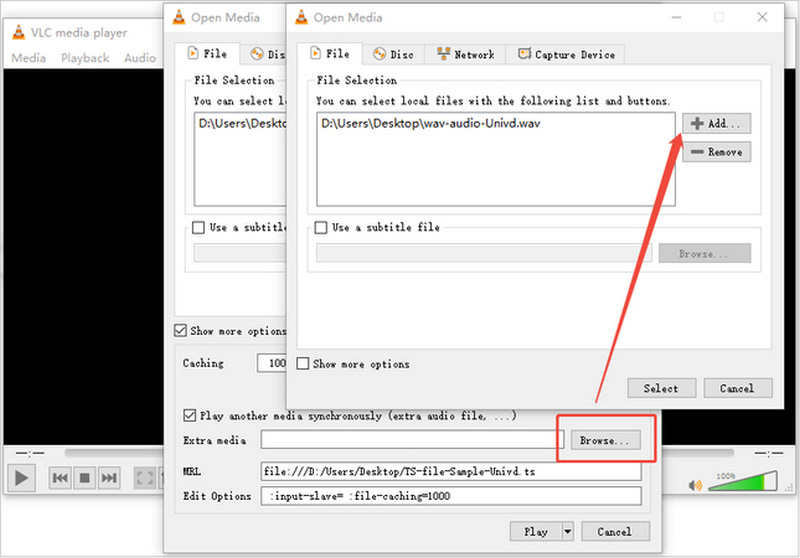
VLC Media Player can be used for more than playing audio and video files, as it can also perform simple merging through the use of commands in a command line. It is the best solution that one can use when the solution is to have an application that is small and free, and does not require installing other software.
Performance: It has fast performance for basic merging functions, but there is no optimization for advanced editing or for batching processes.
Instructions: For merging audio files with VLC, you will need to go to the Command Prompt and change the directory to the one with your audio files. Afterward, you will run a command for merging, and it will create one output file, which is usually in the MP3 format.
4. iTunes
iTunes is a simple way for users to merge audio tracks, especially for Apple users working with audiobooks, music libraries, etc. iTunes is less about merging files and more about seamless playback.
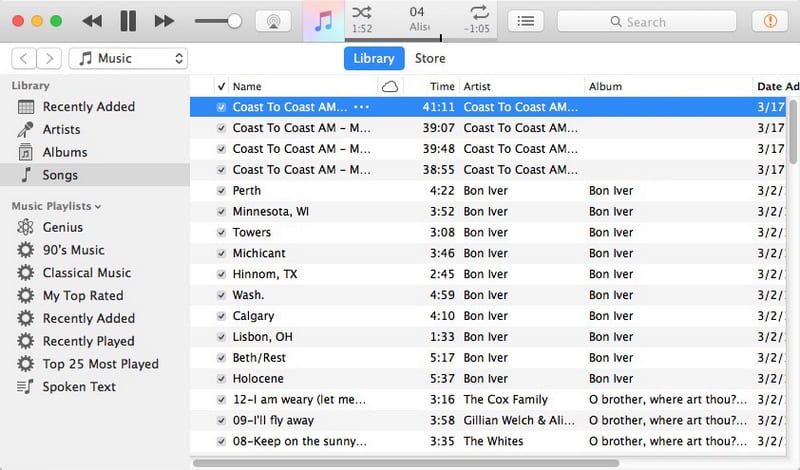
Performance: Optimized playback and performance are smooth for Apple users, but restricted for larger workflows and non-Apple users.
Instructions: Import files into iTunes, and arrange them in order. You will need to make some adjustments for playback to make it continuous for users.
5. iMovie
iMovie uses a visual timeline, making it easy for beginners to combine audio clips by dragging and arranging them. You can trim, adjust, and reorder clips, which is especially helpful for users familiar with video editing.
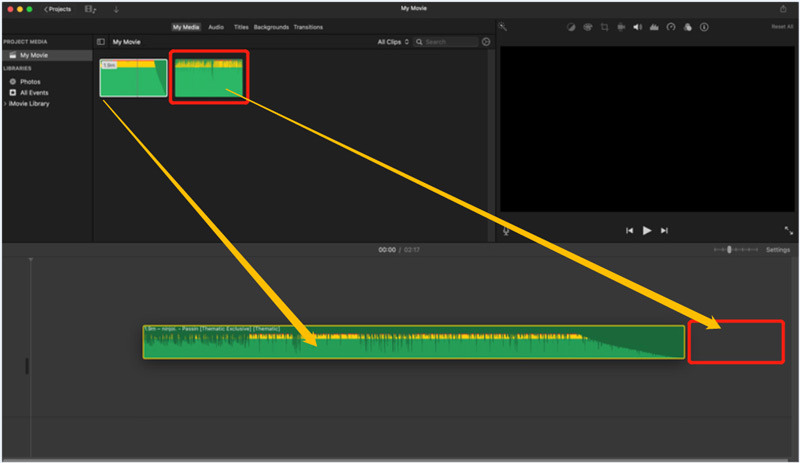
Performance: iMovie delivers smooth performance on Mac devices, though it may slow slightly with larger projects.
Instructions: Import your audio files into iMovie and place them on the timeline in your desired order. Adjust timing and trim clips as needed, then export the project as an audio file.
6. Pro Tools
Audio merging with Pro Tools is extremely detailed as it is a standard DAW of the industry. Professional audio work is achievable with simple and complex audio because of transitions, fades, effects, and adjustments that can be done.
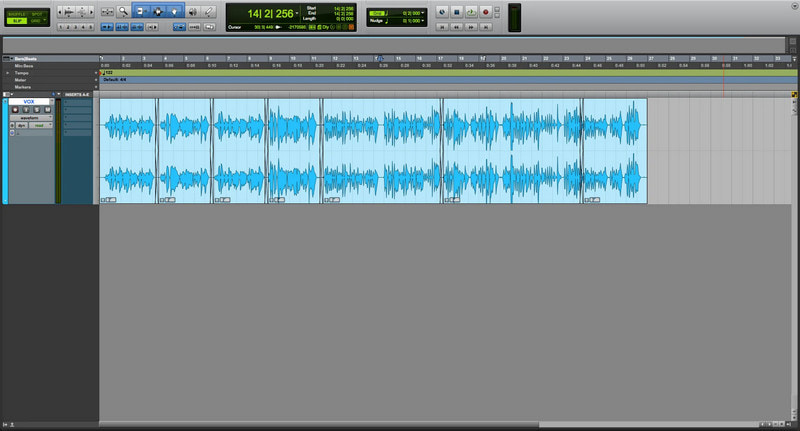
Performance: Optimized for professional use, large sessions and multi-track editing are supported seamlessly on compatible hardware.
Instructions: Create a session and import your audio files into the timeline. Arrange your files, and apply any edits before you consolidate clips and export the final merged file.
7. Adobe Premiere Pro
In addition to being an excellent professional video editor, Premiere Pro does an excellent job of integrating audio in any type of multimedia project. It is ideally suited for users who are already working with video and need audio integration.
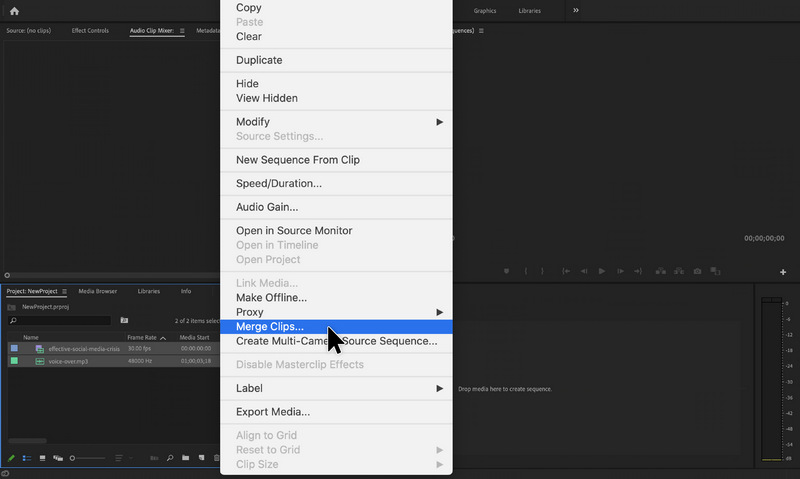
Performance: When working on a large project, performance is strong but becomes more resource-intensive, causing performance lags.
Instructions: For every audio file, either record it directly or import it into the project. When all audio files are on the timeline, arrange and sequence the audio files, and then export the project with the audio settings of your choice.
8. Adobe Audition
Adobe Audition is a great tool for audio editing and offers excellent performance in editing audio waveforms, audio merging, and audio processing. If users want audio editing done with utmost precision and want to maintain the highest quality, this is the tool to use.
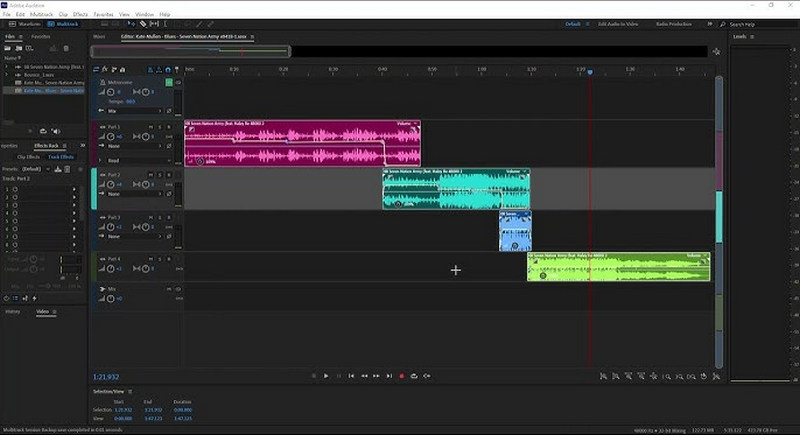
Performance: This tool offers excellent performance and stability, especially for audio editing.
Instructions: For every audio file, either record it directly or import it into the project. When all audio files are on the timeline, arrange and sequence the audio files, and then export the project with the audio settings of your choice.
9. Windows Command Prompt
With this approach, combining MP3 files is done swiftly, without complexities. Users can merge a number of audio files into one and can do so without having to install software. This is a great approach if you need to do a one-off task or if you are not technically inclined.
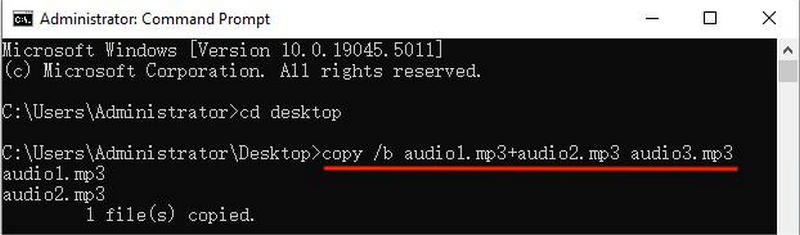
Performance: It is fast and lightweight, but offers simple merging without any features to edit.
Instructions: Open the Command Prompt on your Windows computer, navigate to the folder containing your audio files, and enter the appropriate merge command to combine them into a single output file, which will be saved in the same directory.
10. Clideo (Online Tool)
Clideo is a web-based audio file merging tool, which makes merging audio files quite accessible, as the work can be completed without installing any software, making it ideal for other quick merging needs. Works for multiple audio formats.
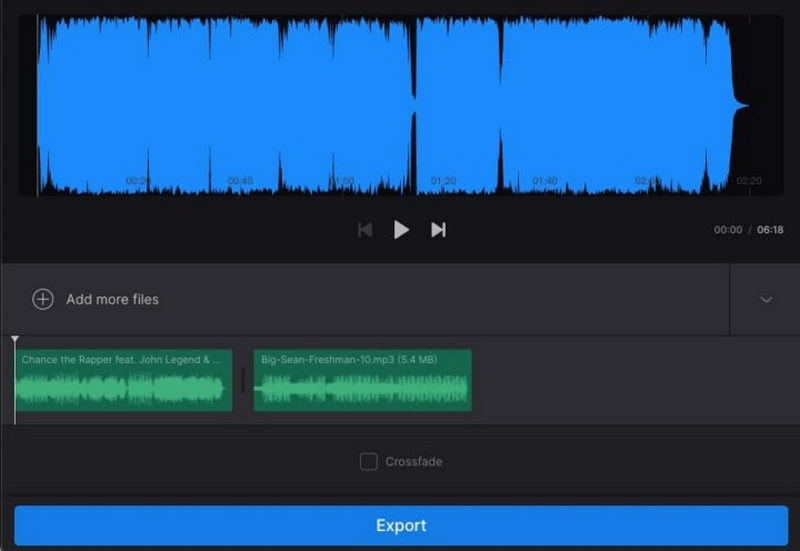
Performance: Is based on web speed. Merging large audio files can be time-consuming.
Instructions: Visit the Clideo website, upload each audio file, arrange them in the right positions, choose the output format, and wait for the files to be merged.
Part 2: Common Failures in Audio Combination
Merging audio files can be difficult if the audio files have differences in format, quality, and settings. Identifying the most common concerns will help in getting quality results.
1. Format & Compatibility Issues: You may find that the tool does not perform any work because of the format. Convert them if the tool works. It may be the case that the tool will not work if the audio files are in MP3, WAV, or M4A formats.
2. Bitrate, Sample Rate & Channel Mismatches: Different audio files have varied bitrates, sample rates, and channels, resulting in inconsistent audio. To ensure smooth playback, audio files should be normalized.
3. Quality Loss: Merging compressed audio files multiple times reduces the audio. To maintain audio quality, use lossless merging.
4. Large Batch or Performance Failures: Merging files in bulk can slow down and crash the software or leave files incomplete. Use files that have hardware acceleration for batching and merging.
5. Metadata & Track Order Issues: Track info (title, artist, album) may be lost, or files may play in the wrong sequence. Use tools that preserve metadata and allow reordering.
Part 3: Practical Use Cases of Combining Audio Files
There are numerous practical uses for combining audio files. Audiobooks and podcasts can be enhanced by supplying whole chapters or episode segments as a single audio file. Combining audio files can be useful for making music mixes, teaching aids, and the repetition of audio files for study and practice purposes.
- When creating audiobooks and podcasts, seamless transitions are ideal, so a single audio file can be used as a chapter or episode.
- Playlists and mixes can be made more engaging by including a single audio file that merges the songs.
- Combine audio files so that voiceovers, video, and narration can be done in one file and can be easily edited together. You can also loop audio when needed to extend background sound or create continuous playback.
- To create teaching aids, practice sessions, and audio recordings that can be used in an educational environment, you can repeat the same audio file.
- Separate files of speeches and concerts can be edited together, or a single audio file can be used for archiving or event recordings.
- To create audio recordings that can be played without interruption, combine audio recordings of loops or sounds.
Part 4: FAQs of Merging Audio Files
Is there a free audio merger available?
Audacity and VLC Media Player can be used to combine audio files for free. They are able to merge audio files of various formats, including MP3, WAV, and OGG, and provide limited editing options.
What is the best audio merger software?
One of the best audio merger software programs available is AVAide Video Converter. It is able to merge audio files while keeping the same audio quality, allows for editing of the audio file's metadata, and can be processed quickly.
Can I join audio files without downloading software?
Yes, there are online audio mergers, for example, Clideo or Audio Joiner, which enable you to merge files directly from your browser. The downside is that they tend to have more restrictive file size limits, and if you are working with a larger volume of files to be merged, you could experience longer processing times.
To merge audio files effectively, choose the right tool based on your needs. Whether for podcasts, music, or audiobooks, the methods outlined ensure a high-quality, seamless, and efficient audio combination.
ABOUT THE AUTHOR

Your complete video toolbox that supports 350+ formats for conversion in lossless quality.